Change subject site
Typically, when subjects are enrolled in a clinical trial, they are assigned to specific sites that they will be most comfortable attending for their future visits or that are equipped with the appliances needed for their treatment. Sometimes, you might need to change the subject site in a course of a clinical trial, for instance, in case of the subject relocation.
-
In the EDC application header, select the STUDY INFO tab.
-
On the page that opens, in the left pane, expand the Subject option.
-
In the menu that appears, select the Subject Information subtab.
-
In the Subject List table that opens, next to the needed subject, from the Actions column, select More
 > Change Subject Site
  .
.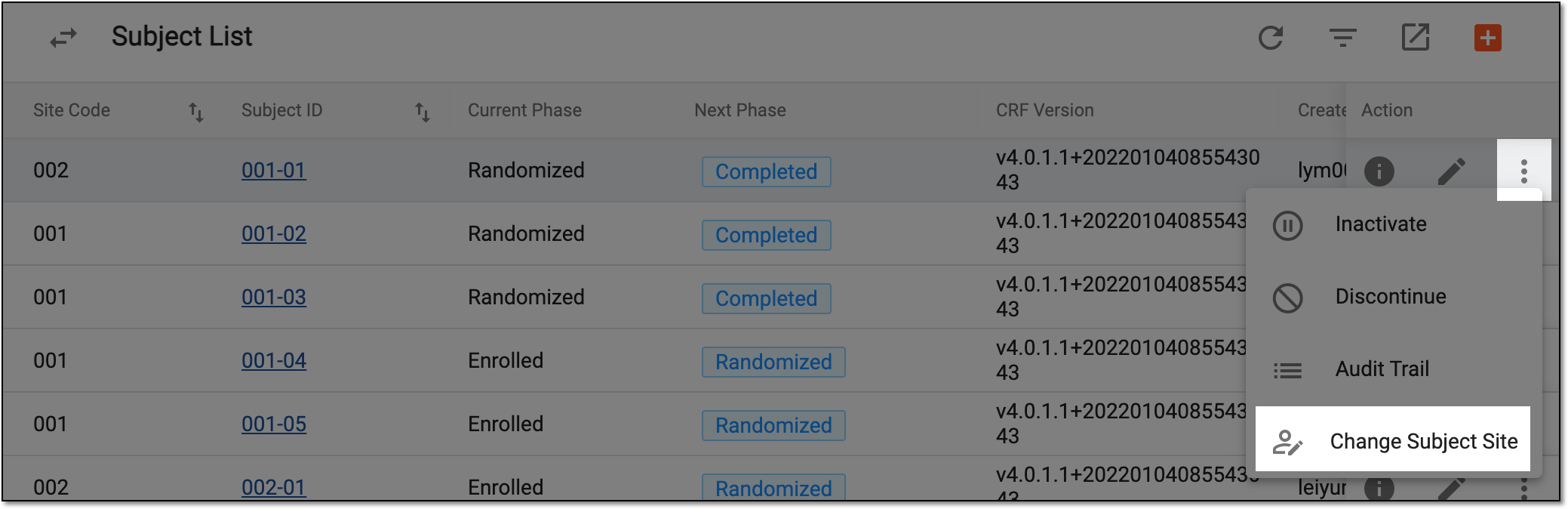 Figure 1. Change subject site option
-
In the Change Subject Site dialog that opens, complete the fields as explained in the following table.
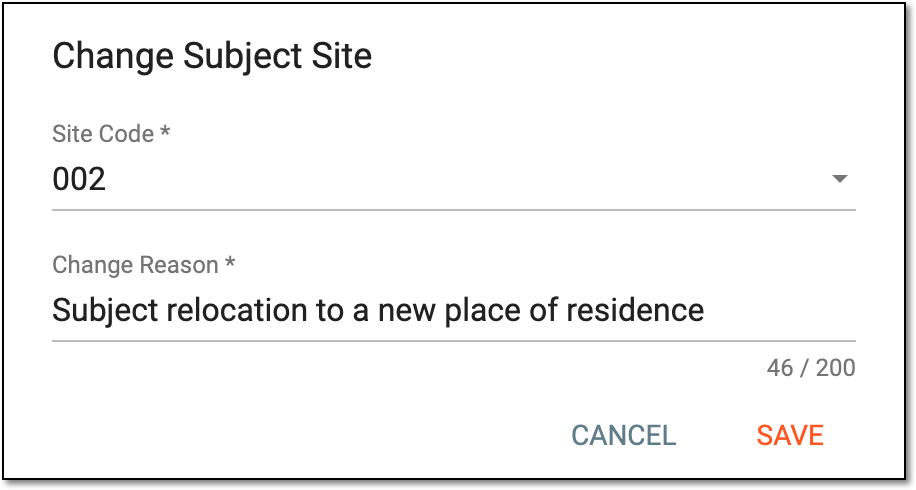 Figure 2. Changing subject site
Tip
In the following table, mandatory elements are marked with an asterisk (*).
Element
Details
Site Code*
Select the code of the site to which you want to reassign the subject.
Change Reason*
Enter the reason why the subject site needs to be changed.
SAVE
Select
 to save the implemented changes.
CANCEL
Select
 to discard the changes without saving.
Once saved, the subject is reassigned to another site, and you can now see a different site code displayed in the Site Code column of the Subject List table.