Follow-up query for ICSR
A follow-up query is a communication tool in PV that you can use to request data clarifications, confirmation, fixes, or other assistance from the EDC user who submitted the ICSR case.
Important
Currently you can only create queries for the cases created via the EDC import, and if the case is created from scratch in PV, the follow-up query functionality is unavailable.
You can create and manage queries for the cases based on the study access permissions granted to you via ADMIN.
A follow-up query is a communication tool in PV that you can use to request data clarifications, confirmation, fixes, or other assistance from the EDC user who submitted the ICSR case.
In PV, you can create queries with multiple questions for different data elements within the ICSR forms.
For instance, from the Event form, you need to clarify both the verbatim term and the date when the event was last reported. Thus, you can create a query with the topic "Event form clarifications" and then add both your questions to it and send the complete list to the dedicated EDC user.
On the EDC side, the case reporter will receive the request via email and provide their response on each question within the query via the Safety Queries module.
Important
You can only create follow-up queries for the cases generated via the EDC import.
-
In the PV application header, select the ICSR tab.
-
On the ICSR List page that opens, in the table, locate the ICSR record for which the query must be created. Then select its case number to open the details page in the new browser tab.
Alternatively, from the Actions column next to your ICSR, select Edit
 to open
the ICSR details in the same browser tab.
to open
the ICSR details in the same browser tab. Figure 1. Selecting to edit ICSR
-
On the ICSR processing page, perform one of the following actions:
-
From the toolbar, select More
 > Follow-up Query
  .
.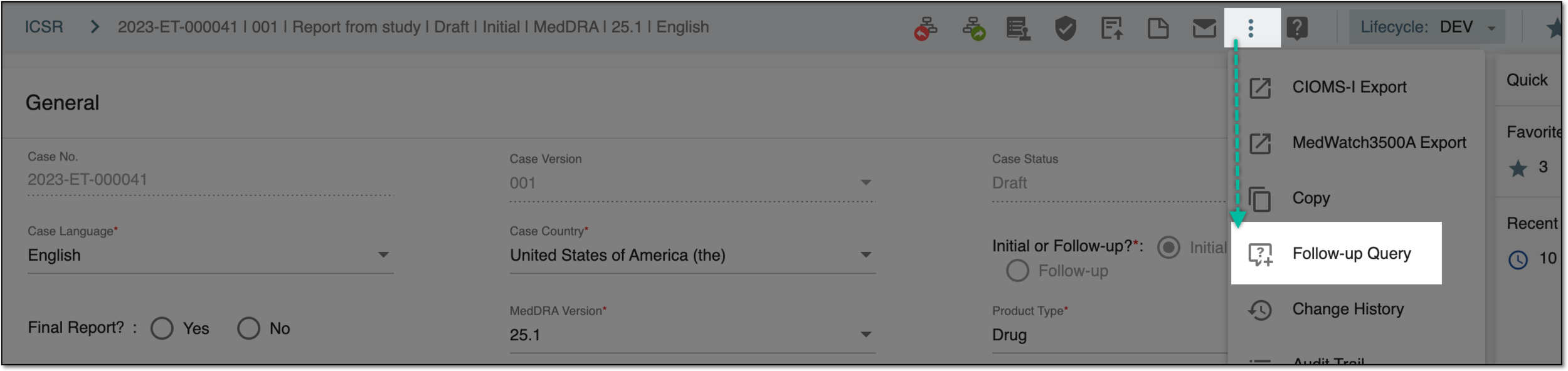 Figure 2. Adding query via ICSR page
-
From the toolbar, select Contact Log
 and on the page that opens, from the workspace toolbar, select
New Follow-up Query .
and on the page that opens, from the workspace toolbar, select
New Follow-up Query . Figure 3. Adding query via contact log
-
-
In the New Follow-up Query form that opens, complete the details as explained in the following table.
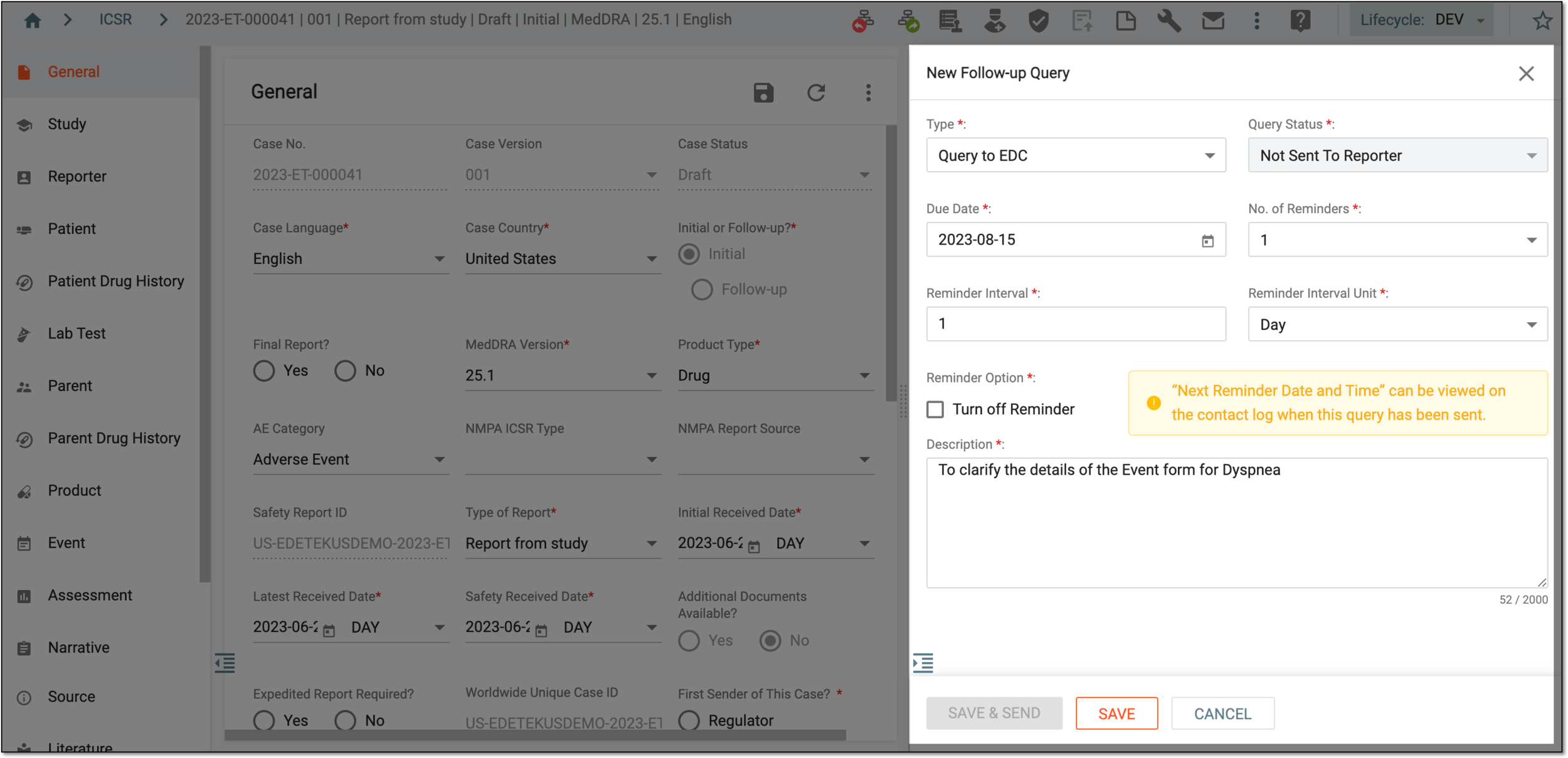 Figure 4. Creating follow-up query
Tip
In the following table, mandatory elements are marked with an asterisk (*).
Element
Details
Type*
Select the type of your query. For now, the system only supports queries of a single type—Query to EDC—which means that the created query is intended for the EDC user who is the case reporter.
Query Status*
Indicates the current status of your query and is a read-only value. The statuses can be Not Sent To Reporter, Sent To Reporter, Reporter Submitted, Accepted, Partially Accepted, and Rejected.
Due Date*
Select the due date before which your query must be answered. The time frame for the query resolution varies depending on the company's standard procedure.
No. of Reminders*
Select the number of additional reminders that you want the query assignee to receive until they reply to the query.
If the query is successfully sent to EDC, the assignee receives an email notification immediately. With the No. of Reminders field, you can configure notifications that will be additional to the initial
                                        notification. Also, as soon as the query is replied to, the system aborts the reminders even if not all of them are sent.
For instance, if you configure that the query assignee must receive five additional reminders, but they reply to your query after only two reminders, the other three are aborted.
Reminder Interval*
Enter the number to specify the frequency of reminders that the query assignee will receive.
Reminder Interval Unit*
Select the unit to define the frequency of reminders that the query assignee will receive.
For instance, if in the Reminder Interval field, you have entered 1, and the reminder interval unit is set to Day, then the query assignee will receive a reminder every day.
Next Reminder Date
Represents the date of the next reminder to be sent to the query assignee. This date is calculated automatically by the system based on the query sending date and the reminder interval settings.
The value is read-only and available only after the query status changes to Sent to Reporter and until it changes to Reporter Submitted.Reminder Option*
Select the Turn off Reminder check box not to send additional reminders to the query assignee. If selected, the No. of Reminders*, Reminder Interval*, Reminder Interval Unit*, and Next Reminder Date fields are disabled.
Description*
Provide the purpose of the query that you are creating.
For instance, if you need to clarify some details of the event reported in the ICSR, you can enter the following description: To clarify the details of the Event form for Dyspnea.
SAVE
Select
 to save the implemented changes.
CANCEL
Select
 to discard the changes and close the form.
SAVE & SEND
Represents an option to save and simultaneously send the query question to EDC. The button is disabled until a question(s) is added to your query.
Once saved, the query is added to the Contact Log list. You can now add question(s) to your query and then send the query to EDC.
A follow-up query is a communication tool in PV that you can use to request data clarifications, confirmation, fixes, or other assistance from the EDC user who submitted the ICSR case.
In PV, you can create queries with multiple questions within. This becomes useful if you need, for instance, to clarify a few different data elements within one of the ICSR forms. Thus, you create a query and add multiple questions to it.
There are two types of questions that you can add to your query:
-
Structured question: with this option, you can add a question to a query and select the specific form, record, and data element that needs to be clarified. This way, when the EDC user addresses your query and provides updated data, and you, as a PV user, accept the response, the new data is populated directly to the form and field of the case report in PV.
For instance, the ICSR form states: Was the adverse event serious? = Yes.
You create a structured query question and select this field as the one to be clarified. And the EDC case reporter replies, that the real value should be: Was the adverse event serious? = No.
Once you accept the response on the PV side, the system updates the respective ICSR form element with the value No.
-
Unstructured comment: with this option, you add a comment to a query without selecting any specific data elements to which it relates. This comment needs to be addressed by the EDC case reporter, but the system cannot automatically process the answer and implement it to the ICSR forms in PV, even if the response is accepted by the PV user.
-
In the PV application header, select the ICSR tab.
-
On the ICSR List page that opens, perform one of the following actions to access Contact Log and the needed follow-up query:
-
To access follow-up queries of the specific case, in the ICSR List table, locate the needed case and open it by selecting the case number or Edit
. Then on the ICSR report page, from the workspace toolbar, select Contact Log .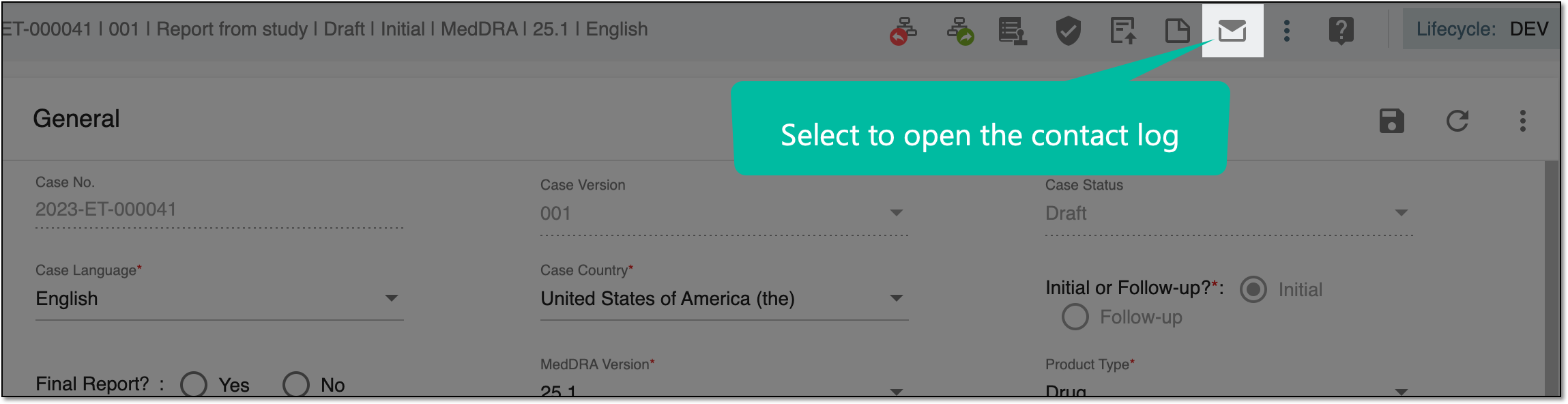 Figure 1. Accessing contact log from case report page
-
To access all the follow-up queries that require attention, from the left pane, select the Contact Log subtab.
 Figure 2. Accessing contact log from ICSR list page
Tip
From this page, you can only access follow-up queries of the Not Sent To Reporter, Sent To Reporter, No Response Received, and Reporter Submitted statuses. The queries that are not yet expired are marked as On Time
 , and those past due are marked as Late
  .
.
-
-
On the Contact Log page that opens, perform one of the following actions:
-
If the query to which you need to add a question exists, locate it in the table and from the Actions column next to it, select Edit
. -
If you need to create a new query with questions, follow the Create follow-up query procedure and upon saving the query, proceed to the following step.
-
-
In the Edit Follow-up Query form, select
 .
.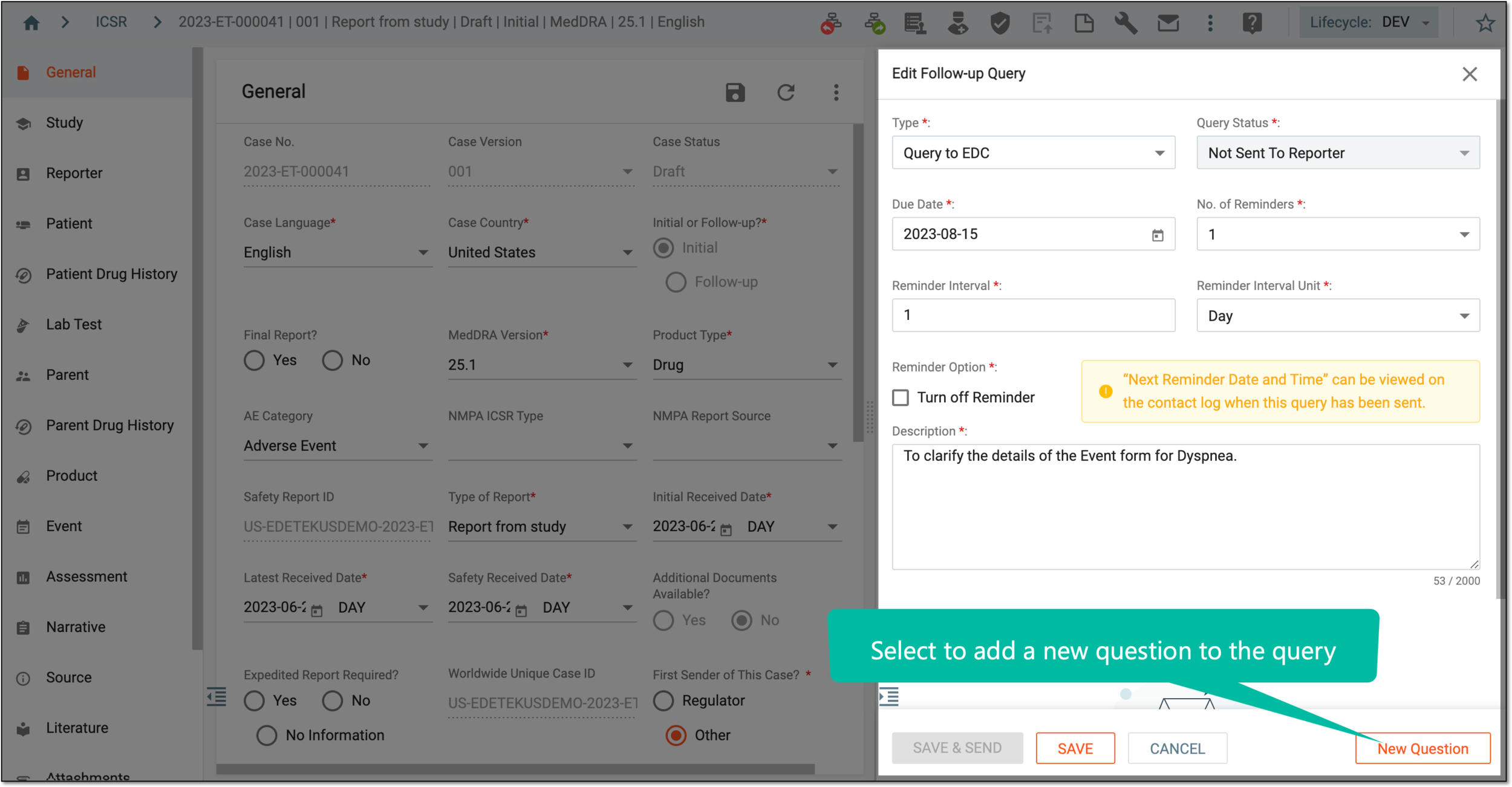 Figure 3. Adding question to query
-
In the New Question dialog that opens, complete the details as explained in the following table.
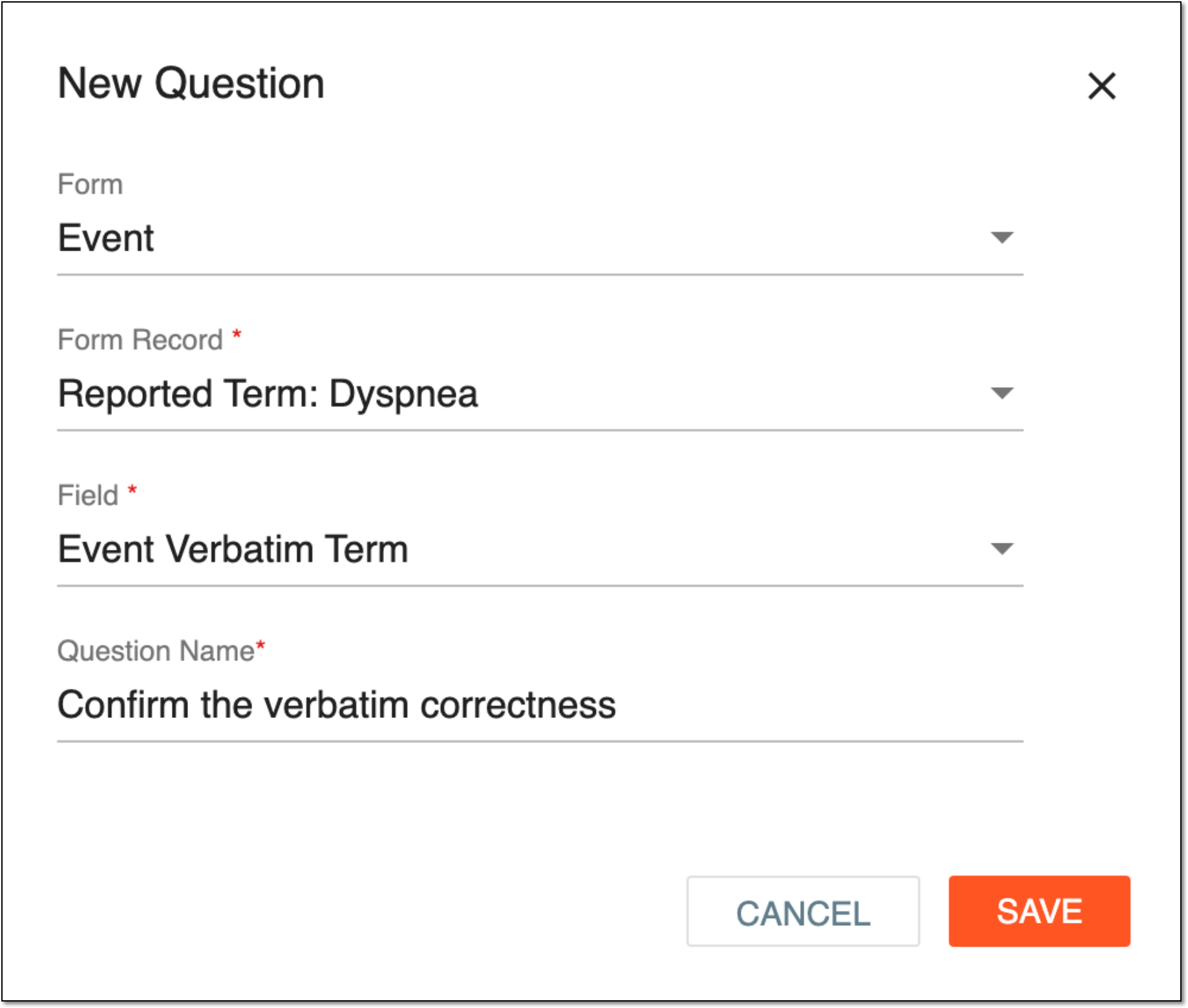 Figure 4. Completing question details
Tip
In the following table, mandatory elements are marked with an asterisk (*).
Element
Details
Form
Select the ICSR form to which your question relates.
-
If selected, the Form Record and Field elements become mandatory, and as a result, you create a structured question for a specific data element of the ICSR.
-
If no value is selected, the Form Record and Field elements are optional, and, as a result, you create an unstructured comment unrelated to any specific data element of the ICSR.
Form Record*
Select the record within the form to which your question relates.
The field is only mandatory if the Form field value is selected.Field*
Select the field within the form record to which your question relates.
The field is only mandatory if the Form field value is selected.Question Name*
Enter the question or request that you need to be addressed by the case reporter on the EDC side.
SAVE
Select
 to save the implemented changes.
CANCEL
Select
to discard the changes and close the dialog.Tip
To add more questions to an existing group, select New Question
 next to
the group title.
next to
the group title.To delete the question group, next to it, select
 , and to delete an individual question, next to it, select
  .
.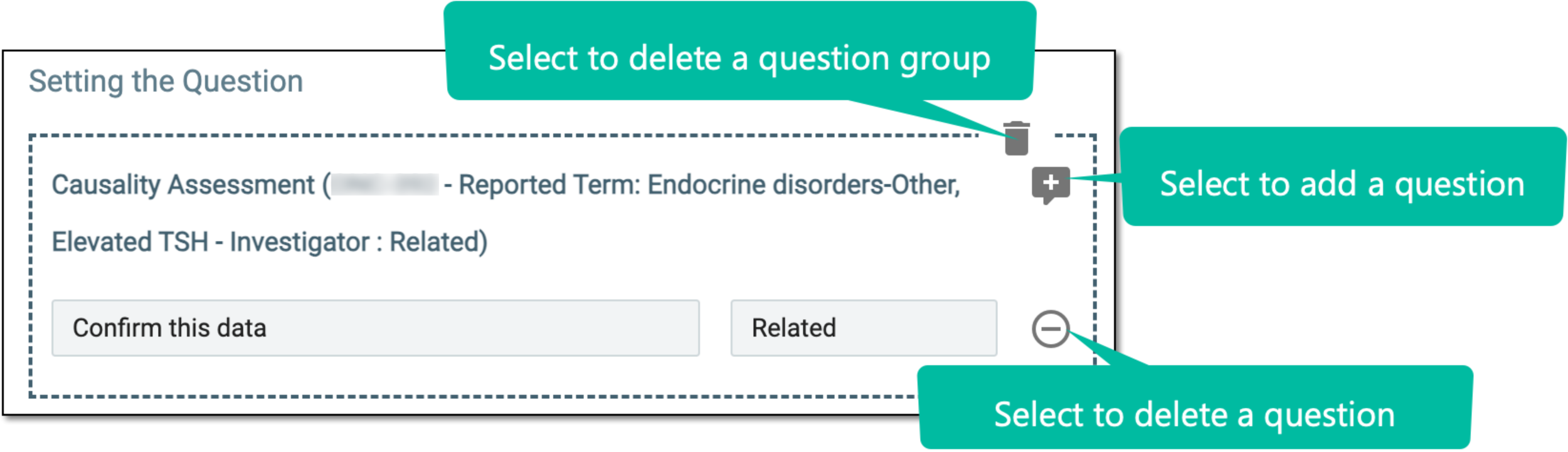 Figure 5. Adding question to existing group or deleting question/group
-
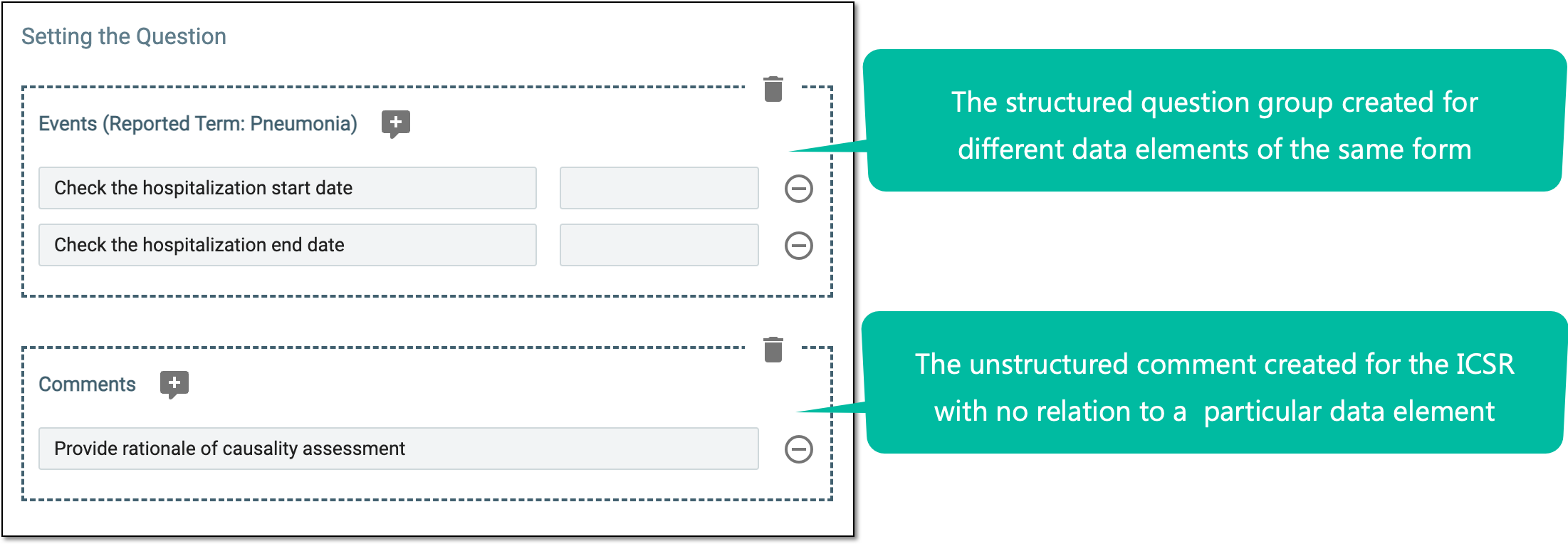
Upon saving, the question is added to the Setting the Question block of your query. You can add more questions to cover as many requests as needed and then send the query to EDC.
To facilitate maintenance, the structured questions added to the fields of the same form record are grouped together. The unstructured comments are grouped in a separate block.
A follow-up query is a communication tool in PV that you can use to request data clarifications, confirmation, fixes, or other assistance from the EDC user who submitted the ICSR case.
In PV, you can create a follow-up query for an ICSR, and until the query is sent to EDC, you can edit its details or add more questions.
Important
You can only edit follow-up queries that have not been sent to EDC. For queries that have already been sent to EDC, you can only view their details by selecting View  .
.
-
In the PV application header, select the ICSR tab.
-
On the ICSR List page that opens, perform one of the following actions to access Contact Log and the needed follow-up query:
-
To access follow-up queries of the specific case, in the ICSR List table, locate the needed case and open it by selecting the case number or Edit
. Then on the ICSR report page, from the workspace toolbar, select Contact Log .Figure 1. Accessing contact log from case report page
-
To access all the follow-up queries that require attention, from the left pane, select the Contact Log subtab.
Figure 2. Accessing contact log from ICSR list page
Tip
From this page, you can only access follow-up queries of the Not Sent To Reporter, Sent To Reporter, No Response Received, and Reporter Submitted statuses. The queries that are not yet expired are marked as On Time
, and those past due are marked as Late .
-
-
On the Contact Log page that opens, locate the query you want to edit and from the Actions column next to it, select Edit
. -
In the Edit Follow-up Query form that opens, update the details as explained in the respective table. To add more questions to your query, follow the Add question to query procedure.
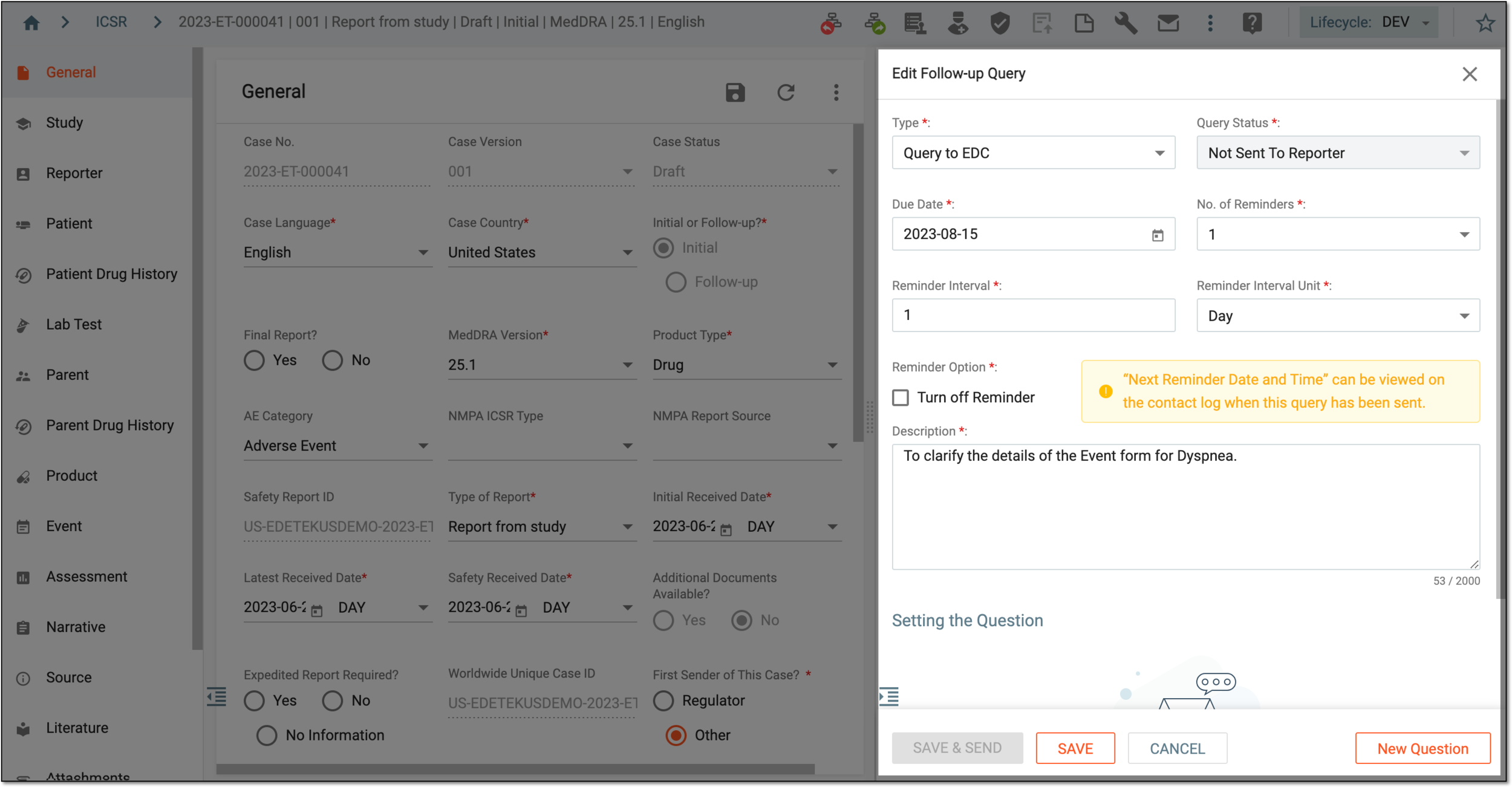 Figure 3. Editing follow-up query
-
Select one of the following options:
-
Select
to save the implemented changes. -
Select
 to save the implemented changes and simultaneously send the query to EDC.
-
Depending on the selected action, the result varies:
-
If you have selected SAVE & SEND, the query is updated and sent to EDC. The dedicated user receives an email notification that they have the query to address.
-
If you have selected SAVE, the query is updated and you can send it to EDC when needed.
A follow-up query is a communication tool in PV that you can use to request data clarifications, confirmation, fixes, or other assistance from the EDC user who submitted the ICSR case.
In PV, you can create a follow-up query for an ICSR, add multiple questions to it and then send it to EDC so that the case reporter can address your questions.
-
In the PV application header, select the ICSR tab.
-
On the ICSR List page that opens, perform one of the following actions to access Contact Log and the needed follow-up query:
-
To access follow-up queries of the specific case, in the ICSR List table, locate the needed case and open it by selecting the case number or Edit
. Then on the ICSR report page, from the workspace toolbar, select Contact Log .Figure 1. Accessing contact log from case report page
-
To access all the follow-up queries that require attention, from the left pane, select the Contact Log subtab.
Figure 2. Accessing contact log from ICSR list page
Tip
From this page, you can only access follow-up queries of the Not Sent To Reporter, Sent To Reporter, No Response Received, and Reporter Submitted statuses. The queries that are not yet expired are marked as On Time
, and those past due are marked as Late .
-
-
On the Contact Log page that appears, locate the query you want to send to EDC, and perform one of the following actions:
-
From the Actions column next to the query, select Send
 to send the query to
EDC directly from the contact log.
to send the query to
EDC directly from the contact log.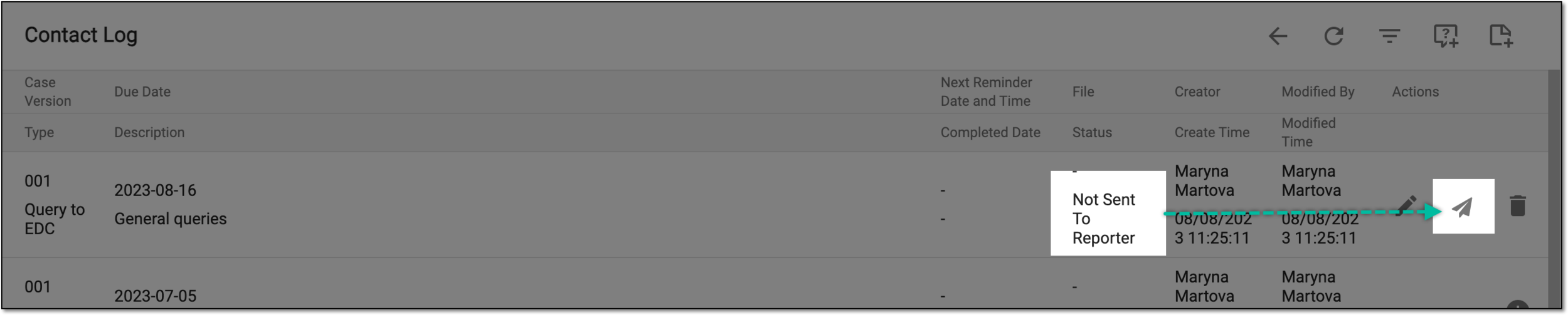 Figure 3. Example of sending query to EDC from contact log
-
From the Actions column next to the query, select Edit
and in the
Edit Follow-up Query form, update the query or add more questions before sending to EDC and select .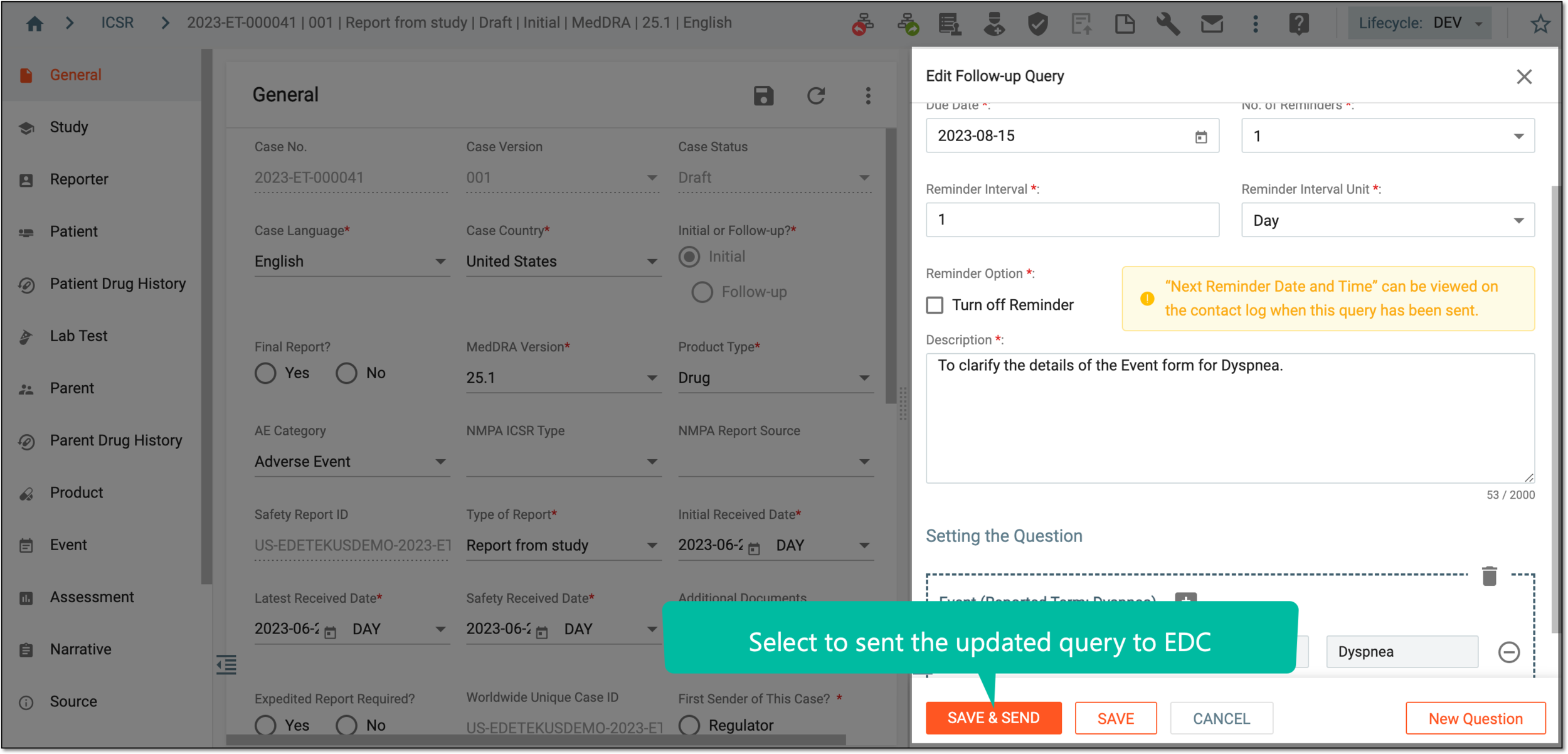 Figure 4. Saving and sending updated query to EDC
-
The query is sent to EDC. The case reporter on the EDC side receives an email notification that they have new queries to address. The email includes the link to easily access the system and the specific page that requires attention. To open the needed page, the user must log in to the system upon clicking the link.
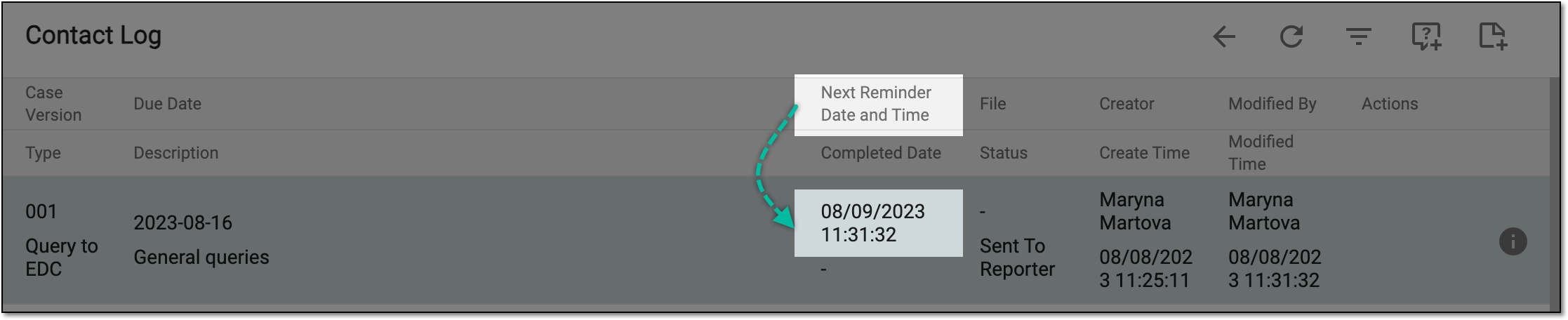
For the sent query, you can now find the Next Reminder Date and Time value in the contact log table to know when the assignee of the query gets their next reminder to provide an answer.
Once the query is answered in EDC, you receive a respective email notification and can review the response in PV and implement the needed changes.
A follow-up query is a communication tool in PV that you can use to request data clarifications, confirmation, fixes, or other assistance from the EDC user who submitted the ICSR case.
In PV, you can create a follow-up query for an ICSR, and until the query is sent to EDC, you can edit its details or add more questions. When the follow-up query is already sent to a case reporter, you can no longer perform actions with it until you receive the reply.
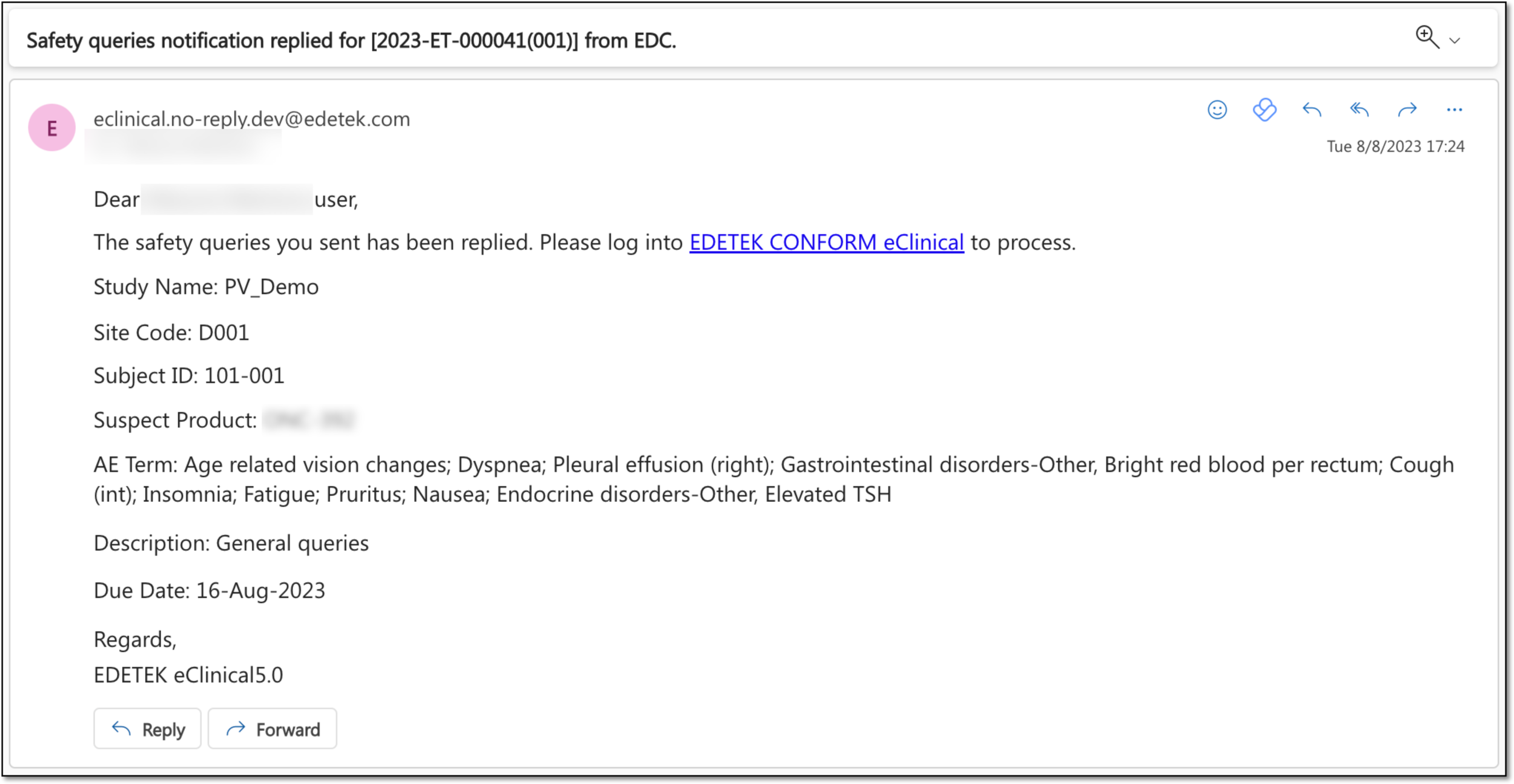
Once the query is handled on the EDC side, you receive the email notification that your query has been replied and now you need to review the response.
-
In the PV application header, select the ICSR tab.
-
On the ICSR List page that opens, perform one of the following actions to access Contact Log and the needed follow-up query:
-
To access follow-up queries of the specific case, in the ICSR List table, locate the needed case and open it by selecting the case number or Edit
. Then on the ICSR report page, from the workspace toolbar, select Contact Log .Figure 2. Accessing contact log from case report page
-
To access all the follow-up queries that require attention, from the left pane, select the Contact Log subtab.
Figure 3. Accessing contact log from ICSR list page
Tip
From this page, you can only access follow-up queries of the Not Sent To Reporter, Sent To Reporter, No Response Received, and Reporter Submitted statuses. The queries that are not yet expired are marked as On Time
, and those past due are marked as Late .
-
-
On the Contact Log page that opens, locate the query for which you want to review the reply. Then from the Actions column next to it, select Review
 .
.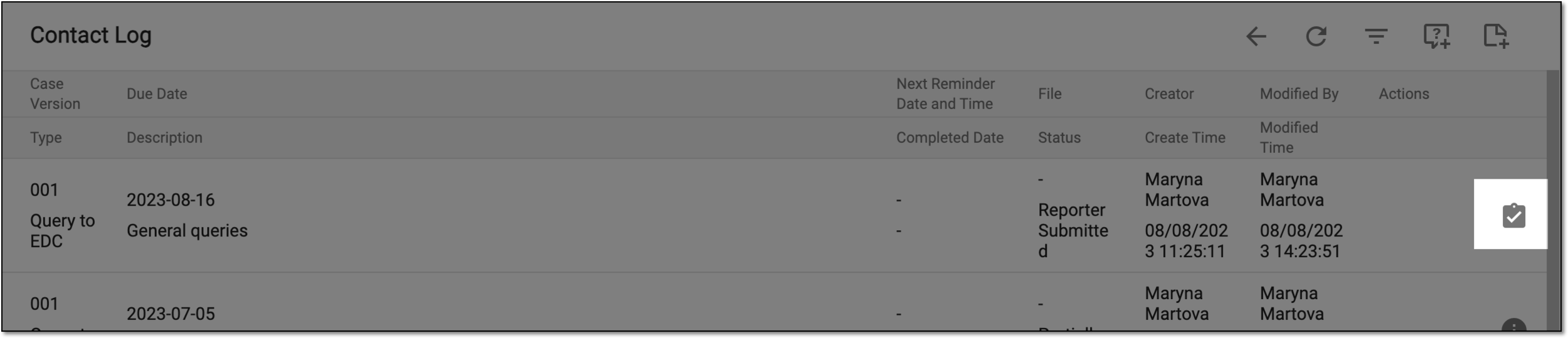 Figure 4. Example of reviewing query
-
In the Review Follow-up Query dialog that appears, review the replies provided on the EDC side and either accept or reject them as follows:
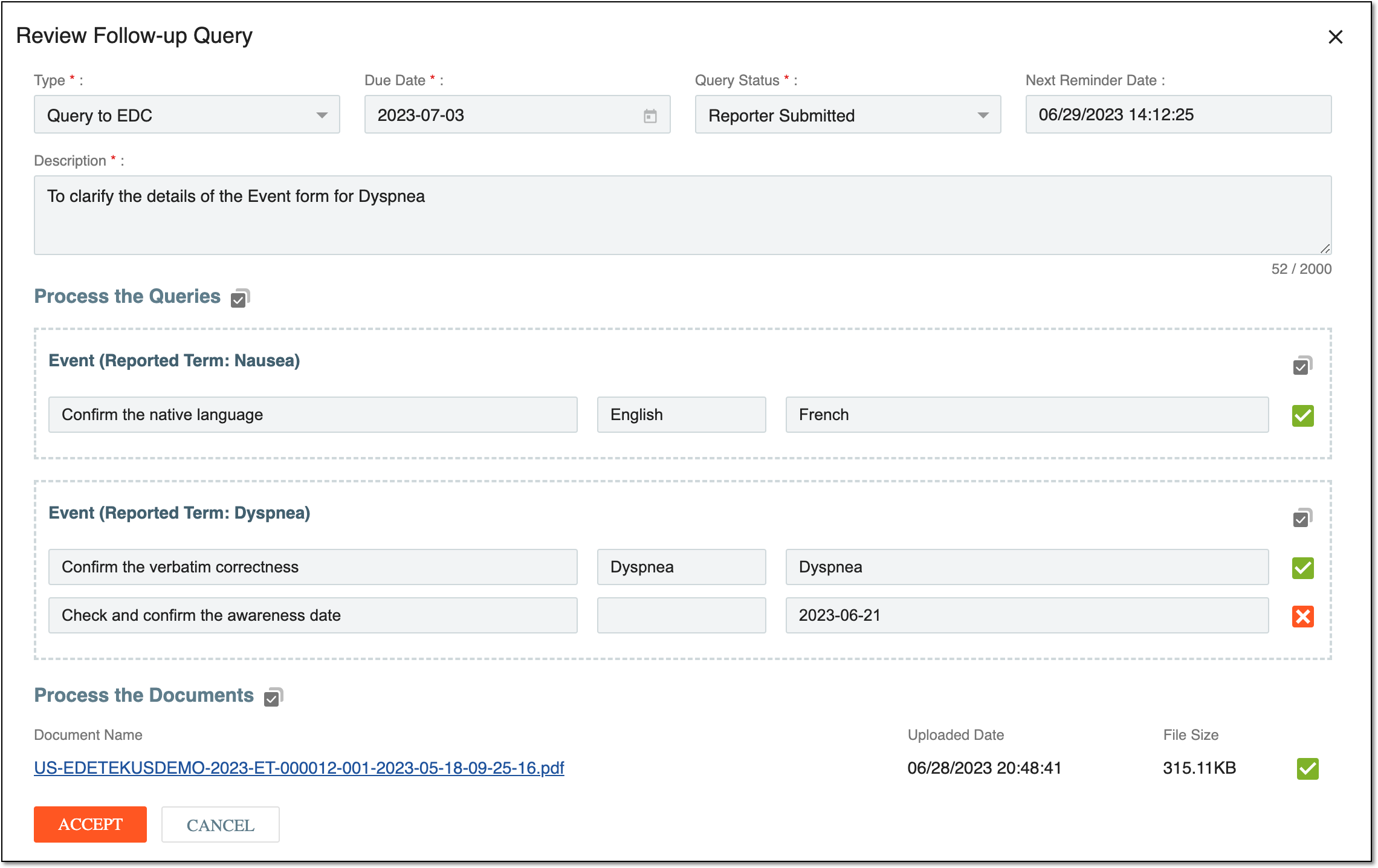 Figure 5. Accepting/rejecting query replies
-
To view the comment provided along the reply, if any, select EDC Reply Comment
 and in the dialog that opens, view the
details.
and in the dialog that opens, view the
details.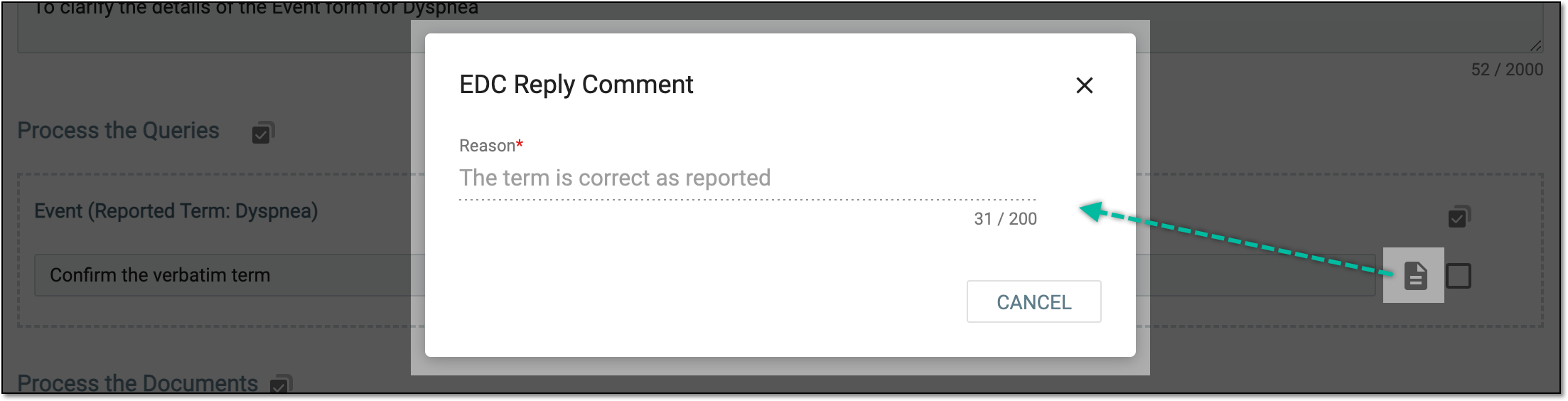 Figure 6. Viewing reply comment
-
To accept the reply, select the checkbox next to it so that Accept
 appears.
 -
To reject the reply, select the Accept icon again so that Reject
 appears.
Then select Reject Reason
appears.
Then select Reject Reason  and in the dialog that opens, provide the reason for rejecting the reply.
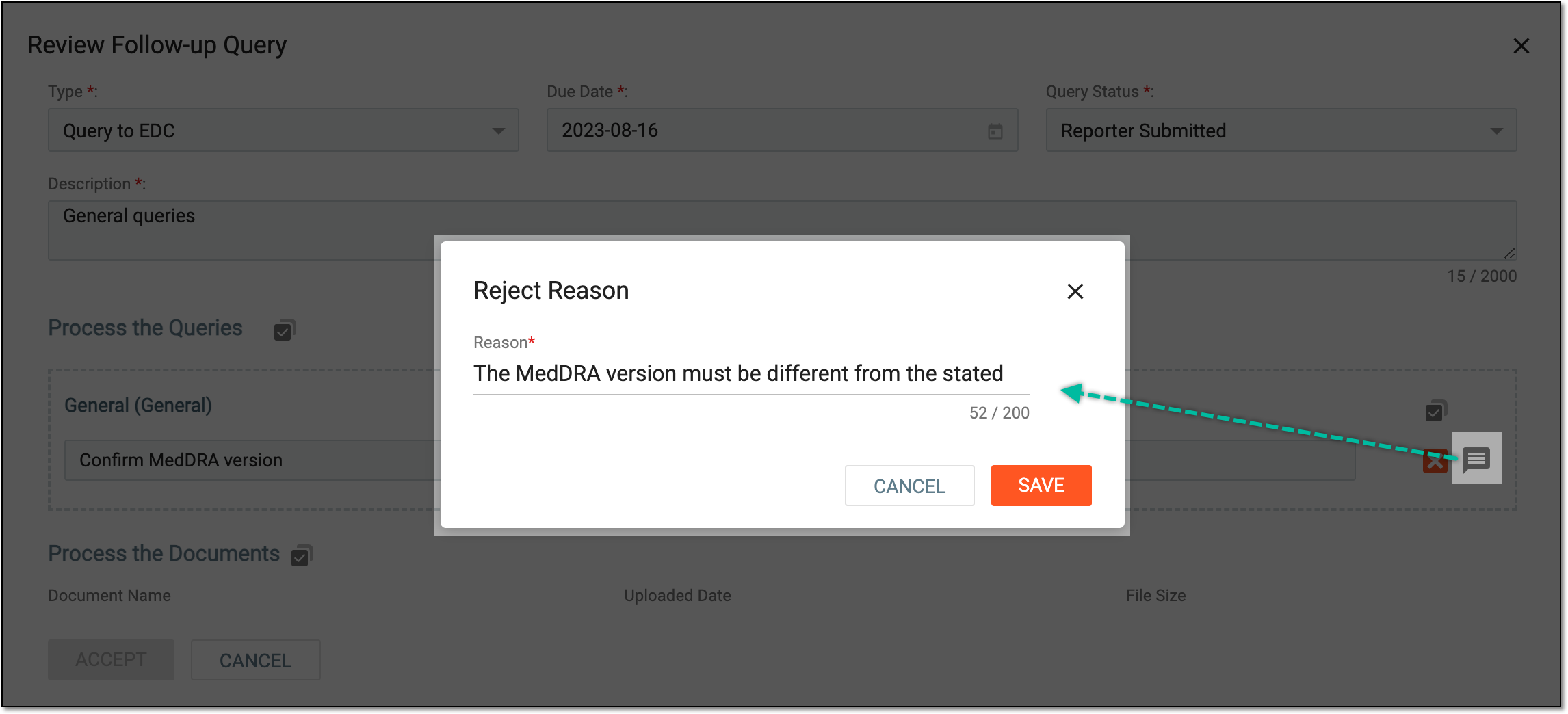 Figure 7. Providing rejection reason
-
To accept/reject all the replies in bulk, select Batch
 and then one of the available
options—Accept All or Reject All.
and then one of the available
options—Accept All or Reject All.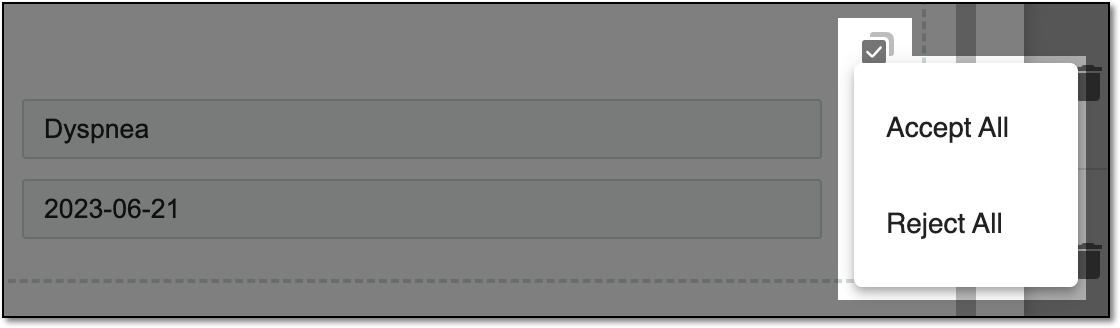 Figure 8. Processing replies in bulk
Tip
If the query reply contains an attached file, to decide on acceptance/rejection, you can preview the file content by selecting its name.
-
-
Depending on the selected option—accepting or rejecting the reply—the system displays one of the following actions:
-
Select
 to submit the accepted processed query replies. The ACCEPT option is available if at least one reply (or
all of them) is accepted.
to submit the accepted processed query replies. The ACCEPT option is available if at least one reply (or
all of them) is accepted. -
Select
 to submit the rejected processed query replies. The REJECT option is available if all the replies are
rejected.
to submit the rejected processed query replies. The REJECT option is available if all the replies are
rejected.
-
-
In the dialog that appears upon acceptance, the Update To Current Case option is selected by default. Select
 to
confirm the action.
to
confirm the action.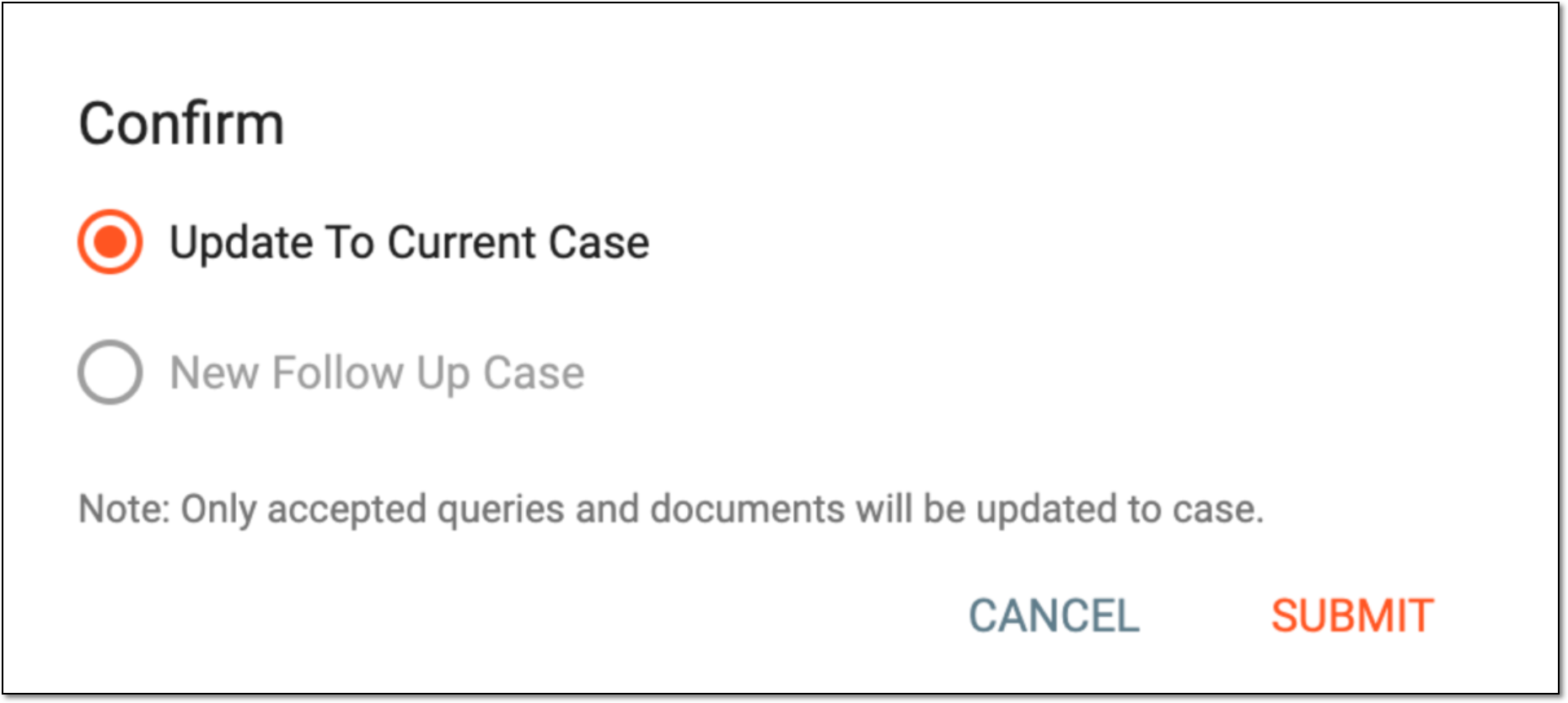 Figure 9. Confirming to update ICSR values from query reply
Important
If the case is in the Case Submissions or Case Archived workflow, the accepted data is not updated in the respective form(s) because the case is already prepared for submission.
Currently, you cannot create a follow-up version of ICSR from query processing, as it would create inconsistencies between the EDC task—from which the case is created—and PV ICSR.
Once submitted, for the structured question(s), the accepted elements—updated field values and documents—are populated to the respective ICSR fields. For the unstructured comment(s) you need to manually change the data in ICSR.
For instance, if the native language of your report has been stated as English, but upon clarification on your structured question, you receive the reply that it is French, and you accept the reply, the system updates the ICSR native language to French.
The values for answered questions that are rejected, especially for structured questions, are not updated in the ICSR fields and are considered closed. Users can create another query on the issue/question that the rejected answer does not solve.
The EDC user receives an email notification that their reply is accepted/rejected, including the link to easily access the system and the specific page that requires attention. To open the needed page, the user must log in to the system upon clicking the link.
A follow-up query is a communication tool in PV that you can use to request data clarifications, confirmation, fixes, or other assistance from the EDC user who submitted the ICSR case.
In PV, you can create a follow-up query for an ICSR, and until the query is sent to EDC, you can edit its details, add more questions, or delete the query if it is no longer needed.
Important
You cannot delete a follow-up query that is already sent to EDC. For those, only the following options can be available:
-
Info
: select this option to view query details. -
Review
: select this option to review the replies provided by the EDC user. The option is only
available for queries of the Reporter Submitted status.
-
In the PV application header, select the ICSR tab.
-
On the ICSR List page that opens, perform one of the following actions to access Contact Log and the needed follow-up query:
-
To access follow-up queries of the specific case, in the ICSR List table, locate the needed case and open it by selecting the case number or Edit
. Then on the ICSR report page, from the workspace toolbar, select Contact Log .Figure 1. Accessing contact log from case report page
-
To access all the follow-up queries that require attention, from the left pane, select the Contact Log subtab.
Figure 2. Accessing contact log from ICSR list page
Tip
From this page, you can only access follow-up queries of the Not Sent To Reporter, Sent To Reporter, No Response Received, and Reporter Submitted statuses. The queries that are not yet expired are marked as On Time
, and those past due are marked as Late .
-
-
On the Contact Log page that opens, go to the query you want to delete, and from the Actions column next to it, select Delete
.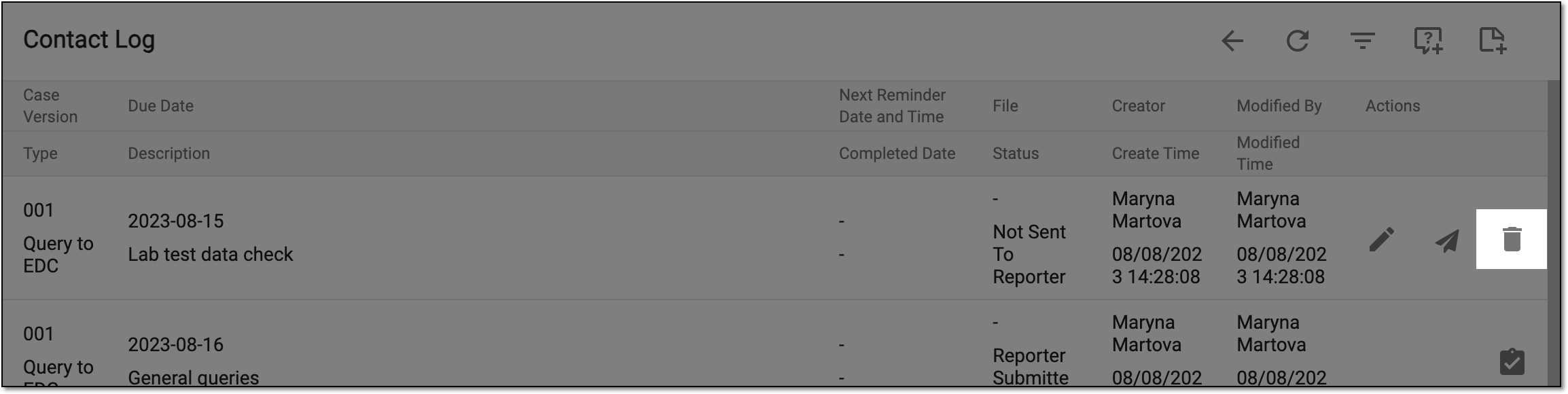 Figure 3. Example of deleting follow-up query
-
In the Delete Item confirmation dialog that appears, select
 to proceed with the follow-up query
deletion.
to proceed with the follow-up query
deletion.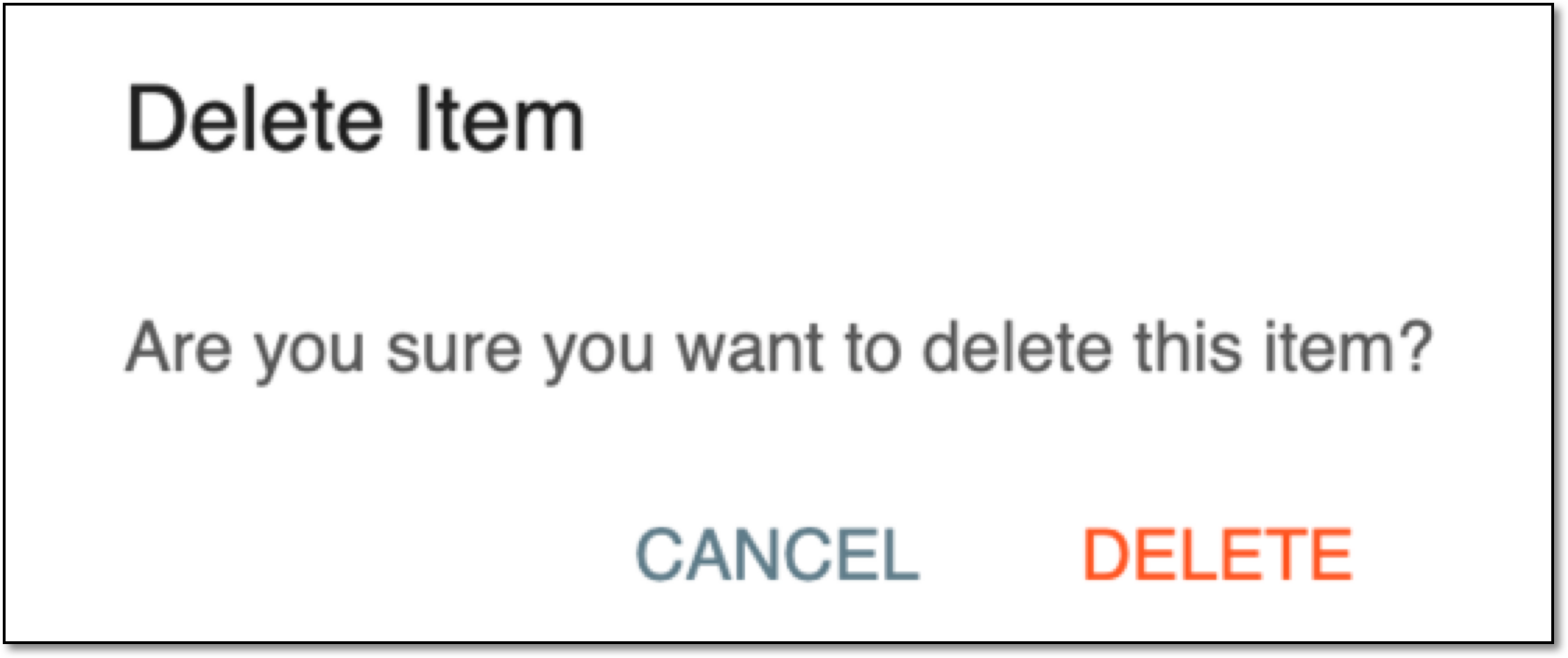 Figure 4. Confirming follow-up query deletion
Upon confirmation, the follow-up query is removed from the contact log.