Review safety query in EDC
A safety query is a communication tool for PV users that facilitates requesting data clarifications, confirmation, fixes, or other assistance from the EDC users who are the reporters of the ICSR in question.
Once you, as a case reporter in EDC, receive a new query from PV, you need to review the request and provide your feedback.
Tip
Once a new query that requires your attention is sent from PV, you receive an email similar to the following.
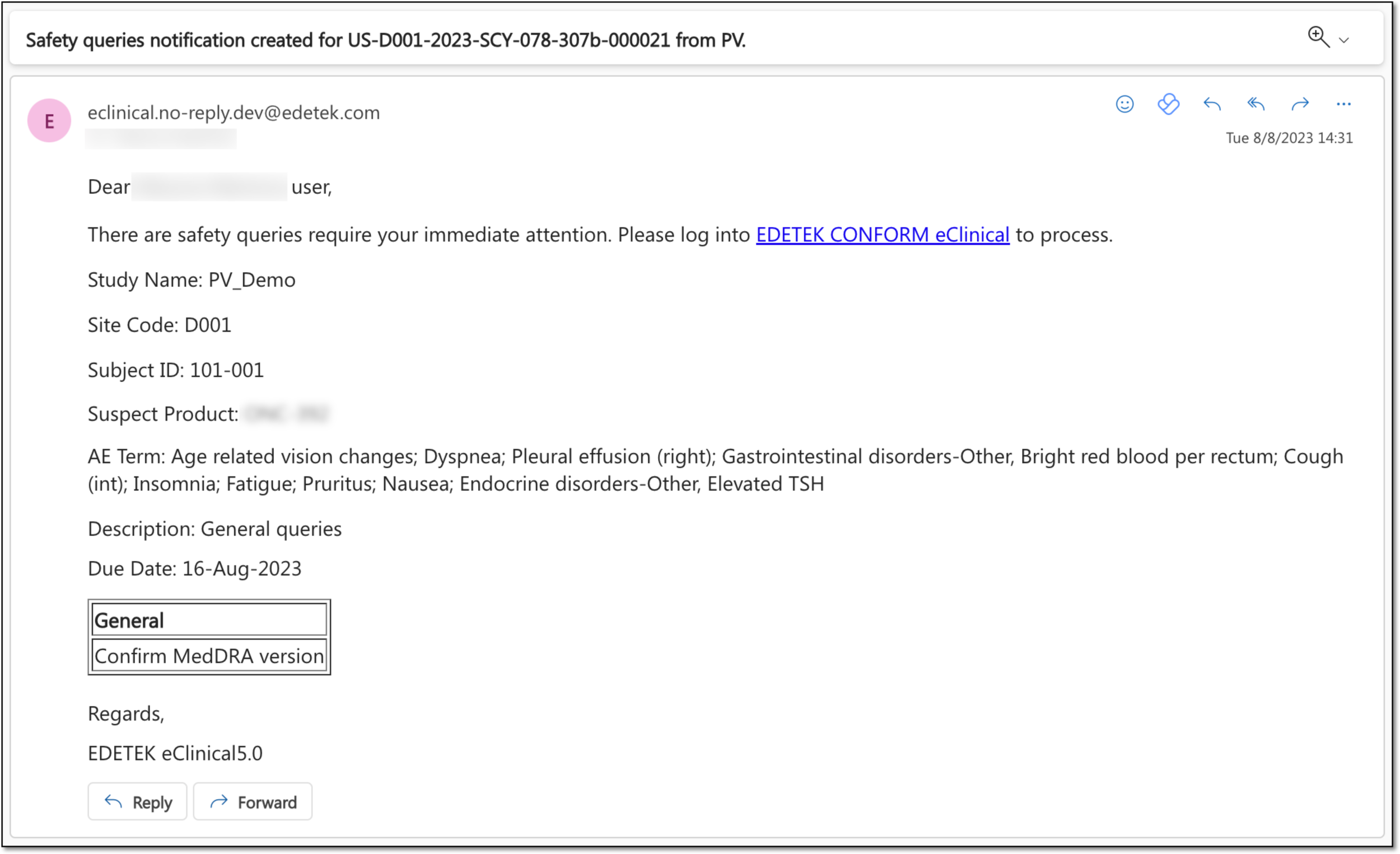
-
In the EDC application header, select the SAFETY GATEWAY tab.
-
On the page that opens, in the left pane, select the Safety Queries subtab.
-
Under the Open tab of the page that opens, go to the query assigned to you and from the Action column next to it, select Review
 .
. Figure 2. Selecting query to review
-
On the page that opens, review and complete the details as explained in the following table.
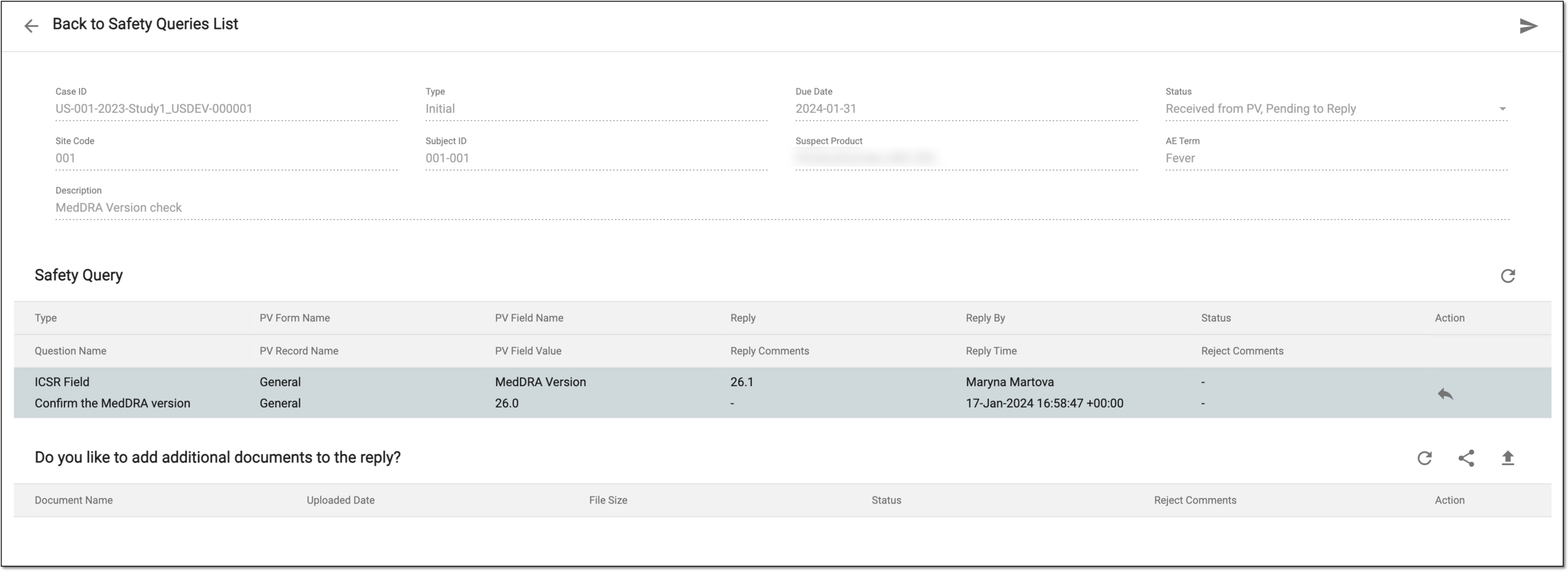 Figure 3. Reviewing query
Element
Details
General details block
Represents read-only details of the query
Case ID
Represents the unique identifier assigned to the case under the SAFETY GATEWAY > Task List module.
Type
Represents the task type under the SAFETY GATEWAY > Task List module.
Due Date
Represents the date before which the query must be replied.
Status
Represents the current status of the query.
Site Code
Represents the site code related to the case occurrence for which the query is created.
Subject ID
Represents the ID of a subject for whom the case in question has occurred.
Suspected Product
Represents the name of the product that is suspected to have a causal relation to the case in question.
AE Term
Represents the event(s) name for which the case report in question has been created.
Description
Represents the query topic description provided by the PV user upon creation.
Safety Query
Represents a table comprising a list of questions within the query and an option to reply to them.
Type
Question Name
Represents both the data element type to which the question pertains and the question itself.
PV Form Name
PV Record Name
Represents the name of the form within the ICSR for which the query has been created and the name of the record within that form.
PV Field Name
PV Field Value
Represents the name of the field within the form for which the question has been asked and the name of the current value in that field.
Reply
Reply Comments
Represents the reply to the query question if it has been already provided and the comments added to it, if any.
Reply By
Reply Time
Represents the name of the user who provided the reply and the date and time when the reply has been provided in EDC.
Status
Reject Comments
Represents the status of the reply acceptance or rejection on the PV side. If rejected, then displays the reason provided upon rejection.
Reply
Select Reply
 next to a question and in the Edit dialog that opens, provide
your reply and comment, if any, and select
next to a question and in the Edit dialog that opens, provide
your reply and comment, if any, and select  .
. Figure 4. Replying query question
Depending on the type of question—structured or unstructured—the reply dialog interface varies. For unstructured questions, it is always a free text field, and for a structured question, it depends on the data type of the field to which the question relates.
For instance, if the question relates to the Verbatim Term field, the reply dialog displays the free text field where you need to enter a verbatim term. And for the Is the case final? field clarification the reply dialog displays the Yes/No option selection.
Do you like to add additional documents to the reply?
Provides an option to upload an attendant document to support your replies.
Select Site Source Document
Select
 and from the Select Site Source Document dialog that opens select the source file pertaining to a
specific site. Select to attach the file to your query reply.
and from the Select Site Source Document dialog that opens select the source file pertaining to a
specific site. Select to attach the file to your query reply.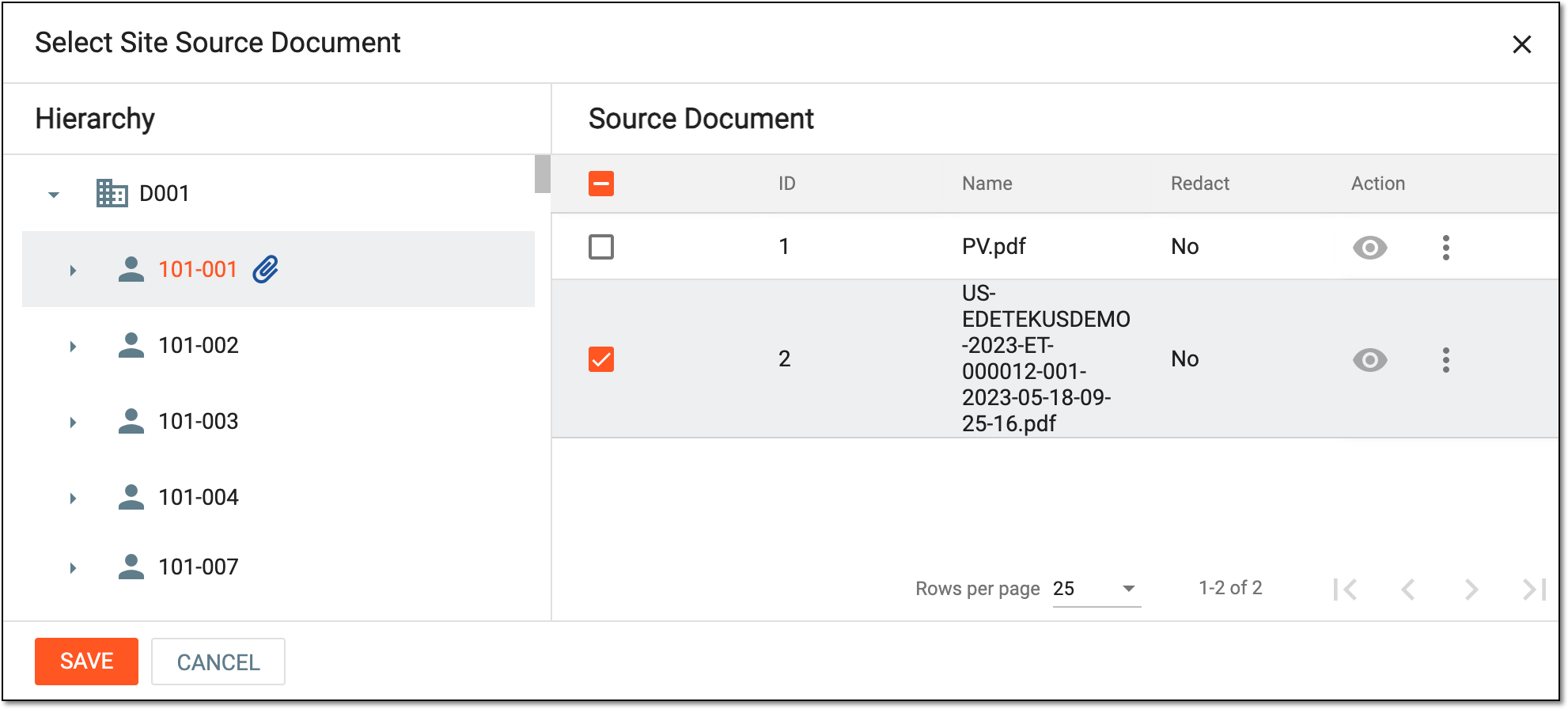 Figure 5. Selecting source document
Upload File
Select
 to upload the attendant file from your computer.
Document Name
Represents the name of the attached document, if any.
Uploaded Date
Represents the date and time when the document has been uploaded to the system.
File Size
Represents the size of the attached file in KB.
Status
Represents the file status after the reply is processed in PV—Accepted or Rejected.
Reject Comments
Represents the reason provided upon file rejection on the PV side, if any.
Delete
Select
 to remove the file from the attachments.
Submit
Select
 to send the provided feedback to PV.
Once submitted, the reply is sent to PV. The dedicated recipient—query creator—receives an email notification that their query has a response. The email includes the link to access the system and the specific page that requires attention. To open the needed page, the user must log in to the system upon clicking the link.