Export SAE form
PV uses the data of a specific subject collected and captured in CRFs via EDC. For PV to get the data extracted from EDC, the principal investigator (PI) of a site or a designee has to create a task via the EDC > Safety Gateway functionality.
SAE report comprises information related to the SAE occurrences during a clinical trial. When a new task is created, you can export an autogenerated form in PDF format from the system. You can directly generate the report without completing an SAE form.
Important
The SAE report can be exported at any time, regardless of the current task transmission status.
-
In the EDC application header, select the SAFETY GATEWAY tab.
-
On the page that opens, in the left pane, select the Task Management subtab.
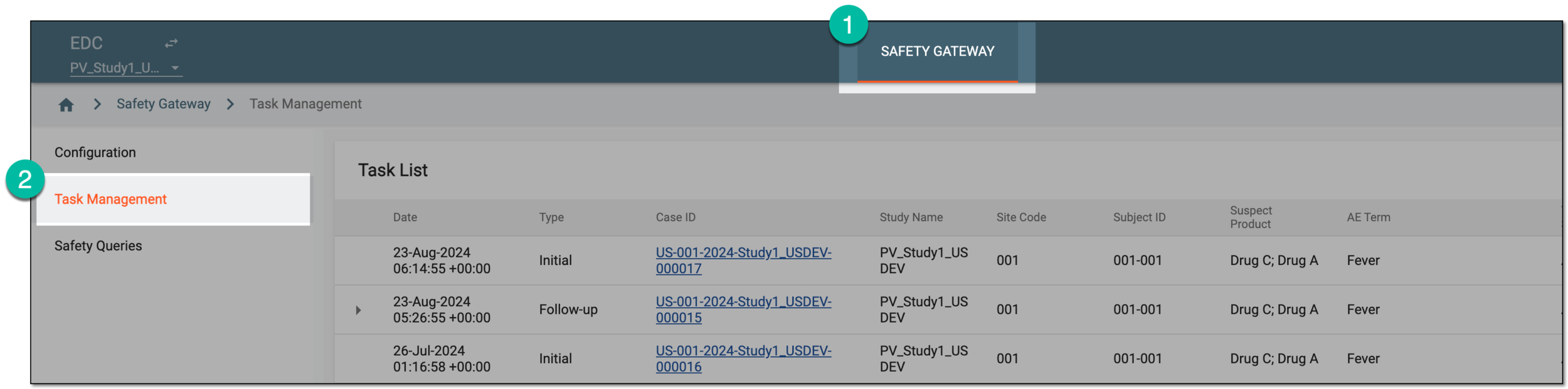 Figure 1. Accessing task management
-
On the Task List page that appears, locate the task for which you want to export the SAE form. Then access the task details in one of the following three ways:
-
For an initial or a follow-up task, select the Case ID hyperlink to open the task details page.
-
For an initial case, select View
 to open the task details page.
 -
For a follow-up task, select View Differences
 to open the task details page.
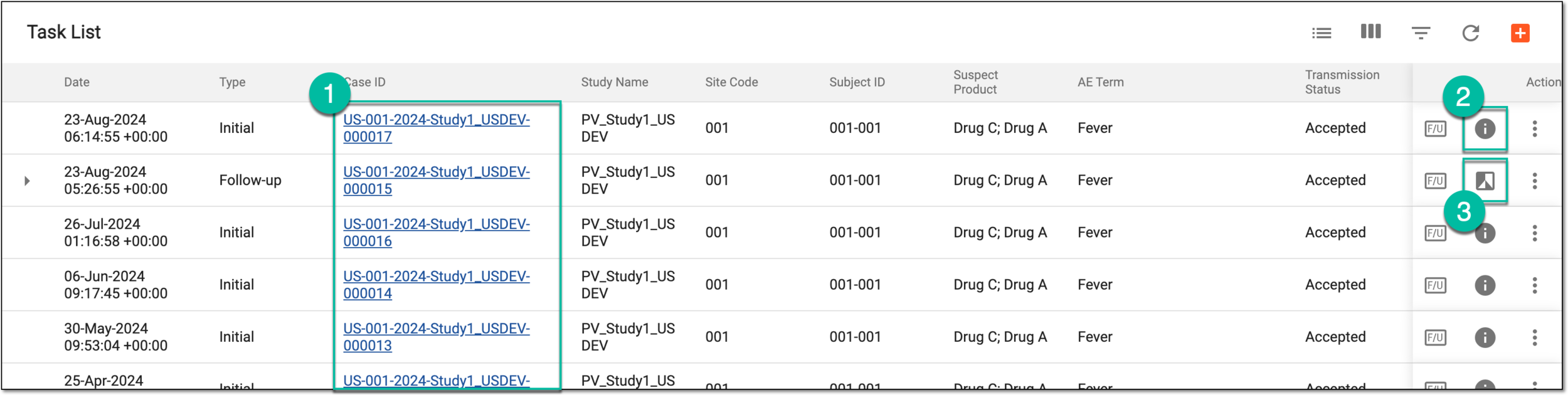 Figure 2. Accessing task details
-
-
On the page that appears, select
 .
.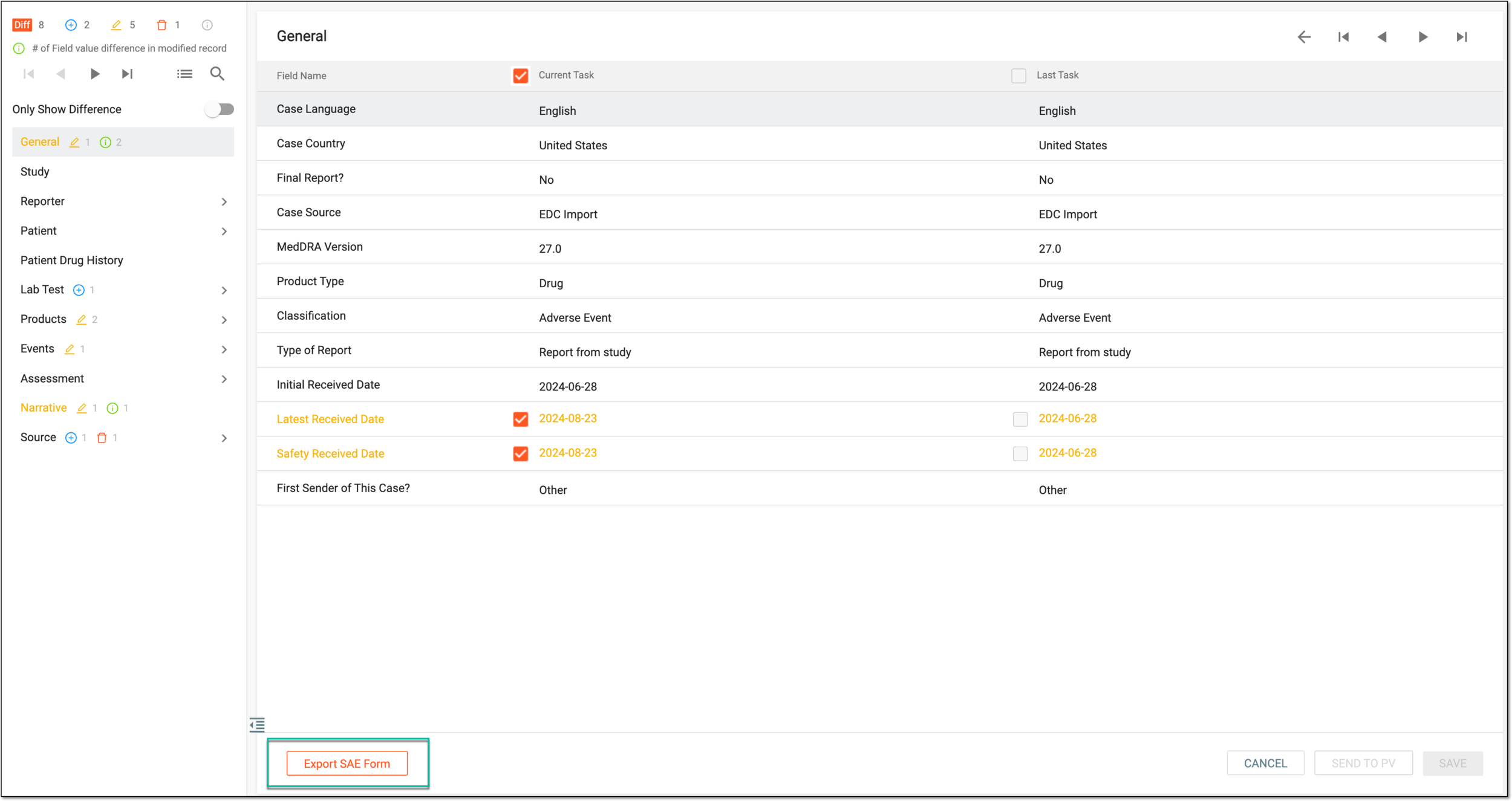 Figure 3. Exporting SAE form
Once exported, the SAE report is downloaded to your computer and can be viewed in PDF format.