Revoke dismissed expired file
An expired file in eTMF refers to a clinical trial document—study protocol, informed consent form, case report form, or else—that has reached its expiration period determined by regulatory requirements or internal procedures.
Proper management of expired files is crucial to ensure regulatory compliance and facilitate efficient record-keeping. In eTMF, you can dismiss an expired file and, if needed, revoke it back. Once revoked, the file can now be replaced with a valid copy.
For instance, an investigator left the study, and you dismissed their expired medical license because you were sure a new one would not be provided. Later the investigator returns, so you revoke the previously dismissed file to replace it with a valid license.
-
In the eTMF application header, select the TMF.
-
In the Study List table that appears, select the study for which you need to revoke the dismissed file.
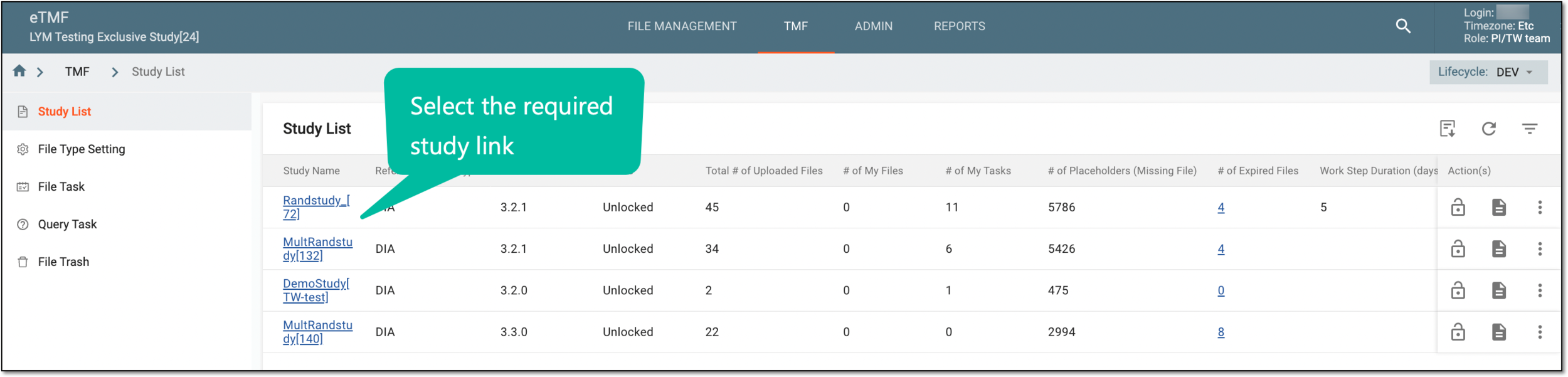 Figure 1. Selecting study
-
On the page that opens, in the left pane, select Study Details > Expired Files.
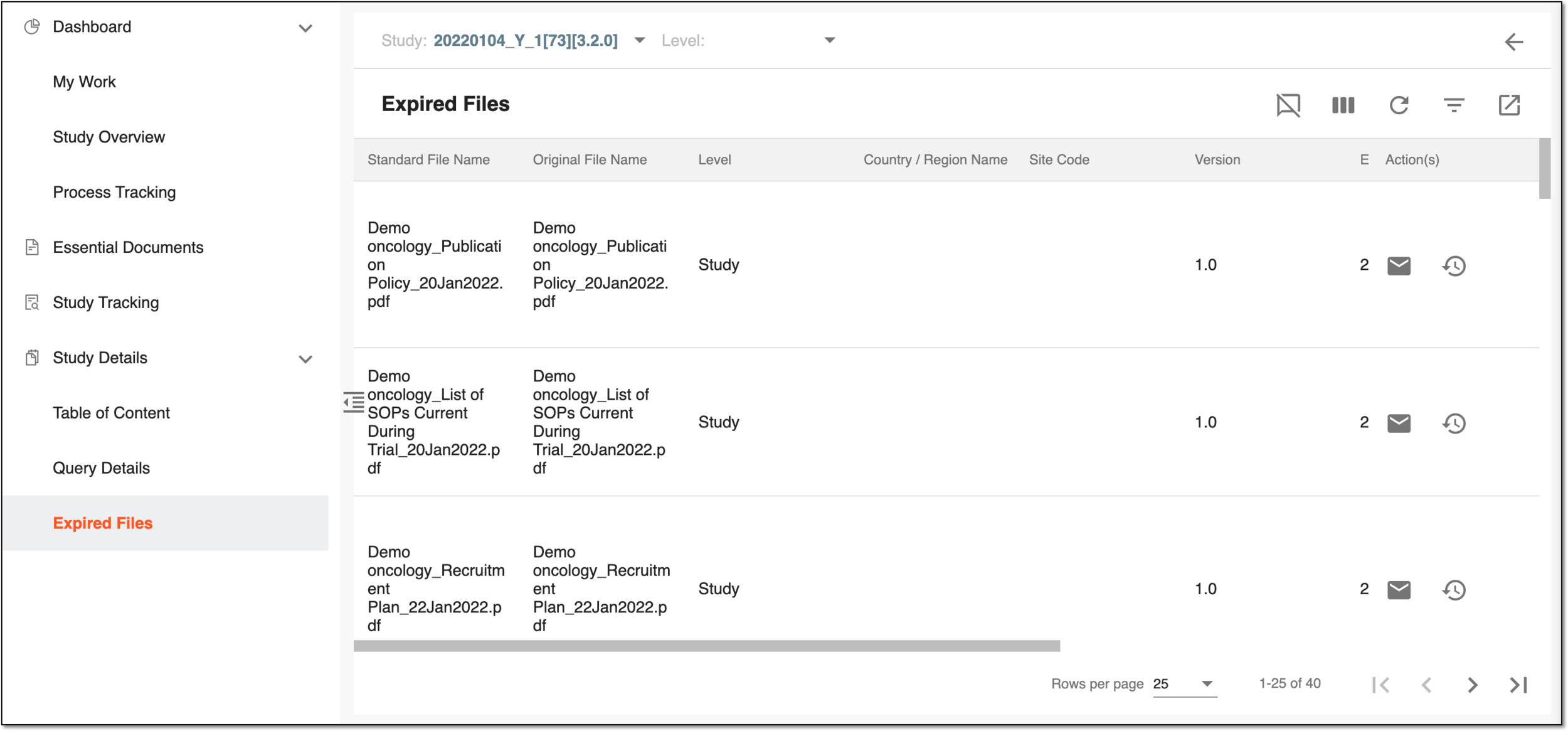 Figure 2. Expired files page
-
On the Expired Files page that opens, optionally you can sort the report data by study-, country-, and site-level files.
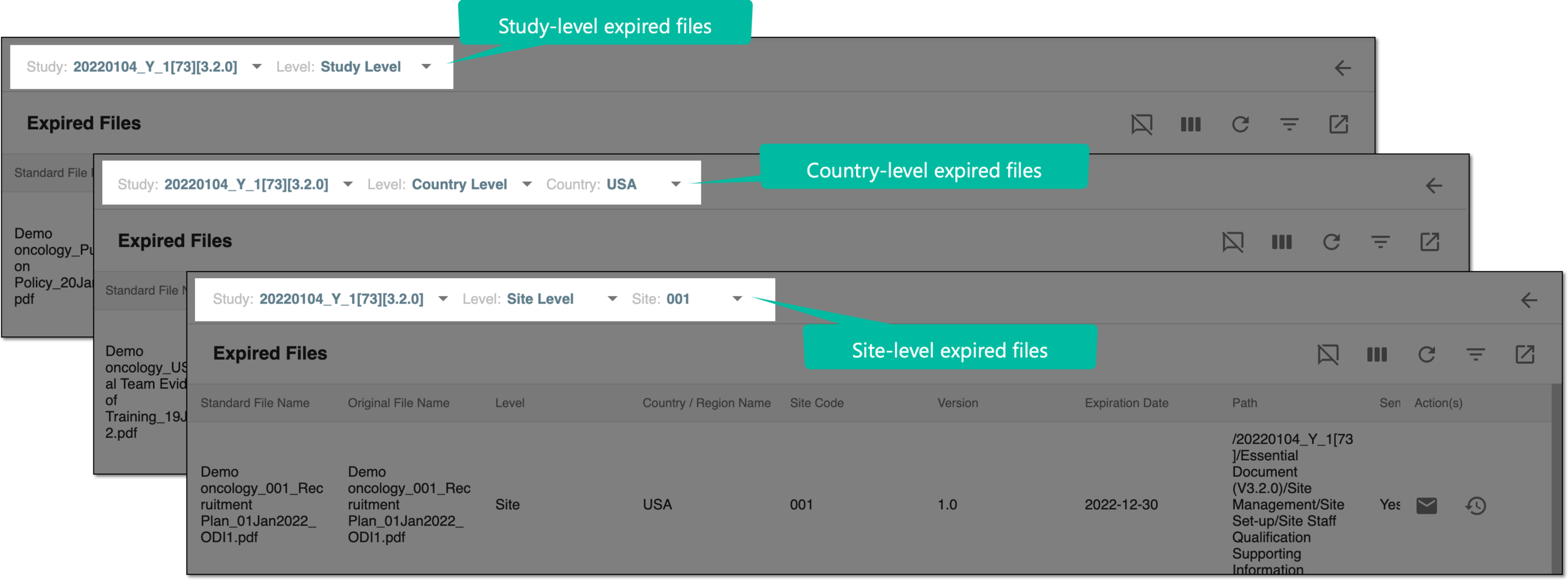 Figure 3. Sorting expired files by level
-
In the Expired Files table, go to the file you need to revoke and in the Actions column next to it, select Revoke
 .
. Figure 4. Revoking dismissed file
-
In the Reason dialog that opens, enter the reason for revoking the file and select
 to implement the changes.
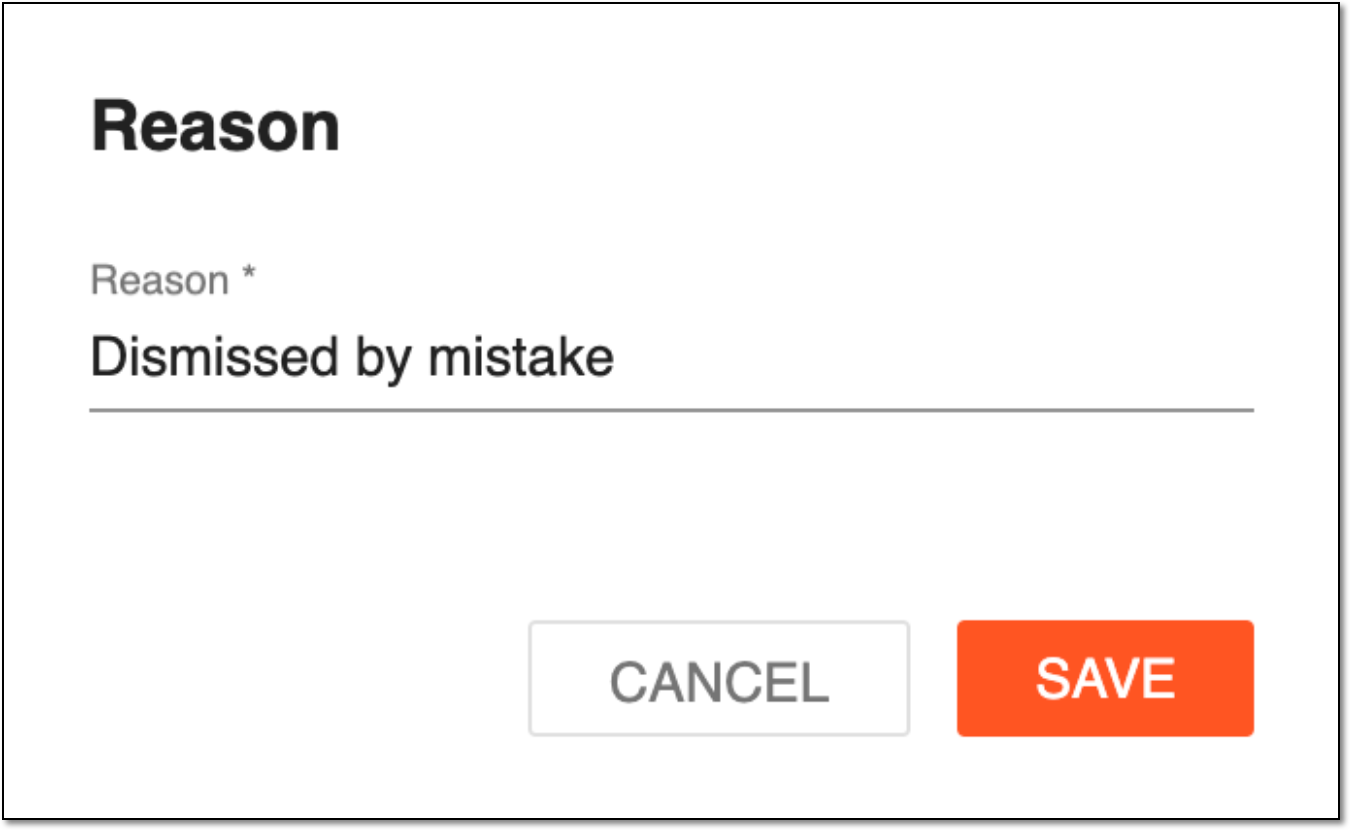 Figure 5. Revoking dismissed file
You have revoked the dismissed file. The respective change is reflected in the Dismissed column of the Expired Files table.
