View submission setting audit trail
In PV, before you run the ICSR report generation or submission function, you need to configure submission setting information, such as the organization, type of data, contacts, and other details. If you or any other user has made changes to the submission setting, they are all trackable with the Audit Trail feature.
-
In the PV application header, select the CONFIGURATION tab.
-
On the page that opens, in the left pane, select the Submission Setting subtab.
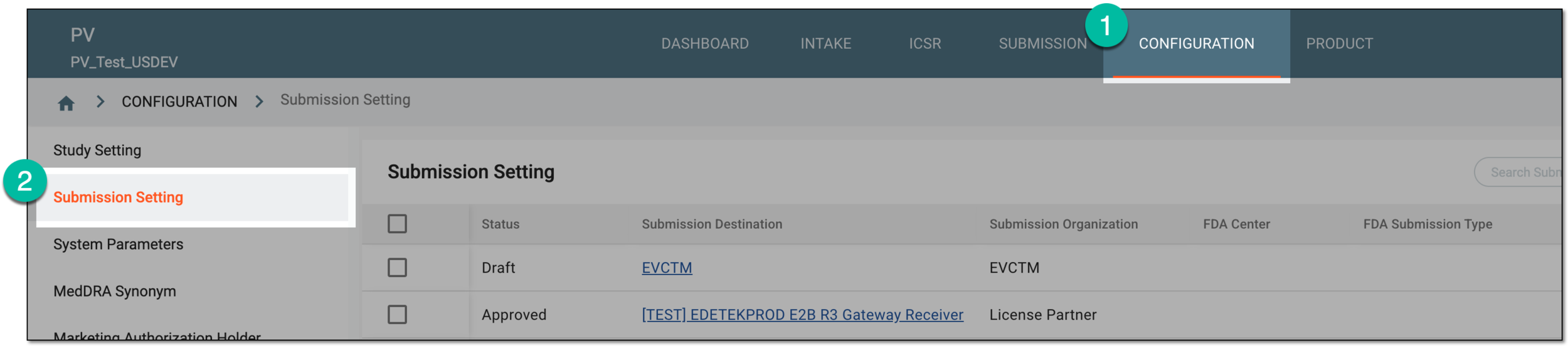 Figure 1. Accessing submission setting configuration
-
In the Submission Setting table that appears, go to the submission setting for which you need to view the audit trail. Then in the Actions column next to it, select More
 > Audit Trail
  .
.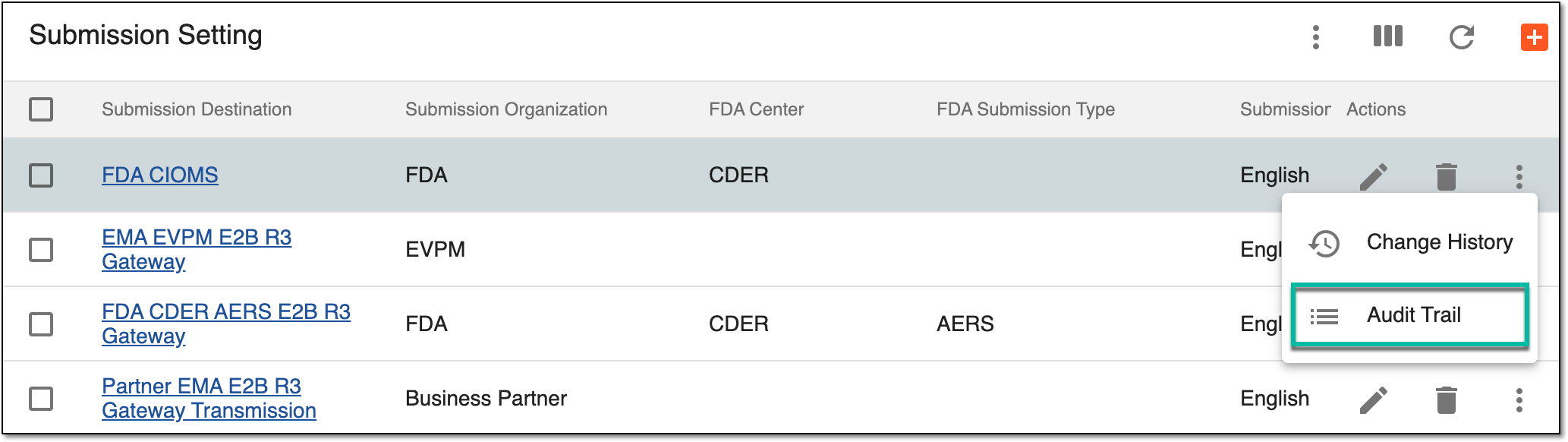 Figure 2. Selecting to view submission setting audit trail
Tip
You can also access the Audit Trail feature from the submission setting configuration and edit pages. Simply select More
> Audit Trail from the workspace toolbar.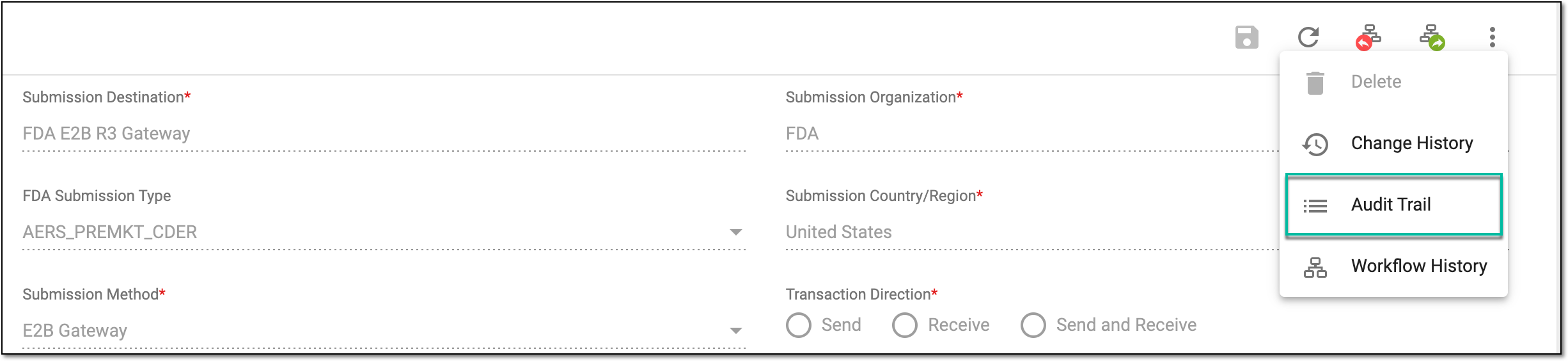 Figure 3. Accessing audit trail from configuration/edit page
-
In the Audit Trail dialog that opens, you can find all the changes made to the Submission Setting form fields, who made them, and when.
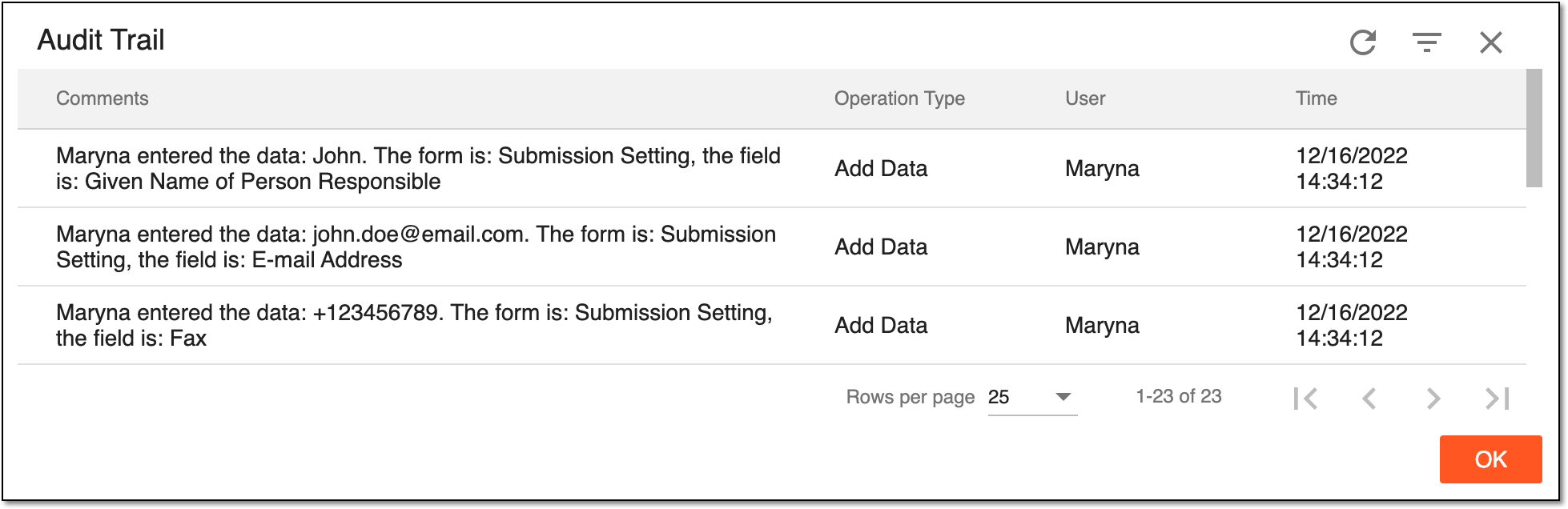 Figure 4. Examining submission setting audit trail
-
Select
 to close the dialog.
Upon closing the dialog, you return to the Submission Setting page, where you can also delete a submission setting you no longer need.