Activate/Inactivate study staff member
When you add a new staff member, that member is active by default. However, there may be cases when this staff member needs to be deactivated. For example, the staff member is no longer working at the designated site or moved to another country to conduct the study there.
Important
You cannot activate and deactivate staff members via the substudy, these options are only available for the master study staff list.
-
Access the study management page in one of the following ways:
-
In the CTMS application header, select the DASHBOARD tab and then select the study dashboard of your interest.
 Figure 1. Accessing study management from dashboard
-
In the CTMS application header, select the STUDY MANAGEMENT tab. Then from the Study Data List table, select the study name of your interest.
 Figure 2. Accessing study management from study data list
-
-
From the left pane of the study page that opens, select Study Details > Staff.
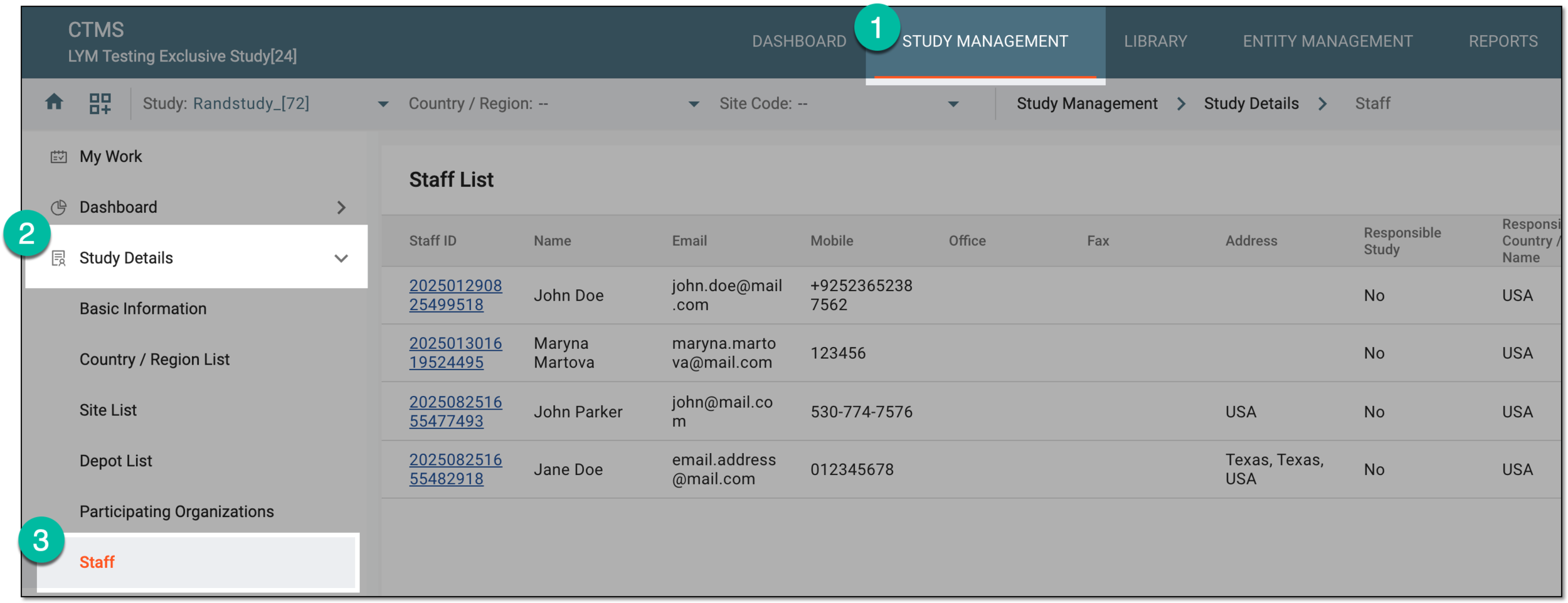 Figure 3. Accessing study staff
-
In the Staff List table, do one of the following:
-
Next to the active staff member, select Inactivate
 to deactivate the user.
 -
Next to inactive staff member, select Activate
 to reactivate the user.
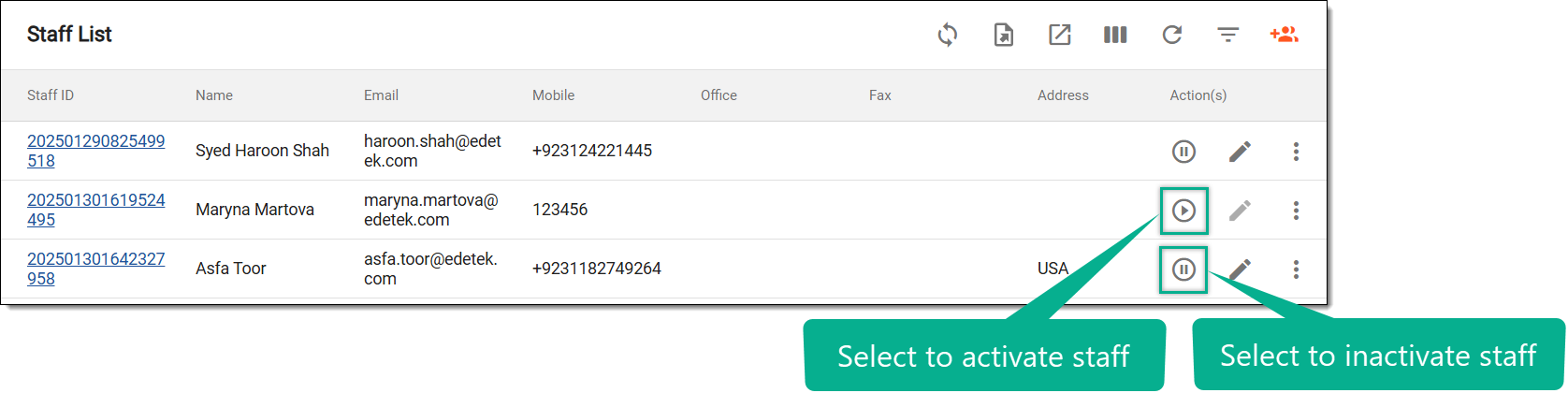 Figure 4. Activating or inactivating staff member
-
-
In the Reason dialog that appears, enter the reason for inactivating or activating the staff member. Then, select SAVE.
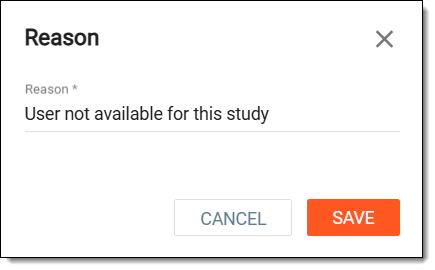 Figure 5. Entering reason for inactivating staff member
Once done, a staff member is deactivated or activated.