Analyze operation history for staff member
There are different staff members who make the study conduct possible, including principal investigators, clinical research coordinators, data managers, clinical research associates, and others. Using the Operation History functionality, you can analyze all the changes made to staff member records. It provides a detailed log of modifications ensuring transparency and compliance in staff member management.
-
Access the study management page in one of the following ways:
-
In the CTMS application header, select the DASHBOARD tab and then select the study dashboard of your interest.
 Figure 1. Accessing study management from dashboard
-
In the CTMS application header, select the STUDY MANAGEMENT tab. Then from the Study Data List table, select the study name of your interest.
 Figure 2. Accessing study management from study data list
-
-
From the left pane of the study page that opens, select Study Details > Staff.
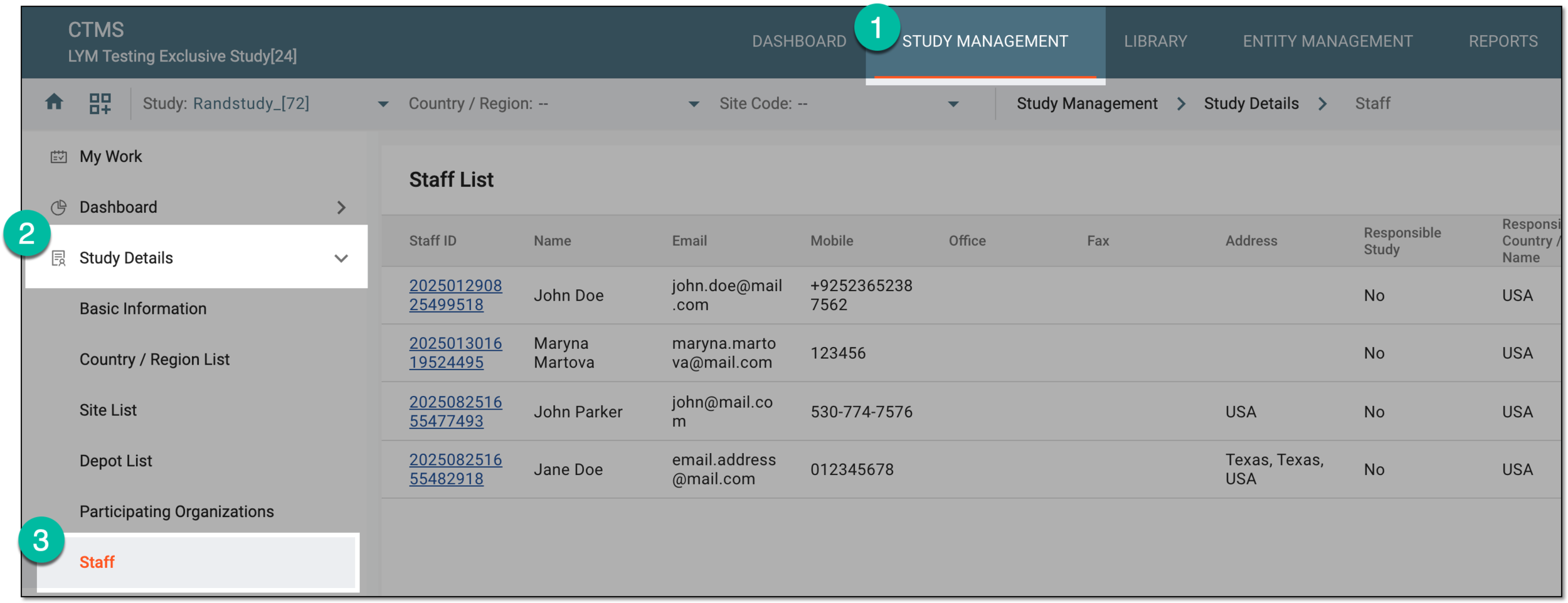 Figure 3. Accessing study staff
-
In the Staff List table, next to the staff member for which you want to view the operation history, select More
 > Operation History
  .
. Figure 4. Accessing option to view operation history
-
In the Operation History dialog that opens, analyze the details of all the actions performed with the staff member's account in CTMS from their creation to date.
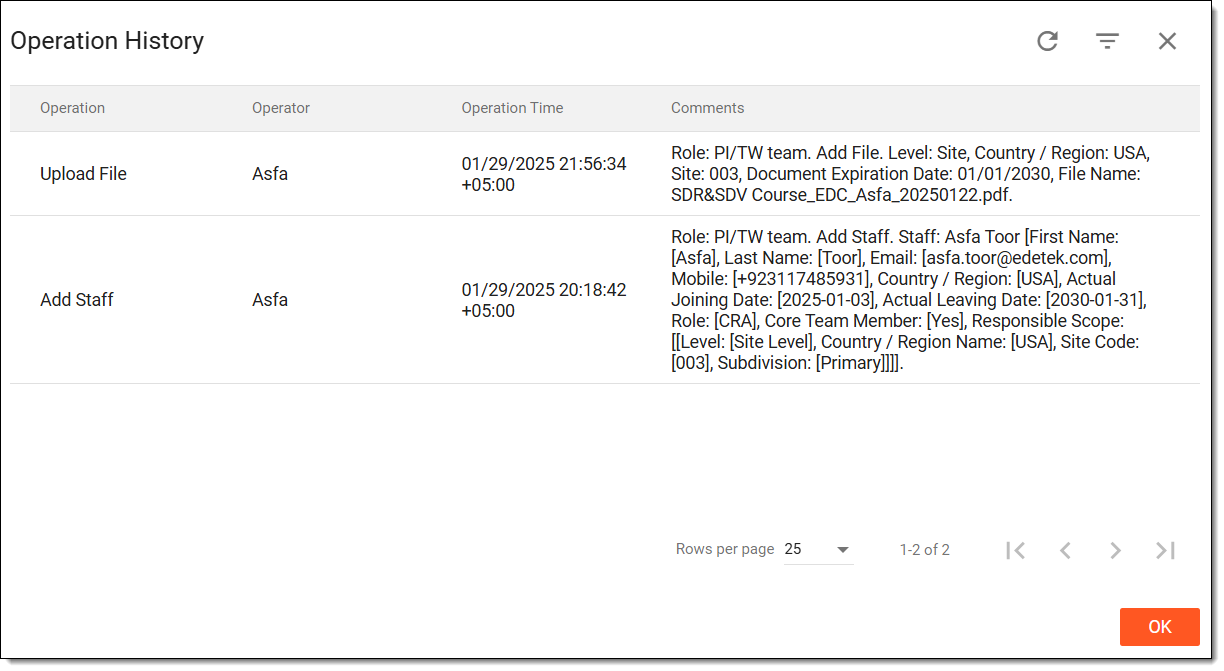 Figure 5. Viewing staff member operation history
You have analyzed the operation history for the staff member's account. You can now select OK to close the dialog and return to the Staff List page.