Application header
The application header is located at the very top of the eClinical application. It includes a set of functions that are applicable across the whole application you are working with or the eClinical platform.

For example, you can configure the time zone for your application from the application header, navigate across various tabs of the application, change your password for the eClinical platform, and so on.
The application header components may vary across different eClinical applications. However, usually, the application header of an eClinical application comprises the following components:
-
Application name: displays the name of the eClinical application, for example, EDC, IWRS, Study Designer, and so on.
Tip
In some applications, next to the application name, the following options are provided:
-
 : this icon provides an option to switch between certain eClinical applications.
 -
Study menu just below the application name displays the name of the currently selected study and provides an option to switch between studies by selecting them from the dropdown menu.
-
-
Main menu: includes the tabs of that particular application.
-
General information: this block displays the following information:
-
Login: displays the username of the logged-in user.
-
Role: displays the role code of the current user, for instance, DM for data manager.
-
Time Zone: displays how all your actions are timestamped within eClinical.
-
-
Preferences
 : select this icon to set the language, date and time format, and time zone preferences for all elements inside the application.
 -
Application
 : select this icon to access
the following options:
: select this icon to access
the following options:-
Switch Application
 : by selecting the option, the eClinical welcome page opens where you can choose
another application to which you have access.
: by selecting the option, the eClinical welcome page opens where you can choose
another application to which you have access.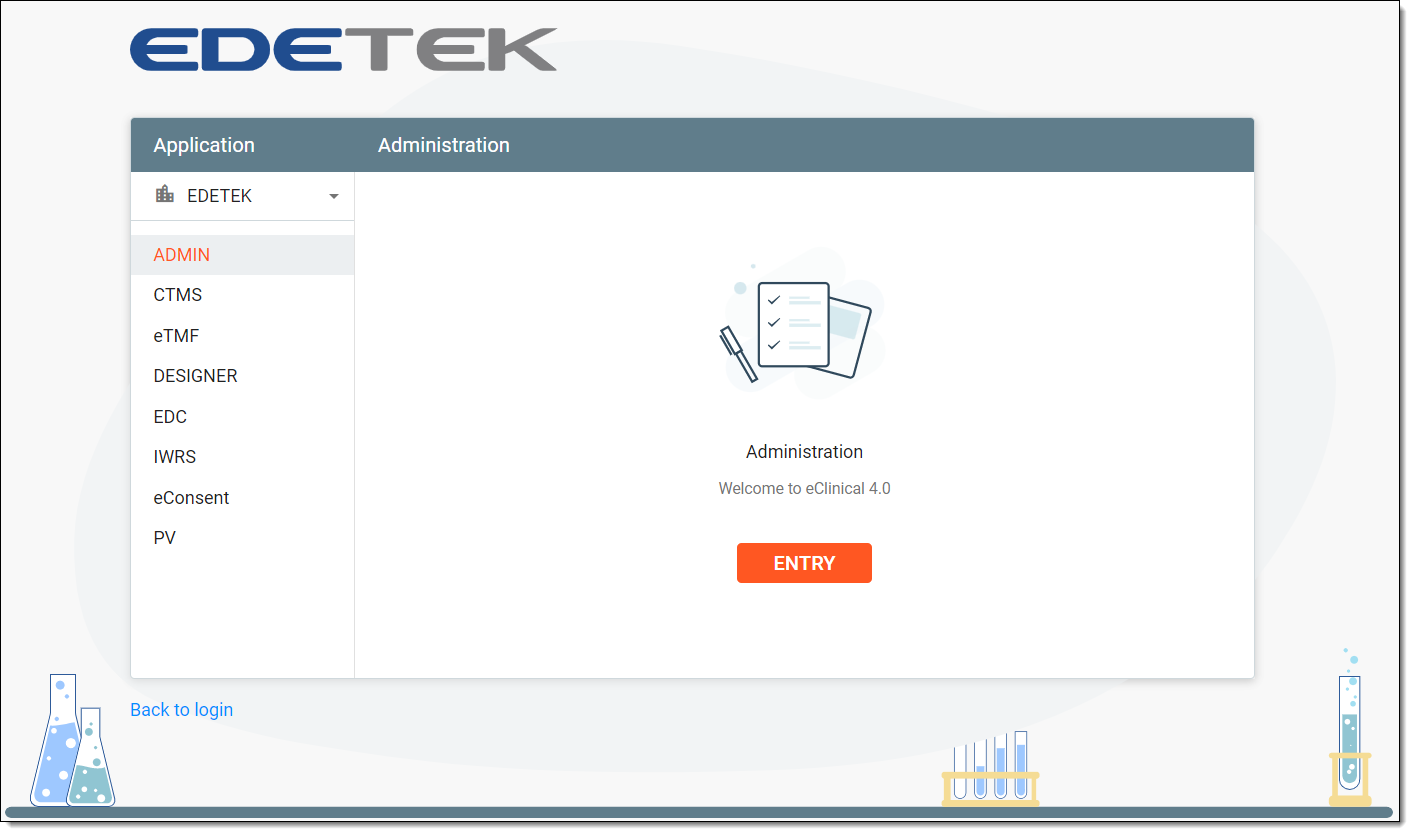 Figure 2. eClinical welcome page
-
Change Password
 : by selecting the option, the Change Password form opens.
 -
Logout
 : by selecting the option, you are logged out from the eClinical platform and redirected to the login page where the
Login form opens.
: by selecting the option, you are logged out from the eClinical platform and redirected to the login page where the
Login form opens. -
Help
 : by selecting the option, the eClinical online documentation page opens in a new tab where you can search for the details
on the configurations and feature business value.
: by selecting the option, the eClinical online documentation page opens in a new tab where you can search for the details
on the configurations and feature business value.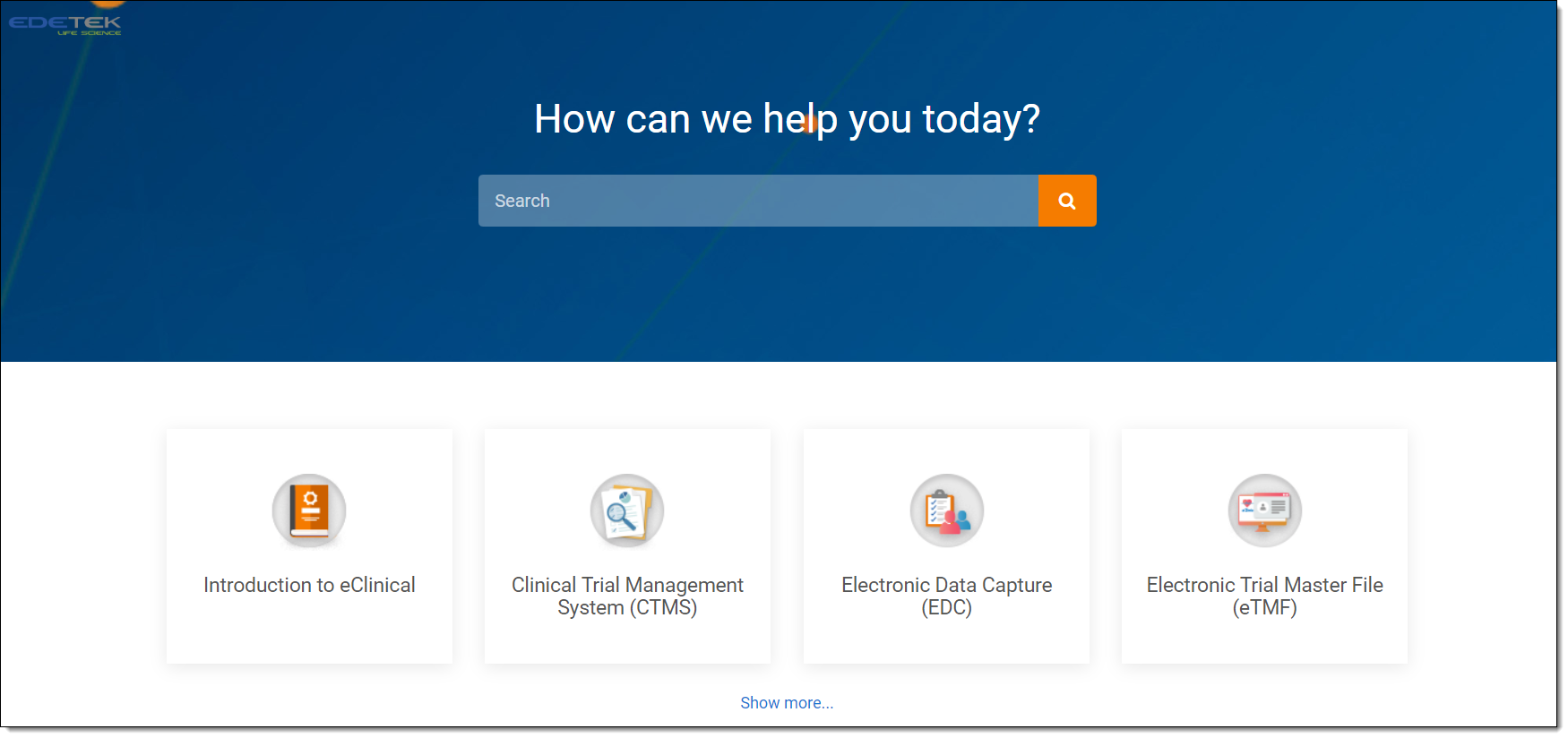 Figure 3. Online help documentation on eClinical applications
-