View and analyze visit windows in data entry
In a clinical trial, a visit window defines the allowable time span for a subject visit in case it is impossible to conduct that visit on the exact scheduled visit date.
Tip
Data managers (DM) define visit windows and their anchors in the Study Designer (SD) app. Then these settings are automatically populated in the EDC application in the corresponding visit.
Once the window settings are populated from SD, from the DATA ENTRY module of EDC, the clinical research coordinator (CRC), clinical research associate (CRA), and other site personnel can utilize it for operational aspects to enter and manage data of each visit. It also reminds the subject about the next visit occurrence in advance. Also, the experts may need to check the visit windows for mistakes and whether the visit windows are in the permitted window ranges.
In this section, you can learn and analyze the visit window details of a particular site.
-
In the EDC application header, select the DATA ENTRY tab.
-
In the open site list, select the needed site.
-
In the open subject list, select Switch to Visit Window
 .
.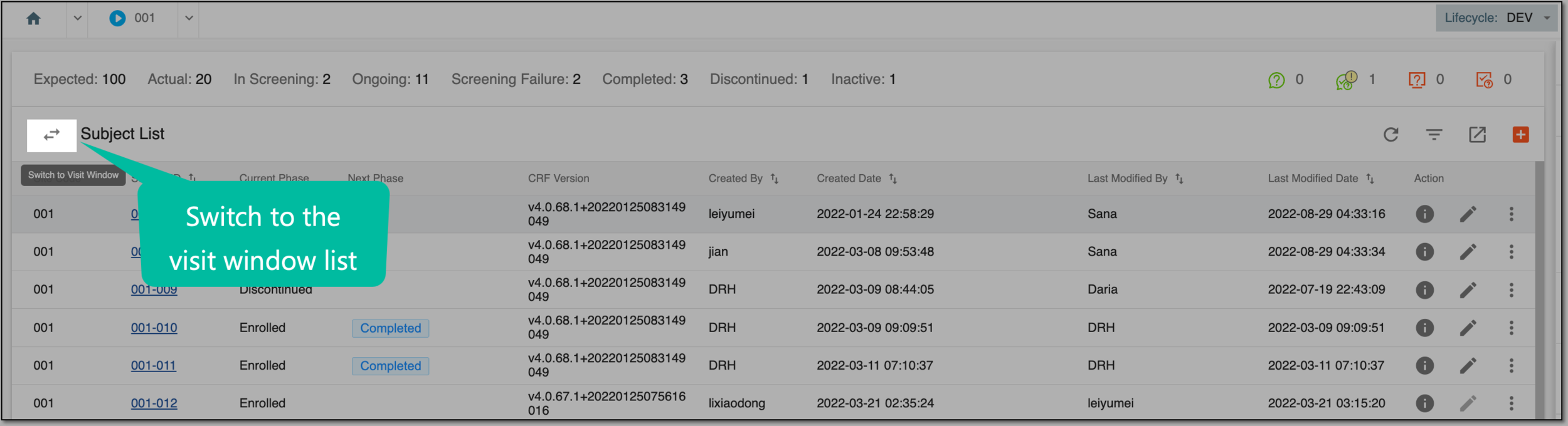 Figure 1. Switching to visit window page
-
On the Visit Window List page, apply the needed filters to narrow down the list of visit windows shown as suggested in the following table.
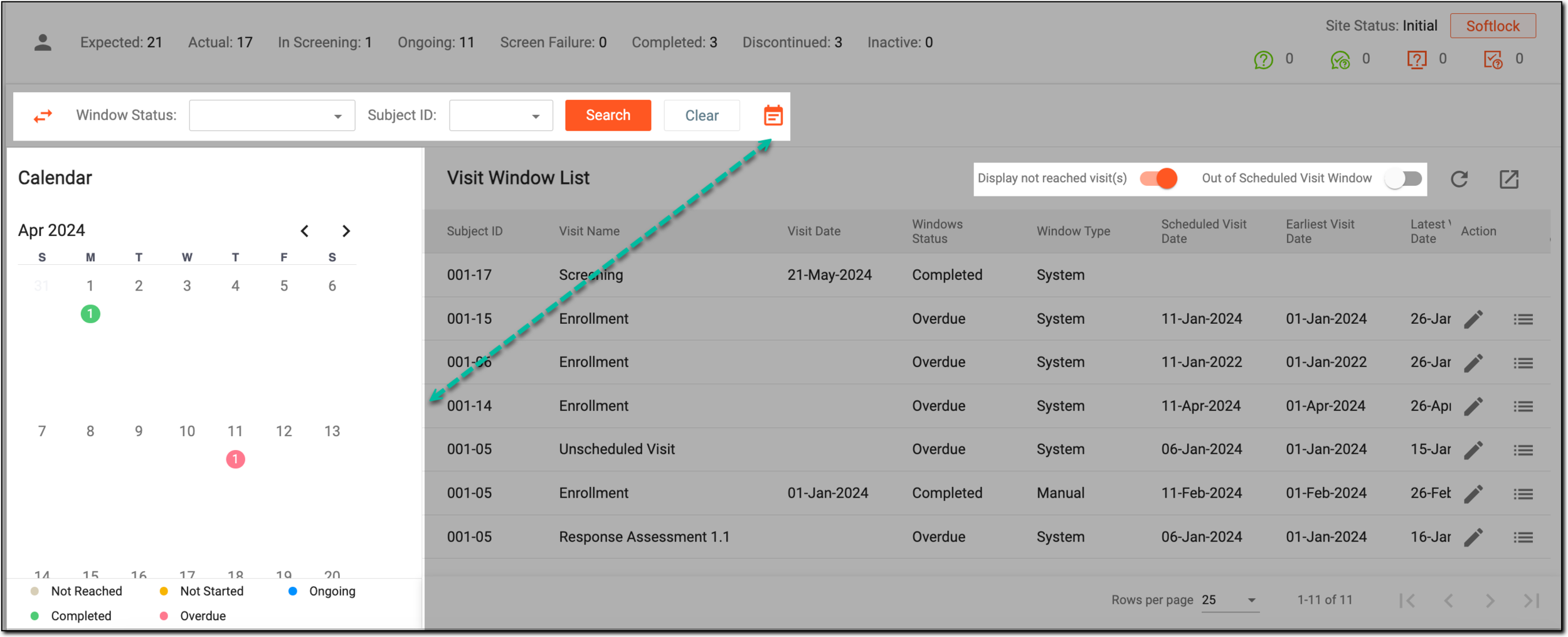 Figure 2. Filtering visit window list
Element
Details
Window Status
From the dropdown list, select the status of the visit window:
-
Not started: the visit window of the specific visit has not yet started.
-
Not Reached: the visit window of the specific visit has not yet been reached and is currently in its initial state. The visit window in this status belongs to another subject phase that has not yet been initiated for the subject. This status only appears when the Display not reached visit(s) toggle is turned on.
-
Ongoing: the visit window of the specific visit is open and the visit may occur in the defined range of dates.
-
Completed: the visit window of the specific visit is closed, the visit has occurred and is no longer expected.
-
Overdue: the visit window of the specific visit has been missed.
However, you can still work with the visit by entering a new expected visit date. Once the date is indicated, the Window Status automatically changes to Completed.
Subject ID
From the dropdown list, select the ID of the subject whose visit window needs checking.
Search
Select
 to apply the filters indicated earlier.
Clear
Select
 to clear the filters indicated earlier.
Calendar
The calendar on the left serves as a visual aid to show the respective visit window status as color-coded labels:
By default, the calendar pane is shown leftmost upon opening the page. Select the calendar icon to hide or open the pane.
Display not reached visit(s)
-
Turn this toggle on to display the list of visit(s) belonging to the subject phase that have not yet been reached. It displays the details of such visit(s) that have not started and are currently in the initial state.
For instance, if a visit A is planned but has not yet been initiated, its window status is Overdue. By enabling this toggle, you can analyze the future plan of visit A, such as the date when its visit is completed.
-
Turn this toggle off if you do not want to display the list of visits that have not yet reached.
Out of Scheduled Visit Window
-
Turn this toggle on to display the list of visit(s) that took place out of their planned schedule, for instance, if a visit is initiated after its planned date and is out of range.
-
Turn this toggle off if you do not want to display the list of visit(s) that took place out of their planned schedule.
-





Once the needed filters are applied, you can start analyzing the visit window for correctness. Now, if needed, you can update the visit window dates or reasoning.
A person responsible for managing and ensuring the integrity, accuracy, and confidentiality of data collected during clinical trials. The DM’s scope of work might include maintaining the quality of data, complying with regulatory requirements, and supporting the overall success of clinical research.
In the eClinical system, the Data Manager (DM) user role is granted to a person who is mainly responsible for cleaning the data, making sure the data is entered correctly according to all requirements and industry standards, and creating manual queries for clinical research coordinators on any questionable data pieces. Before the study goes live, works with the sponsor and receives and addresses their feedback to set up the study and CRFs in EDC in a way that the sponsor approves.
An eClinical application that provides functionality to design and configure a study (clinical trial), namely to configure CRFs, set subject phases, visits, and others.
The application supports the design of the CDSIC ODM-compliant electronic CRFs to support EDC and eDiary data collection and management.
Get to know all the possibilities of the app with the comprehensive SD User Guide.
A person responsible for the successful planning, execution, and management of clinical trials. The CRC’s scope of work might include study preparation, site setup, patient recruitment, regulatory compliance control, data collection, and more.
In the eClinical system, the Clinical Research Coordinator (CRC) user role is granted to a person who works on a site with subjects and is responsible for entering data to EDC, ensuring the data is entered correctly according to all requirements, and answering queries from data managers on any questionable data pieces.
A person responsible for overseeing and monitoring a clinical trial to ensure it is conducted in compliance with regulatory standards and protocols. The CRA’s scope of work might include protocol review, site selection and initiation, monitoring, data entry control, and more.
In the eClinical system, the Clinical Research Associate (CRA) user role is assigned to a person who works with the sites, and in EDC, mainly has to make sure that the entered data is truthful to the source document. CRA checks the source document in a process called source data verification and ensures that everything entered by the clinical research coordinators is valid to avoid any discrepancies caused by human errors.
In a clinical trial, a location where the subject treatment and drug dispensation occur. It can be a hospital, a private laboratory, or other institutions.
A specific phase that a subject has to complete in the course of a clinical trial to move further to the next phase. For instance, Screening, Enrolled, Randomized, and others.
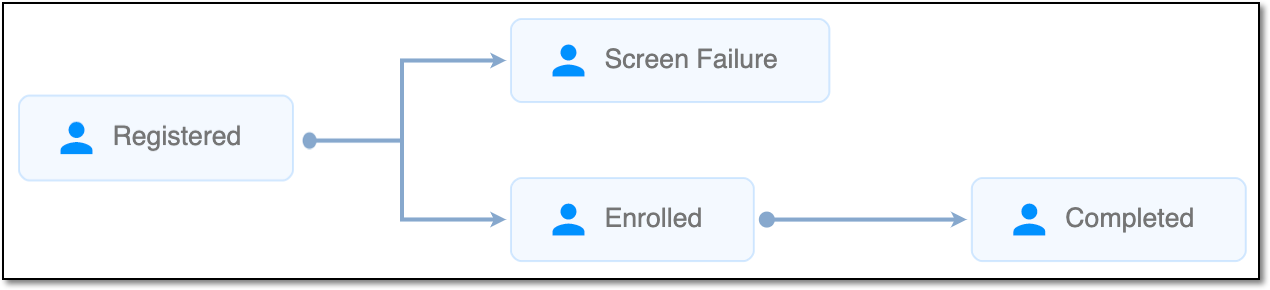 |
In eClinical, subject phases are designed individually for each study via the SD application, although they are referenced in others, like IWRS or EDC.