Add staff member to CTMS
In the CTMS application, you can create and maintain a database of the personnel involved in a clinical trial, such as site workers, lab specialists, monitors, and so on. Thus, each time a new site record needs to be added to the CTMS system, you can do so following the instructions in this topic.
Tip
If you need to add several staff members in bulk, use the Import staff members option instead of adding staff members individually.
-
In the CTMS application header, select the ENTITY MANAGEMENT tab.
-
On the page that opens, in the left pane, select Staff.
-
On the Staff page that opens, from the workspace toolbar, select New Item
 .
. -
In the New form that opens, provide the details as explained in the following table.
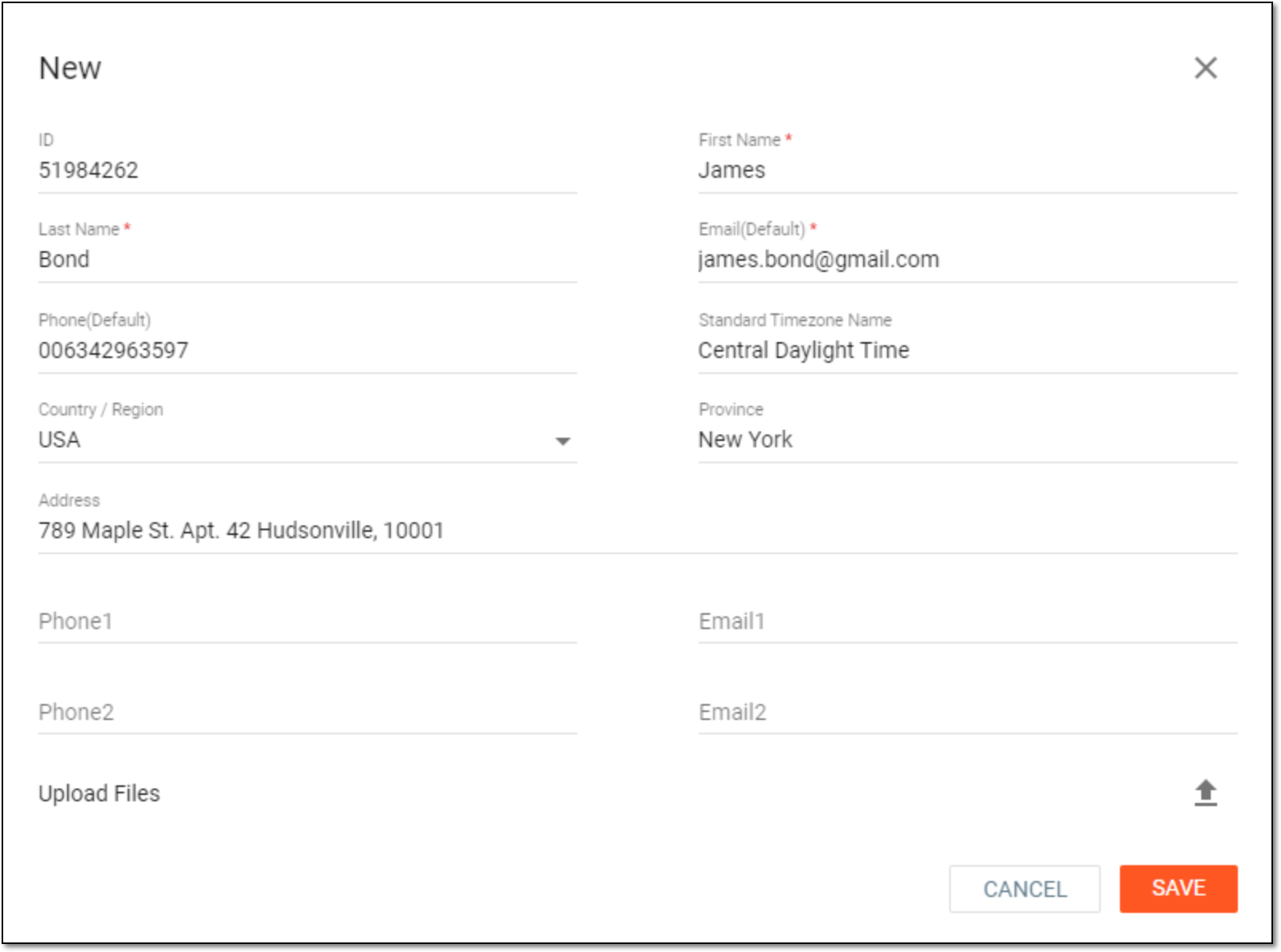 Figure 1. Adding staff member to CTMS
Tip
In the following table, mandatory elements are marked with an asterisk (*).
Element
Details
ID
Enter the unique identifier of the staff member you add.
First Name *
Enter the first name of the staff member.
Last Name *
Enter the last name of the staff member.
Email (Default) *
Enter the email address of the staff member.
Phone (Default)
Enter the phone number of the staff member.
Standard Timezone Name
Select the region of the standard timezone for the staff member. Etc/GMT is selected by default and you can change it as needed.
Country / Region
Select a country or region where the staff member resides.
Province
Enter the name of the province or state where the staff member resides.
Address
By default, the address is autofilled with the name of the province that you have entered previously. However, you can update it.
Phone1
Enter an alternative phone number of the staff member if available.
Email1
Enter an alternative email address of the staff member if available.
Phone2
Enter another alternative phone number of the staff member if available.
Email2
Enter another alternative email address of the staff member if available.
Upload Files
Select
 to upload documents related to the staff member.
SAVE
Select
 to save the staff member record to the CTMS database.
CANCEL
Select
 to stop adding a staff member and close the dialog.
Once saved, a new staff member is added to CTMS. You are redirected to the Staff table where the added staff member appears.