Delete alert configuration
Once the server configuration is completed in the ADMIN application, since job execution is automated and the users are no longer directly involved, it is important to have an alert system to stay tuned to the job statuses and processes. These alerts—once associated with the data extraction jobs—are sent via email and contain all the needed details of the performed system tasks—server updates or data extraction.
In EDC, you can delete alert configurations that you no longer need and keep the list up-to-date.
Important
You can only delete the alert configurations that are not used in any of the jobs.
-
In the EDC application header, select the JOB tab.
-
On the page that opens, in the left pane, select the Alert Configuration subtab.
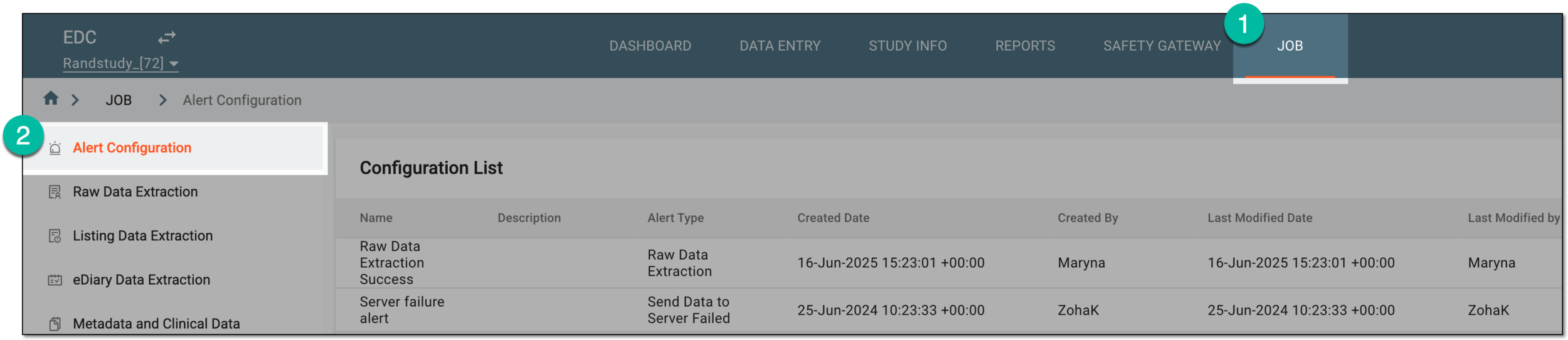 Figure 1. Accessing job alert configuration
-
On the Alert Configuration page that opens, in the Configuration List table, locate the alert configuration that you want to remove. Then from the Actions column next to it, select Delete
 .
. Figure 2. Selecting option to delete alert configuration
-
In the Delete Item dialog that appears, select
 to confirm the action.
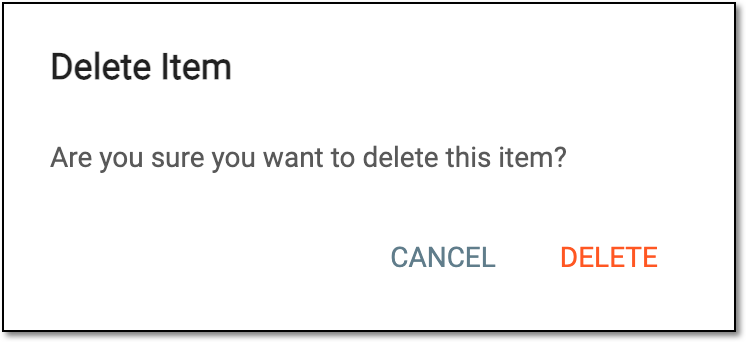 Figure 3. Deleting alert configuration
Important
Upon deletion of the alert that is already used in a job, you receive the respective system notification and cannot proceed with deletion. If needed, go to the job configurations stated in the prompt and replace the alert association for it. Once the alert configuration is disassociated from all the jobs, repeat the deletion.
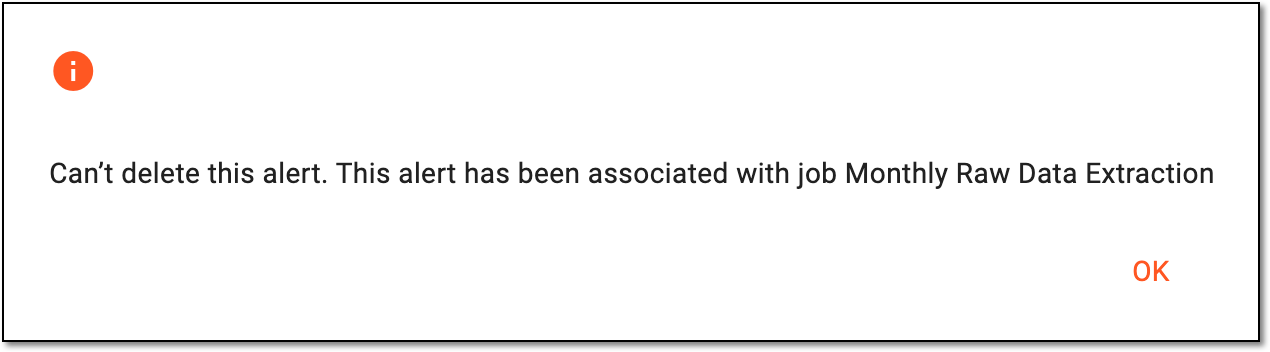 Figure 4. Acknowledging deletion failure
Upon confirmation, the alert configuration is removed from the Configuration List table.