Edit alert configuration
Jobs are automated processes that can be set up in EDC to perform various tasks triggering them by schedule or manually.
Since job execution is automated and the users are not directly involved, it is important to configure alerts that notify interested parties of server updates and data extraction operations. Once configured, the alerts can be adjusted any time to better suit your changing business requirements.
-
In the EDC application header, select the JOB tab.
-
On the page that opens, in the left pane, select the Alert Configuration subtab.
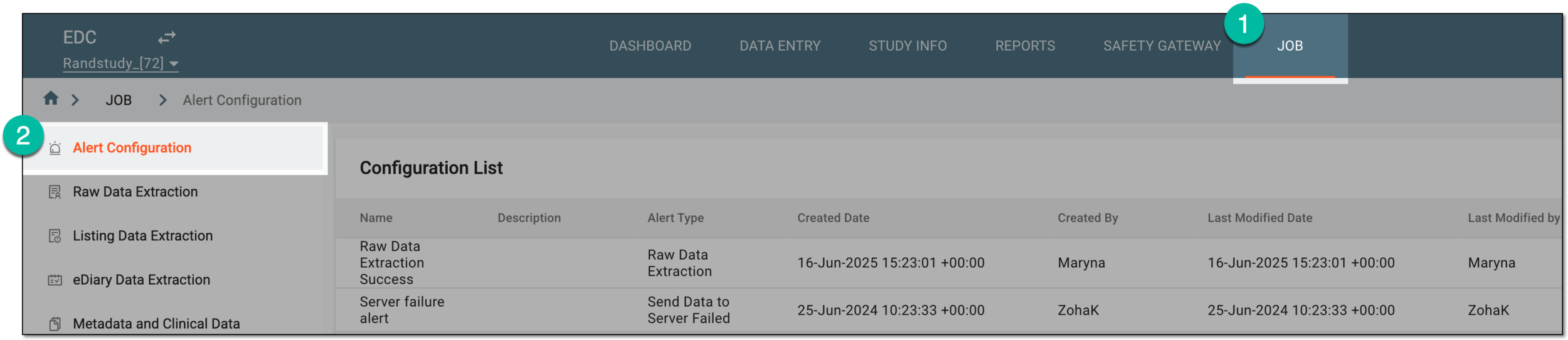 Figure 1. Accessing job alert configuration
-
In the Configuration List table that opens, locate the alert configuration that you want to update. Then from the Actions column next to it, select Edit
 .
. Figure 2. Selecting option to edit alert configuration
-
In the form that opens, update the fields as needed. These fields are identical to those explained in the table of the Add new alert configuration section.
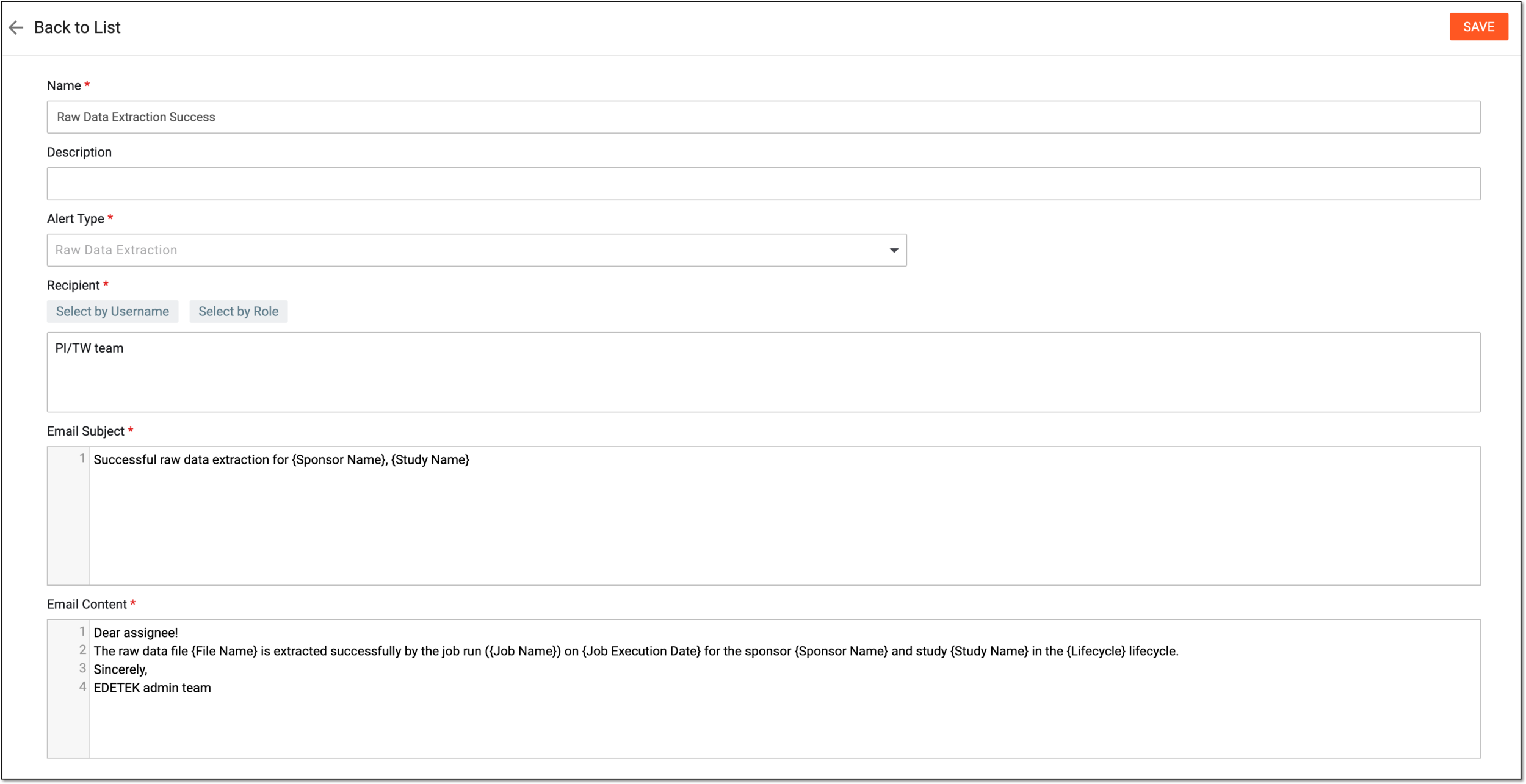 Figure 3. Updating alert details
Important
The Alert Type value cannot be changed upon editing; the field is read-only.
-
Select
 to implement the changes.
Upon saving, the alert configuration is updated.