Add new alert configuration
Jobs are automated processes that can be set up in EDC to perform various tasks triggering them by schedule or manually.
Since job execution is automated and the users are no longer directly involved, it is important to have an alert system to stay tuned to the job statuses and processes. These alerts are sent via email and contain all the needed details. In the EDC application, alerts can be set for server updates and data extraction.
The alerts configured here can be used when adding various data extraction jobs based on their type.
For instance, once you have the alert configuration of the Raw Data Extraction type associated with the sponsor's "Raw Data Extraction" job, every time the raw data report is successfully extracted, this alert triggers and sends the preconfigured email to the assignees.
-
In the EDC application header, select the JOB tab.
-
On the page that opens, in the left pane, select the Alert Configuration subtab.
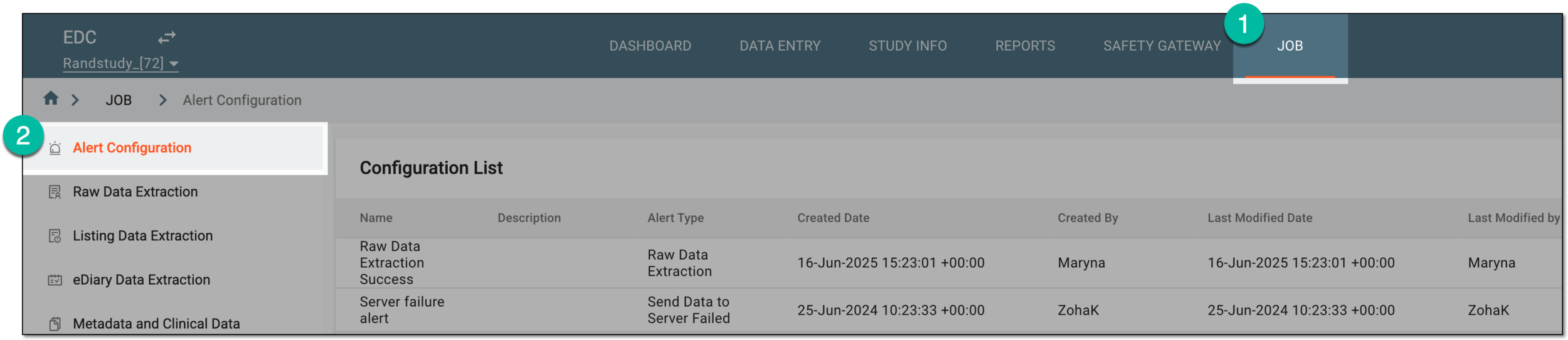 Figure 1. Accessing job alert configuration
-
On the Configuration List page that opens, from the workspace toolba, select New Item
 .
. Figure 2. Selecting option to add new alert configuration
-
In the New form that opens, complete the fields as explained in the following table.
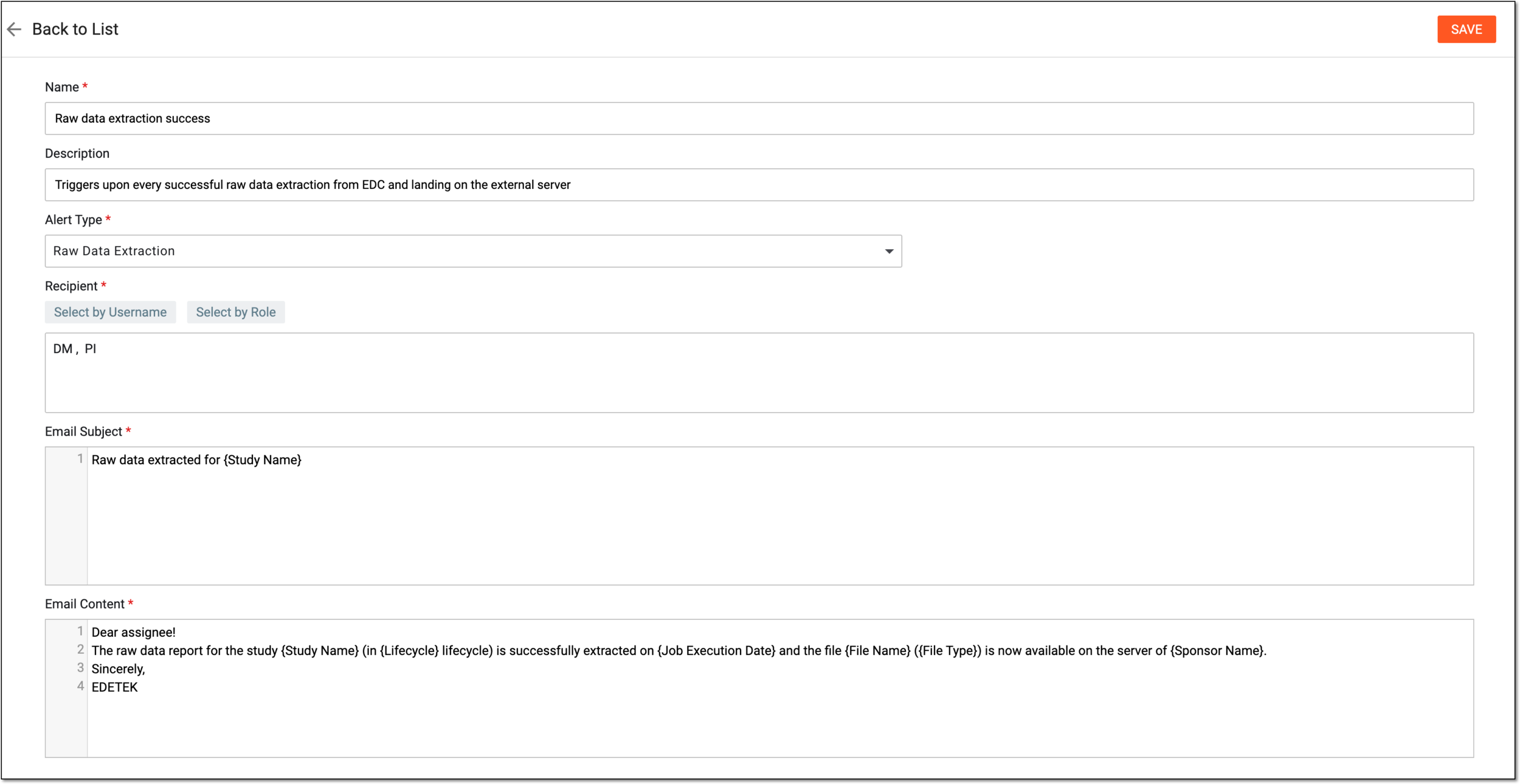 Figure 3. Configuring alert details
Tip
In the following table, mandatory elements are marked with an asterisk (*).
Element
Details
Name*
Enter a descriptive and unique alert name.
For example, if you are setting an alert for the raw data extraction job you can provide the name "Raw data extraction success."
Description
Enter a meaningful alert description.
Alert Type*
Select one of the following options:
Note that the selected alert type cannot be changed once the configuration is saved, therefore, the Alert Type field is read-only when you edit an alert.Add Attachment
Set as follows:
-
Select the checkbox to add the extracted eDiary data file as an attachment to the alert email. Once selected, the warning appears for you to acknowledge that the file with eDiary data can fail to attach to the email if its size exceeds allowable server limit.
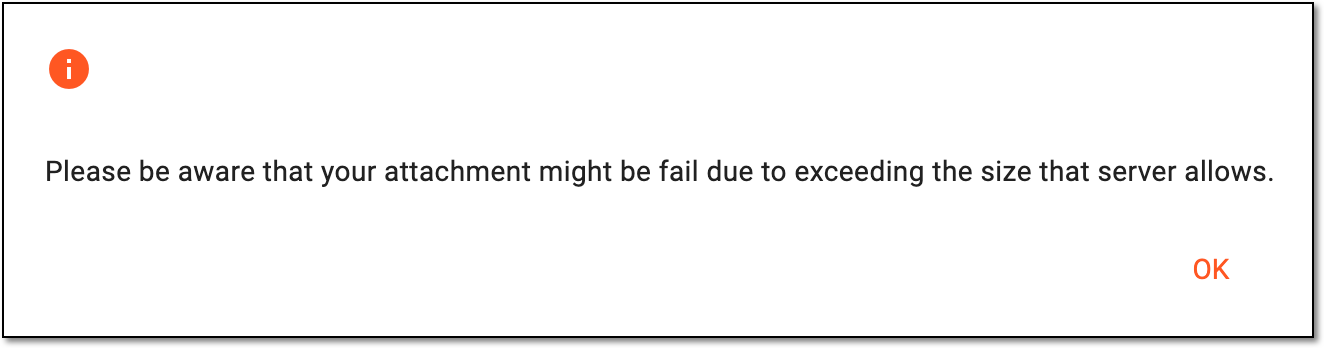 Figure 4. Acknowledging eDiary data attachment warning
-
Clear the checkbox not to include the extracted eDiary data to the alert email as an attached file.
This checkbox is only available if eDiary is selected as the alert type. Figure 5. Adding attachment to eDiary alert email
Recipient*
Select one of the following options:
-
Select by Role: to expand the list of user roles and choose the ones to whose representatives the email notification must be sent when the alert triggers.
-
Select by Username: to expand the list of users and choose the ones to whom the email notification must be sent when the alert triggers.
Subject*
Enter a meaningful subject for the notification email.
For example, if the alert is notifying the recipients about the raw data extraction, provide the subject "Raw data extracted for {Study Name}."
Content*
Provide the main text of the alert email, specifying all the details of the job, its result, or the server that the recipient needs to know.
Type the opening brace "{" to display the list of variables that you can add to the email body. Note that variables can be added once at a time.
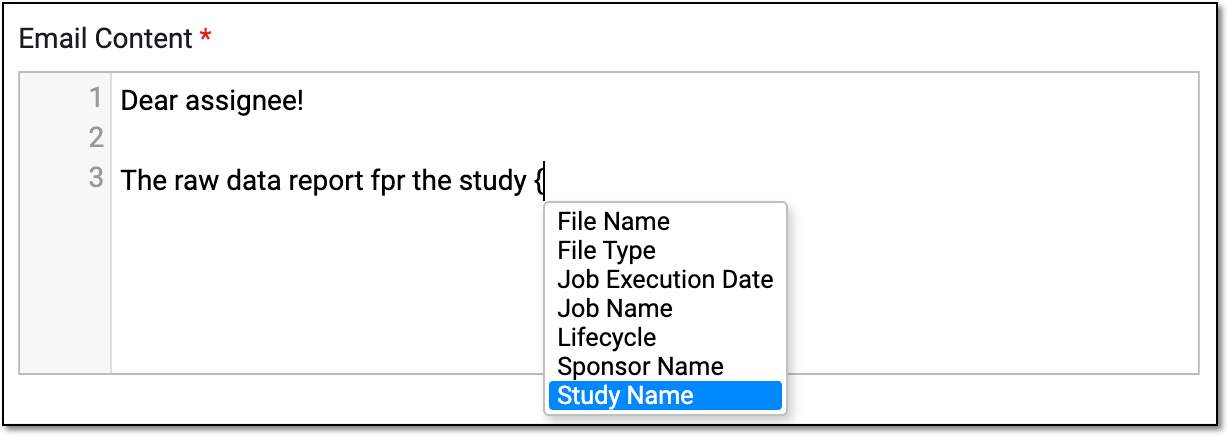 Figure 6. Using variables to write email contents
SAVE
Select
 to implement the changes.
 -
Upon saving, the alert is configured and can be used when adding a data extraction jobs. Once added to the respective job, the alert starts triggering upon occurrence of the specific event.