Delete alert
Alerts is a feature of EDC that helps you to prepare a setup to enable users to receive emails on predefined events occurring within the application (adverse event occurrence, subject phase change, queries being created, and so on). If the previously added alert is no longer needed, you can delete this alert.
-
In the EDC application header, select the STUDY INFO tab.
-
On the page that opens, in the left pane, expand the Alerts option and select the alert category of your interest.
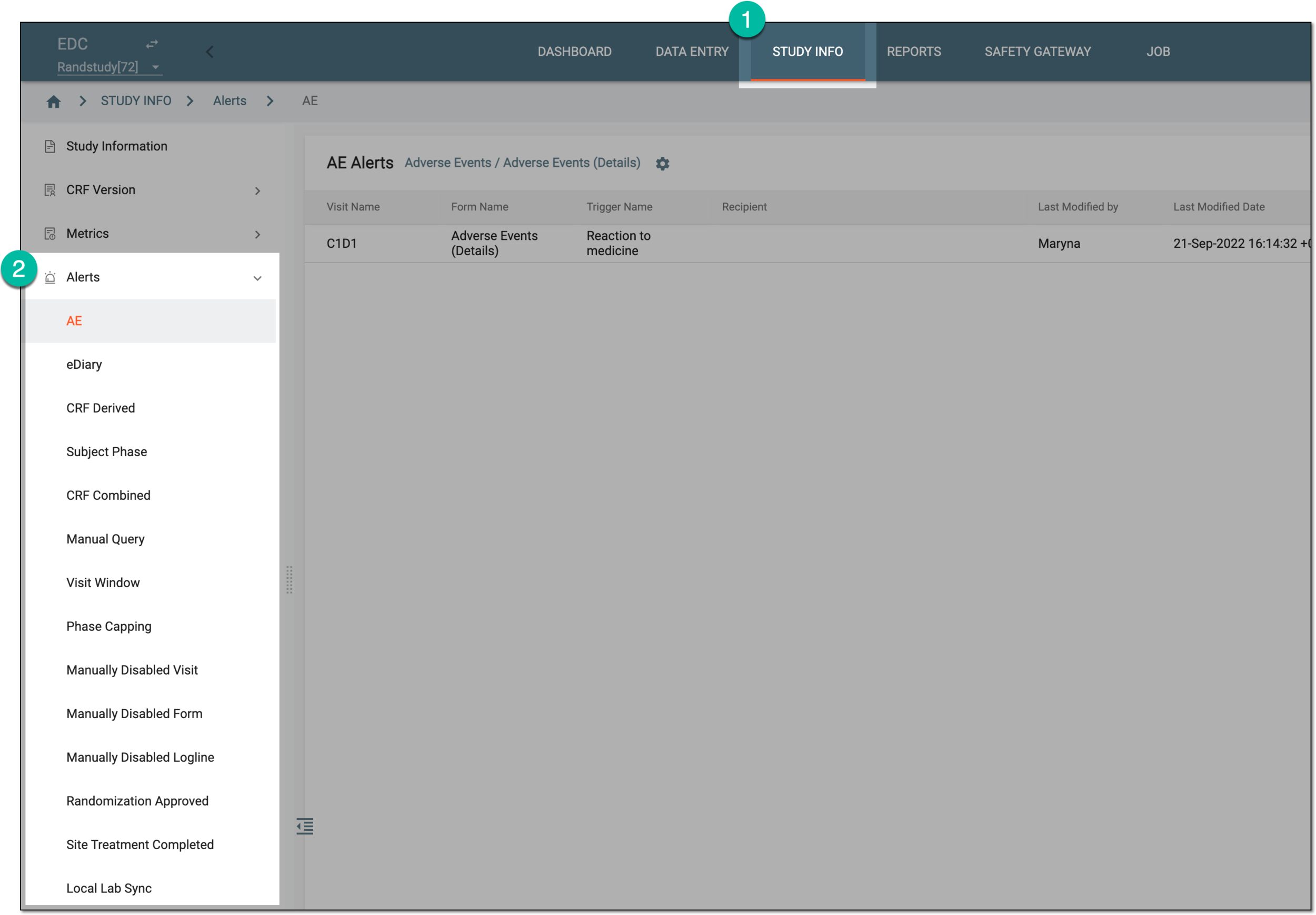 Figure 1. Accessing alerts
-
On the alert list page that opens, locate the alert you no longer need. In the Action column next to it, select More
 > Delete
  .
. Figure 2. Alert deletion option
-
In the confirmation Delete Item dialog that opens, select
 to confirm the deletion.
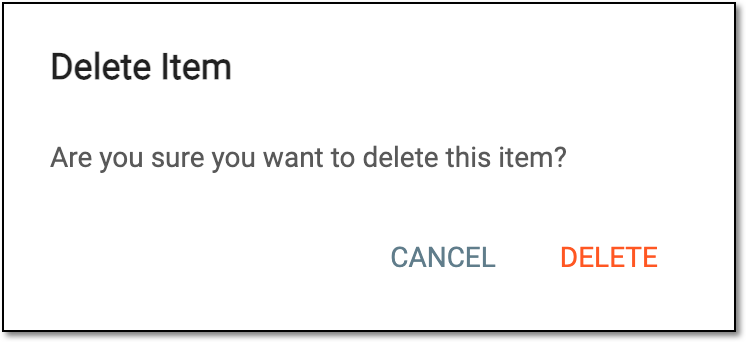 Figure 3. Confirming alert deletion
Upon confirmation, the alert is deleted and disappears from the table.