Setup SAE alert
In the EDC application, you can set SAE alerts to track and timely react to a serious adverse event (SAE) occurrence. The alerts are sent to selected recipients who would benefit from being apprised of this information. From the EDC application, you can add the SAE alerts and define their settings.
-
In the EDC application header, select the STUDY INFO tab.
-
On the page that opens, in the left pane, select the SAE > SAE Alerts subtab.
-
On the SAE Alert page that opens, fill in the fields of the SAE Alert Setting form as explained in the following table.
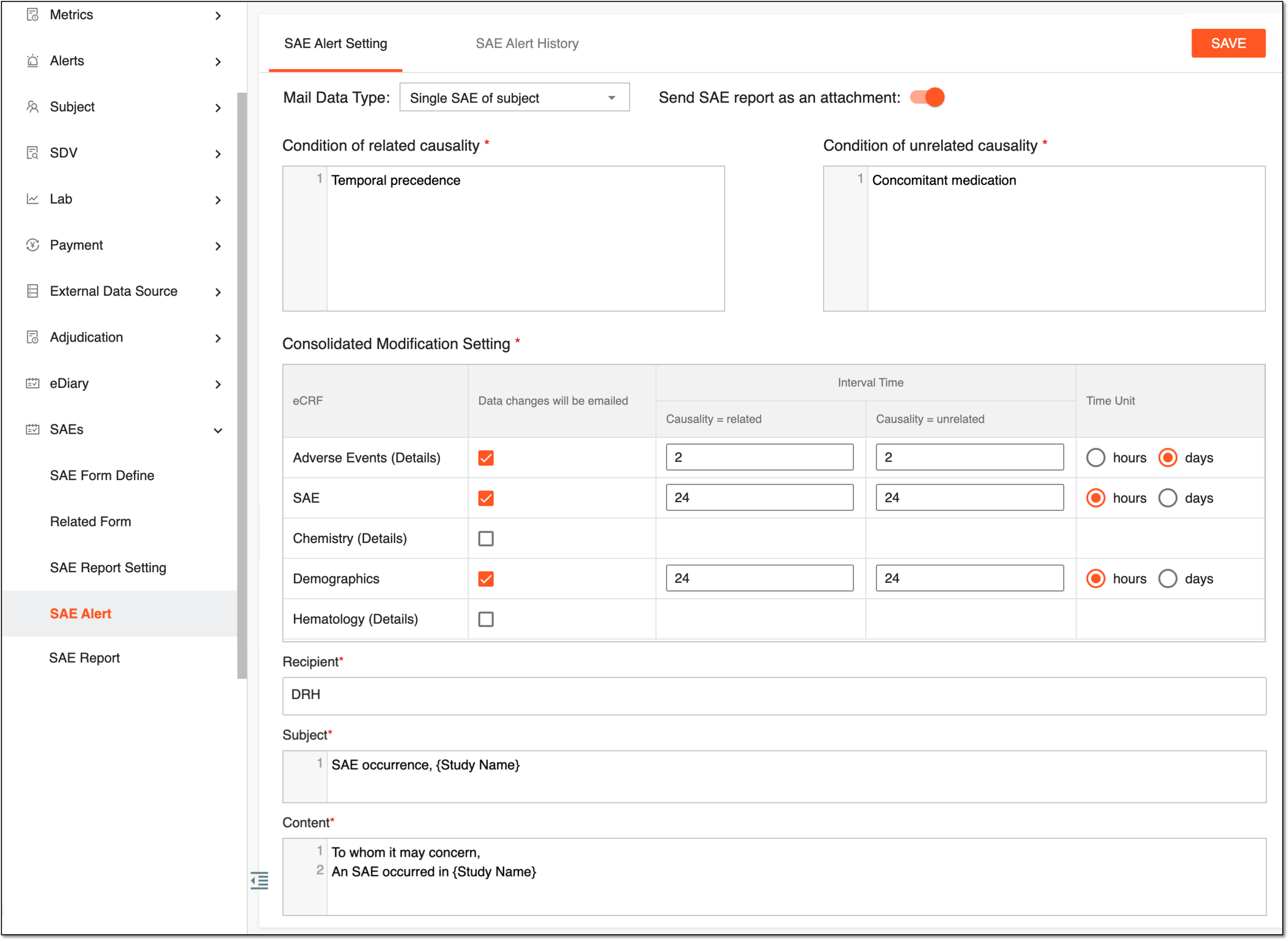 Figure 1. SAE alert settings
Tip
In the following table, mandatory elements are marked with an asterisk (*).
Element
Details
Mail Data Type
From the dropdown menu, select one of the following two options:
-
All SAEs of study: to include information about all the SAE occurrences of the study in the notification email.
-
Single SAE of subject: to include information about an SAE related to a certain subject.
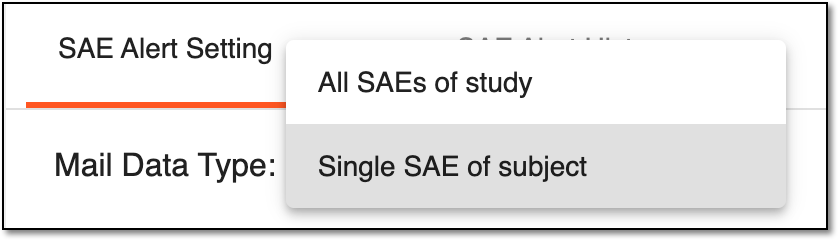 Figure 2. Selecting mail data type
Send SAE report as an attachment
The field is only available if the Single SAE of subject option has been selected for Mail Data Type.
-
Turn this toggle on to attach the SAE report file to the alert email.
-
Turn the toggle off not to include the SAE report attachment in the alert email.
Condition of related causality*
Enter the condition of the causality related directly to the studied item.
Condition of unrelated causality*
Enter the condition of the causality that is not necessarily related to the studied item. An unrelated causality is caused by reasons other than the drug administered during the study.
Consolidated Modification Setting*
Select the checkbox next to the eCRF of your interest from the list under the Data changes will be emailed column to trigger the alert upon data change in this eCRF. Also, specify the time interval between alerts and their units as follows:
-
Interval time: enter the numbers for related and unrelated causality notification intervals.
-
Time Unit: select the option button of the unit (days or hours).
 Figure 3. Selecting eCRF and notification intervals
Recipient*
Select the field and from the dropdown list that appears, select the recipient(s) of the alert notification.
Subject*
Enter a descriptive and informative subject of the alert. Since the notification is sent via email, this will be the subject of an email.
Content*
Enter the content of the alert email. For example, you can provide information about the study, the medication being administered, the adverse event that has occurred, and more. You can also add placeholders for data that is fetched at the time of email generation by adding variable names in parenthesis. For example, {SAE.Code Break}, {SAE.Re-challenge}, AESTDAT:{AESTDAT}, to name a few variables that can be added.
SAVE
Select
 to save the changes you have made.
 -
Once saved, the settings are used to generate SAE alerts and send them to the recipients. The resulting email includes the exact date and time of the SAE record as well as an attached file with the necessary SAE details.