Add new property for a phase
In IWRS, you can add custom properties to a subject phase to collect the required data on a subject.
-
In the IWRS application header, select the TREATMENT DESIGN tab.
-
On the page that opens, in the left pane, select the Subject Phase subtab.
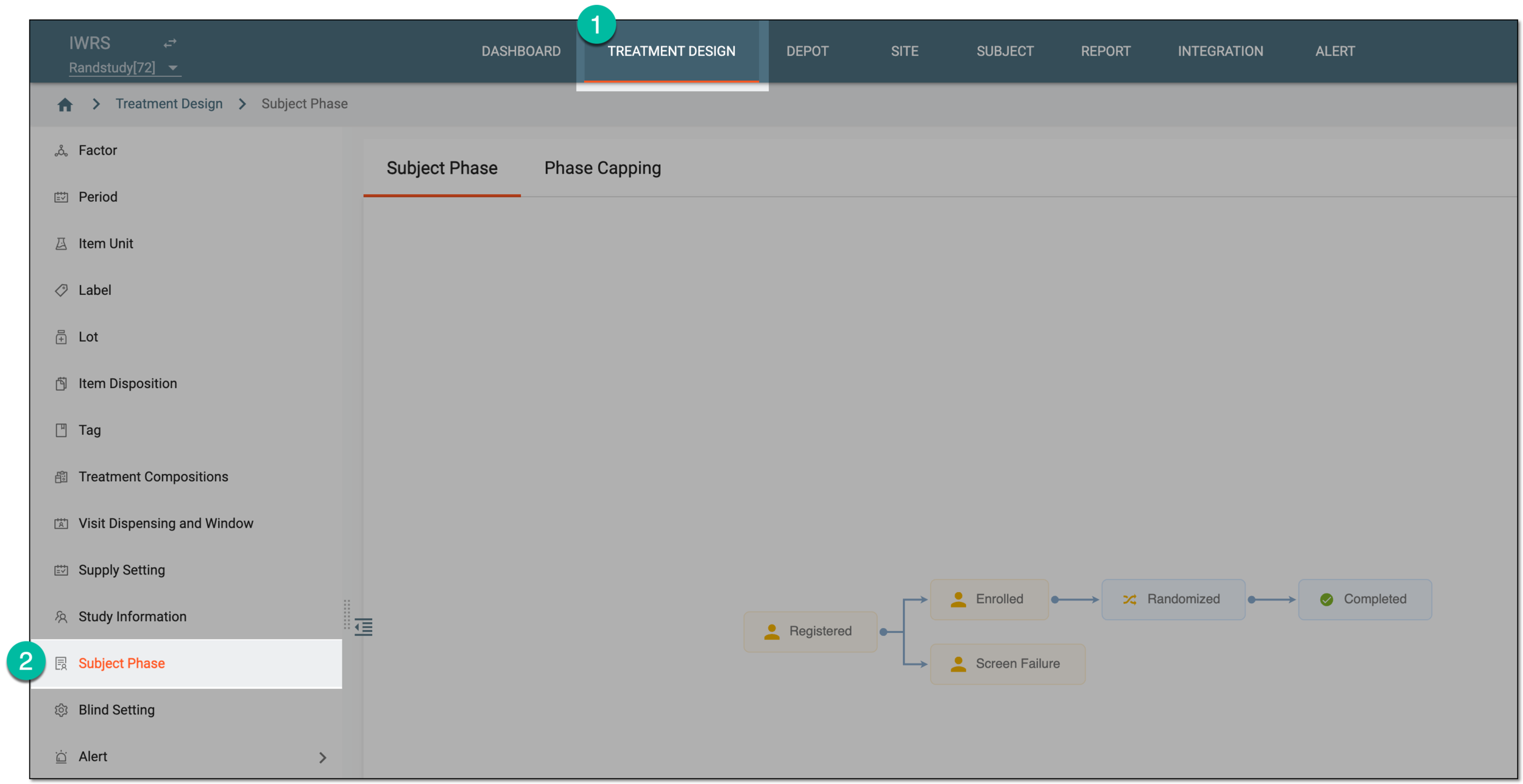 Figure 1. Accessing subject phase management
-
On the Subject Phase page that opens, on the contents panel, double-click the subject phase for which you want to add a new property and in the dialog that opens, select the Property Define tab.
Tip
For quick access to the Related Visit and Property functionality, right-click the needed phase in the chart.
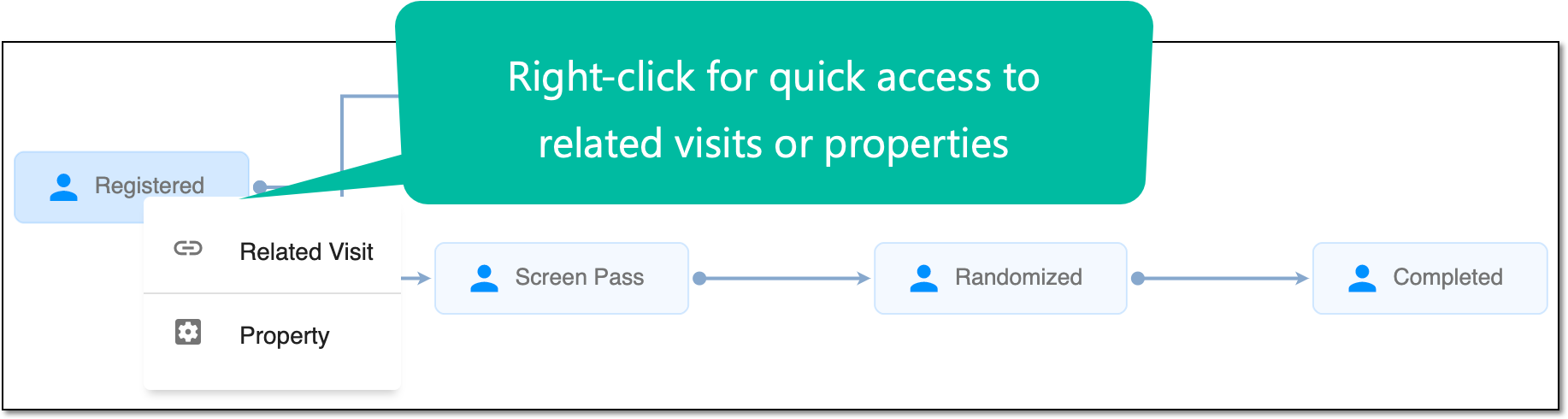 Figure 2. Accessing Related Visit and Property functionality
-
Under the Property Define tab, select New Property
 .
. -
On the page that appears, fill in the fields as explained in the following table.
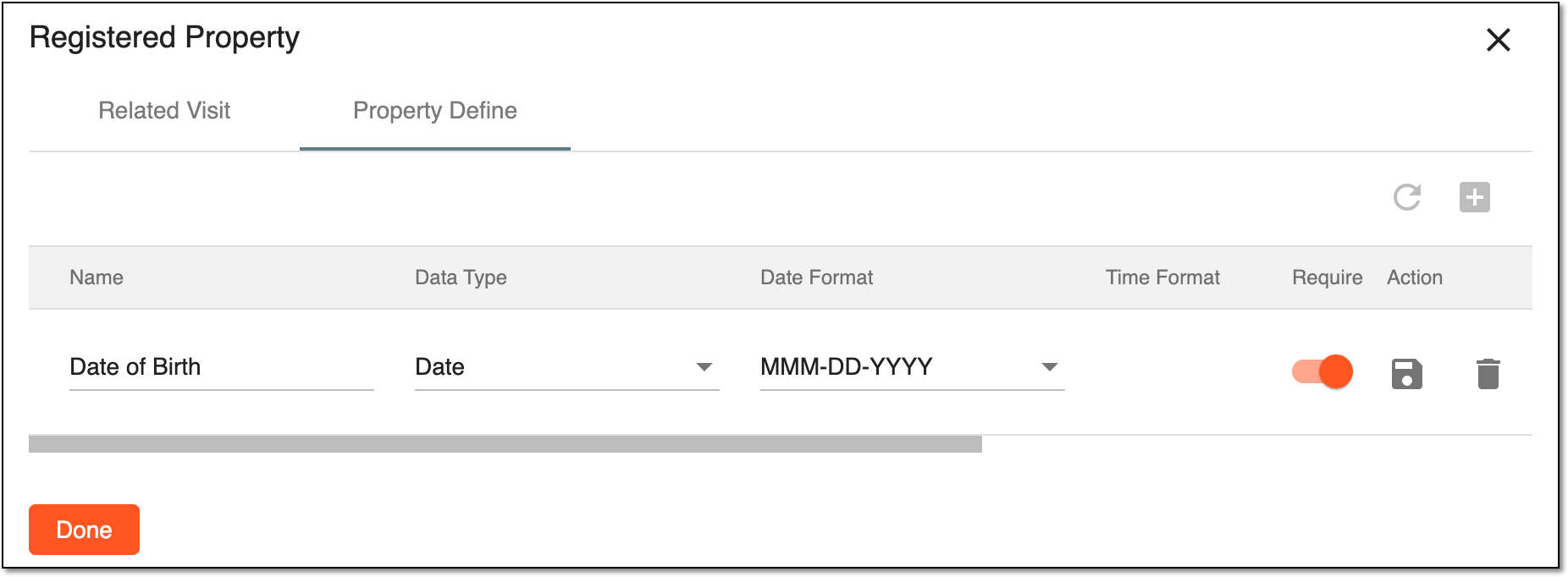 Figure 3. Adding phase property
Tip
While adding a new property, New Property
 stays disabled. You can
only add one property at a time. As soon as you save or discard changes, New Property is enabled, and you can add another
property.
stays disabled. You can
only add one property at a time. As soon as you save or discard changes, New Property is enabled, and you can add another
property.Element
Details
Name
Enter a property name.
Data Type
Select the data type for a property (Text, Date, Number, or else).
Date Format
Select the date format. Only applicable for Date and Date Time data formats.
Time Format
Select the time format. Only applicable for the Date Time data format.
Required
-
Turn this toggle on to set this property as mandatory.
-
Turn this toggle off to set this property as optional.
Unique
Select one of the following options:
-
In Study: if selected, the value of this property must be unique within the study.
-
In Site: if selected, the value of this property must be unique within a site.
-
NA: if selected, there is no restriction on the uniqueness of the value.
Blinded
-
Turn this toggle on to set this property as blinded so that only users with certain permissions could view its value.
-
Turn this toggle off to set this property value as unblinded and visible for all users.
If blind, Accessible Role(s)
Select the checkbox(es) next to the user role(s) for which you want the blinded property to be visible.
Only applicable if the Blinded toggle is turned on.
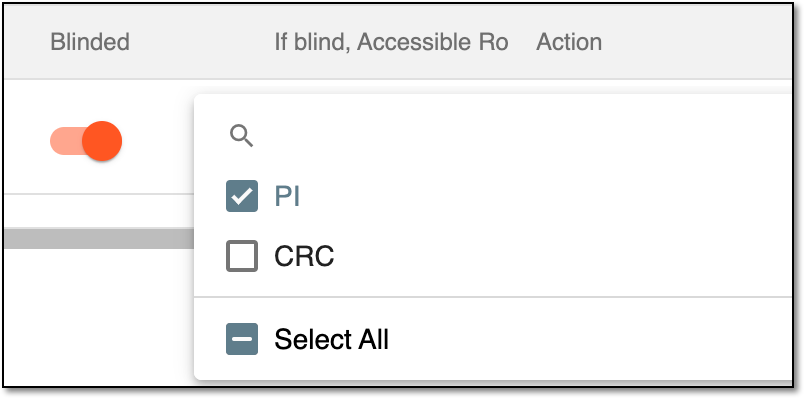 Figure 4. Selecting roles to view blinded property
-
-
Select SAVE
 to save the implemented changes.
Select Delete
 to delete the property.
Upon saving, the property is added to the subject phase. You can now edit, delete, or inactivate it.
Important
The properties of the Registered phase are displayed when registering a new subject; the properties of other phases are displayed when changing the subject’s phase via the Subject Information functionality.
A specific phase that a subject has to complete in the course of a clinical trial to move further to the next phase. For instance, Screening, Enrolled, Randomized, and others.
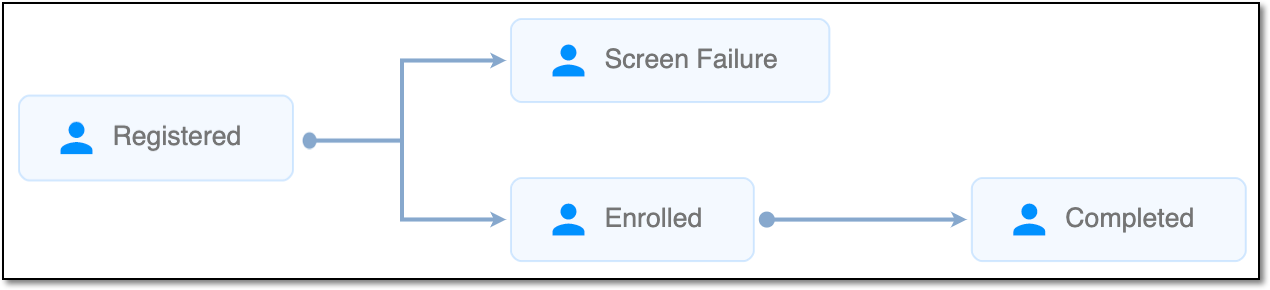 |
In eClinical, subject phases are designed individually for each study via the SD application, although they are referenced in others, like IWRS or EDC.