Clear translations for selected language
The Study Designer application provides the capability to translate CRF texts into multiple languages. This provides a significant advantage in global clinical trials where participants speak different languages. By addressing diverse linguistic needs, CRF translation promotes standardized data collection across international sites.
When you have already added translations for any of the previously applied languages, you can clear all the added translations at once for convenience.
-
In the Study Designer application header, select the TRANSLATION tab.
 Figure 1. Accessing CRF translation functionality
-
From the toolbar, select the latest draft CRF version, otherwise, you cannot update translations.
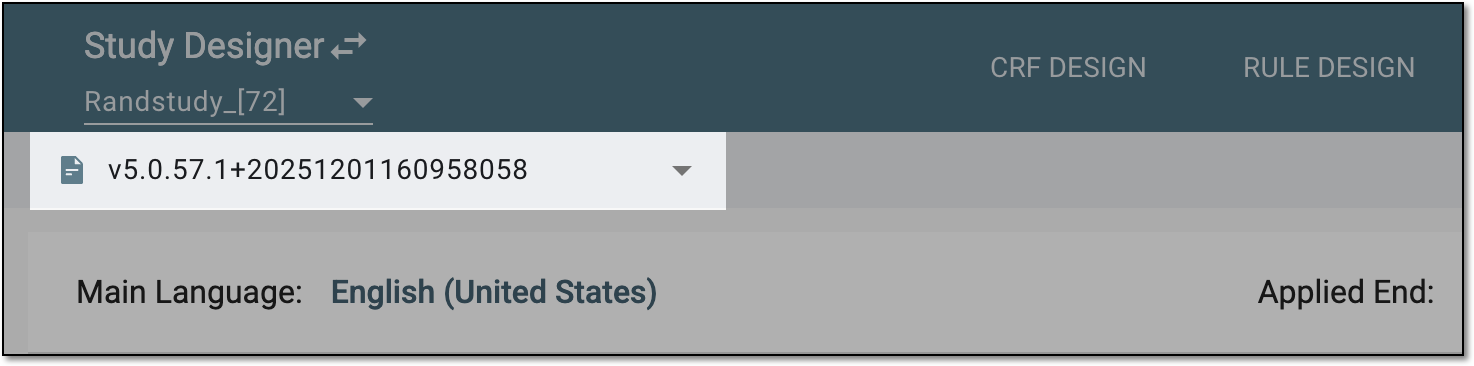 Figure 2. Selecting draft CRF version
-
From the Applied End field, select the application where the data is to be collected and from Translation Language, select the language of translations for the target texts.
 Figure 3. Selecting applied end and translation language
-
Once you have selected the applied end and language, select Clear
 .
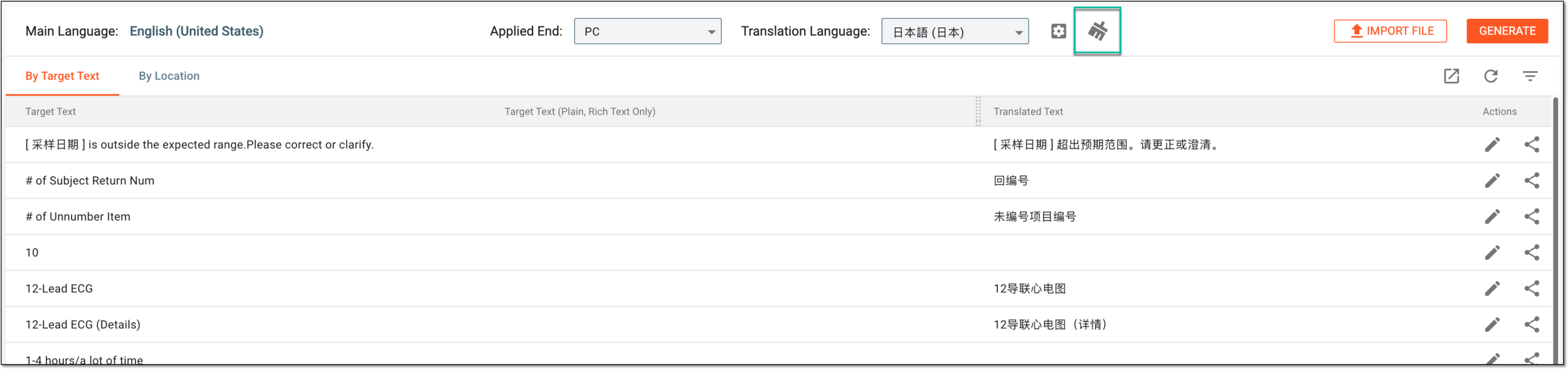 Figure 4. Clearing translations for selected language
-
In the confirmation dialog that appears, confirm that you want to delete all the translation texts in the selected language by selecting
 .
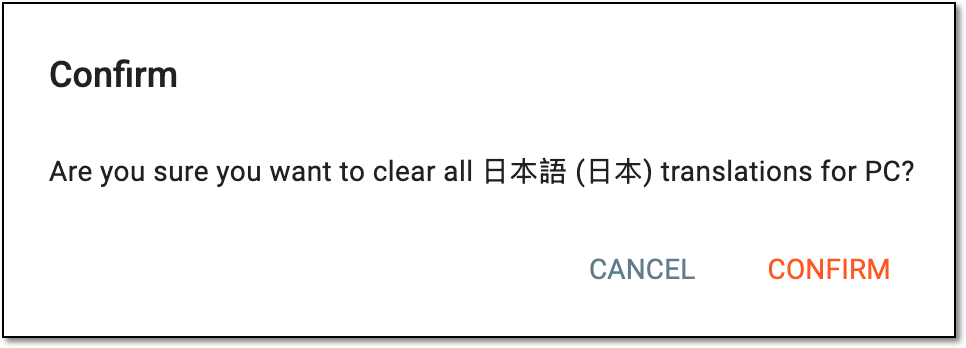 Figure 5. Confirming to delete translations
Once confirmed, all the translations are cleared. You can start adding new translations as needed.