Compare monitor template versions
In CTMS, you can create new versions of a monitor template to introduce the necessary changes. If needed, you can export different versions of the template as the XLSX file to compare the introduced changes.
-
In the CTMS application header, select the LIBRARY tab.
-
On the page that opens, from the left pane, select the Monitor Template subtab.
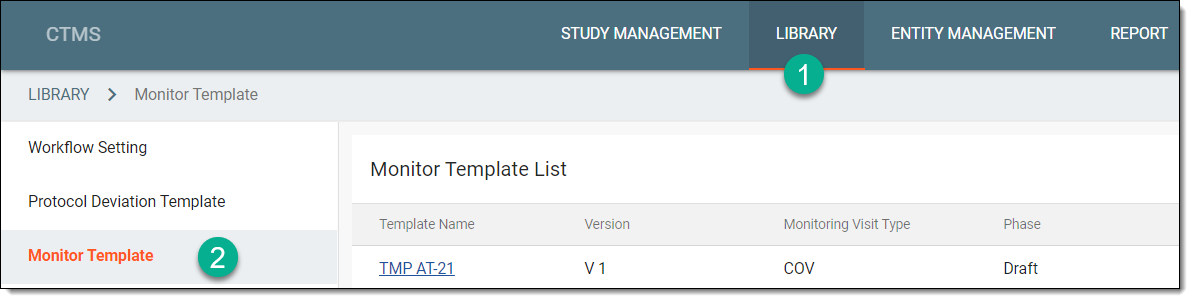 Figure 1. Accessing monitor template subtab
-
In the Monitor Template list that opens, locate the template for which you want to compare historical versions. Then next to the template, select More
 > Version Comparison
  .
. Figure 2. Accessing version comparison for monitor template
-
In the Version Comparison dialog that appears, select the version that you want to compare. Then select
 .
.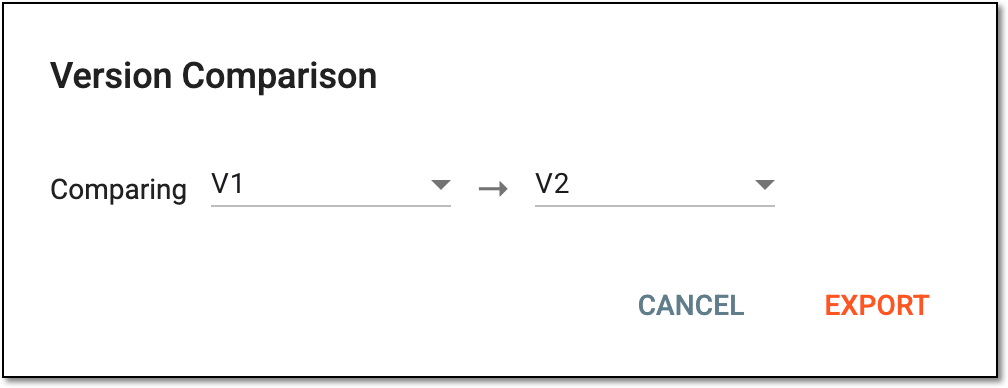 Figure 3. Selecting monitor template version to compare
-
In the downloads widget that appears, view your download progress. Select the widget to open the My Downloads dialog.
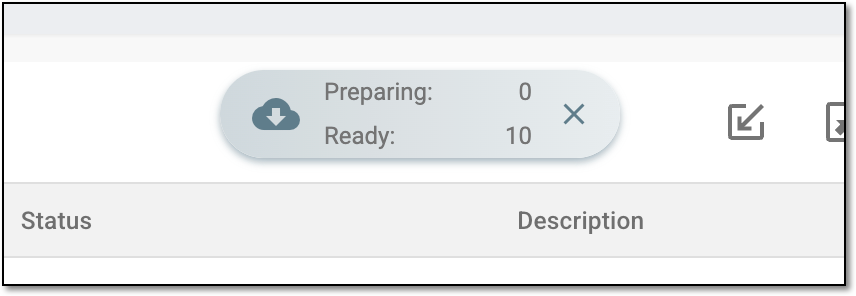 Figure 4. Downloads widget for monitor template
-
In the My Downloads dialog that opens, you can find the following tabs:
-
Preparing: lists all the files whose export is in progress, and they are not yet ready for download. Wait until the needed file moves to the Download is Ready tab.
-
Download is Ready: lists the files whose export is complete, and they can be downloaded to your computer by selecting
 .
.
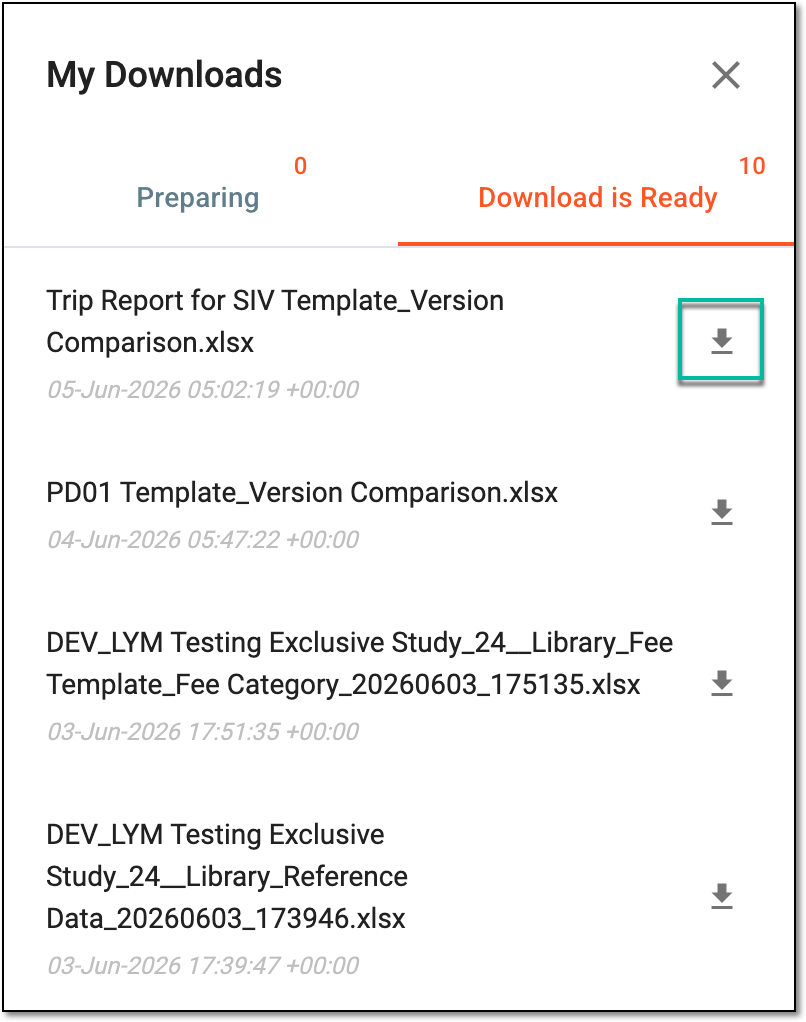 Figure 5. Downloading extracted version comparison for monitor template
-
Once exported, the XLSX file with version comparison details becomes available on your computer. The file contains several sheets, such as general information, summary of change, details of item, form, and codelist change.
Tip
The extracted file version is saved in the system and can be accessed from Export History  .
.
