Preview delayed shipment alert email
In IWRS, you can create alerts to notify the personnel in charge of the shipment delay. According to the set conditions, the email is sent to the recipients to notify them of the occurred situation. You can preview the contents of the email configured for each alert.
-
In the IWRS application header, select the ALERT tab.
-
In the left pane of the page that appears, select Delayed Shipment Alert.
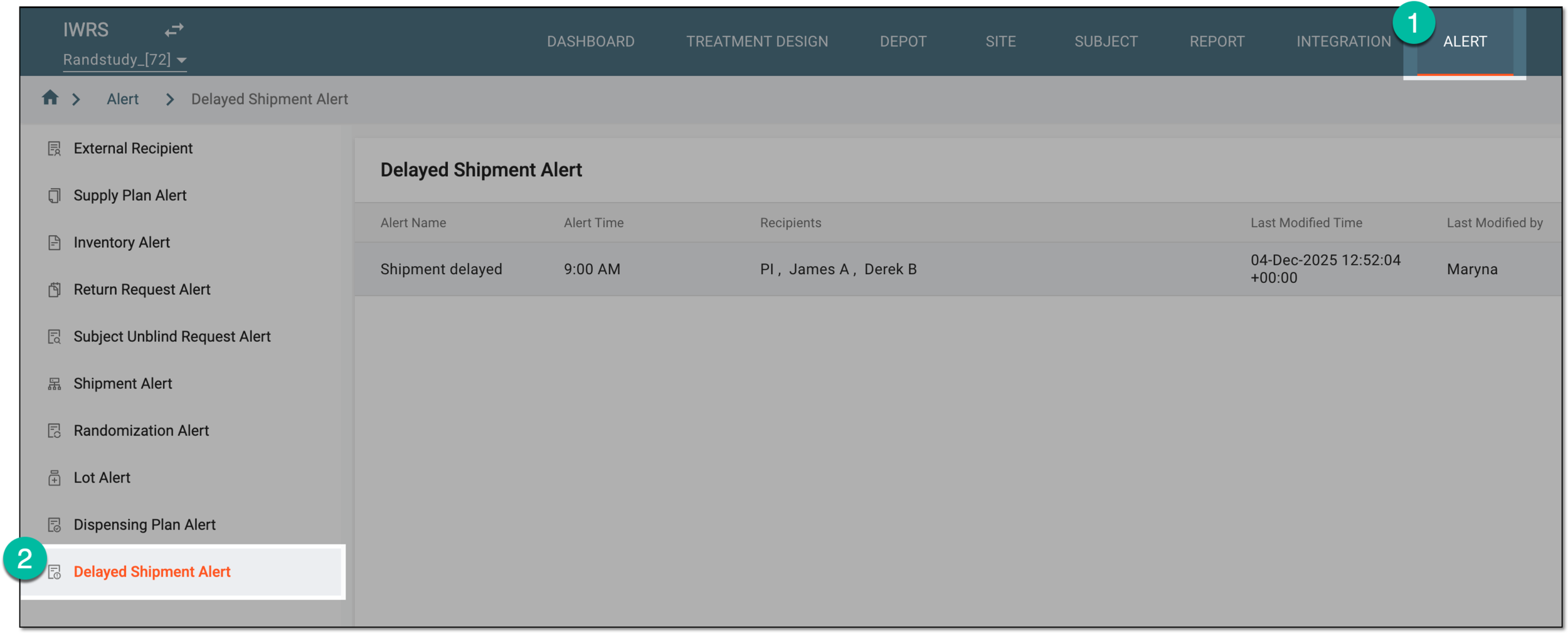 Figure 1. Accessing delayed shipment alert setting
-
In the Delayed Shipment Alert table that opens, locate the alert configuration for which you want to preview the email contents. Then from the Action(s) column, select Info
 .
. Figure 2. Activating or inactivating delayed shipment alert
-
In the Mail dialog that appears, preview the content of the delayed shipment alert email configured in mail settings upon alert creation or editing.
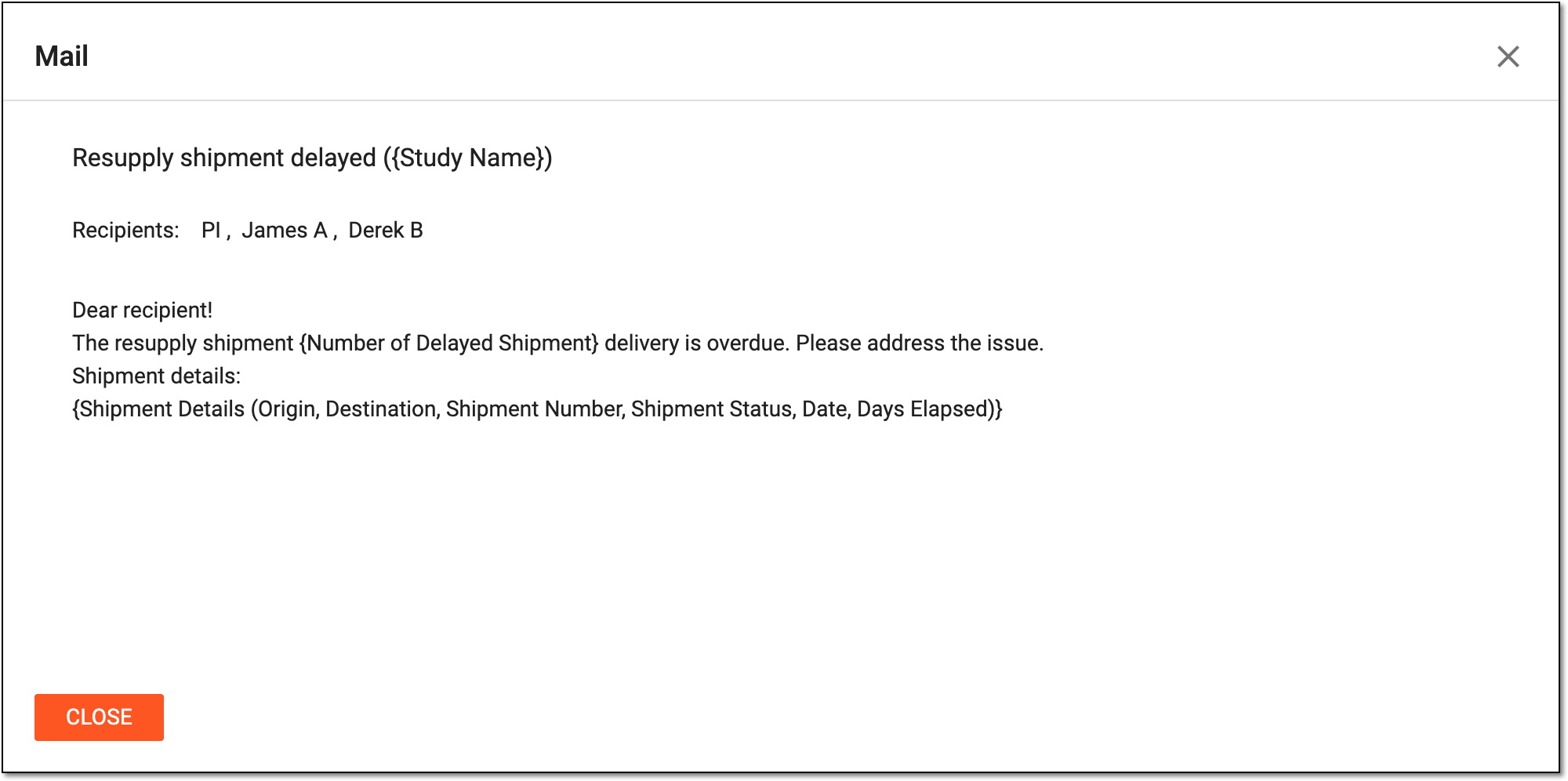 Figure 3. Previewing delayed shipment alert email
You have previewed the contents of the alert email. You can now select  or
or  to close the Mail dialog and return to the Delayed Shipment Alert list.