Add safety distribution task
By adding the safety distribution tasks in PV, you automate the process of sending out the safety data reports to investigators (PIs), clinical research coordinators (CRCs), clinical research associates (CRAs), and other responsible study personnel.
Tip
The list of recipients is preconfigured in CTMS by providing the safety distribution level of access to the site personnel.
-
In the PV application header, select the ICSR tab.
-
On the page that opens, from the left pane, select Safety Distribution.
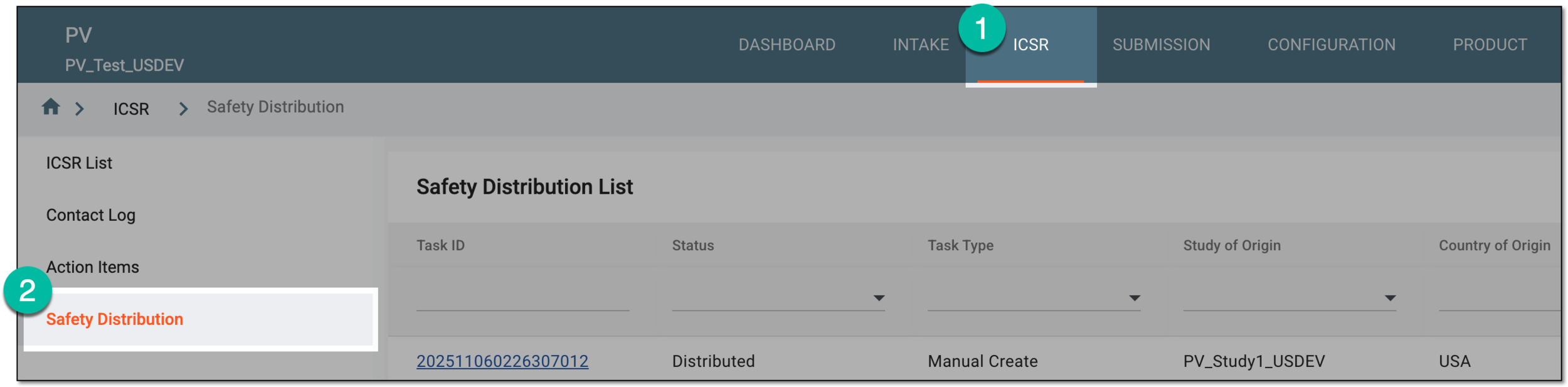 Figure 1. Accessing safety distribution
-
From the workspace toolbar of Safety Distribution List, select New
 .
. Figure 2. Selecting option to add safety distribution task
-
In the form that opens, enter the safety distribution task details as explained in the following table.
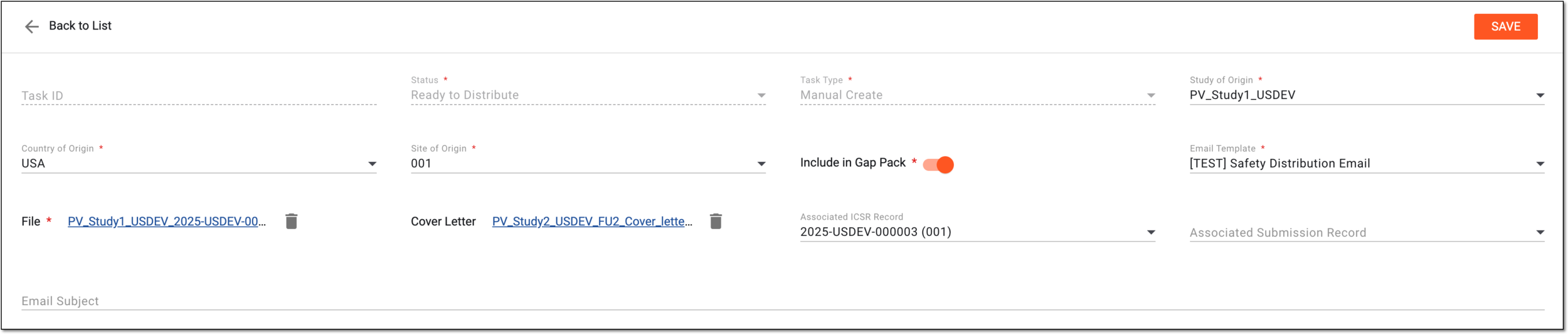 Figure 3. Completing safety distribution task details
Tip
In the following table, mandatory elements are marked with an asterisk (*).
Element
Details
Task ID
Represents the empty, uneditable field to be autopopulated with the unique identifier of the safety distribution task once it is saved.
Status*
Represents the current status of the safety distribution task; for the task being created is set to Ready to Distribute by default.
Task Type*
Represents the method of how the safety distribution task is added to the system; for the task being created from scratch is set to Manual Create by default.
Study of Origin*
Select the study to which the safety data belongs (for which the SUSAR, SAE, or other event occurred).
The studies on the list are based on the access permission granted to you via ADMIN.Country of Origin*
Select the country where the safety data for the occurred event was collected.
Site of Origin*
Select the unique identifier of the site where the safety data was collected.
The sites on the list are based on the access permission granted to you via ADMIN.Include in Gap Pack*
Turn the toggle on or off as follows:
-
If turned on, the report sent with this safety distribution task can be used in the future safety data distributions sent according to new tasks.
For instance, you create a safety distribution task for Site 001 and turn on the Include in Gap Pack toggle. Then the safety data is distributed—email sent out to the recipients of Site 001.
Then the safety distribution task is created for Site 002, with Include in Gap Pack also enabled. Once you distribute the safety data according to this new task, the safety data report already sent to Site 001 is now automatically sent to Site 002.
-
If turned off, the data is distributed once to the intended site, and no further automation events are expected for this safety distribution task.
Email Template*
Select the template that outlines the contents of the safety distribution letter.
The email templates are predefined according to the business requirements of the sponsor by EDETEK administrators upon request.File*
Select
 to upload the safety data report file that you want to be distributed according to this task.
Cover Letter
Select
to upload the cover letter file with auxiliary details to your safety report.Delete
Select
 next to the uploaded safety data or cover letter file to remove it.
Associated ICSR Record
Select the unique identifier of the ICSR existing in PV that relates to the safety data being distributed according to this task.
Associated Submission Record
Select the unique identifier of the submission record created in PV for the ICSR related to the safety data being distributed according to this task.
Email Subject
The field is editable to enter the subject of the letter to be sent out according to this safety distribution task. However, you can leave it blank to be autopopulated with the safety data details as soon as you save the task.
SAVE
Select
 to implement the changes.
Back to List
Select
 to discard the changes without saving and return to Safety Distribution List.
 -
Once saved, the task is created. You can now distribute the safety data.
Tip
The task details remain editable until the data is distributed.