Export document details from TOC
In eTMF, the Document Warehouse tab is mainly used for the temporary storage of some unorganized files so that, upon request, they can be organized by data managers (DM) and other accountable individuals per DIA RM and uploaded to the Essential Documents storage.
In the Document Warehouse storage of eTMF, by making use of the Table of Content (TOC) feature, you can export the details of all the files in a particular study so that you can work with them offline. Along with exporting, this feature also aids you in analyzing the list of available files in a particular study.
-
In the eTMF application header, select the TMF tab.
-
In the Study List that opens, from the table, select the name of the study for which you want to access the document warehouse.
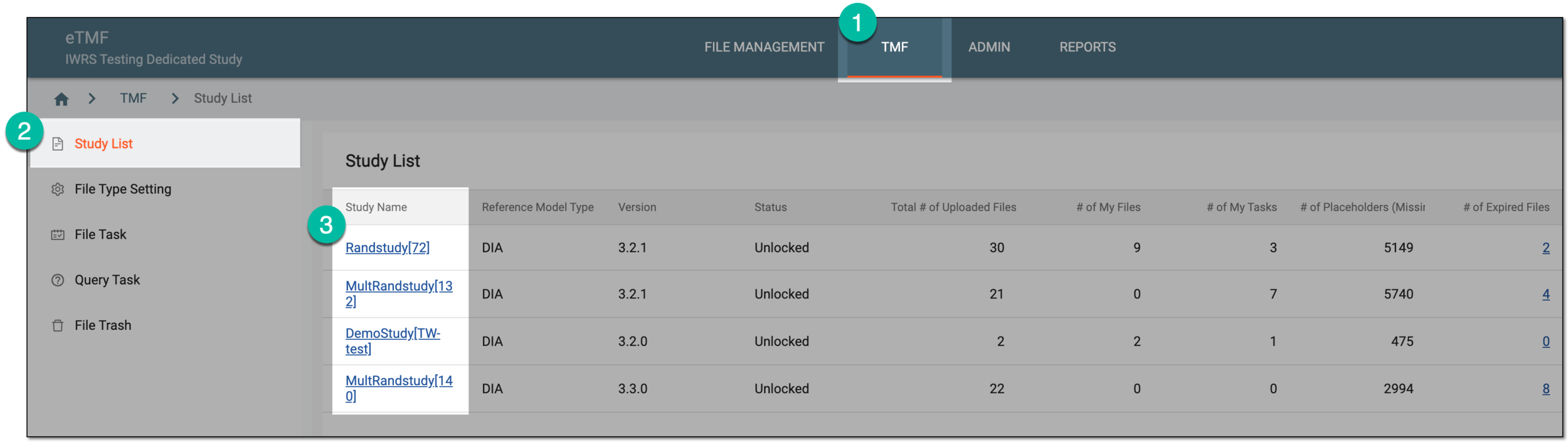 Figure 1. Selecting study
-
From the left pane, select the Document Warehouse subtab. If required, from the study selection field, you can change another study.
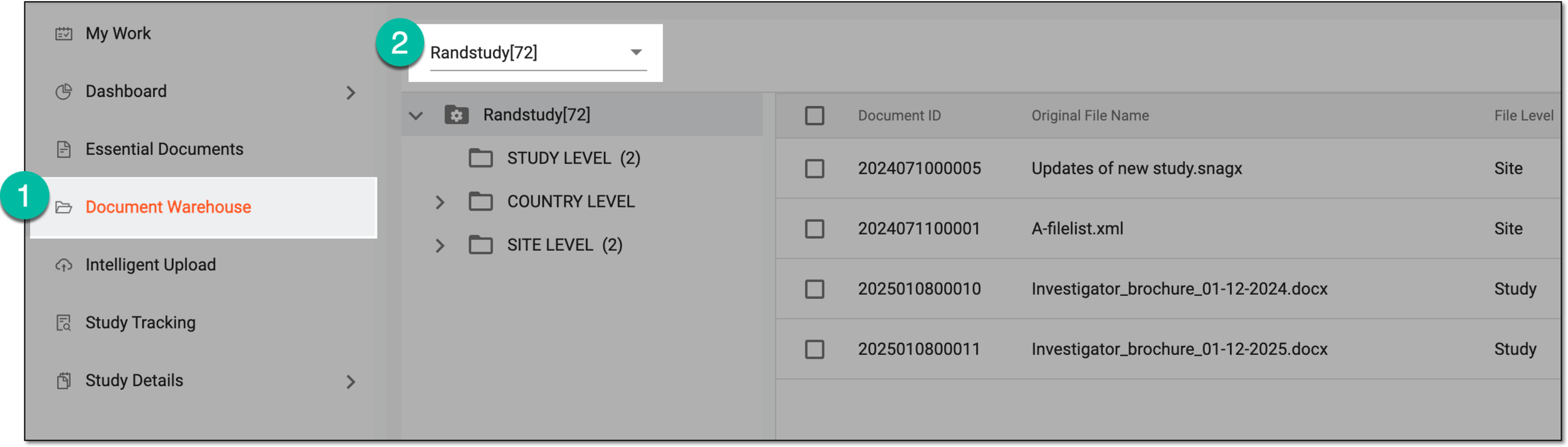 Figure 2. Accessing document warehouse and study
-
From the workspace toolbar, select Table of Content
 .
.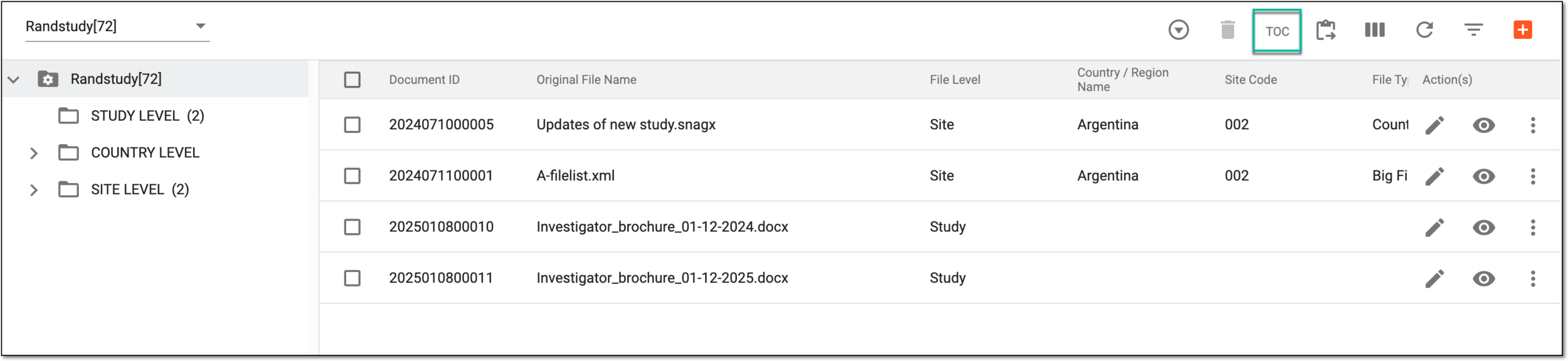 Figure 3. Selecting to view TOC list
-
On the TOC page that appears, from the toolbar select Export
 .
.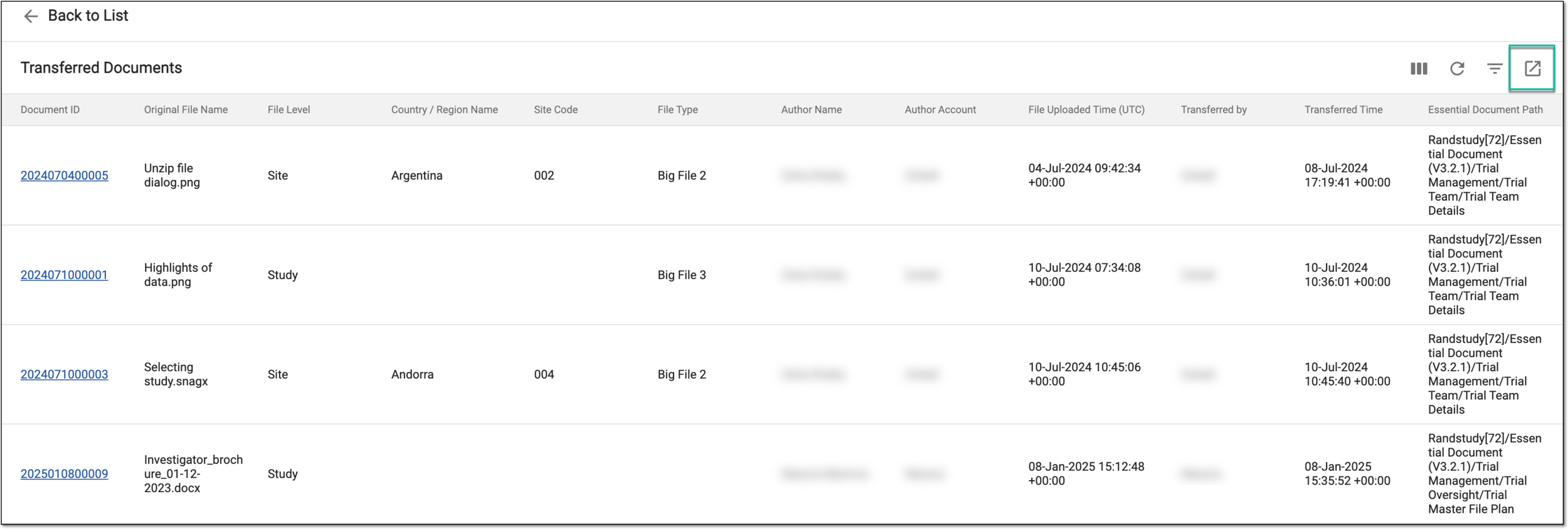 Figure 4. Exporting transferred document details
Upon completion, the details of all documents in the selected study are available on your PC, and you can work with them offline.