Download file from document warehouse
In eTMF, the Document Warehouse tab is mainly used for the temporary storage of some unorganized files so that, upon request, they can be organized by data managers (DM) and other accountable individuals per DIA RM and uploaded to the Essential Documents storage.
Once a file is uploaded to Document Warehouse, you can download the file to work with it offline on your PC. You can find it helpful if the file preview is unavailable due to its size, format, or other reasons.
-
In the eTMF application header, select the TMF tab.
-
In the Study List that opens, from the table, select the name of the study for which you want to access the document warehouse.
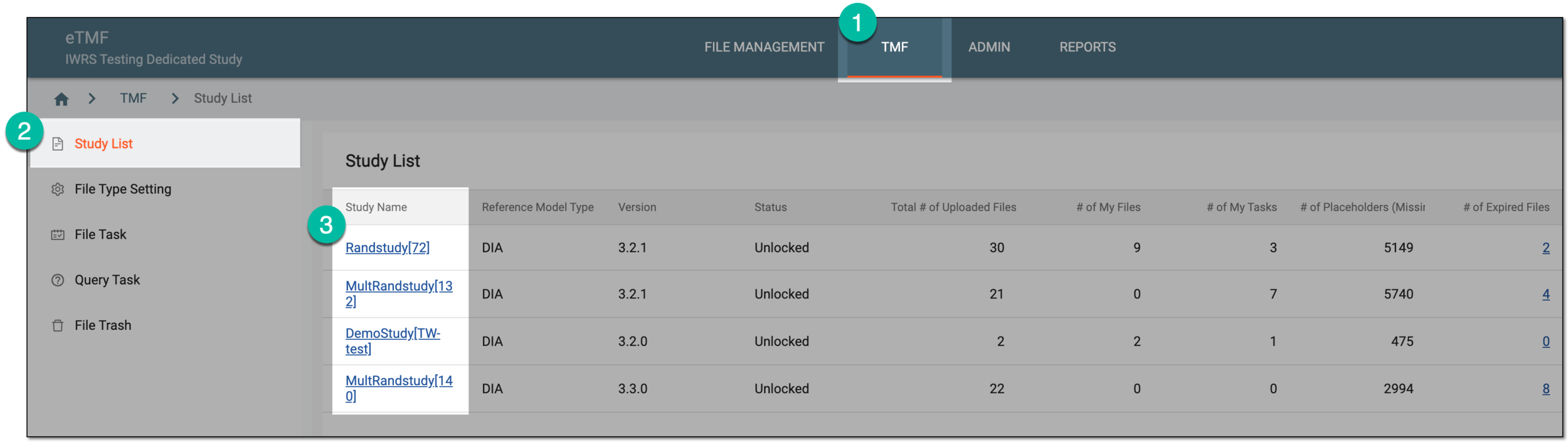 Figure 1. Selecting study
-
From the left pane, select the Document Warehouse subtab. If required, from the study selection field, you can change another study.
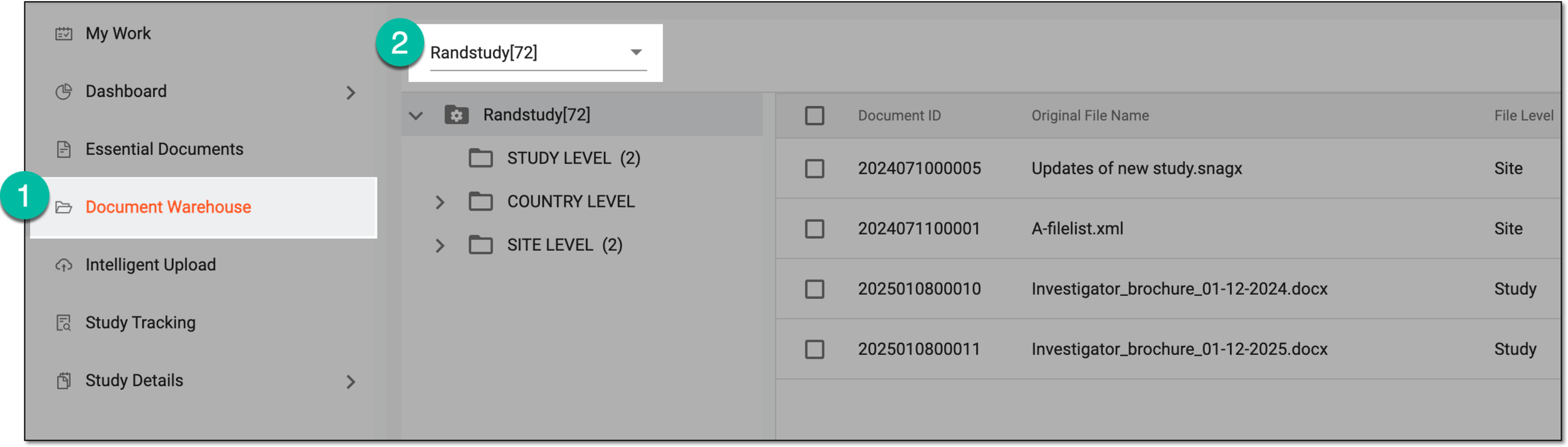 Figure 2. Accessing document warehouse and study
-
From the explorer tree panel, select the directory containing the file you want to download.
-
On the page that appears, next to the needed file under Action(s) column, select More
 > Download
  .
. Figure 3. Selecting to download file from document warehouse
Upon completion, the file is downloaded to your PC, and you can work with it offline.