Create template for ICSR line listing export
In PV, the Line Listing Export function is based on the product event matrix. You can use this functionality to export only relevant suspect products and events within the matrix. To adjust the line listing records to your business needs, you can prepare various templates to suit different data export scenarios.
-
In the PV application header, select the ICSR tab.
 Figure 1. Accessing ICSR list
-
On the ICSR LIST page that opens, on the workspace toolbar, select More
 > Line Listing Export
  .
.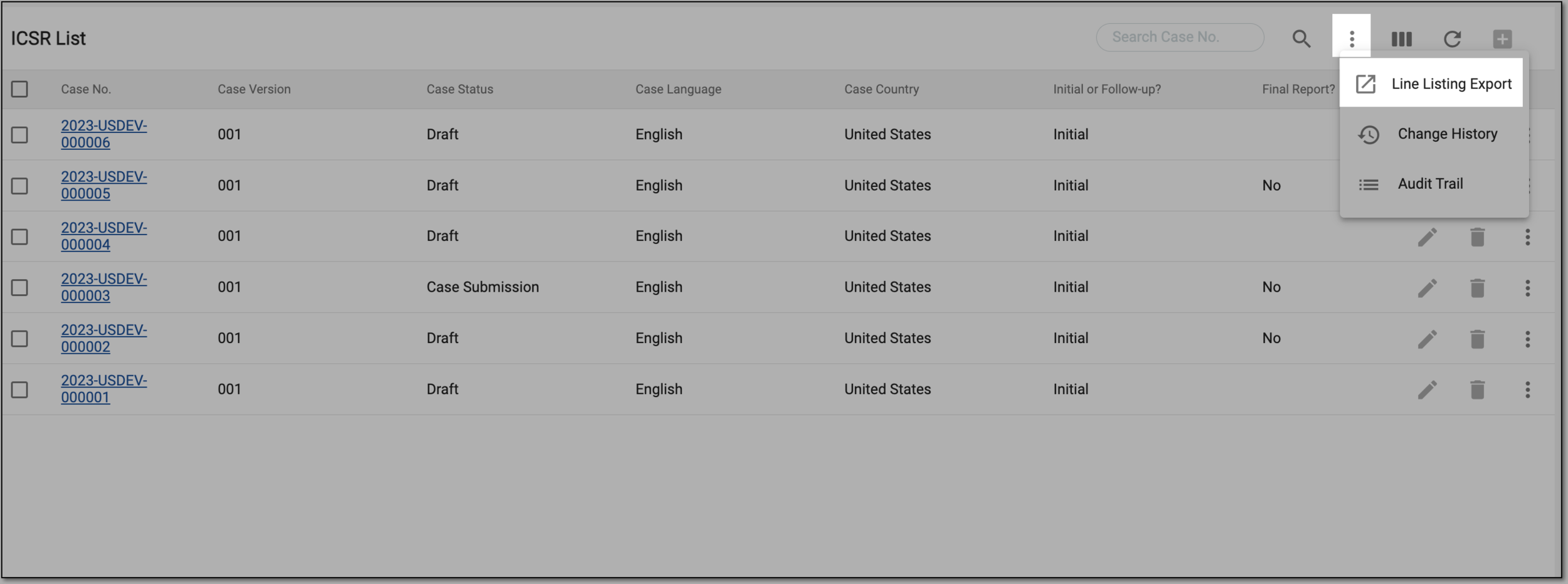 Figure 2. Selecting line listing export
-
On the Line Listing Export page that opens, in the Public Template or My Template block, select New
 to add a custom publicly available or private template for line listing export.
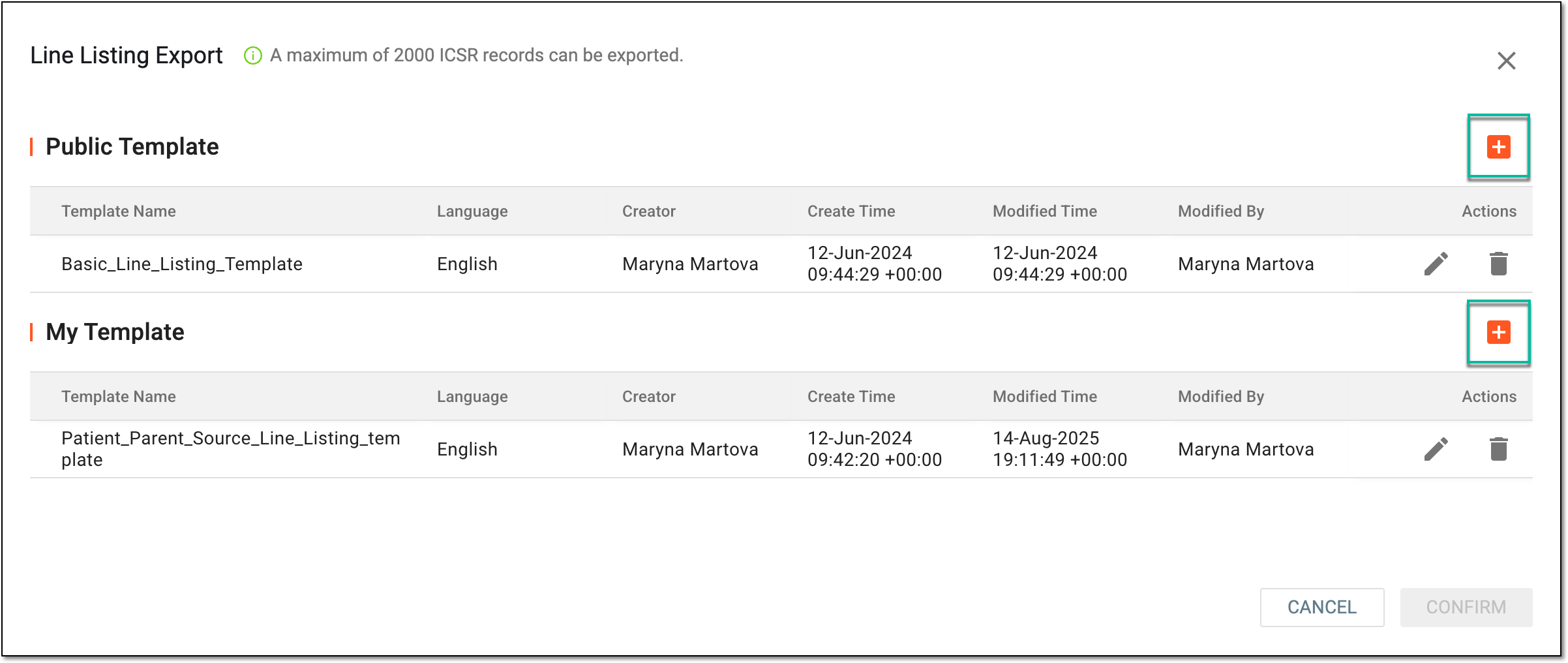 Figure 3. Selecting option to add new template
-
On the page that opens, at the Select Form stage, select the checkboxes next to the ICSR forms whose data you want to add to the line listing report. Then select
 .
.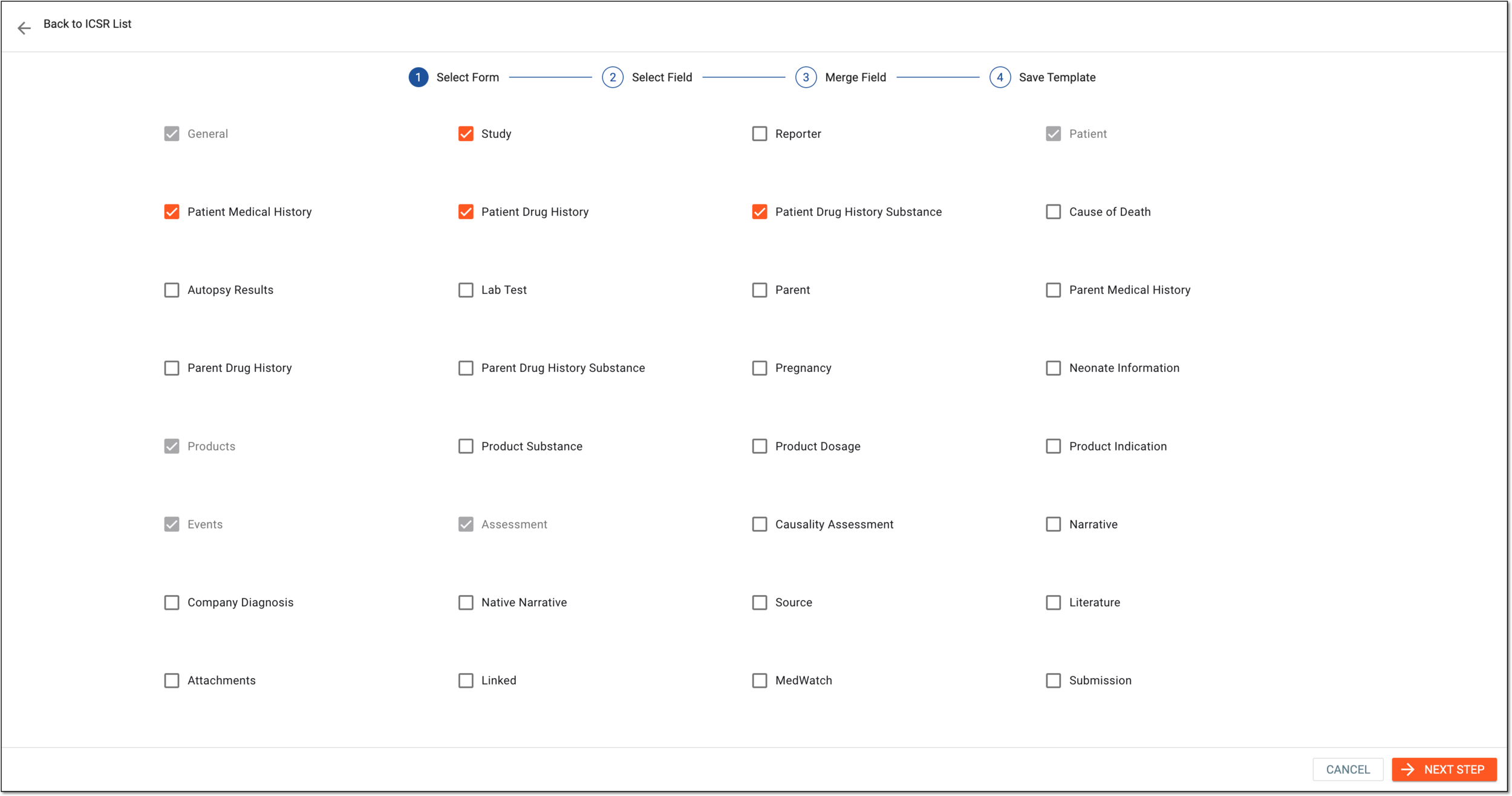 Figure 4. Selecting forms for line listing export
-
At the Select Field stage, for each of the forms, add the fields you want to include in the line listing report by dragging them from Field name in Form to Field name Export needs.
Tip
Use Select All
 to automatically add all fields of Field name in
Form to Field name Export needs.
to automatically add all fields of Field name in
Form to Field name Export needs.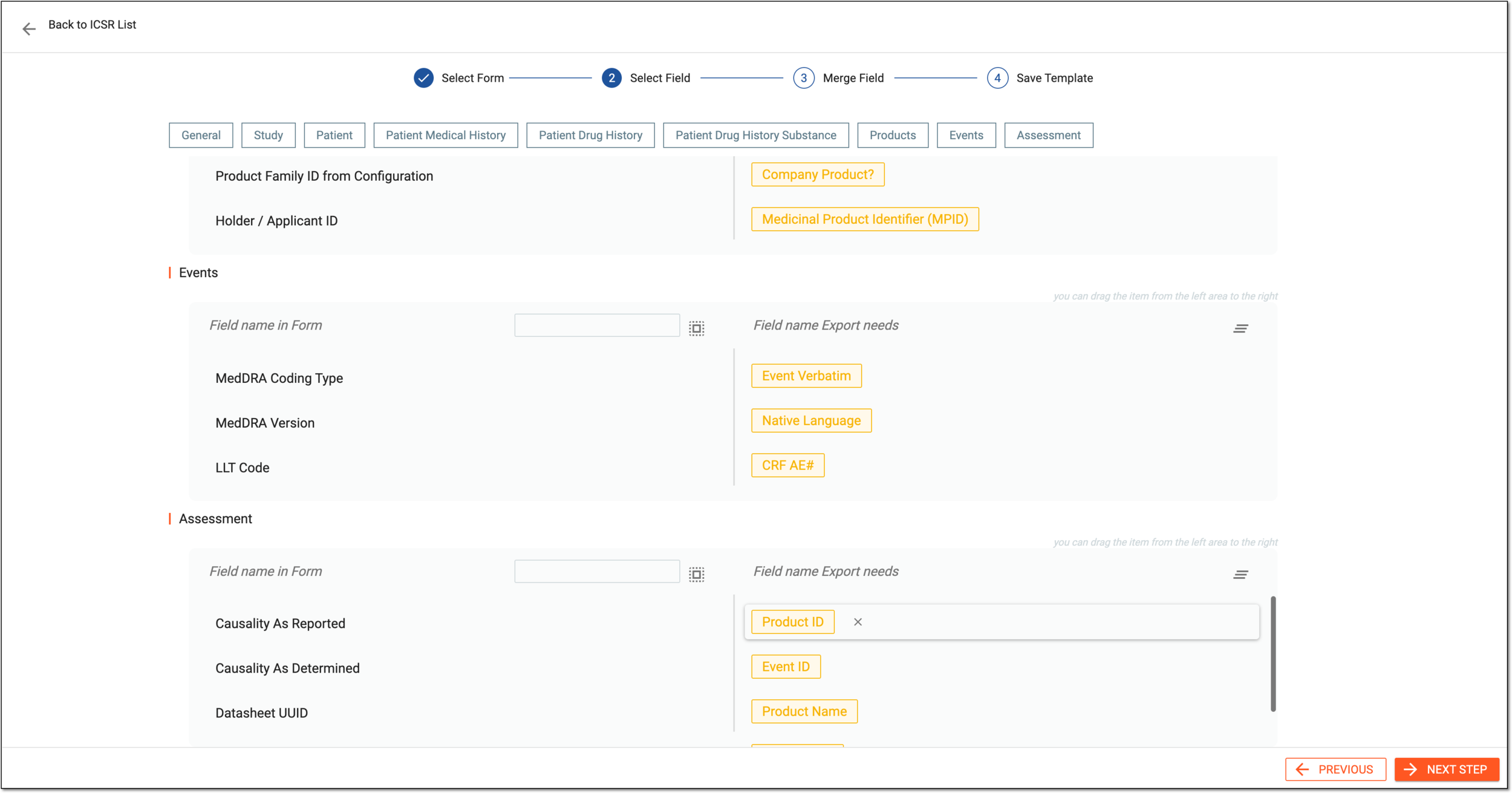 Figure 5. Selecting form fields to export
-
At the Merge Field stage, join some related fields if required by dragging them from Field List to Selected Fields and selecting Merge
 . The merged fields appear in the Merge Field table.
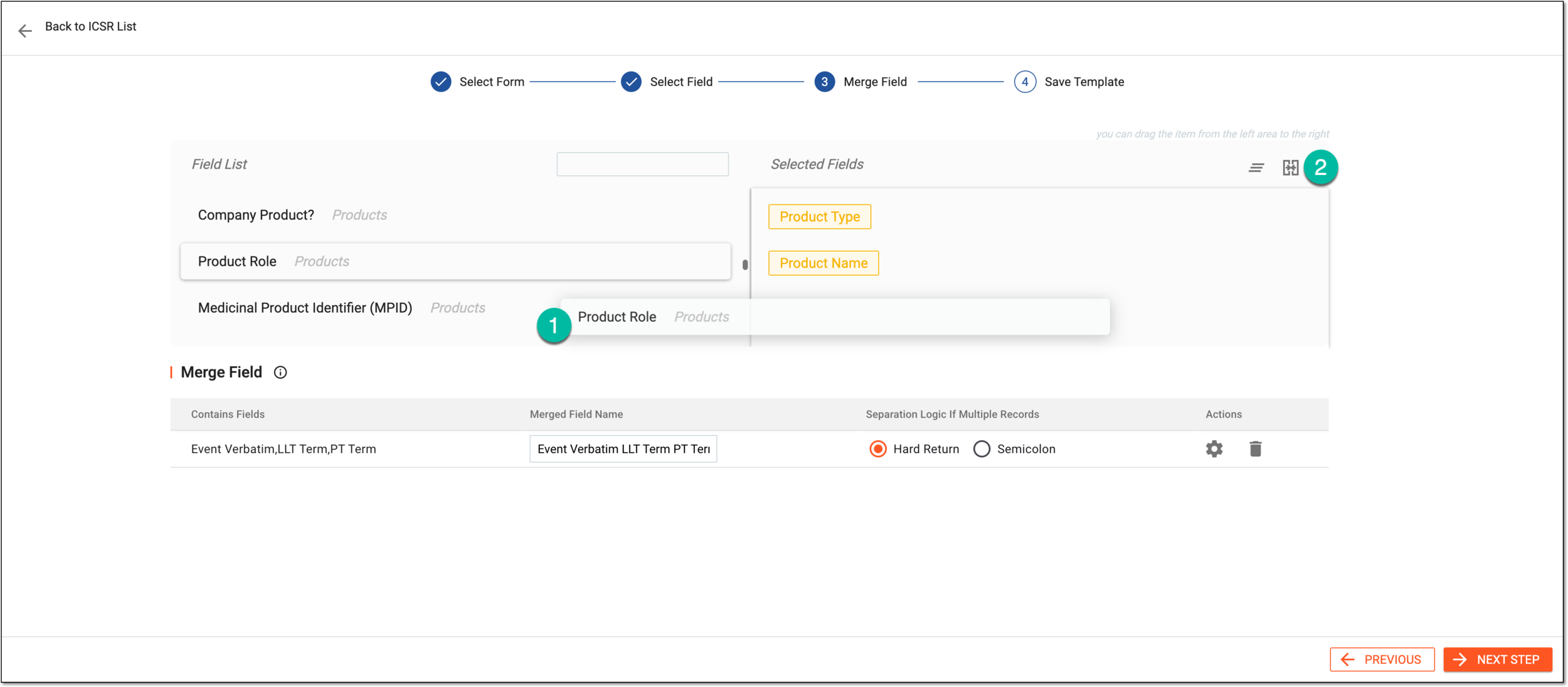 Figure 6. Merging form fields
-
In the the Merge Field table, next to the merged field you want to customize, select Merge Field Setting
 and in the dialog that appears, do the following:
-
In Field List, select the field for it to appear in Merge Setting Panel.
-
From the workspace toolbar of Merge Setting Panel, select one of the following:
-
Add Blank Space
 : to insert a blank space between the elements of the merged field.
 -
Add Hard Return
 : to insert a hard return between the elements of the merged field.
 -
Add Connection Symbol
 : to open the Add Connection Symbol dialog
and enter a custom symbol or wording to be inserted between the elements of the merged field.
: to open the Add Connection Symbol dialog
and enter a custom symbol or wording to be inserted between the elements of the merged field.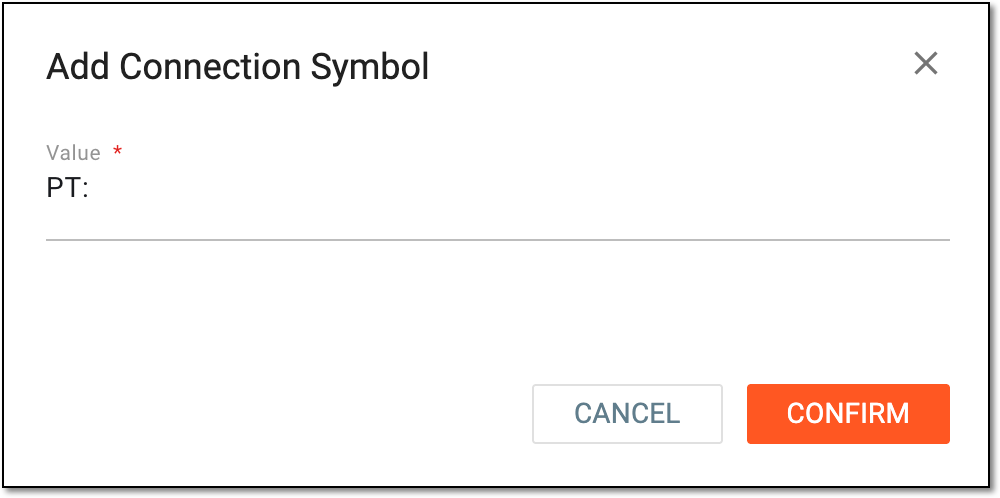 Figure 7. Adding connection symbol
-
-
Right-click any element to access options to move, edit, or delete it.
Once configured as needed, select
 .
.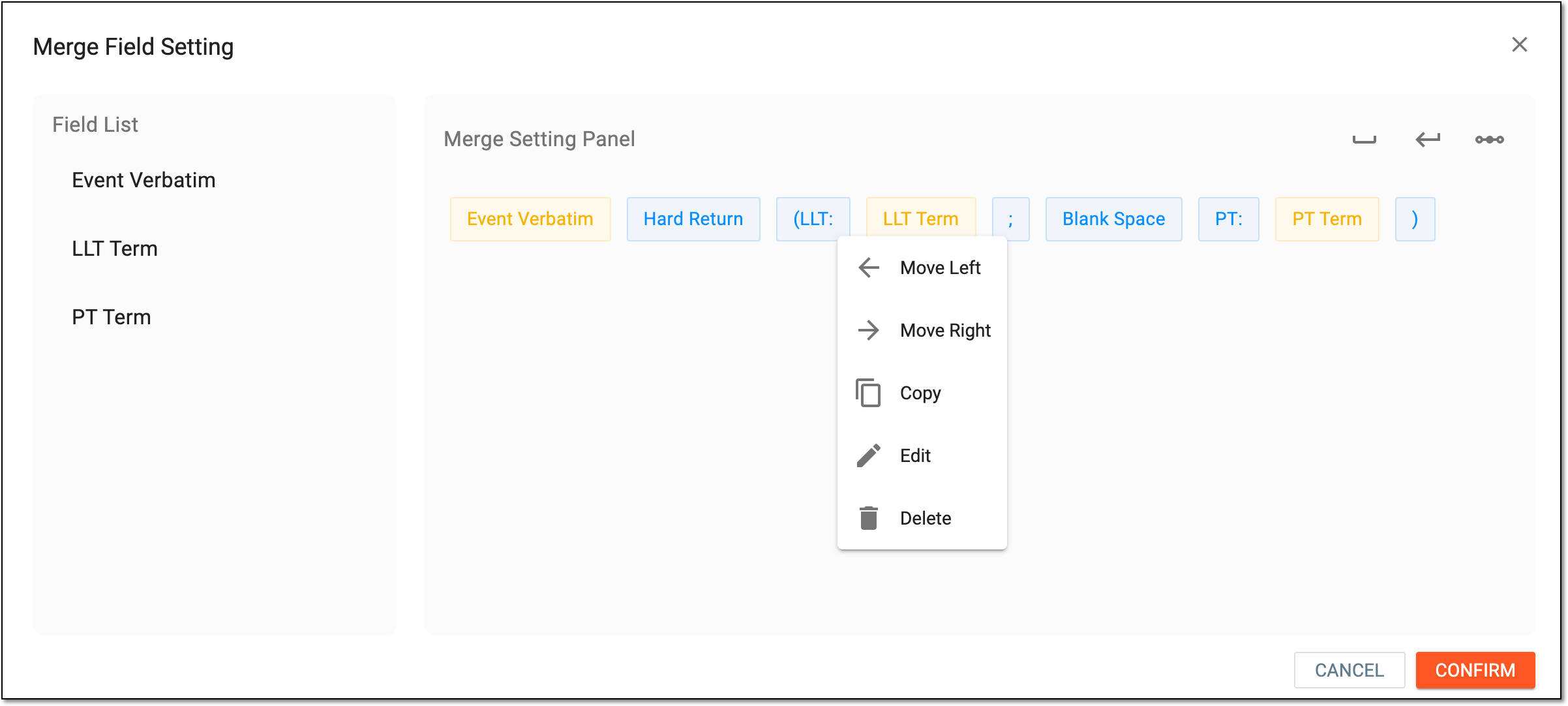 Figure 8. Customizing merged field elements
-
-
Repeat the actions of the previous step until all merged fields are set as needed. Then select
.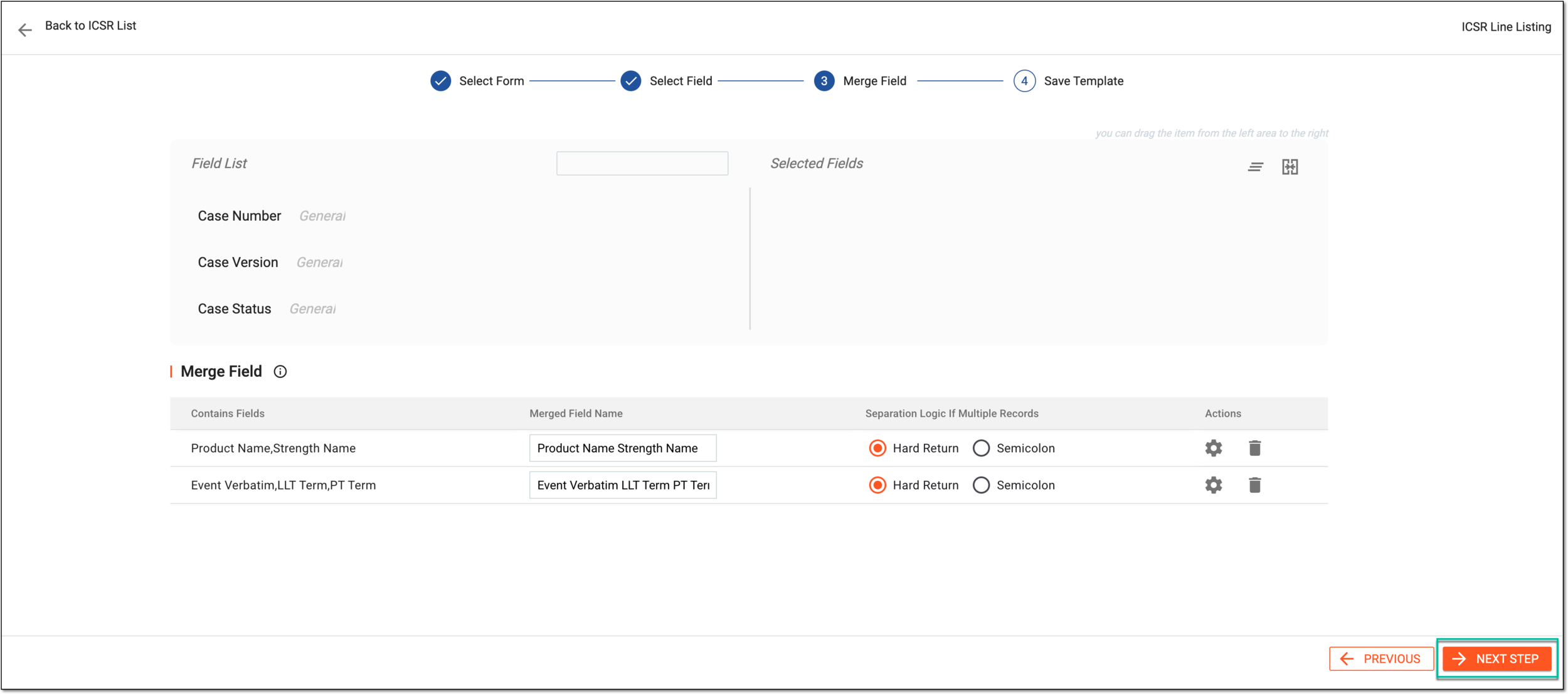 Figure 9. Finalizing field merge
-
On the page that appears, fill in the fields as explained in the following table.
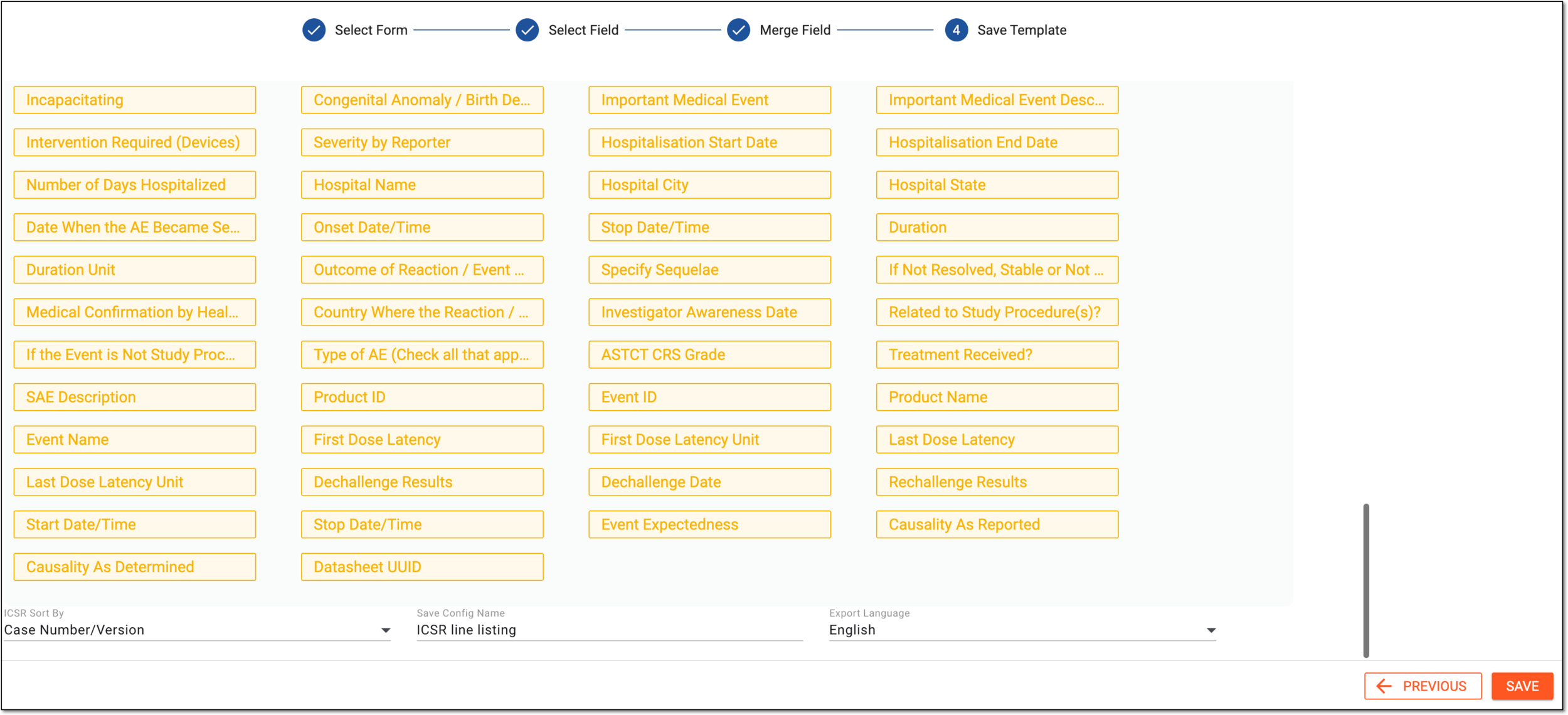 Figure 10. Providing details and saving line listing export template
Element
Details
ICSR Sort By
Select one of the following types to sort ISCR records:
-
Case No./Version: to sort the ISCR records by case number and case version.
-
Create Time: to sort the ISCR records by creation time.
Save Config Name
Enter the config name of the records exported.
Export Language
Select the language in which the multilingual records must be exported.
SAVE
Select
 to save the template created for the ISCR records.
PREVIOUS
Select
 to go to the previous step.
 -
Once saved, the template appears on the Line Listing Export page. You can now use it to export the ICSR line listing records.