Generate follow-up report for ICSR manually
You can generate a follow-up report for the latest version of any ICSR according to your company's business processes. The follow-up operation is irreversible and it copies the selected ICSR, generating a new ICSR record with the same case number but an incremented case version.
Tip
When generating a follow-up with an amendment or nullification report, refer to the ICH E2B R3 implementation guideline for details. The permission and conditions for performing a follow-up operation can be configured according to customer requirements by the EDETEK administrator.
If the ICSR is created via the EDC module, it is strongly recommended to control the version of the ICSR on the EDC side instead of generating a follow-up report manually for the ICSR because it can lead to data inconsistencies between the EDC task version and ICSR version.
Currently, you can generate a follow-up report only for ICSRs with specific workflow statuses if you have proper permissions and if the previous latest version has the Case Archived status. The workflow statutes for ICSRs can be changed if requested by new EDETEK clients.
-
In the PV application header, select the ICSR tab.
 Figure 1. Accessing ICSR list
-
In the ICSR List table that appears, next to the needed ICSR, select More
 >
Follow Up
>
Follow Up  .
.Important
You can generate a follow-up report only for the latest version of the same case number.
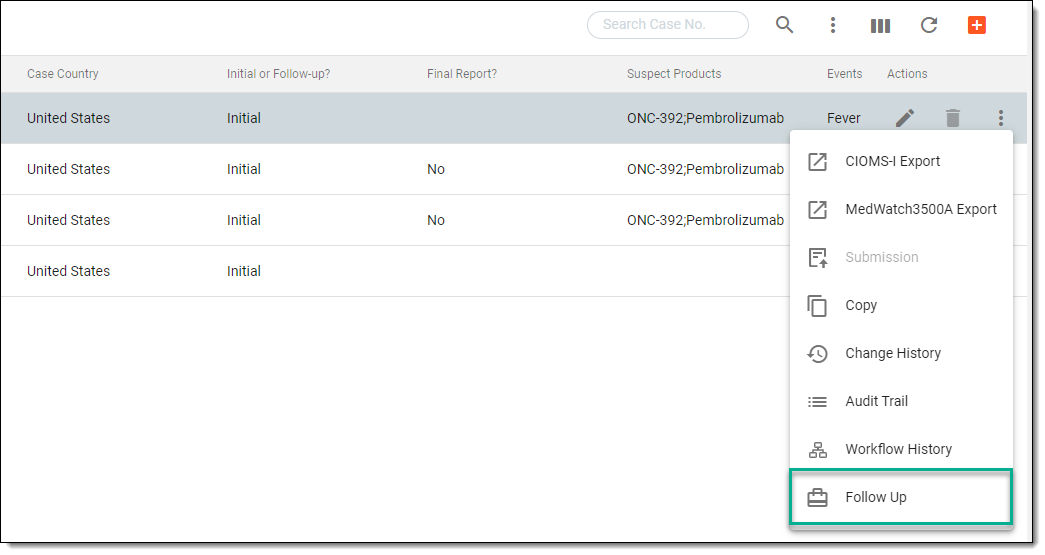 Figure 2. Selecting option to generate follow-up report
-
In the dialog that opens, select one of the following options:
-
Follow-up (New Information): to generate a follow-up report manually. You need to select the latest received date for the follow-up and the date when the safety data has been received.
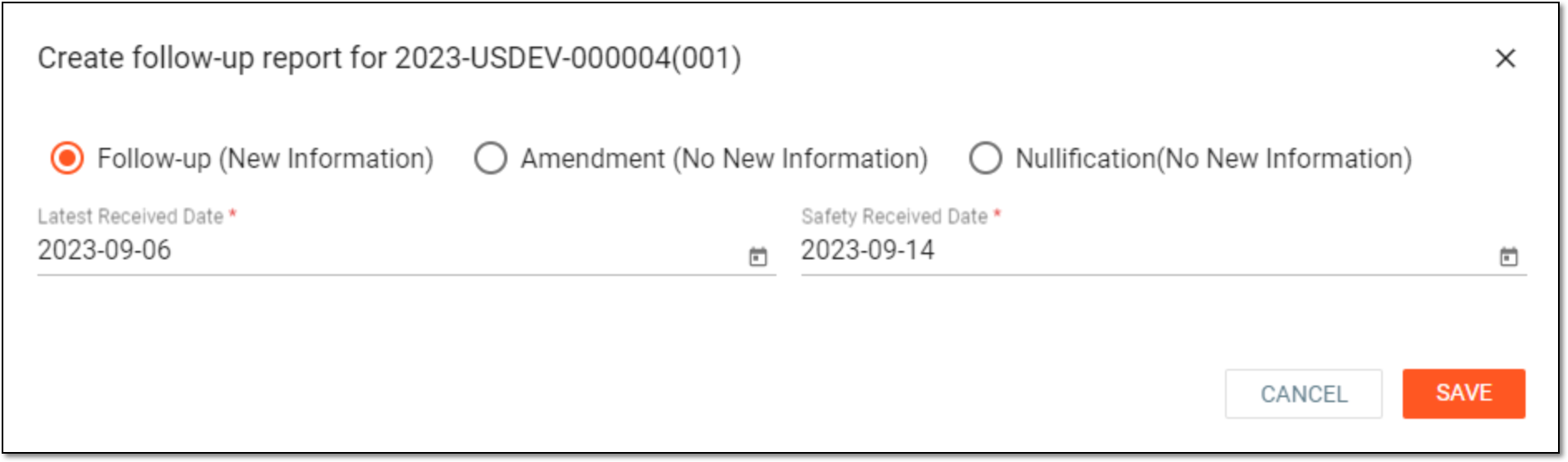 Figure 3. Generating follow-up report manually
-
Amendment (No New Information): to generate an amended follow-up report. You need to enter the reason for the amendment.
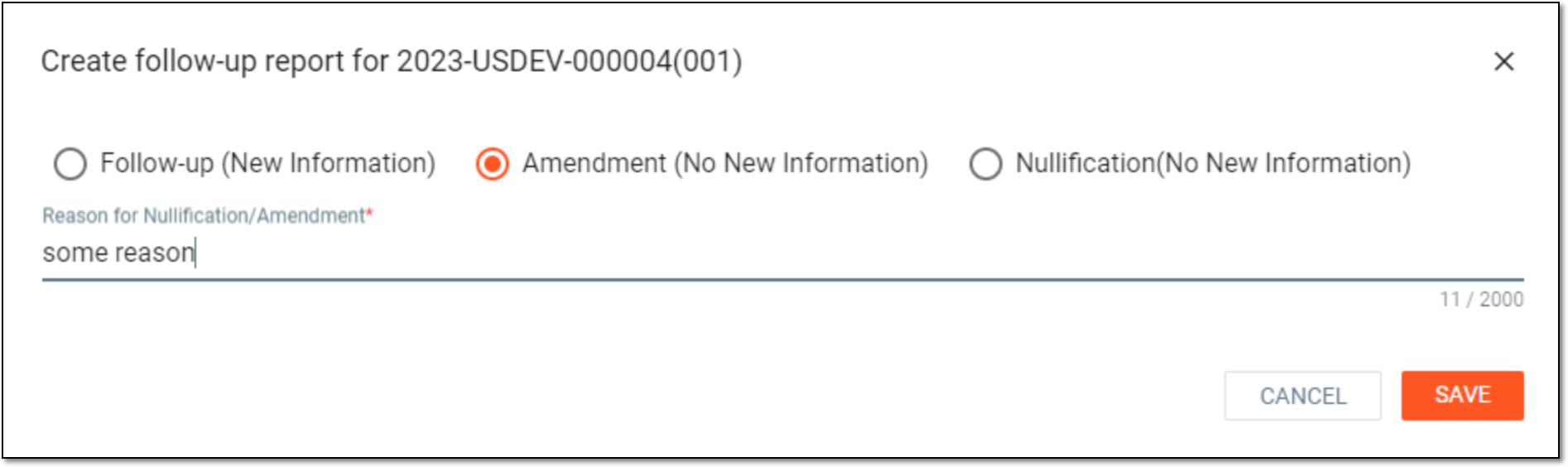 Figure 4. Generating amended follow-up report
-
Nullification (No New Information): to generate a nullified follow-up report. You need to enter the reason for nullification.
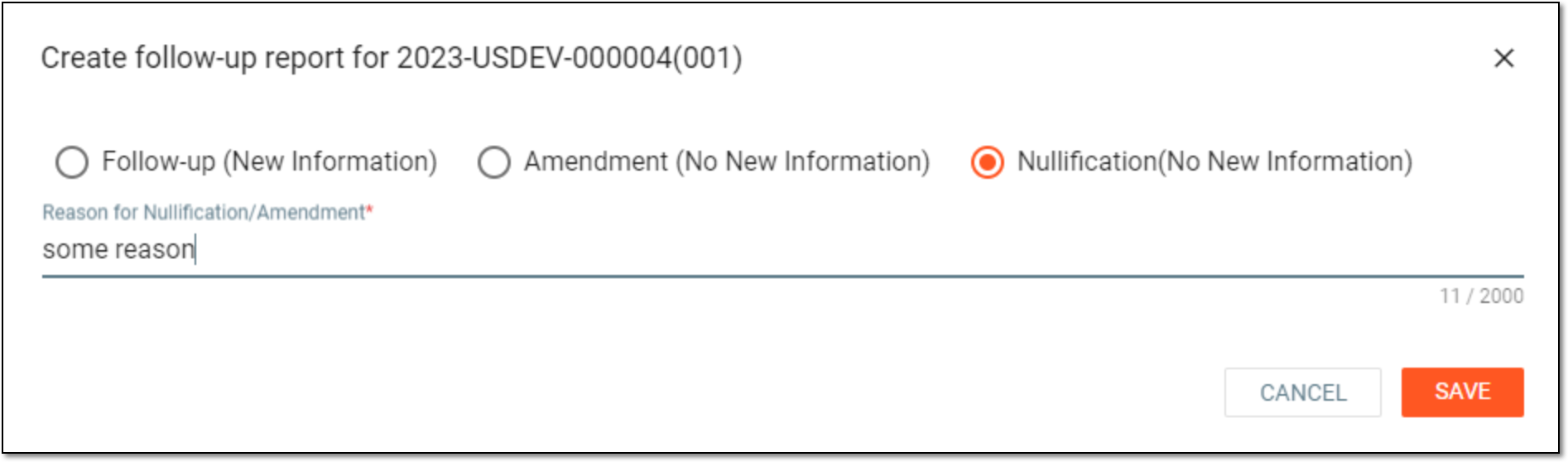 Figure 5. Generating nullified follow-up report
-
-
Select
 to generate a follow-up report.
Once saved, the follow-up report for an ICSR is generated. A new version of the ICSR is created automatically.