Import translation texts
The Translation functionality of EDC is designed to support multilingual studies that require data collection and review in different languages based on locations, participating audience, and other factors.
For your convenience, you can extract translation texts to your computer and work with them offline or outsource the translation to vendors. Then, once ready, you can import the proofread version to EDC. The flow is as follows:
-
Export the translation texts to your computer as ZIP with XLSX files.
-
Unzip and amend the individual XLSX files by adding the translation texts where needed.
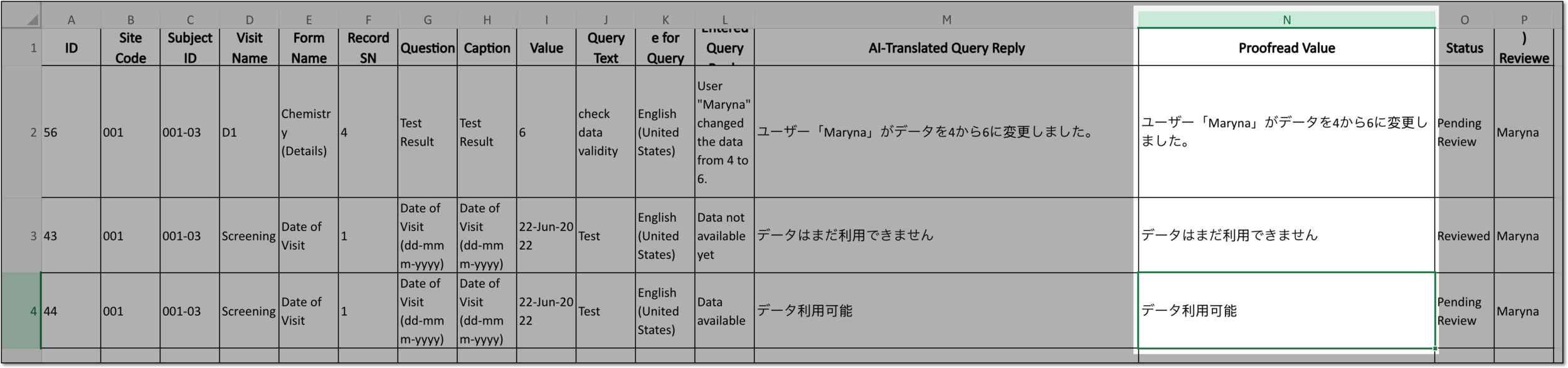 Figure 1. Adding proofread translation text
-
Once all texts are ready, compress the folder to ZIP and import it to EDC as explained in the following procedure.
-
In the EDC application header, select the STUDY INFO tab.
-
On the page that opens, in the left pane, select Translation > Translation Review.
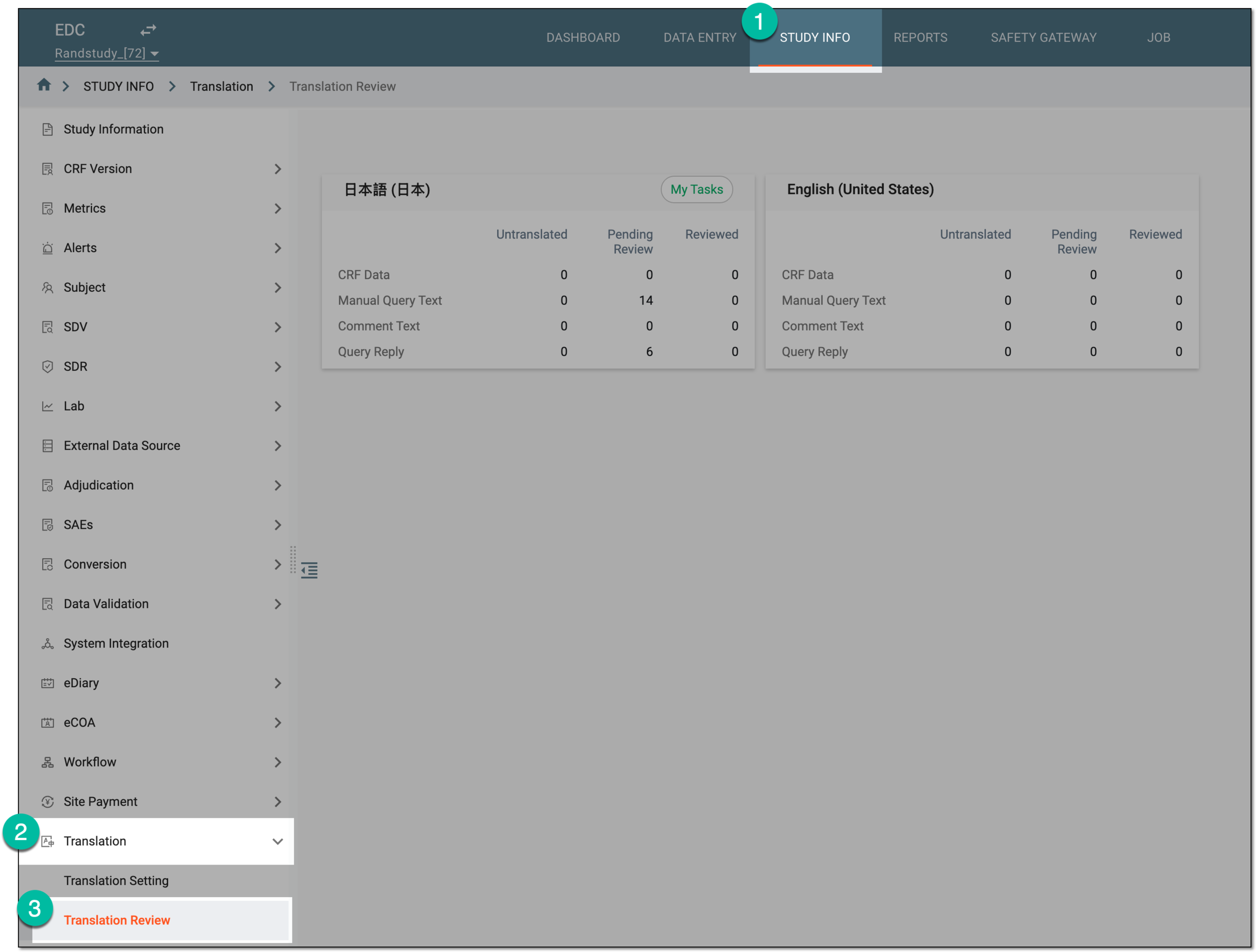 Figure 2. Accessing translation review
-
On the page that opens, from the workspace toolbar, select Import
 .
.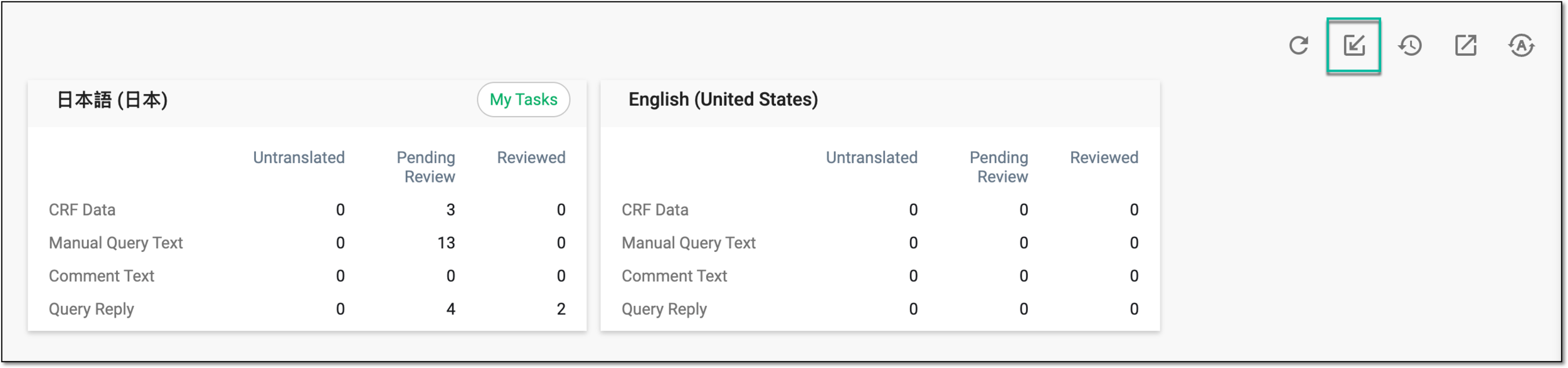 Figure 3. Selecting option to import translation texts
-
From your PC, select the prepared ZIP archive and follow the prompts to upload it to the system.
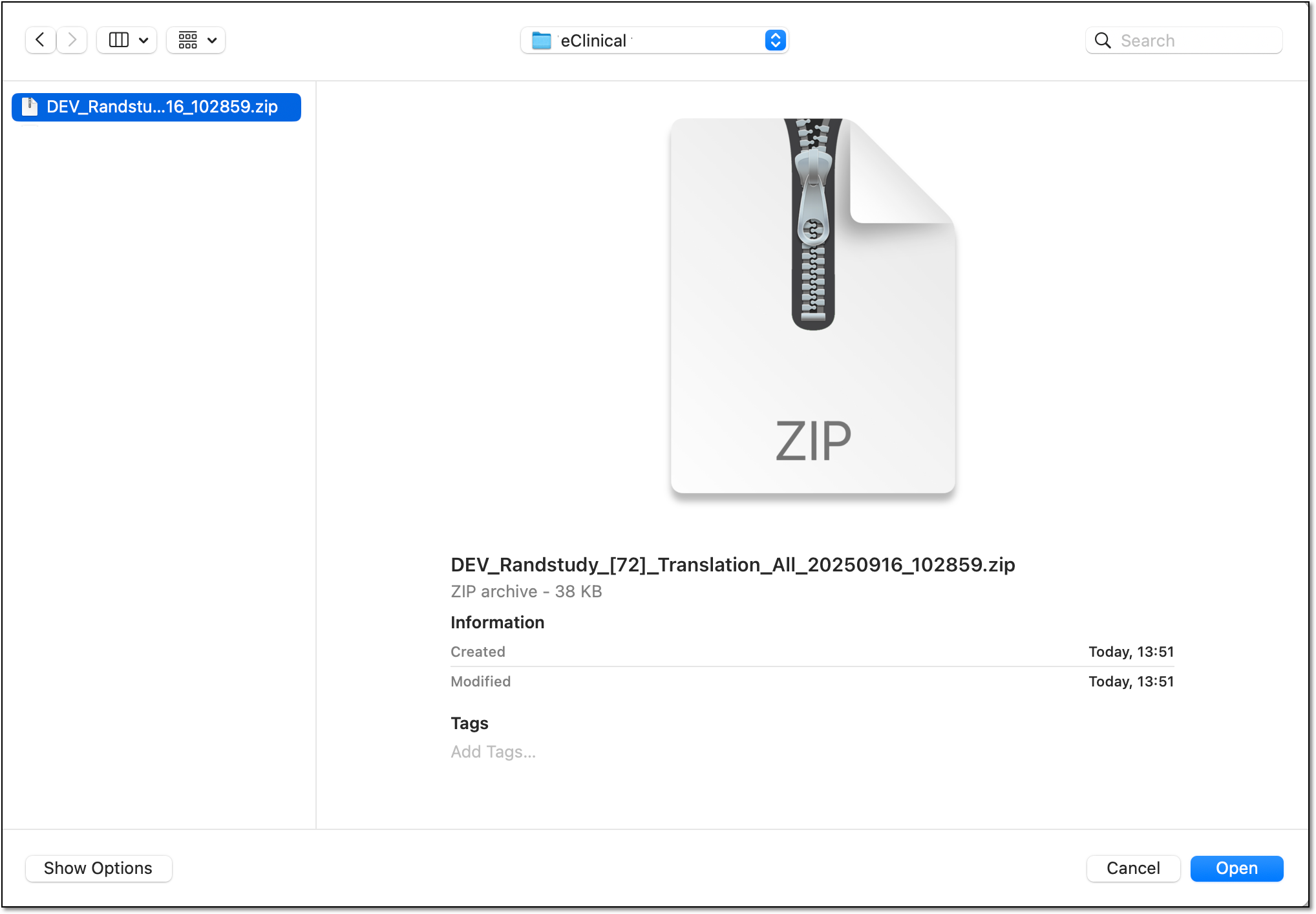 Figure 4. Selecting prepared ZIP with translation texts
Once imported, the translated text values are autopopulated to their respective locations in the EDC system as validated translation variant. If needed, you can manually review the imported translation texts one by one in EDC.