Export payable item list
During a clinical trial, a party providing services to the sponsor (site, laboratory, or another research facility) may receive payment for their services based on agreed study milestones or performed activities.
The list of such milestones and activities that have already occurred and must be paid can be found in EDC and exported to your computer as an Excel file. This helps you track the upcoming and pending payments and share them with stakeholders who cannot access EDC directly.
-
In the EDC application header, select the STUDY INFO tab.
-
On the page that opens, in the left pane, select Site Payment > Payable Items.
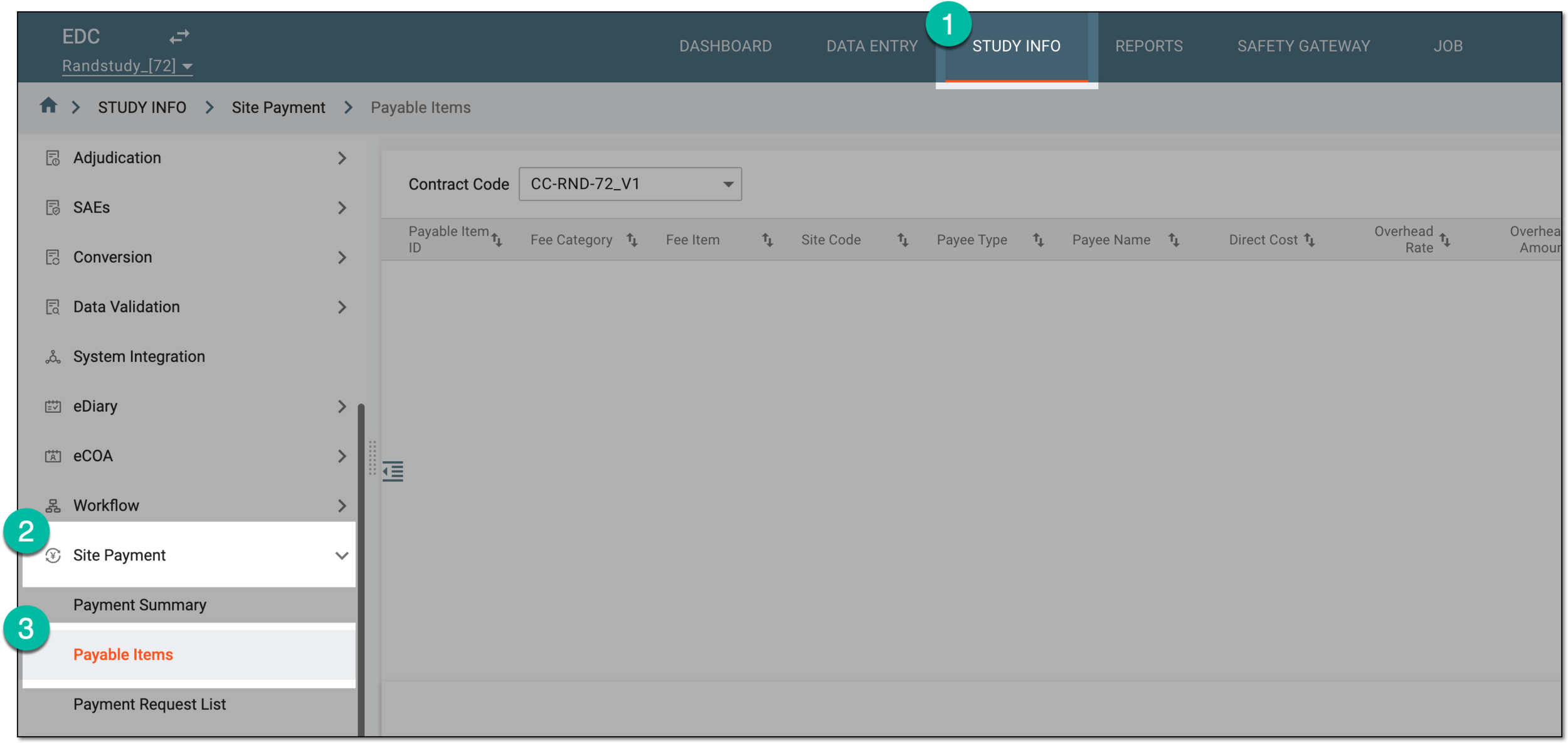 Figure 1. Accessing payable item list
-
On the Payable Items page that opens, from the Contract Code dropdown menu, select the contract according to which you want to access the payable items.
Tip
The available here contracts are configured and maintained in CTMS.
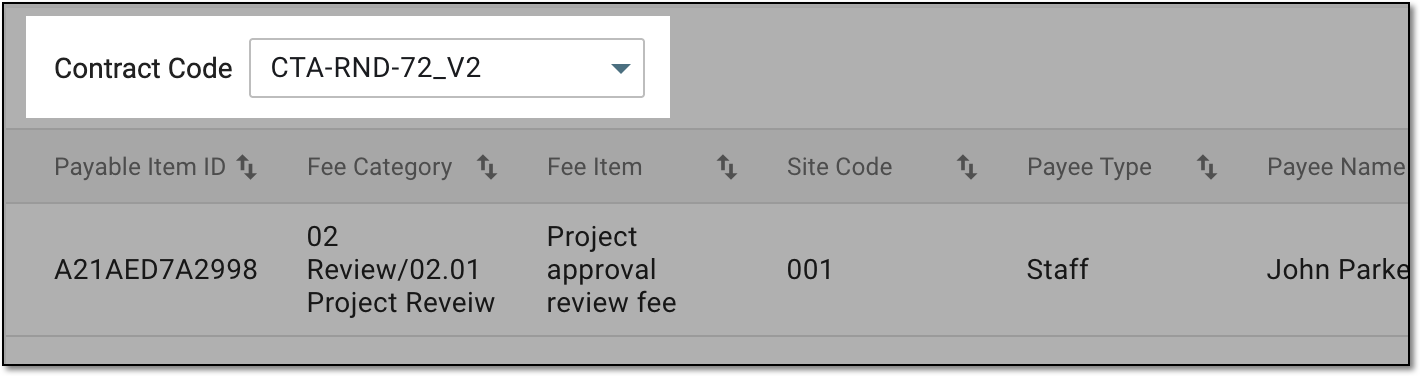 Figure 2. Selecting contract to show payable item list
-
To display the list of payable items by their billing method, from the workspace toolbar, select one of the available filter buttons.
Tip
The number, naming, and availability of filter buttons depends on the billing methods added to the pricing template used for the selected contract in CTMS.
For instance, if your contract is intended for three types of payments—"Fixed Fee," "Subject Visit," and "Lab Fee"—then there are three filter buttons available for the payable items list: "Fixed Fee," "Subject Visit," and "Lab Fee" respectively.
 Figure 3. Selecting filter button to show payable item list
-
Once the resulting list depicts the payable items of your interest, from the workspace toolbar, select Export
 .
. Figure 4. Exporting payable item list
-
Once selected, the widget appears displaying your download progress. Select the widget to open the My Downloads dialog.
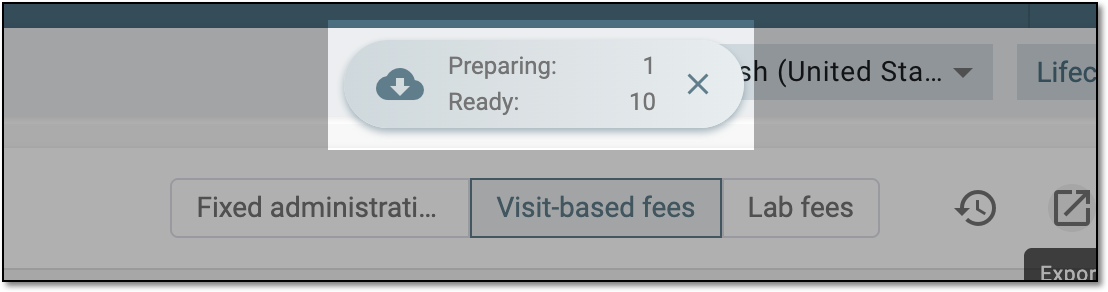 Figure 5. Downloads widget for payable item list
-
In the My Downloads dialog that opens, you can find the following tabs:
-
Preparing: lists all the files whose export is in progress, and they are not yet ready for download. Wait until the needed file moves to the Download is Ready tab.
-
Download is Ready: lists the files whose export is complete, and they can be downloaded to your computer by selecting
 .
.
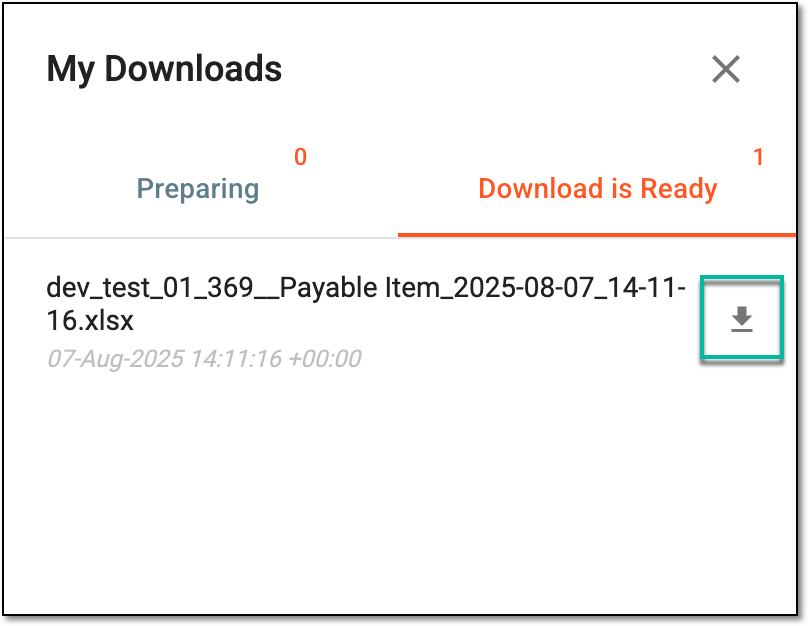 Figure 6. Downloading exported payable item list
-
You have exported the payable item list to your computer as a file in the XLSX format. The exported version also becomes available in Export History.
Tip
To access all the previously exported versions, from the workspace toolbar, select Export History  .
.
