Export follow-up tasks
In CTMS, you can export a list of follow-up tasks assigned during meetings or events, including key details such as descriptions, assignees, due dates, and statuses. Exporting tasks helps with offline tracking, reporting, and sharing progress with broader teams or stakeholders.
-
Access the study management page in one of the following ways:
-
In the CTMS application header, select the DASHBOARD tab and then select the study dashboard of your interest.
 Figure 1. Accessing study management from dashboard
-
In the CTMS application header, select the STUDY MANAGEMENT tab. Then from the Study Data List table, select the study name of your interest.
 Figure 2. Accessing study management from study data list
-
-
From the left pane, select Communication Management > Follow-up Tasks Tracking.
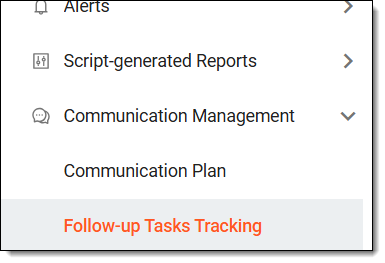 Figure 3. Accessing follow-up tasks
-
On the page that opens, from the workspace toolbar, select Export
 .
.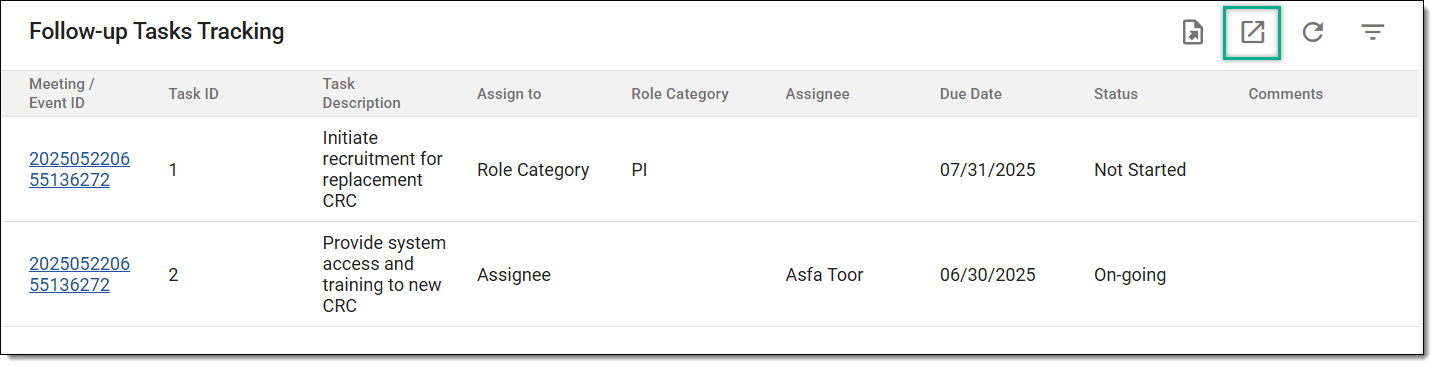 Figure 4. Exporting follow-up tasks
-
The downloads widget appears showing the export progress. Select the widget to access exported files.
 Figure 5. Downloads widget showing follow-up tasks exported
-
In the My Downloads dialog that appears, in the Download is Ready tab, select
 next to the required exported file.
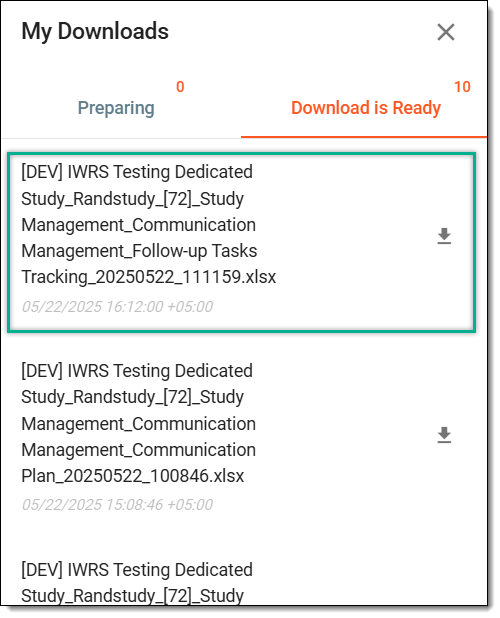 Figure 6. Downloading exported follow-up tasks
Once selected, the follow-up tasks are exported in the XLSX format to your computer. You can now work with it offline.