Cancel scheduled meeting or event
If a planned meeting or event is no longer needed, you can cancel it to keep the calendar and participant notifications up to date. This action helps avoid confusion and ensures that all involved are informed about the cancellation in a timely manner.
-
Access the study management page in one of the following ways:
-
In the CTMS application header, select the DASHBOARD tab and then select the study dashboard of your interest.
 Figure 1. Accessing study management from dashboard
-
In the CTMS application header, select the STUDY MANAGEMENT tab. Then from the Study Data List table, select the study name of your interest.
 Figure 2. Accessing study management from study data list
-
-
From the left pane, select Communication Management > Communication Plan.
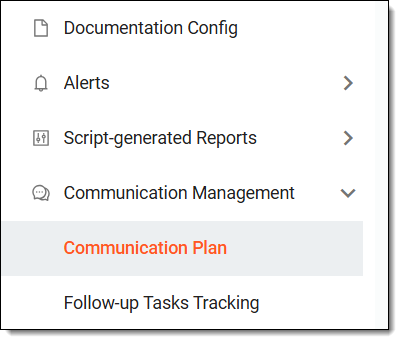 Figure 3. Accessing communication plan
-
In the calendar that opens, locate the required meeting or event, right-click it, and select Cancel
 .
.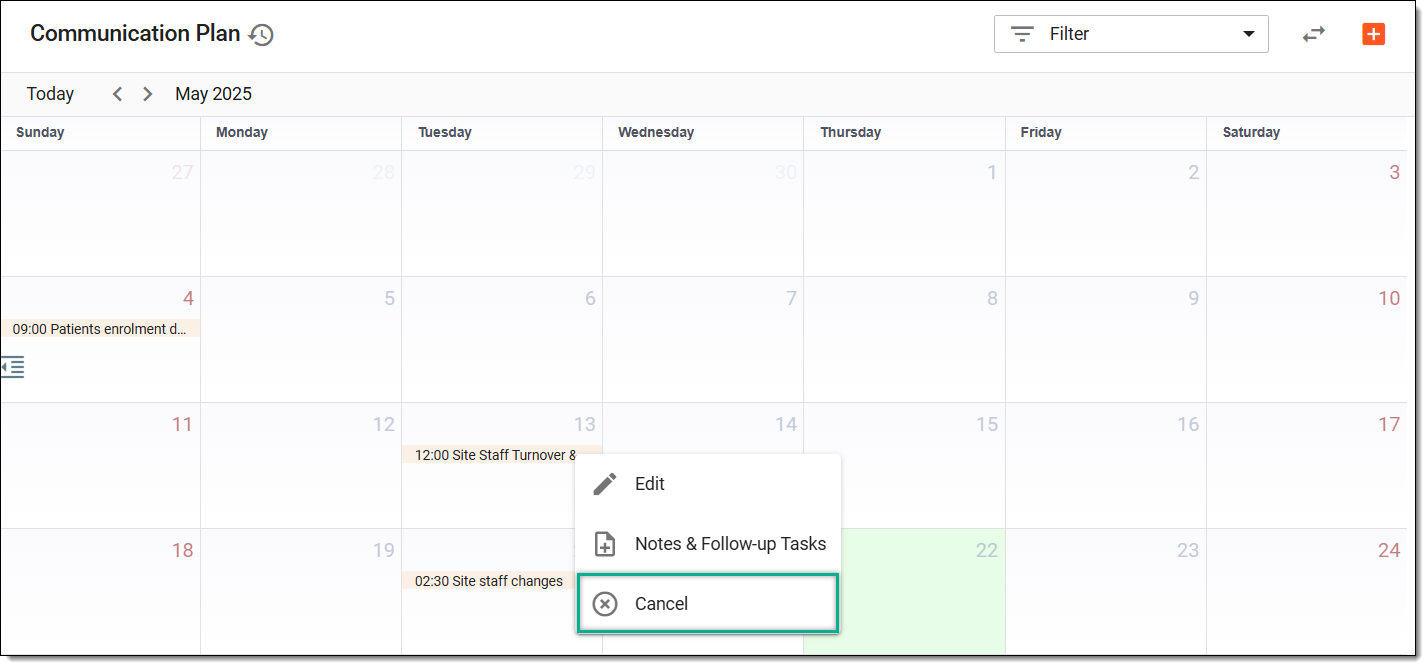 Figure 4. Canceling scheduled meeting
Tip
From the workspace toolbar, select the Filter dropdown menu to choose an option for filtering out the meetings and events in the calendar.
For instance, if you select Meetings > I'm an Attendee, then the calendar only displays the meetings in which you are a required or an optional participant.
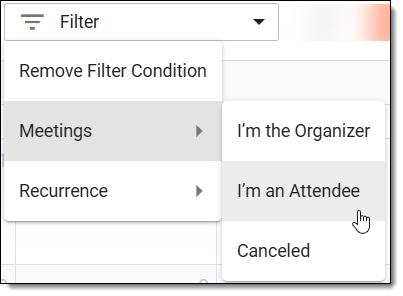 Figure 5. Using filter to search meeting or event
-
In the dialog that appears, select CONFIRM to cancel the meeting or event.
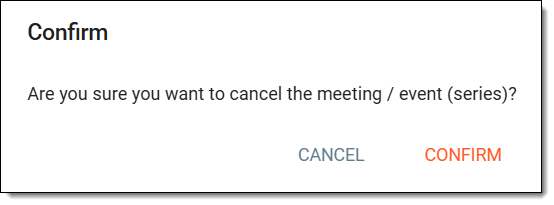 Figure 6. Confirming meeting cancellation
Once confirmed, the event or meeting is canceled, and the corresponding notification email is sent to the participants.