Track and update primary CRA training progress
In CTMS, you can exclusively monitor and record the training completion status of the primary CRA for each study-related training document. Since the primary CRA plays a key role in overseeing site activities, ensuring protocol compliance, and serving as the main point of contact between the sponsor and the site, it is critical that their training is closely tracked. Keeping their progress up to date helps maintain study quality, supports regulatory compliance, and ensures that site operations are properly guided throughout the trial.
-
Access the study management page in one of the following ways:
-
In the CTMS application header, select the DASHBOARD tab and then select the study dashboard of your interest.
 Figure 1. Accessing study management from dashboard
-
In the CTMS application header, select the STUDY MANAGEMENT tab. Then from the Study Data List table, select the study name of your interest.
 Figure 2. Accessing study management from study data list
-
-
From the left pane, select Training > Training Progress Tracking.
-
On the page that opens, you can view the primary CRA's progress on the training document entries.
To update the progress, locate and select the checkbox next to the needed training record, and then, from the workspace toolbar, select Edit
 .
.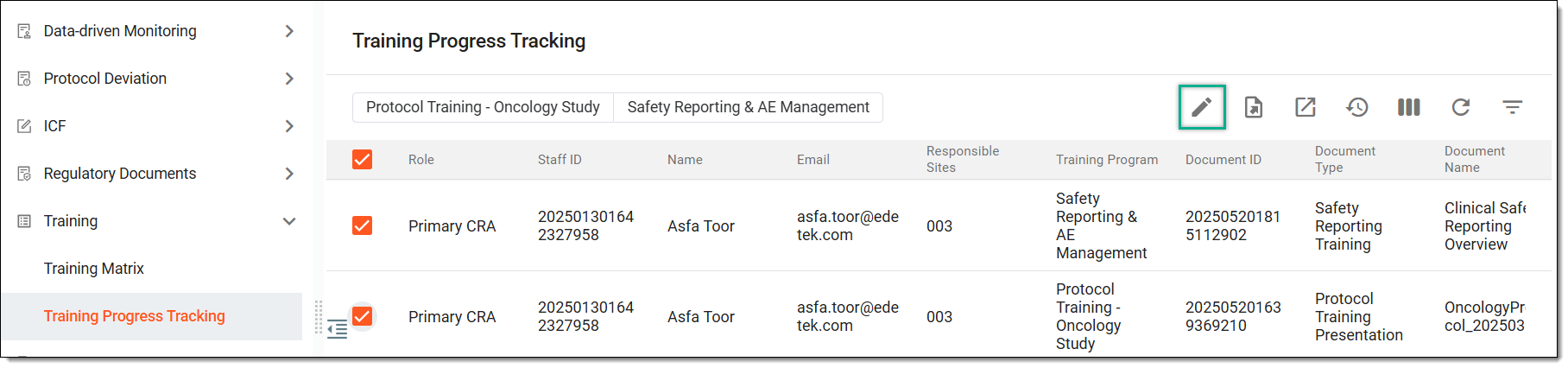 Figure 3. Selecting to update primary CRA's training progress
Tip
To refine the search, from the workspace toolbar, you can select a specific training program tile to instantly filter the corresponding training records in the table and select the required one.
-
Scroll the table to the right, and update the fields that have now become editable as explained in the following table.
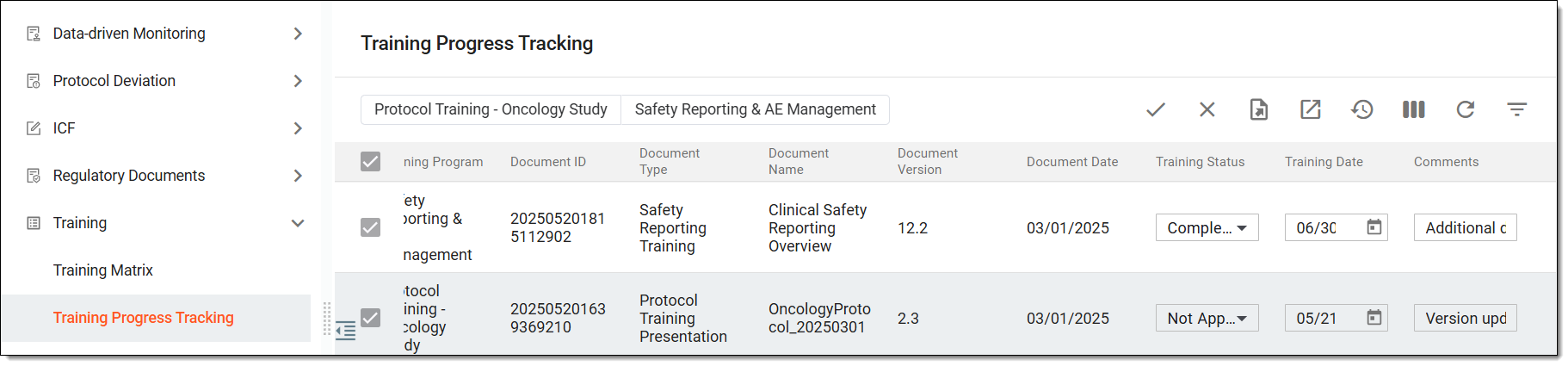 Figure 4. Updating primary CRA training progress
Element
Details
Training Status
Select the status of the training progress: Incomplete, Completed, or Not Applicable.
Training Date
Select the date when the training status has been last changed.
Comments
Add any comments indicating the reason or explanation for the status change.
-
From the workspace toolbar, select SAVE
 to implement your changes.
Once saved, the primary CRA's progress on a specific training document is updated in the system.