Delete visit forms linked to unique form
When managing unique forms in the Study Designer application, there might be a need to delete some of the previously configured forms because of their redundancy, new protocol version, or else. To be able to delete the unique form, you need to delete all of its linked visit forms, otherwise, the system will prohibit such an action.
-
In the Study Designer application header, select the CRF DESIGN tab.
-
In the toolbar, select the latest draft CRF version marked with the respective unlock symbol
 , otherwise, you cannot perform any actions.
 Figure 1. Selecting latest draft CRF version
-
In the left pane that appears, expand the Unique Form folder and right-click the needed form.
Tip
To locate the needed forms faster, use Search
 on the workspace toolbar of the
left pane.
on the workspace toolbar of the
left pane. -
In the context menu that opens, select Delete and then select Delete Referenced CRF Form
 .
.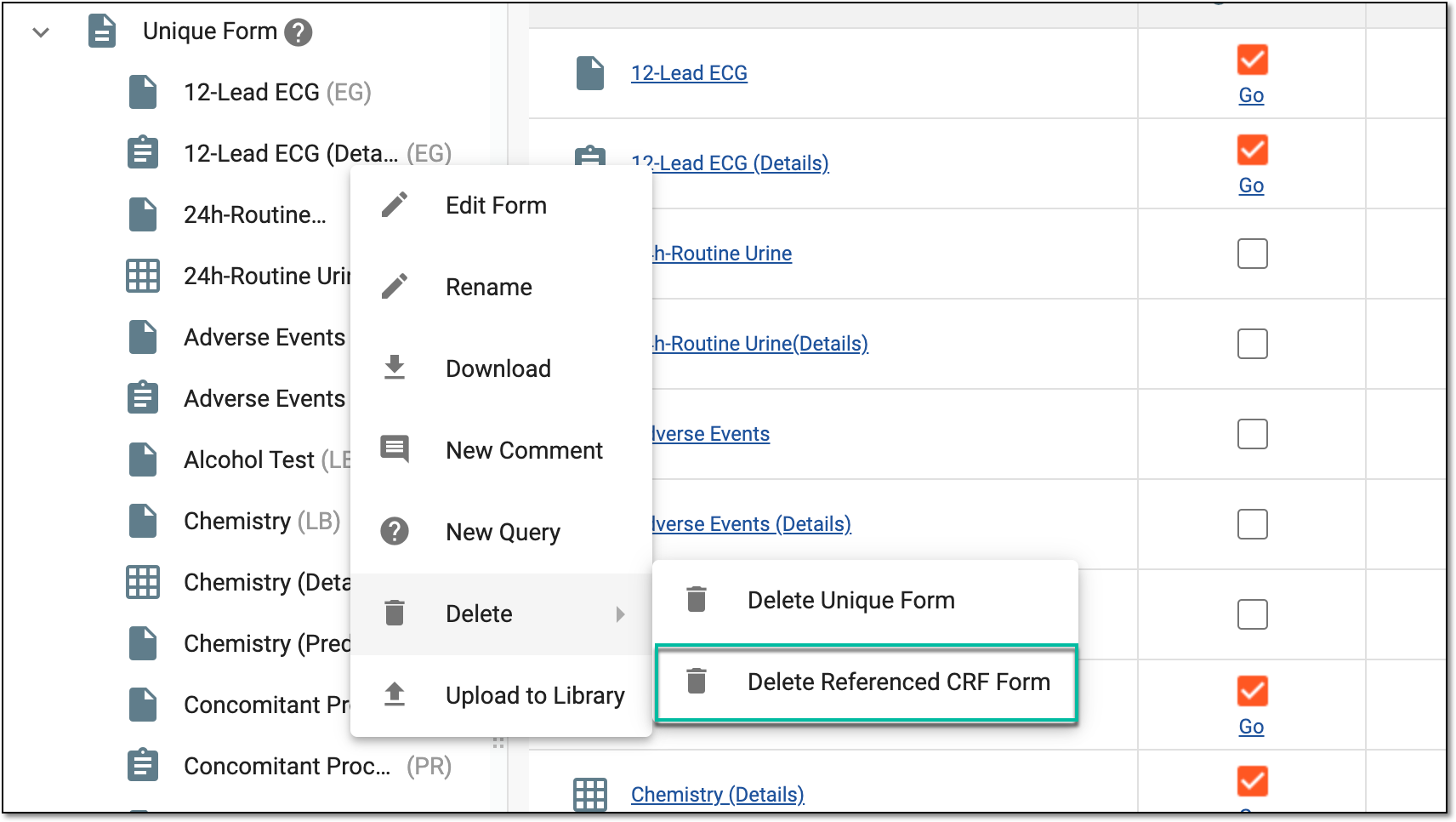 Figure 2. Deleting linked forms
-
In the Delete Referenced CRF Form dialog that appears, expand the visits and select the linked forms that you want to delete. Then select
 .
.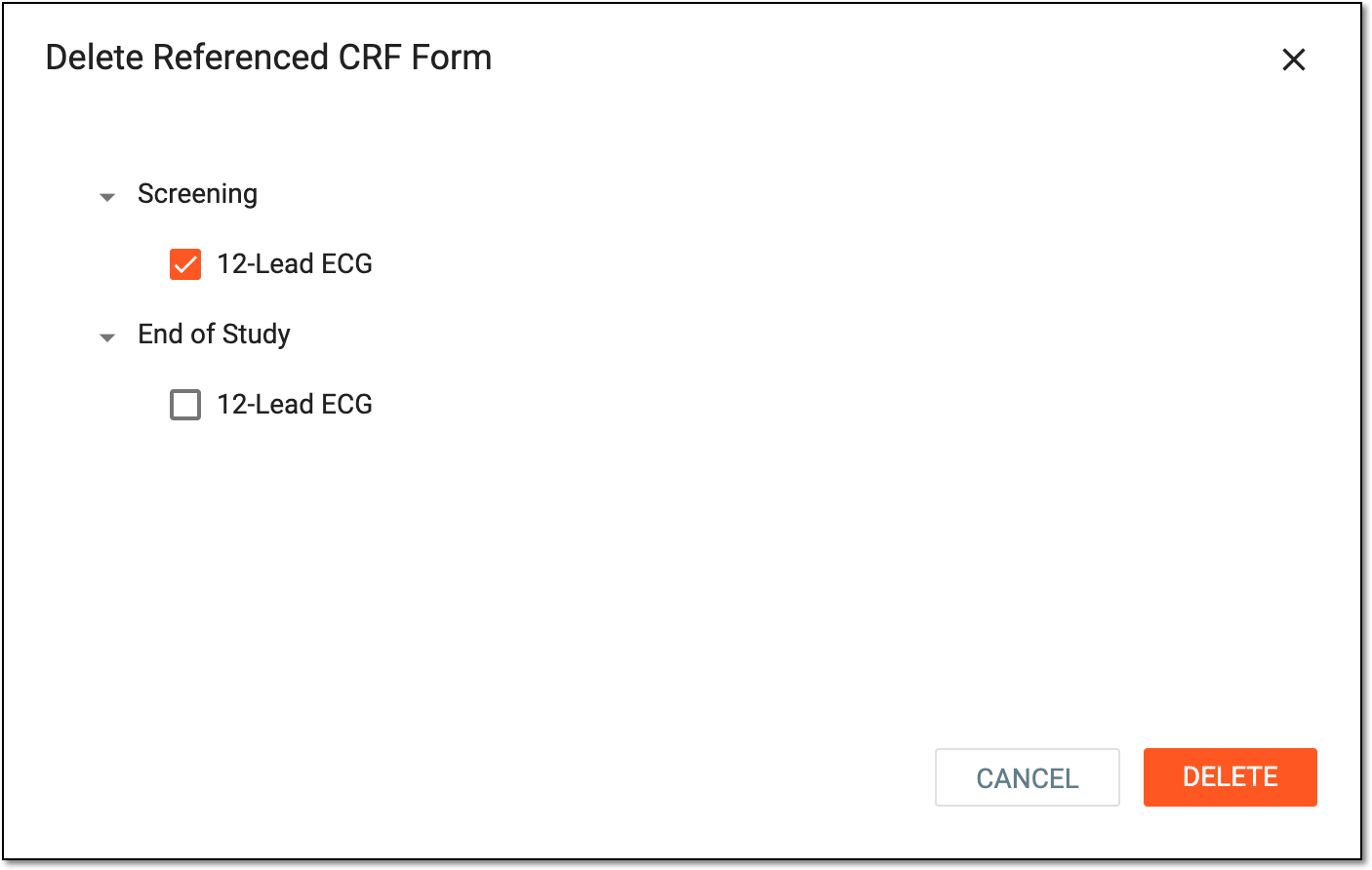 Figure 3. Selecting forms to delete
-
In the confirmation dialog that appears, select
 to confirm your decision since the form deletion operation may result in subject data loss in the EDC system.
 Figure 4. Confirming linked form deletion
Tip
You can perform the similar steps described in this procedure to delete each visit form separately if you do not need to remove all linked forms at once. To do so, expand the needed folder in the tree, and then right-click the visit form that you want to delete.
Once confirmed, the selected visit forms linked to your unique form are deleted.