Upload safety data PDF
With the PDF import functionality, you can upload your safety data PDF files for the system to transcribe them for you and create new ICSRs in PV accordingly. This saves time on manual data input as well as enables multiple files upload for efficiency.
Important
If you want to use PDF autotranscription, you need to provide a template to EDETEK administrator for the system to be configured to recognize your similar PDF uploads and properly interpret their contents.
-
In the PV application header, select the INTAKE tab.
-
From the left pane that appears, select PDF Import.
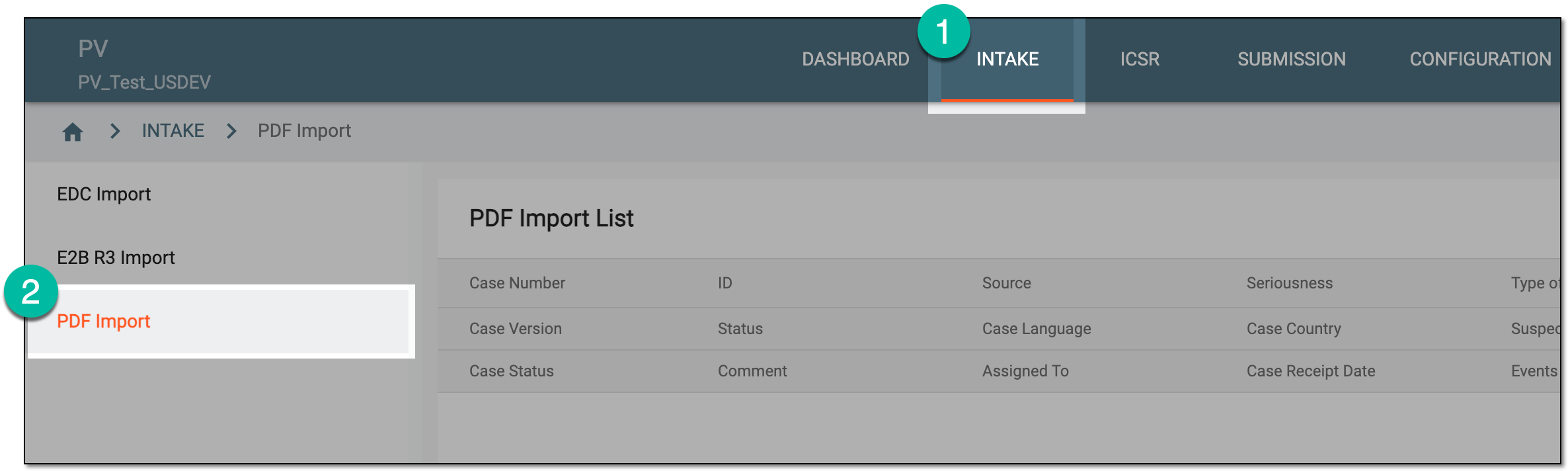 Figure 1. Accessing PDF import
-
On the PDF Import page that opens, from the workspace toolbar, select New
 .
. Figure 2. Selecting option to upload safety data PDF
-
In the Upload File(s) panel that appears, drag the files from your computer to the designated area or select the area to browse your computer and choose the files to upload. Then select
 .
.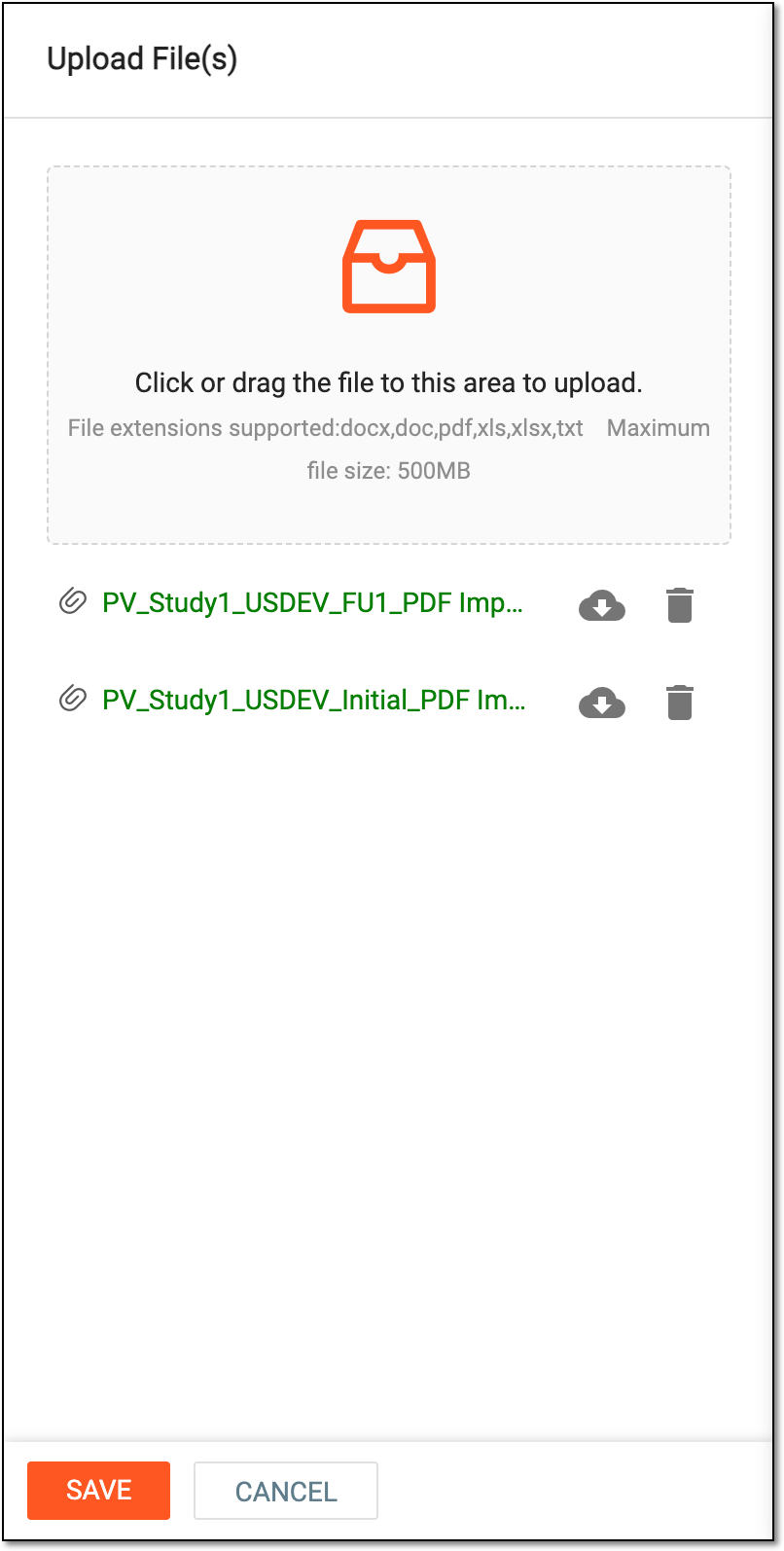 Figure 3. Uploading safety data PDF
Tip
Next to the attached file, select Download
 to save the file on your computer or
Delete
to save the file on your computer or
Delete  to remove the file from the uploads list.
Once confirmed, the page opens where you can process your uploaded files right away or select CANCEL or Back  to leave the page and process the files later.