Track execution history for report extraction job
In IWRS, all the available reports can be extracted from the system to the associated external server using scheduled jobs—automated tasks for data extraction. Scheduling jobs saves time for manual export and enables regular and timely execution, minimizing risks of human error. However, you still want to be able to review and control job execution to ensure uninterrupted data flow.
Utilizing Execution History, you can track the complete log of data extraction and pertinent statuses, as well as manually download the extracted data file.
-
In the IWRS application header, select the REPORTS tab.
-
On the page that opens, from the left pane, select Report Extraction Job.
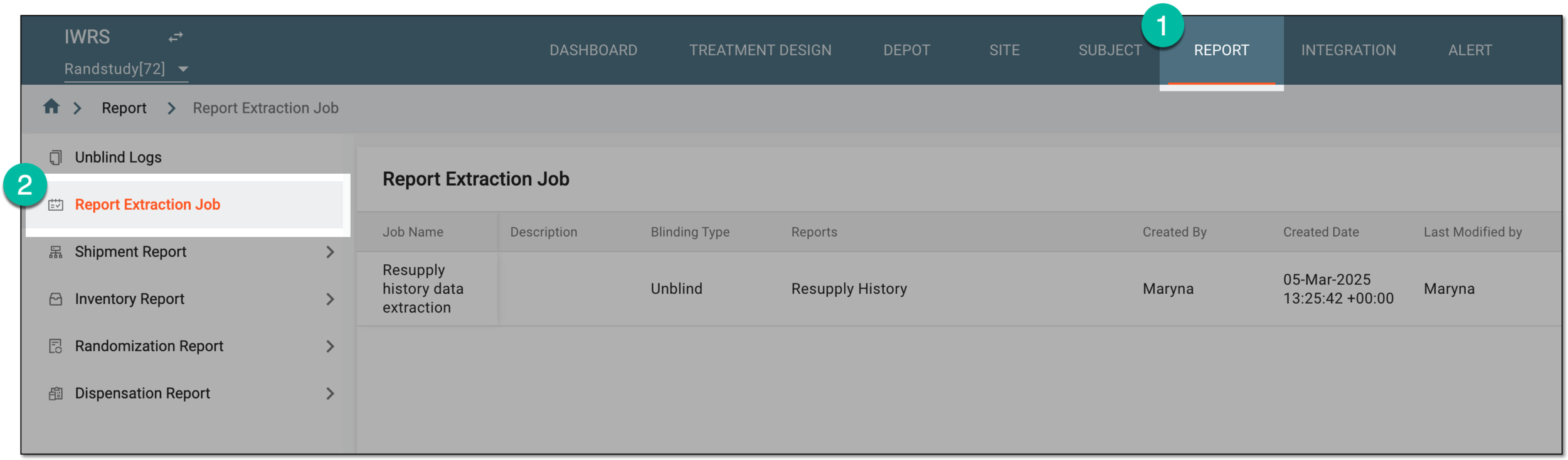 Figure 1. Accessing report extraction jobs
-
On the Report Extraction Job page that opens, locate the report extraction job for which you need to track the history of execution. Then from the Action(s) column next to it, select Execution History
 .
. Figure 2. Accessing report extraction job execution history
-
In the Execution History dialog that opens, review the details of all the job executions, their dates, status, file name and size, and more.
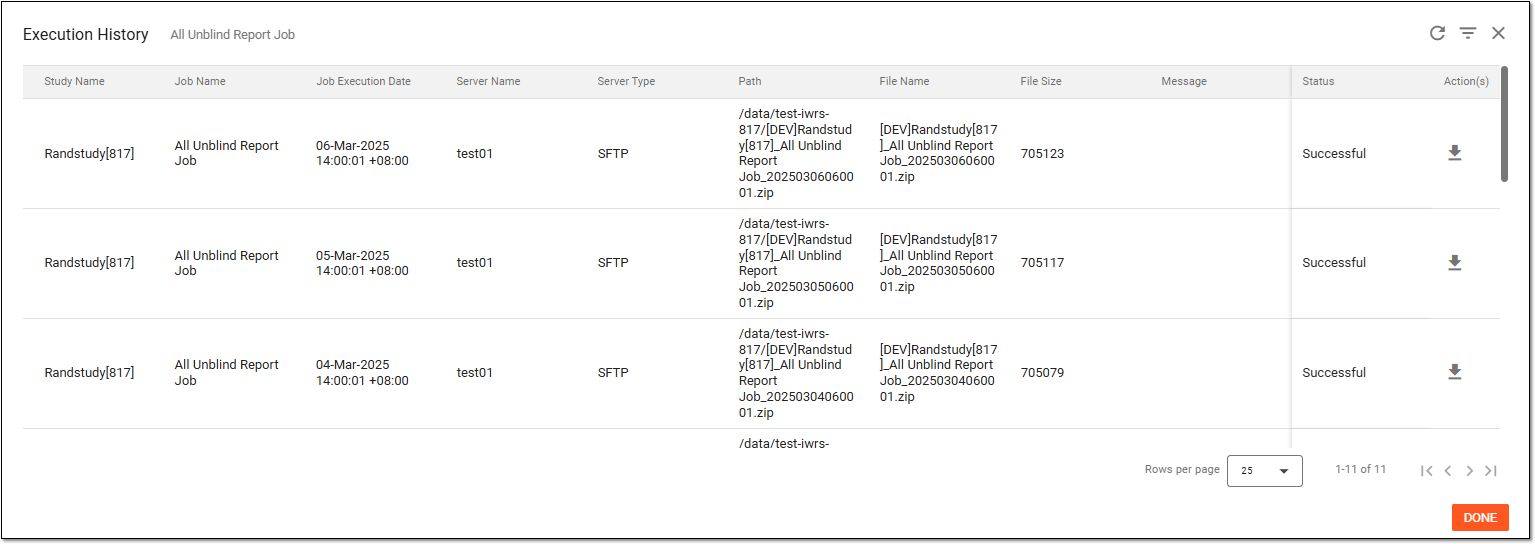 Figure 3. Reviewing report extraction job execution history
Tip
If report extraction failed, you can find the reason in the Message column.
 Figure 4. Reviewing report extraction failure reason
You have tracked the complete execution history for the report extraction job. Now close the dialog by selecting DONE.