Work on assigned pending monitoring visit letters
When managing a study in CTMS, you can access all your tasks from a single interactive dashboard called My Work. This dashboard features all your tasks conveniently categorized by tiles.
One of the tiles comprises all your tasks related to the completion and sending of awaiting confirmation and follow-up letters of respective monitoring visits. Using this dashboard functionality, such users as clinical research associates can directly access all the monitoring visits that have pending letters to be sent.
-
Access the study management page in one of the following ways:
-
In the CTMS application header, select the DASHBOARD tab and then select the study dashboard of your interest.
 Figure 1. Accessing study management from dashboard
-
In the CTMS application header, select the STUDY MANAGEMENT tab. Then from the Study Data List table, select the study name of your interest.
 Figure 2. Accessing study management from study data list
-
-
On the My Work page that opens, select the Pending Send Letters task category tile.
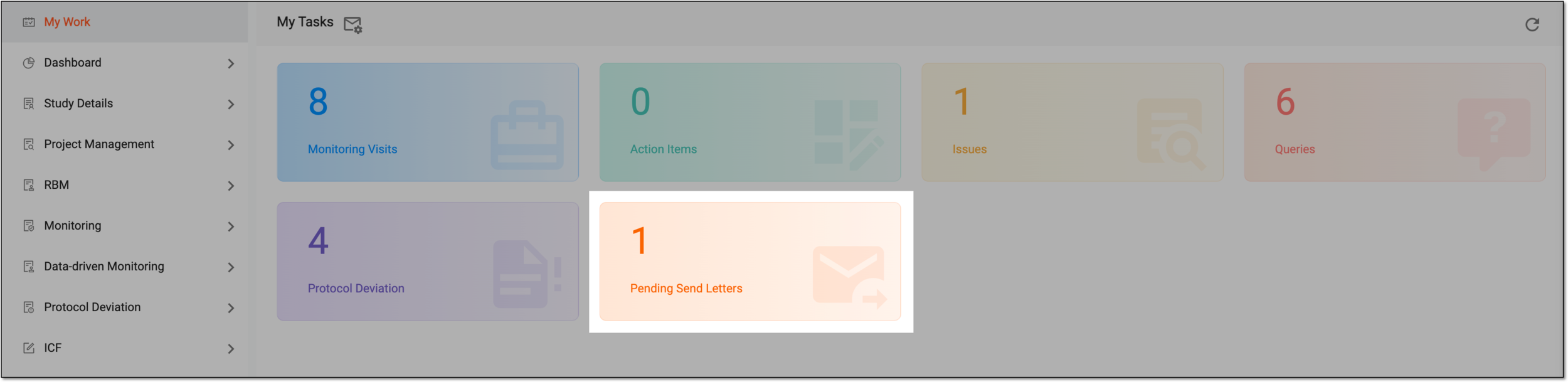 Figure 3. Selecting monitoring visit tasks
Important
Note that the task categories you see may differ depending on your user role and the set of tasks assigned to you in the system according to your field of responsibilities and company arrangements.
-
In the table that appears, the tasks of all types are displayed—Pending Send Confirmation Letters and Pending Send Follow-up Letters. Optionally, select the number next to the task type of your interest to filter the table appropriately and facilitate your search.
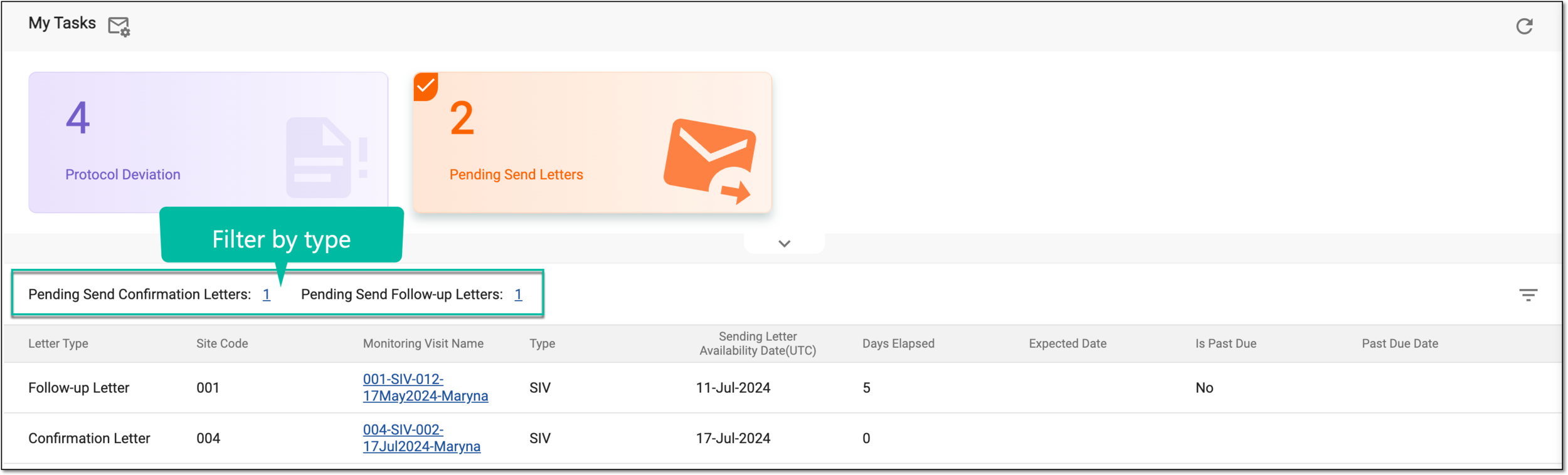 Figure 4. Selecting monitoring visit task type
Tip
Select
 to discard filtering and return to the unfiltered task list.
 -
Locate the task on which you want to work and select its monitoring visit name.
 Figure 5. Selecting monitoring task to work on
Tip
Above the table displaying tasks, you can select the link provided next to Pending Send Confirmation Letters or Pending Send Follow-up Letters to instantly filter the table and view and access the corresponding task in the table. Select
to reset the table to its original view.
You have now accessed the needed work area—confirmation letter configuration or follow-up letter configuration form.
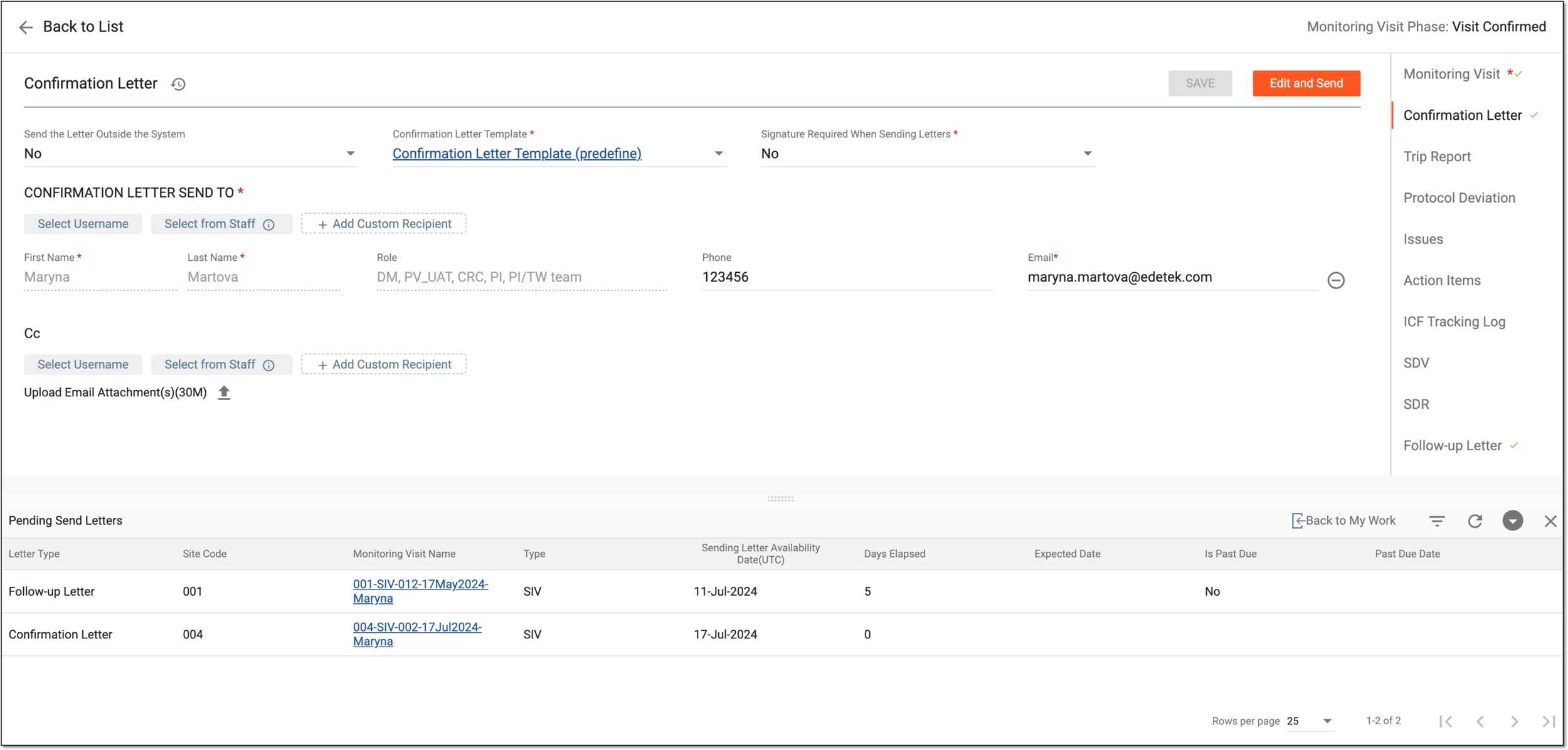
Tip
Use the Pending Send Letters table to navigate between tasks without returning to the My Work dashboard. Otherwise, select Back to My Work to return to your other task categories.
You can also use refresh  to see the latest tasks or collapse
  or close
  the table if not needed.