Export TSDV configuration details
Target SDV (TSDV) is more complex and sophisticated in terms of configurations than global and general SDV. For TSDV, you can configure multiple plans including various tiers, exclusion or inclusion criteria, and more.
In EDC, you can export a complete set of configurations made for the TSDV process to your computer to use it offline or share with the parties that have no access to the system.
-
In the EDC application header, select the STUDY INFO tab.
-
In the left pane of the page that opens, expand SDV and select the SDV Setting tab.
-
From the workspace toolbar of the page that opens, select Export
 .
.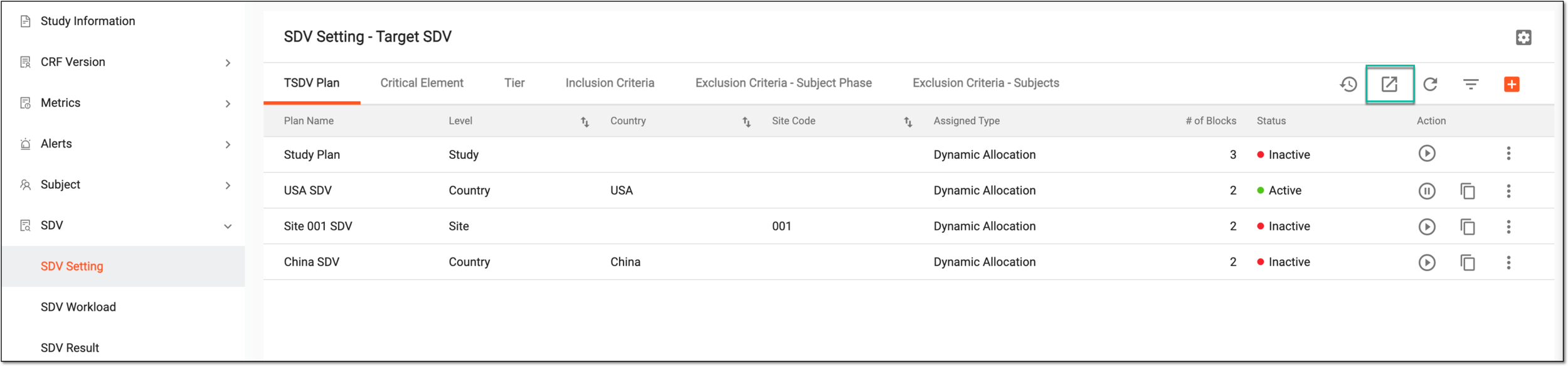 Figure 1. Exporting TSDV setting
-
Once selected, the widget appears displaying your download progress. Select the widget to open the My Downloads dialog.
 Figure 2. Downloads widget
-
In the My Downloads dialog that opens, you can find the following tabs:
-
Preparing: under this tab, you can find all the files whose export is in progress, and they are not yet ready for download.
-
Download is Ready: under this tab, you can find all the files whose export is complete, and they can be downloaded to your computer.
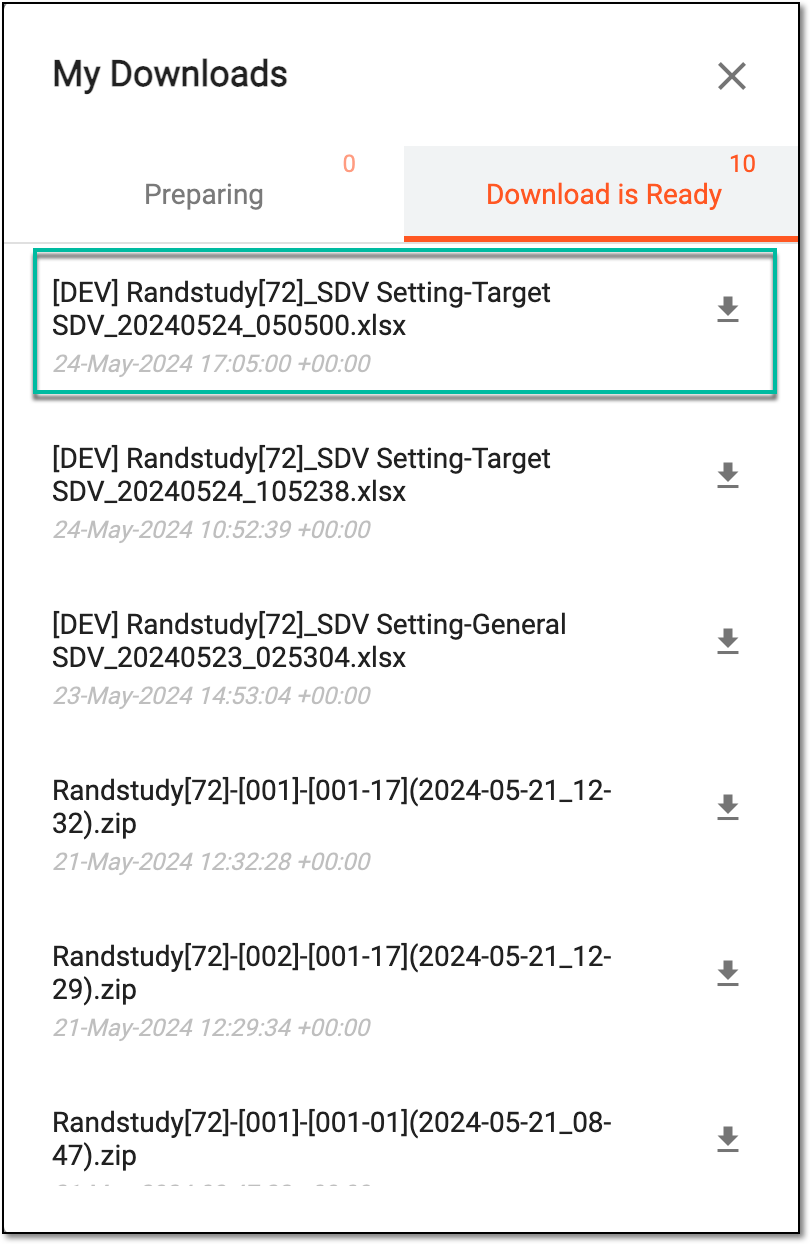 Figure 3. Viewing downloads
-
-
Under the Download is Ready tab, next to the file that you want to download, select
 .
.
Once downloaded and saved, the TSDV configuration details are available on your computer.
View and download export history files
Target SDV (TSDV) is more complex and sophisticated in terms of configurations than global and general SDV. For TSDV, you can configure multiple plans including various tiers, exclusion or inclusion criteria, and more.
In EDC, you can export a complete set of configurations made for the TSDV process to your computer to use it offline or share with the parties that have no access to the system.
Once exported, every such operation is stored in the system so that you can download previously generated files from the export history.
-
In the EDC application header, select the STUDY INFO tab.
-
In the left pane of the page that opens, expand SDV and select the SDV Setting tab.
-
From the workspace toolbar of the page that opens, select History
 .
.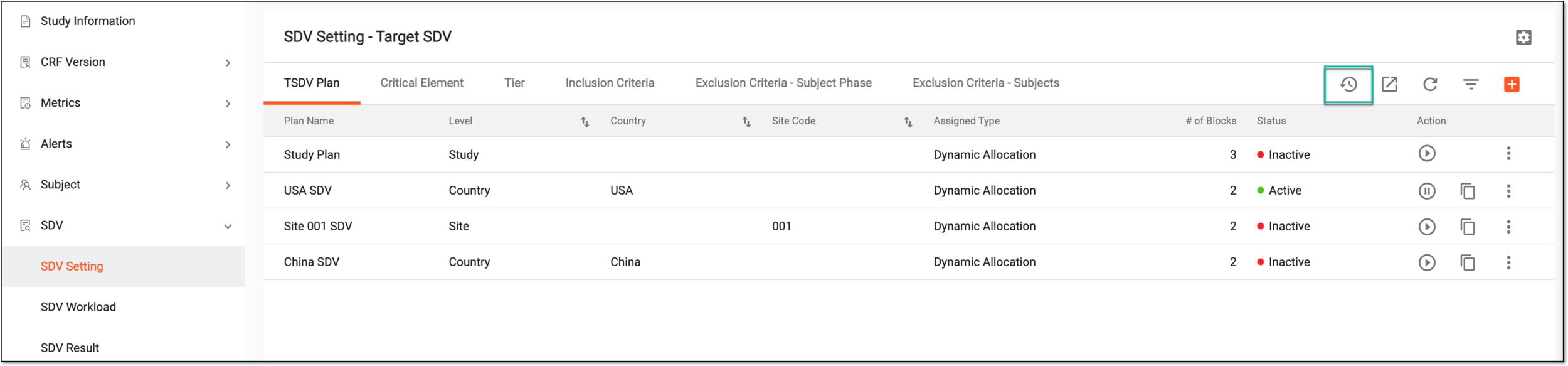 Figure 1. Accessing export history
-
In the Export History dialog that appears, view the complete record of previously generated TSDV details files. Next to the file that you want to download, select
.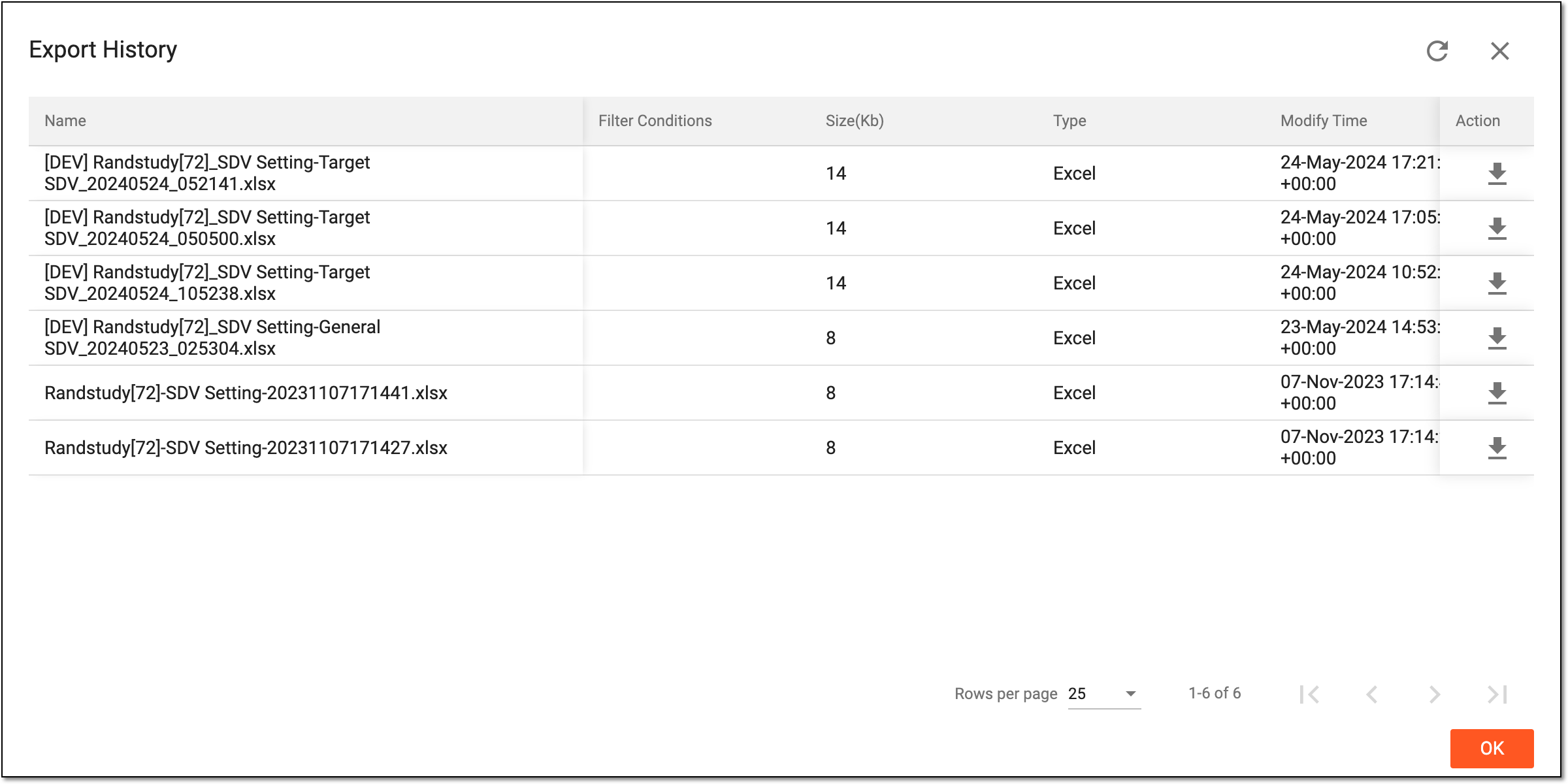 Figure 2. Downloads widget
Once downloaded and saved, the TSDV configuration details file is available on your computer.