Configure single sign-on setting
The single sign-on configuration is a security measure that permits users to access different applications by using one set of login credentials. Single sign-on authentication configurations can be changed in ADMIN to suit your business requirements. This section illustrates how you can change the settings of previously enabled SSO or enable SSO authentication for your users.
-
In the ADMIN application header, select the CONFIGURATION tab.
-
On the page that appears, from the left pane, select Single Sign-On > SSO Setting.
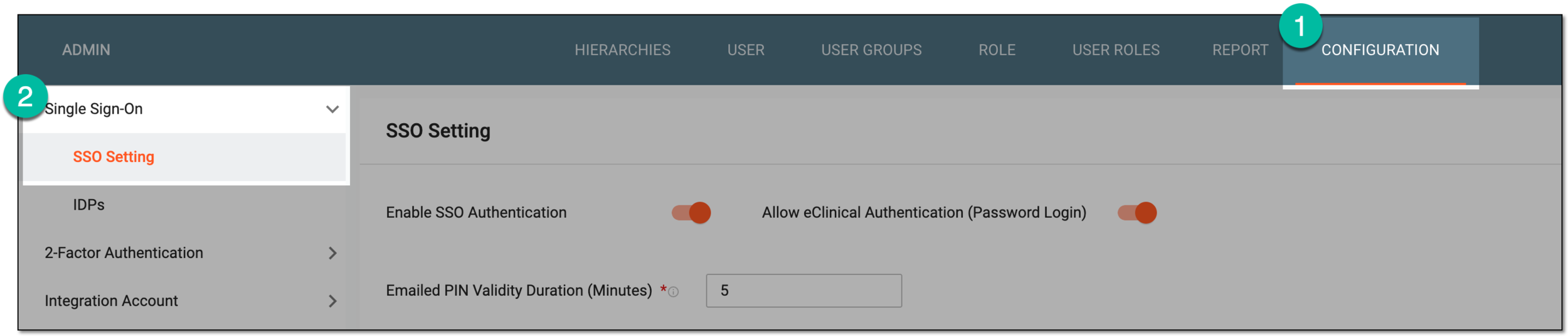 Figure 1. Accessing SSO setting
-
In the SSO Setting page that appears, perform the changes as explained in the following table.
 Figure 2. Configuring SSO settings
Element
Details
Enable SSO Authentication
Set as follows:
-
Turn this toggle on to enable the security measures—logging in to the system and providing in-app electronic signature—through SSO authentication.
-
Turn this toggle off to disable the security measures through SSO authentication.
This functionality can be enabled along with the password authentication or without it as per your business
                                  scenario.
Allow eClinical Authentication (Password Login)
Set as follows:
-
Turn this toggle on to enable the security measures—logging in to the system and providing in-app electronic signature—through entering username and password.
-
Turn this toggle off to disable the security measures through entering username and password.
This functionality can be enabled along with the SSO authentication or without it as per your business
                                  scenario.
Emailed PIN Validity Duration (Minutes)*
Enter the time frame in minutes for how long the pin provided to the user is valid for system authentication. This pin is sent via email when the user uses SSO method for logging in to the system or in-app electronic signature.
SAVE
Select
 to implement the changes.
 -
Once saved, depending upon the changes made, the authentication for the single sign-on setting is updated.