Application header
The application header is located at the very top of the SD application window.

The application header consists of the following elements:
-
Application name: displays the name of the Study Designer application with an icon
 next to it that provides an option to
switch between eClinical applications.
next to it that provides an option to
switch between eClinical applications.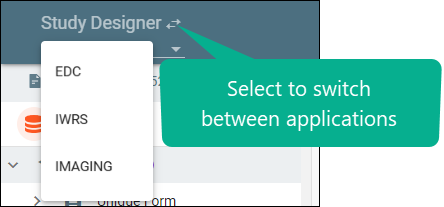 Figure 2. Locating icon to switch applications
-
Study menu: displays the name of the currently selected study and provides an option to switch between studies by selecting them from the dropdown menu.
-
Main menu: Provides an option to switch between the tabs of Study Designer.
-
General information block: contains the following information:
-
Login: displays the username of the current user.
-
Time Zone: displays the time zone that is set for all the eClinical applications.
-
Role: displays the user role of the current user.
-
-
Preferences
 : select this icon, and in the Preferences dialog that appears,
configure general settings of time, date, and language as explained in the following table.
: select this icon, and in the Preferences dialog that appears,
configure general settings of time, date, and language as explained in the following table.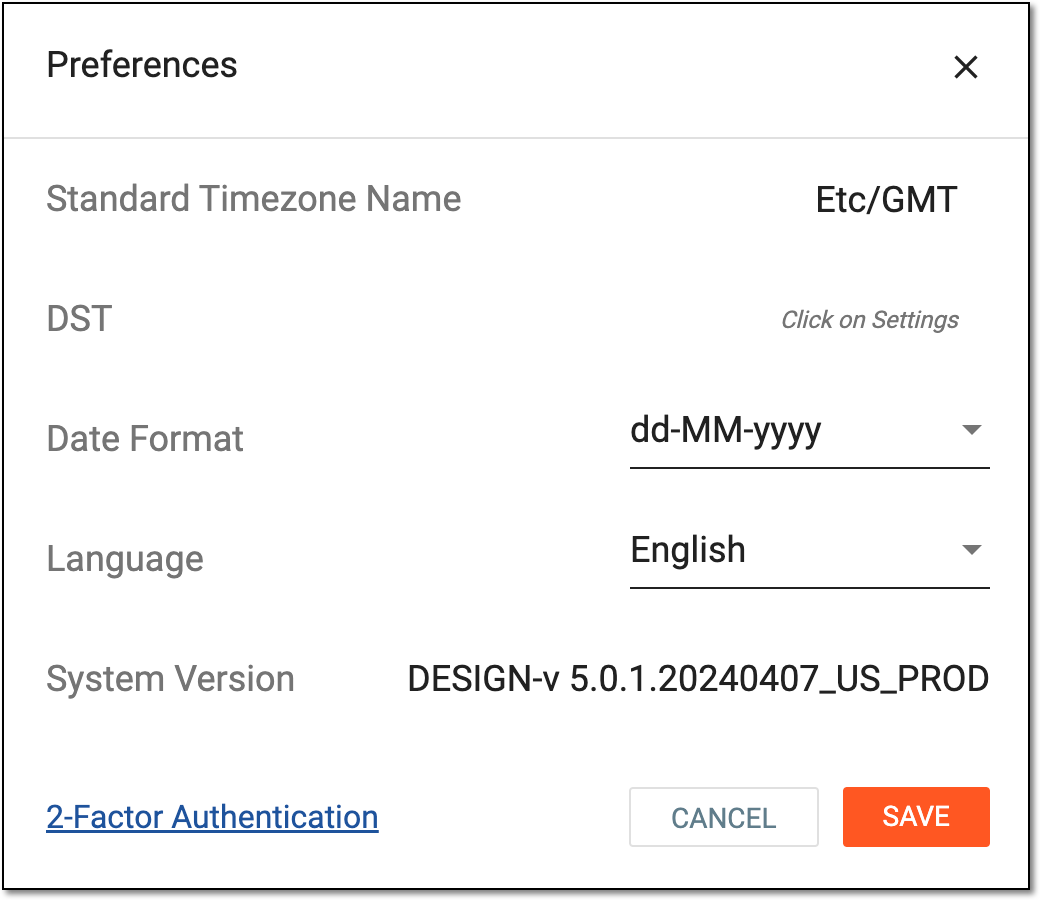 Figure 3. Updating preferences
Element
Details
Standard Timezone Name
Select the value to open the Standard Timezone dialog and select your preferred time zone to specify how the time must be presented in the app to facilitate data reading. The set time zone is displayed next to all timestamp values in the system, for instance, +08:00, -06:00, +00:00, and so on. Once done, select
 to implement your changes.
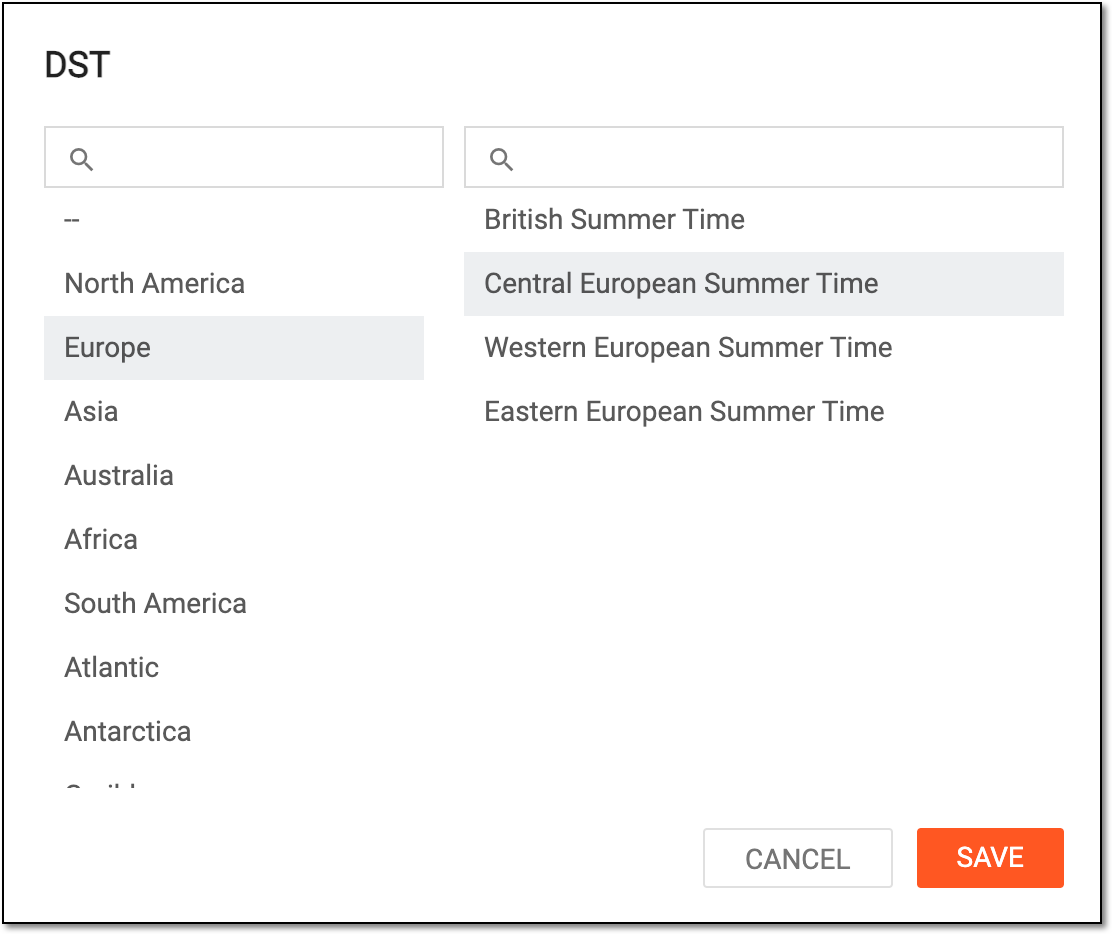 Figure 4. Selecting time zone
DST
Select the daylight saving time value. If the Standard Timezone Name selection is made, the DST value populates automatically based on the selected time zone.
Date Format
Select the preferred date format to display all dates in the application:
-
MM/dd/yyyy
-
yyyy-MM-dd
-
YYYY/MM/dd
-
dd-MMM-yyyy
-
dd-MM-yyyy
Language
Select the preferred language of the application UI.
System Version
View the current version of the application.
2-Factor Authentication
Select the link to go to the two-factor authentication settings page and configure the authentication method—via email or the authentication app.
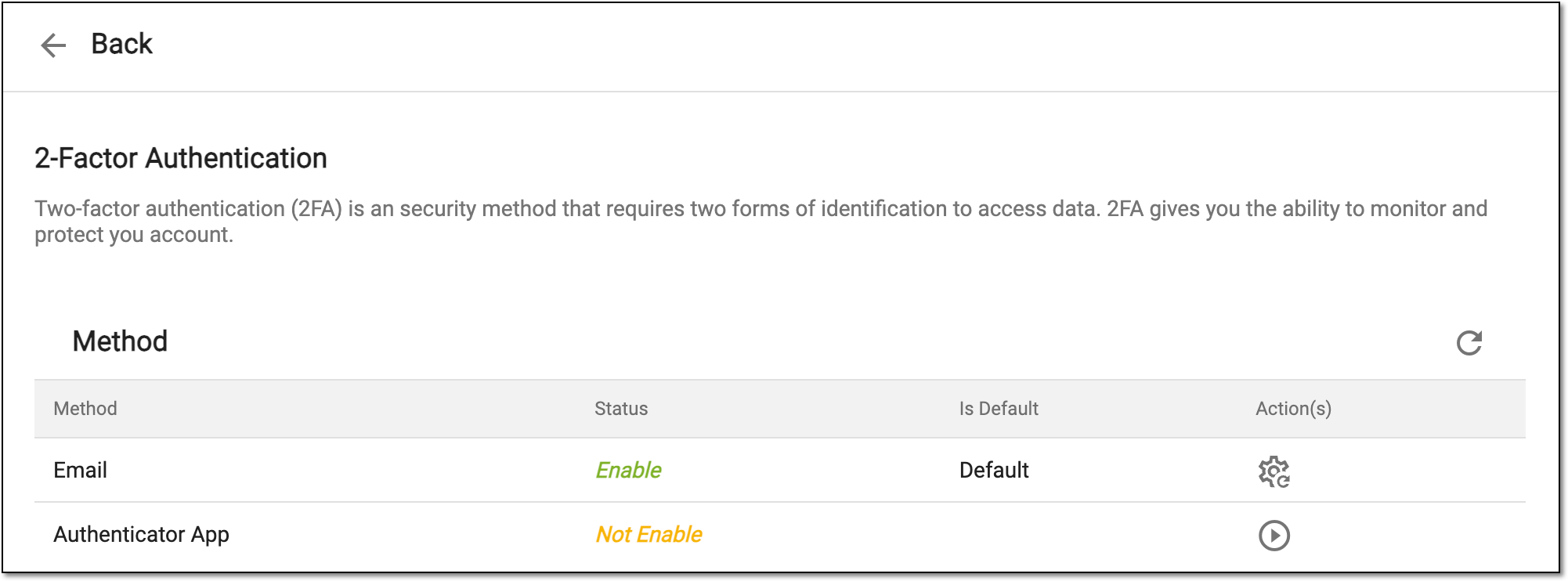 Figure 5. Configuring two-factor authentication
SAVE
Select
 to save the implemented changes.
CANCEL
Select
 to dismiss the changes without saving.
 -
-
Application
 : select this icon, and in the menu that appears, perform the following actions:
-
Switch Application
 : select to exit the Study Designer application and open the page where you can choose
another eClinical application to which you have access.
: select to exit the Study Designer application and open the page where you can choose
another eClinical application to which you have access. -
Change Password
 : select to open the Change Password dialog.
 -
Logout
 : select to log out from the eClinical system.
 -
Help
 : select to open the page with the product documentation.
-