Add automation event
The Study Designer application provides the ability to configure automation events that intend to show forms or visits in EDC for data entry when specific conditions are met. The purpose of automation events is to streamline the assessment process by omitting irrelevant forms or visits based on the respondent's initial response. It helps ensure that the assessment focuses on gathering only pertinent information.
You can create as many customized automation events as needed after the CRF design phase is completed. This ensures a more tailored and efficient data collection workflow in the EDC system. By adding new automation events, clinicians can ensure that EDC dynamically adapts to each participant's unique data profile, presenting only the relevant forms and visits.
-
In the Study Designer application header, select the RULE DESIGN tab.
-
In the left pane of the page that opens, select Automation Event.
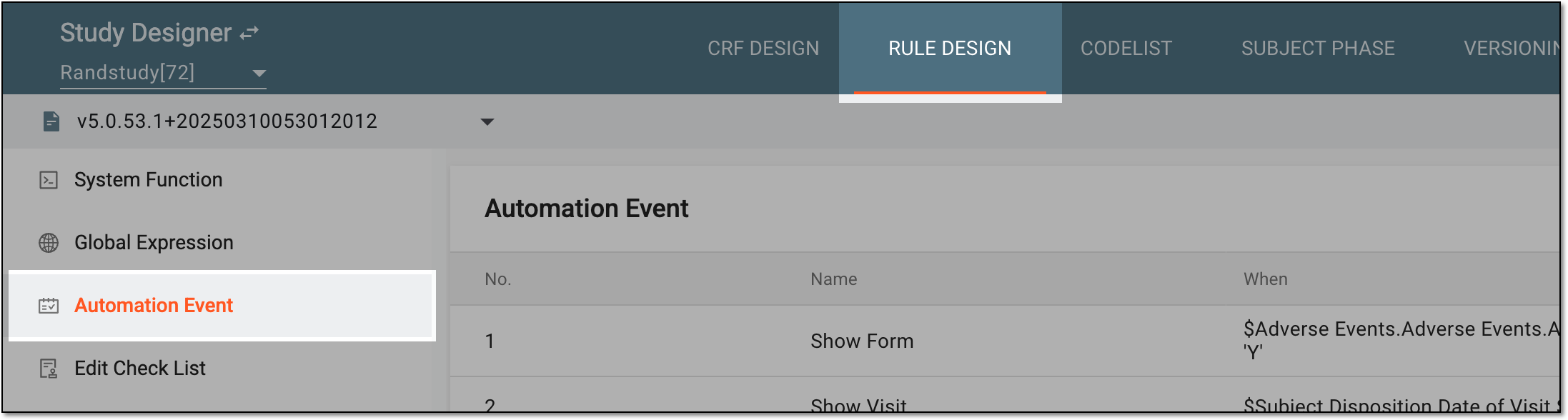 Figure 1. Accessing automation events
-
In the toolbar, select the latest unlocked CRF version, otherwise, you cannot work with automation events.
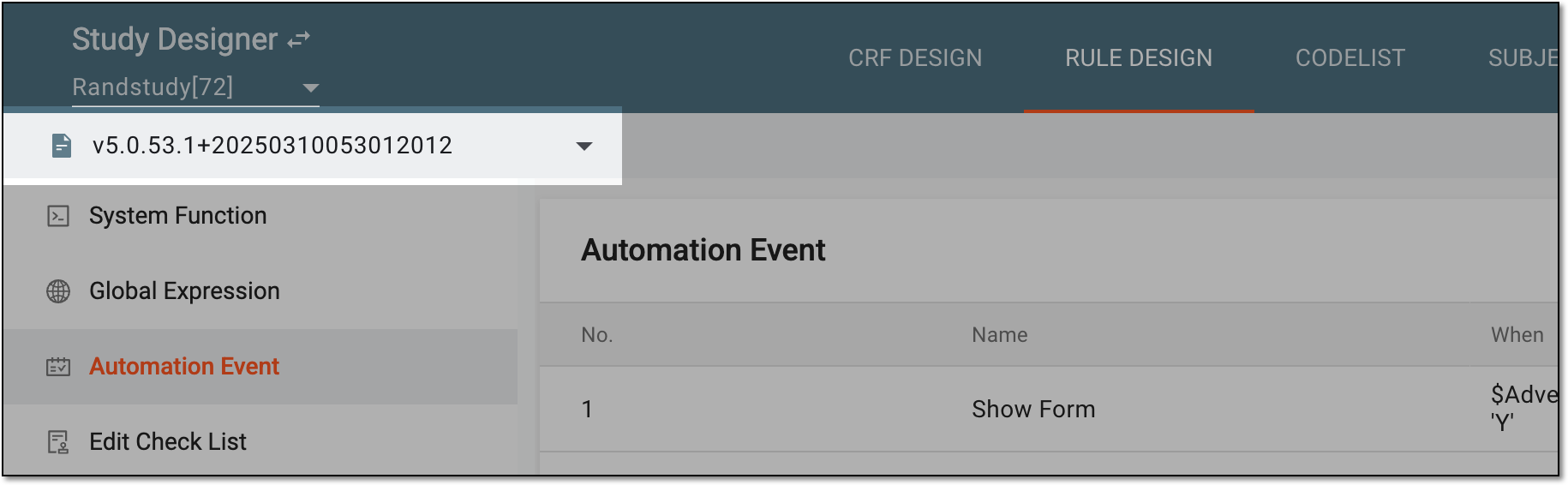 Figure 2. Selecting unlocked CRF version for automation events
-
From the workspace toolbar of the Automation Event table, select New Item
 .
. Figure 3. Selecting option to add automation event
-
On the page that opens, select
 to start configuring an automation event by adding an action first.
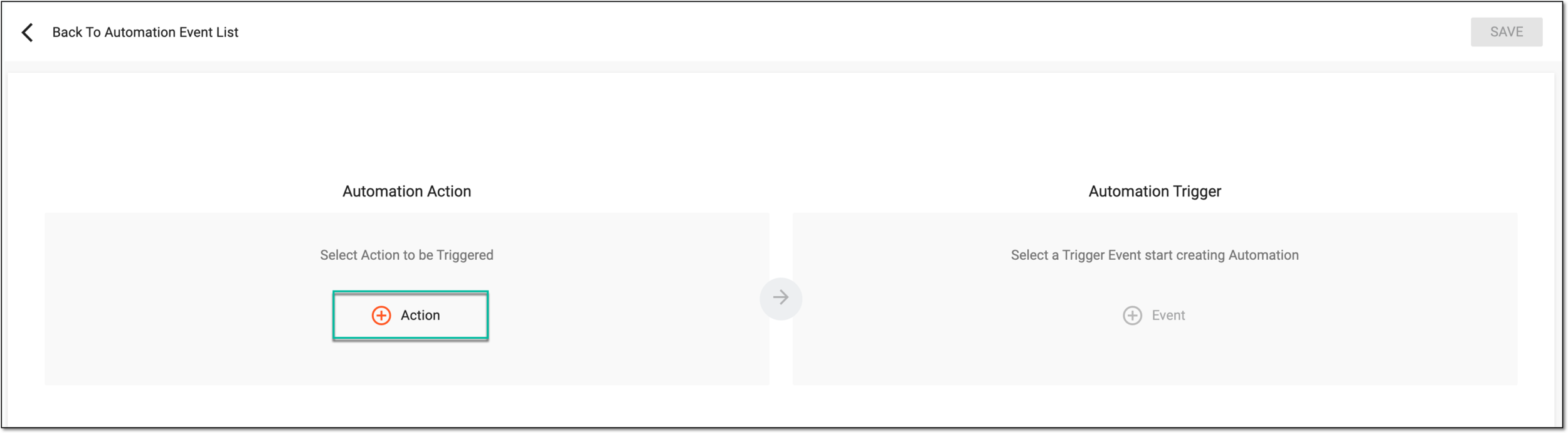 Figure 4. Configuring automation event
-
In the Select An Action dialog that appears, select one of the actions to show either a visit, unique form, or visit form. Then in the tree, select the visit or form that needs to be shown as a result of the triggered automation event. Click
 .
.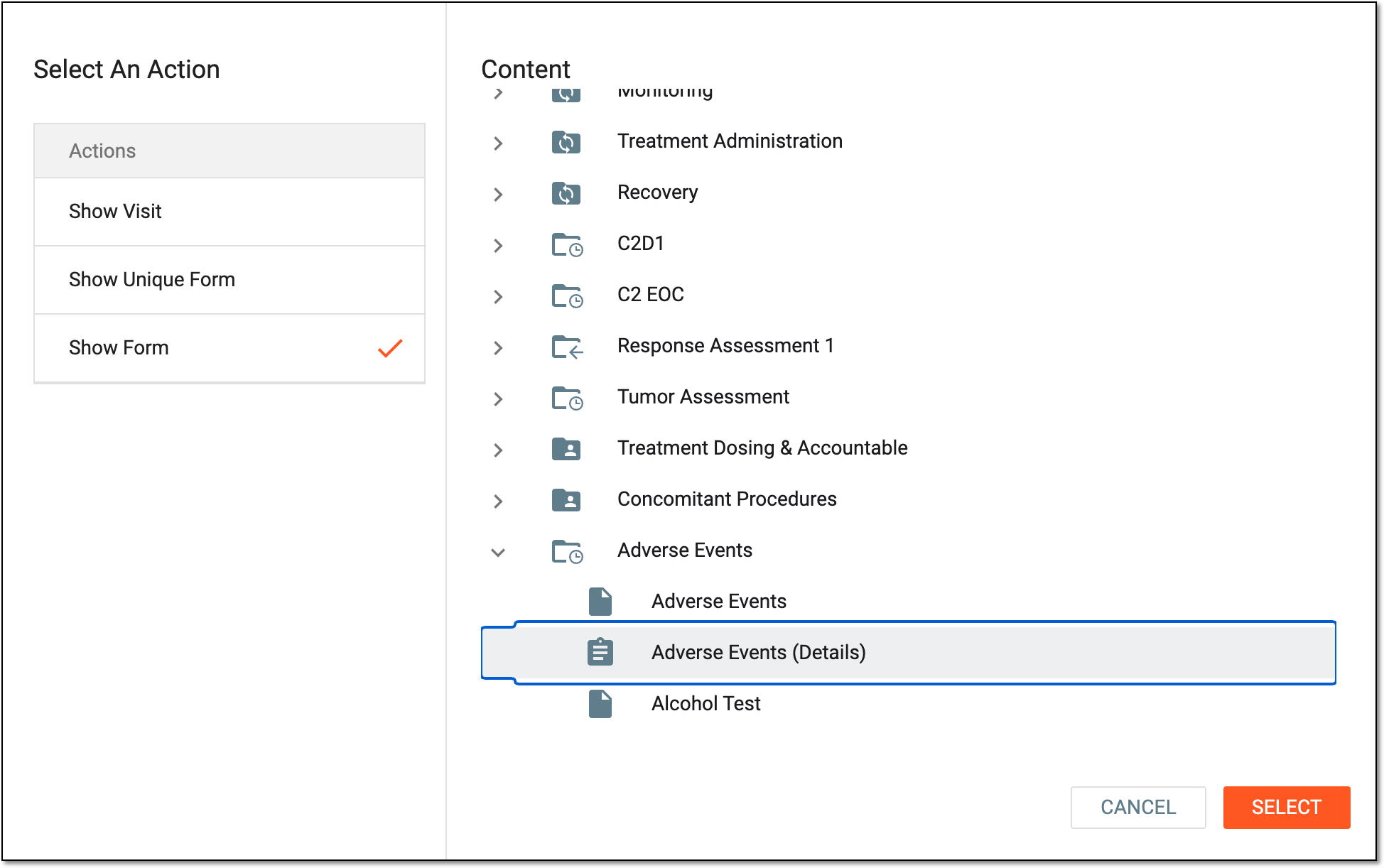 Figure 5. Adding action for automation event
-
On the same page where you are redirected after selecting an event action, select
 to start defining a trigger condition for the automation event.
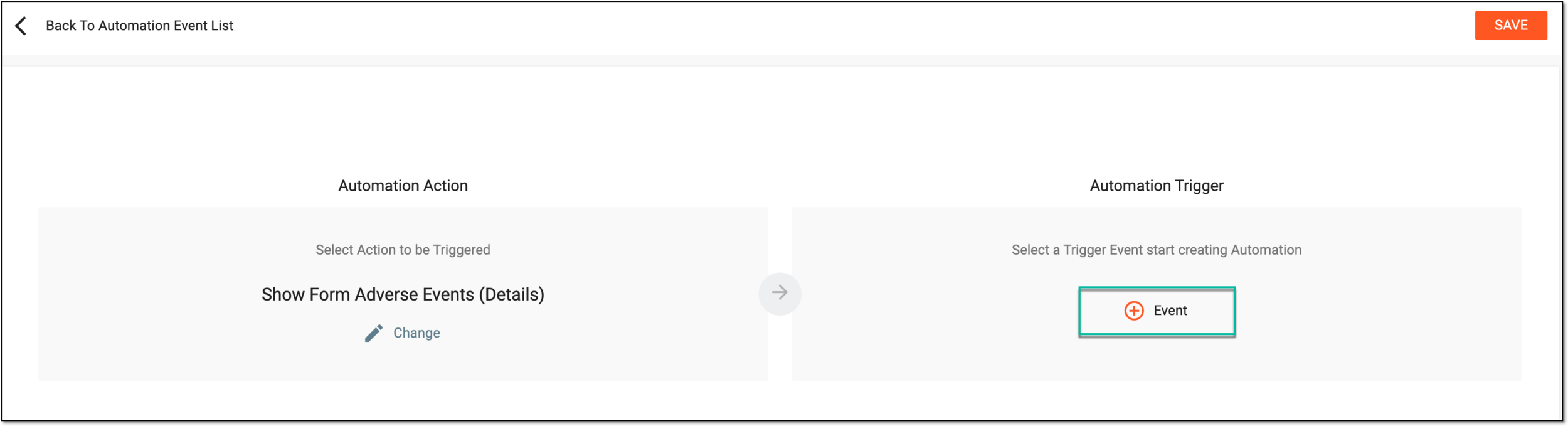 Figure 6. Selecting to define trigger condition
-
In the Edit Automation Event Trigger dialog that appears, define a trigger condition for the automation event. You can also select
 to add an expression placeholder that you can use for the purpose of organization. Select
  .
.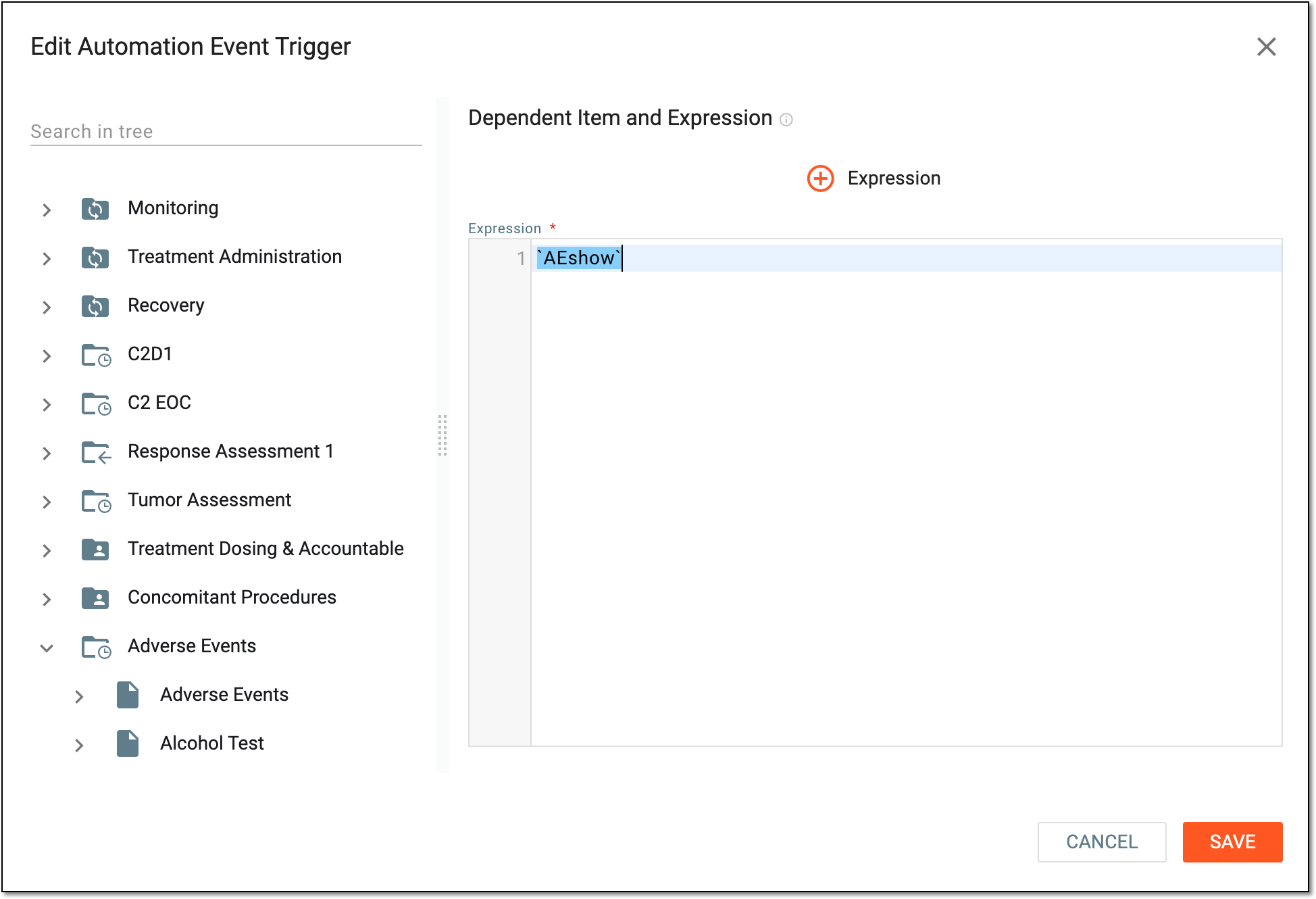 Figure 7. Defining trigger condition
Tip
You can use the following entry options when designing a trigger expression:
-
Press Shift + @ to automatically prompt functions.
-
Press Shift + # to automatically prompt conditions.
-
Press Shift + $ to automatically prompt the list of visits, then forms, and then variables to select for the expression.
-
Press ` to automatically prompt the list of global expressions to reference.
-
From the tree panel, select and drag the necessary variable to use it in the expression configuration.
-
-
On the same page where you are redirected after saving a trigger condition, check the correctness of the configured automation event.
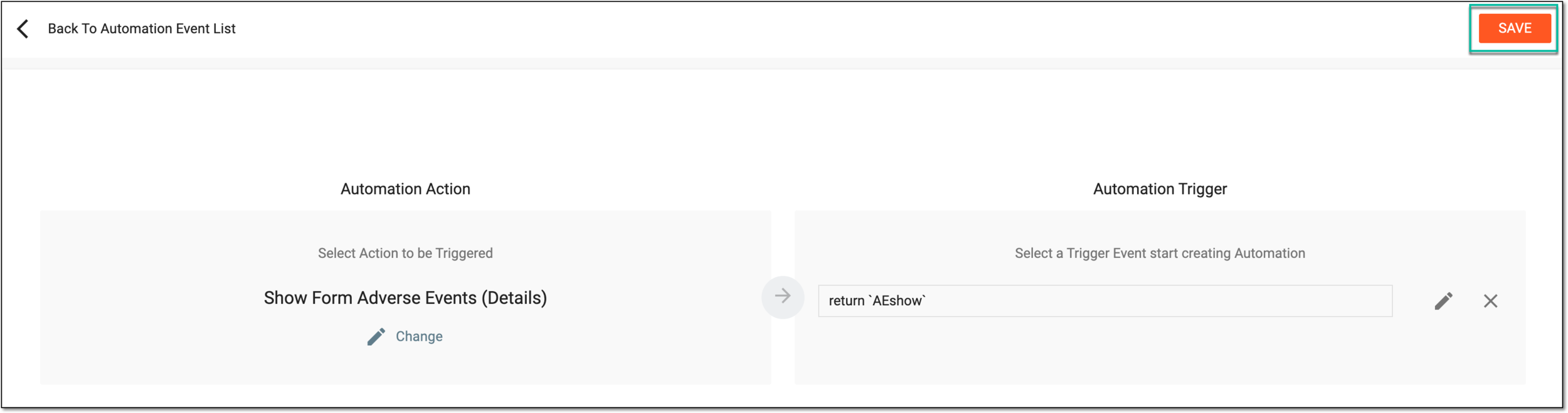 Figure 8. Verifying automation event configuration
Tip
Select
 if you want to update a form or visit to show as a result of the automation event. Moreover, you can select
  to edit a trigger condition or select
  to delete it.
 -
Then from the workspace toolbar, select
to create an automation event.
Once saved, the automation event is created.