Artifact setting
Artifact settings are configurations and criteria established within eTMF to manage how artifacts are created, stored, reviewed, and linked to specific milestones or events in the clinical trial. These settings ensure that artifacts are kept organized, easily retrievable, and compliant with regulatory requirements.
The Artifact Setting page represents the list of configurations created for existing artifacts to ensure seamless tracking and management.
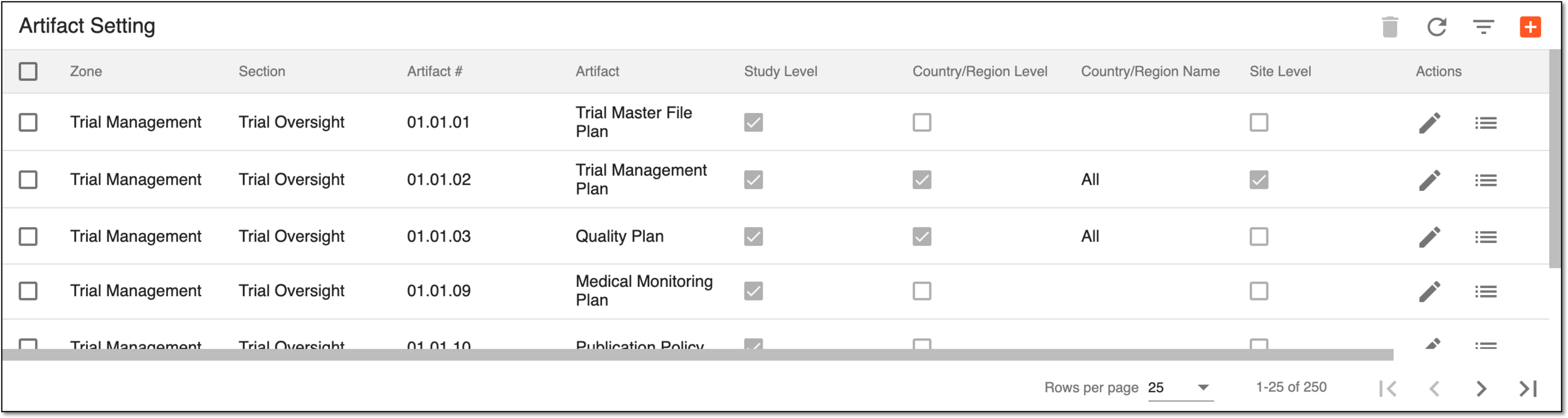
In eTMF, you can perform the following actions with artifact settings:
Add artifact setting
Artifact settings are configurations and criteria established within eTMF to manage how artifacts are created, stored, reviewed, and linked to specific milestones or events in the clinical trial. These settings ensure that artifacts are kept organized, easily retrievable, and compliant with regulatory requirements.
In eTMF, you can add a new artifact setting by incorporating existing artifacts to ensure that all necessary documentation is stored following the regulatory requirements.
-
In the eTMF application header, select the TMF tab.
-
On the page that opens, in the left pane, select the Study List subtab.
-
In the Study List table, select the needed study name.
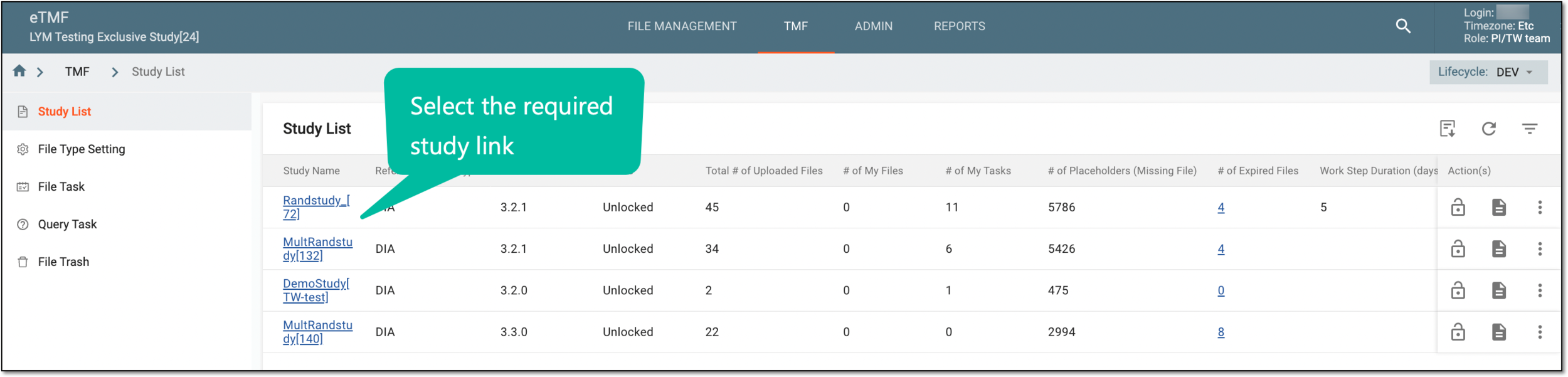 Figure 1. Selecting study
-
On the page that opens, select the Study Tracking pane option.
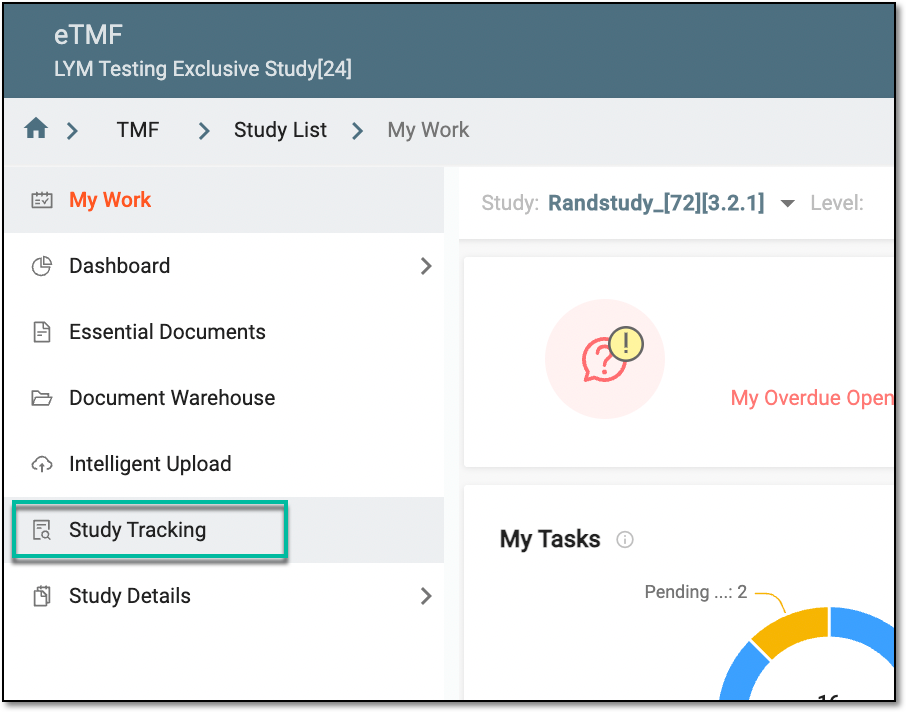 Figure 2. Accessing study tracking page
-
On the page that opens, on the content panel, go to the Artifact tab, and in the workspace toolbar above the Artifact table, select Setting
 .
.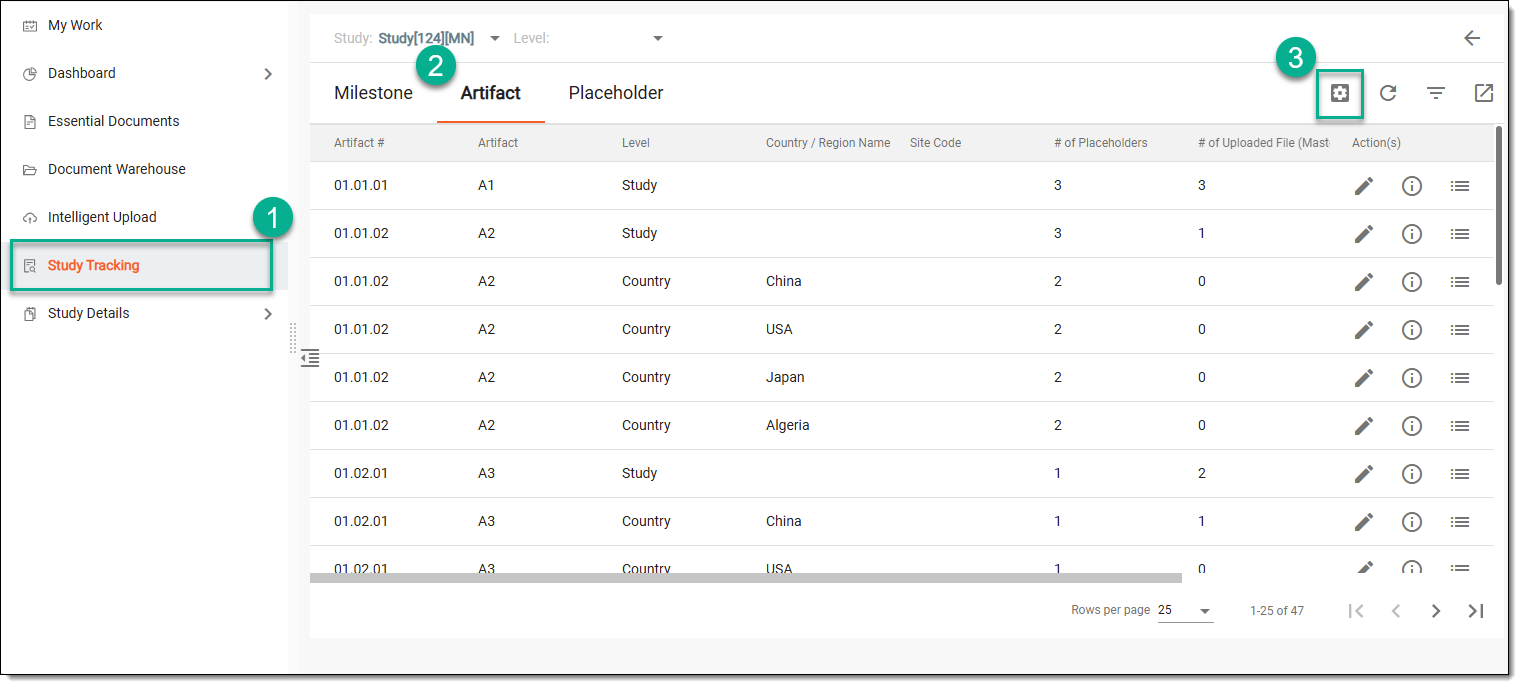 Figure 3. Accessing study tracking and artifact setting
-
On the Artifact Setting page that opens, on the workspace toolbar, select New
 .
.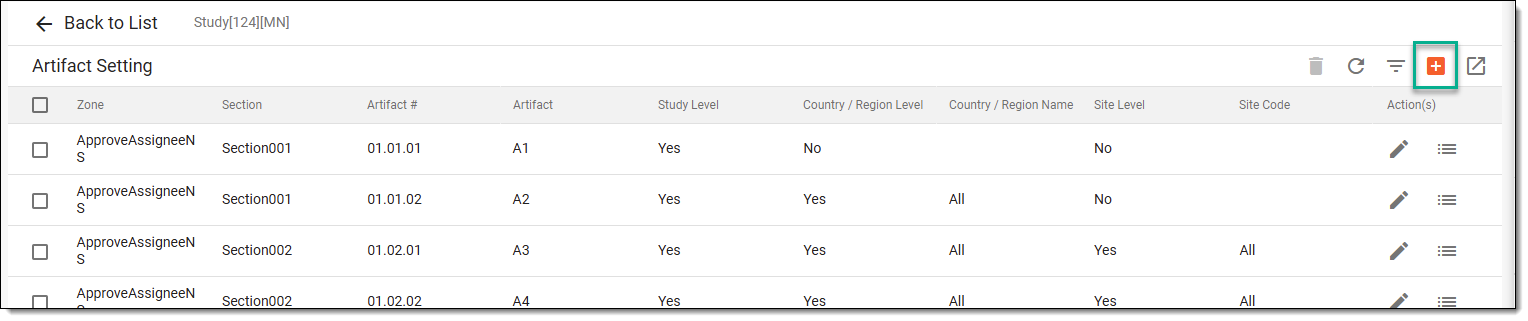 Figure 4. Accessing option to created new artifact
-
In the New dialog, provide information as explained in the following table.
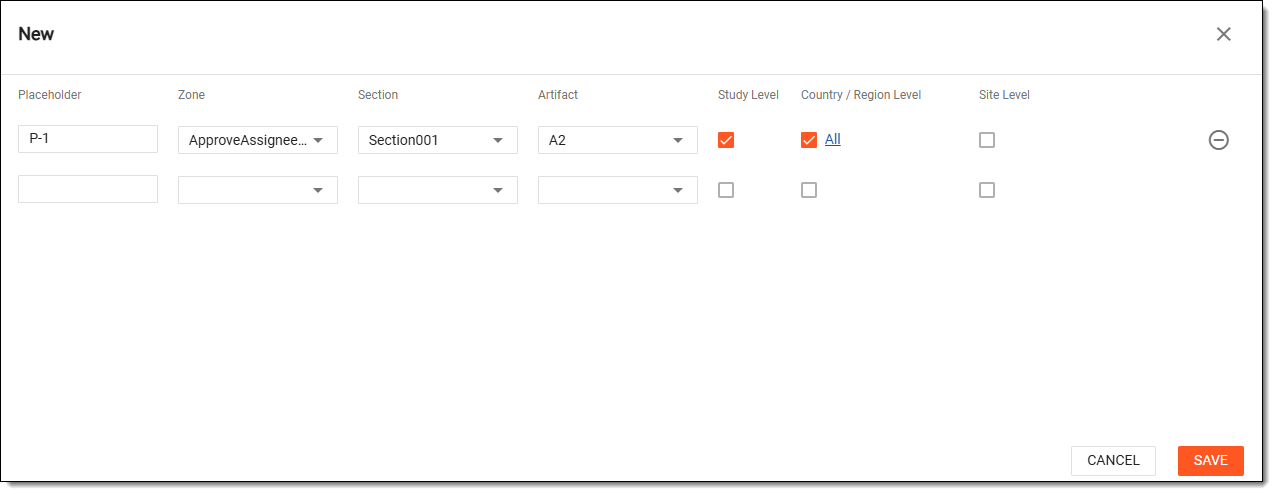 Figure 5. Adding new artifact setting
Element
Details
Placeholder
Enter the name of the placeholder that you want to include in the artifact setting.
Zone
From the dropdown list, select the zone within which you want to create the artifact detail.
Section
From the dropdown list, select the section that corresponds to the selected Zone.
This dropdown list is only activated upon selecting the Zone value.Artifact
From the dropdown menu, select the artifact that you want to associate with the artifact setting.
This dropdown list is only activated upon selecting the Zone and Section value.Study Level
Select this checkbox if you want the artifact detail to be available at the study level.
Country/Region Level
Select this checkbox if you want the artifact detail to be available at the country and region level.
Site Level
Select this checkbox if you want the artifact detail to be available at the site level.
All
Select the All link next to the Country/Region Level or Site Level checkboxes if you do not want to apply the artifact setting to all the associated countries or sites.
In the dialog that opens, turn off the Apply to All toggle and then in the Change reason dialog that opens, from the dropdown list, select the reason for the change and click SAVE.
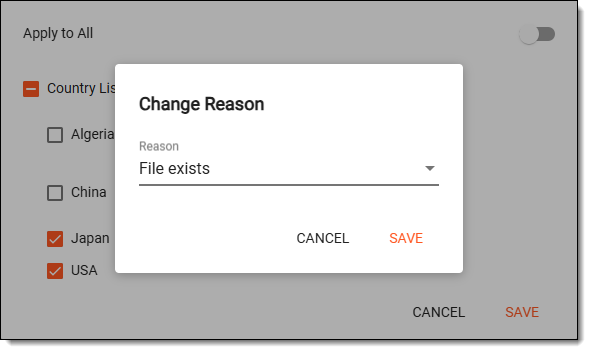 Figure 6. Specifying reason for change
After saving the reason, you can now individually choose the countries and regions or sites that you want to include in the artifact setting and provide the reason for it, respectively.
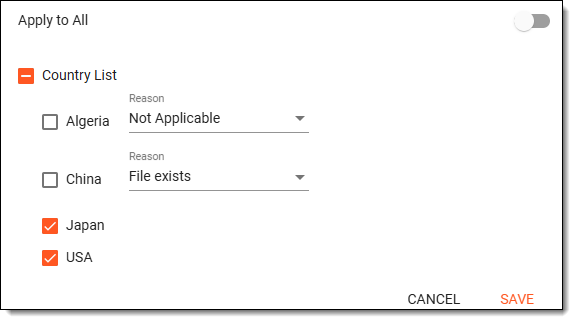 Figure 7. Example of selecting countries
SAVE
Select
 to implement the changes.
CANCEL
Select
 to dismiss the changes without saving.
Tip
By default, the Study level, Country/Region Level, and Site Level checkboxes are selected. Clear the selection where necessary.
Upon saving, the new artifact detail is added and displayed in the list of artifacts on the Artifact Setting page.
Edit artifact setting
Artifact settings are configurations and criteria established within eTMF to manage how artifacts are created, stored, reviewed, and linked to specific milestones or events in the clinical trial. These settings ensure that artifacts are kept organized, easily retrievable, and compliant with regulatory requirements.
In eTMF, you can make updates to an artifact setting, namely, change its zone, section, name, or level at which it is available.
-
In the eTMF application header, select the TMF tab.
-
On the page that opens, in the left pane, select the Study List subtab.
-
In the Study List table, select the needed study name.
Figure 1. Selecting study
-
On the page that opens, select the Study Tracking pane option.
Figure 2. Accessing study tracking page
-
On the page that opens, on the contents panel, go to the Artifact tab. Then from the workspace toolbar, select Setting
.Figure 3. Accessing study tracking and artifact setting
-
On the Artifact Setting page that opens, in the table next to the artifact setting you need to modify, select Edit
 .
. -
In the Edit dialog that appears, update the fields as needed. The fields are identical to those explained in the table of the Add artifact setting section.
Important
Please note that for DIA RM artifacts, you can only change the levels of the artifact availability. You cannot move or delete the artifact, nor edit its name.
Any modifications added to the DIA RM artifact may compromise the reliability of the TMF documentation and violate the regulatory requirements.
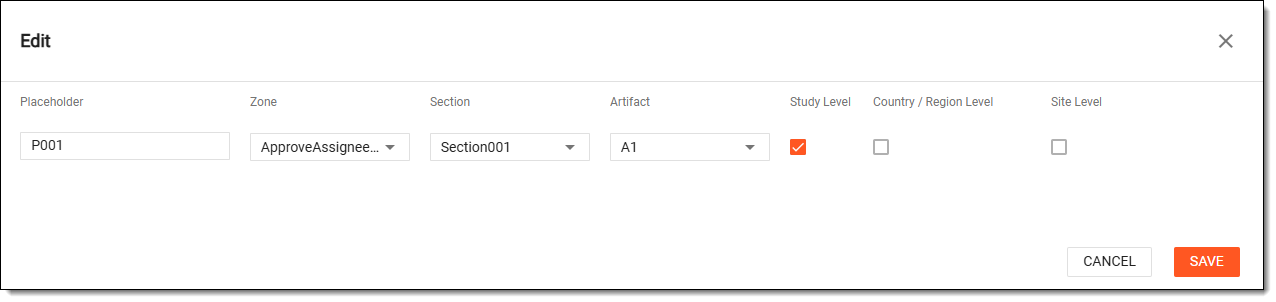 Figure 4. Editing artifact setting
-
Select
to implement the changes.
Upon saving, the artifact setting is updated.
View artifact setting audit trail
Artifact settings are configurations and criteria established within eTMF to manage how artifacts are created, stored, reviewed, and linked to specific milestones or events in the clinical trial. These settings ensure that artifacts are kept organized, easily retrievable, and compliant with regulatory requirements.
The audit trail data in eTMF serves as a comprehensive record that tracks changes made to the artifact settings, including additions and modifications.
-
In the eTMF application header, select the TMF tab.
-
On the page that opens, in the left pane, select the Study List subtab.
-
In the Study List table, select the needed study name.
Figure 1. Selecting study
-
On the page that opens, select the Study Tracking pane option.
Figure 2. Accessing study tracking page
-
On the page that opens, on the contents panel, go to the Artifact tab, and in the workspace toolbar above the Artifact table, select Setting
.Figure 3. Accessing study tracking and artifact setting
-
In the Artifact Setting table, go to the needed artifact setting. Then in the Actions column next to it, select Audit Trail
 .
.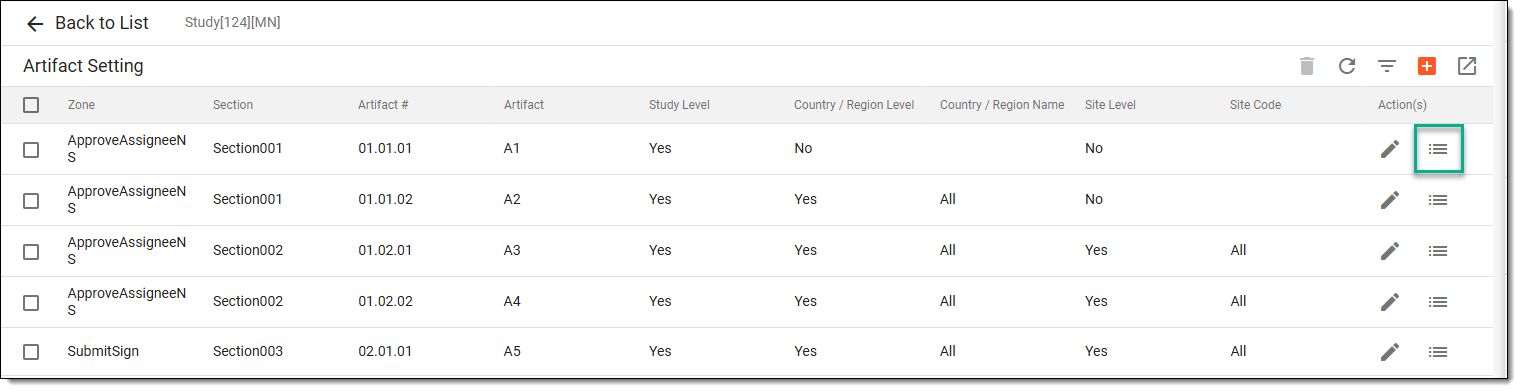 Figure 4. Accessing option to view artifact setting's audit trail
-
In the Audit Trail dialog that appears, you can view the log of operations performed on the artifact setting.
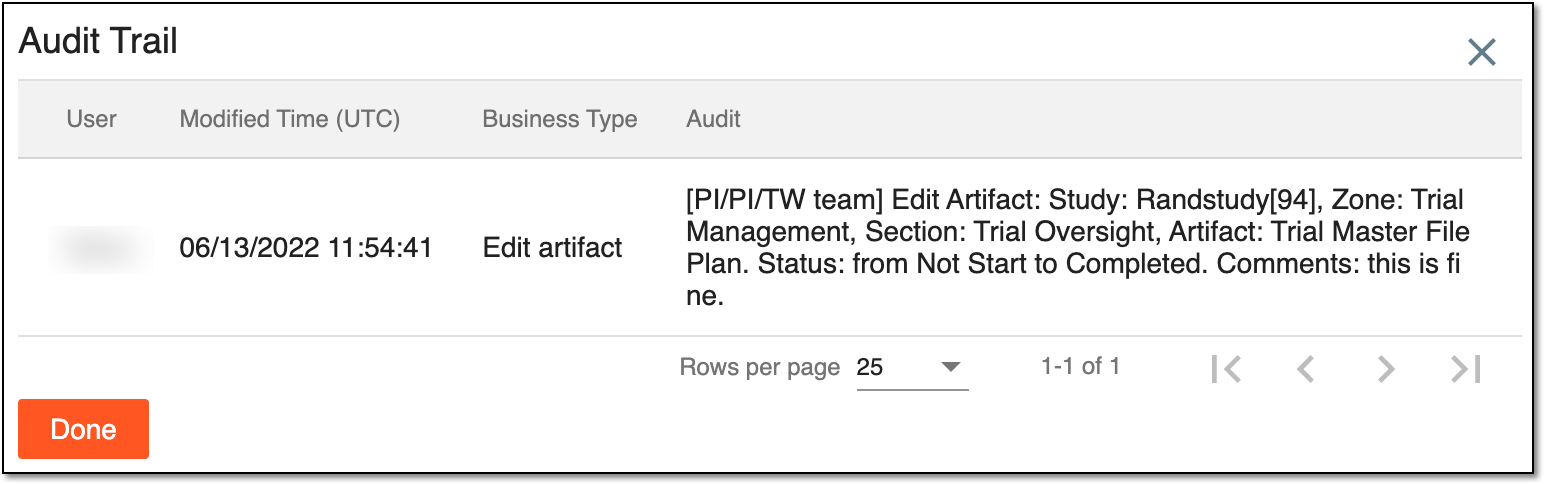 Figure 5. Viewing artifact setting audit trail
-
Select
 to close the dialog.
Once done, you are redirected to the Artifact Setting table.
Delete artifact setting
Artifact settings are configurations and criteria established within eTMF to manage how artifacts are created, stored, reviewed, and linked to specific milestones or events in the clinical trial. These settings ensure that artifacts are kept organized, easily retrievable, and compliant with regulatory requirements.
If an artifact setting was created in error, it may be necessary to delete the redundant entry to keep the list of artifacts up-to-date and avoid confusion. Furthermore, some artifact settings related to canceled trials or phases that will no longer take place may need to be removed to maintain focus on current and relevant activities.
-
In the eTMF application header, select the TMF tab.
-
On the page that opens, in the left pane, select the Study List subtab.
-
In the Study List table, select the needed study name.
Figure 1. Selecting study
-
On the page that opens, select the Study Tracking pane option.
Figure 2. Accessing study tracking page
-
On the page that opens, go to the Artifact tab. Then from the workspace toolbar, select Setting
.Figure 3. Accessing study tracking and artifact setting
-
On the Artifact Setting page, select checkboxes next to the artifact setting you want to delete, and then from the workspace toolbar, select Delete
 .
.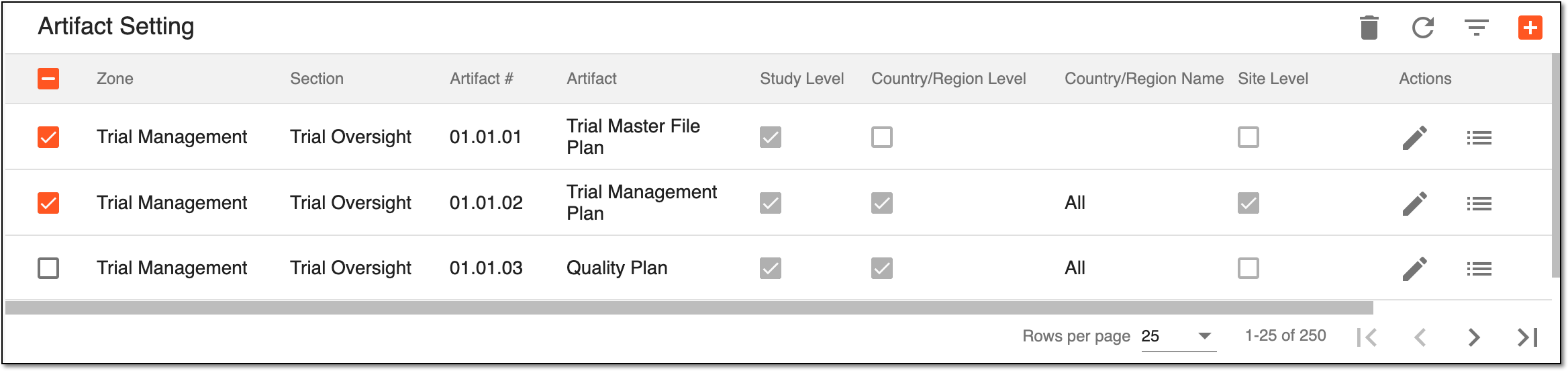 Figure 4. Deleting artifact
-
In the Delete confirmation dialog that opens, select
 to confirm your action.
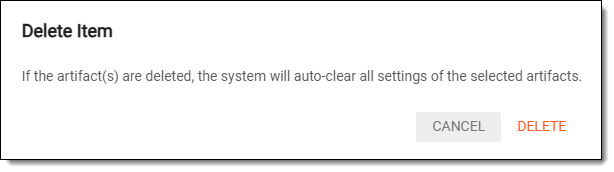 Figure 5. Confirming artifact deletion
The artifact settings are now deleted.