View query list
In the context of CRF design, a query refers to a formal request or notification raised by the study team regarding a specific data-related concern or discrepancy. In the Study Designer application, while the study team configures the forms, if they encounter inconsistencies or data-related questions, they can create queries to draw attention to these issues and seek clarification or resolution from fellow team members or a sponsor.
You can view the entire list of queries that have ever been opened or closed for a CRF version of the specific study within a single page. If some queries are still open, you can even manage those queries without the necessity to navigate to them.
-
In the Study Designer application header, select the CRF DESIGN tab.
-
In the toolbar, select the needed CRF version.
 Figure 1. Selecting CRF version
Important
Note that if you want to manage some queries, you need to select the latest draft CRF version.
-
In the same toolbar, select Query List
 .
.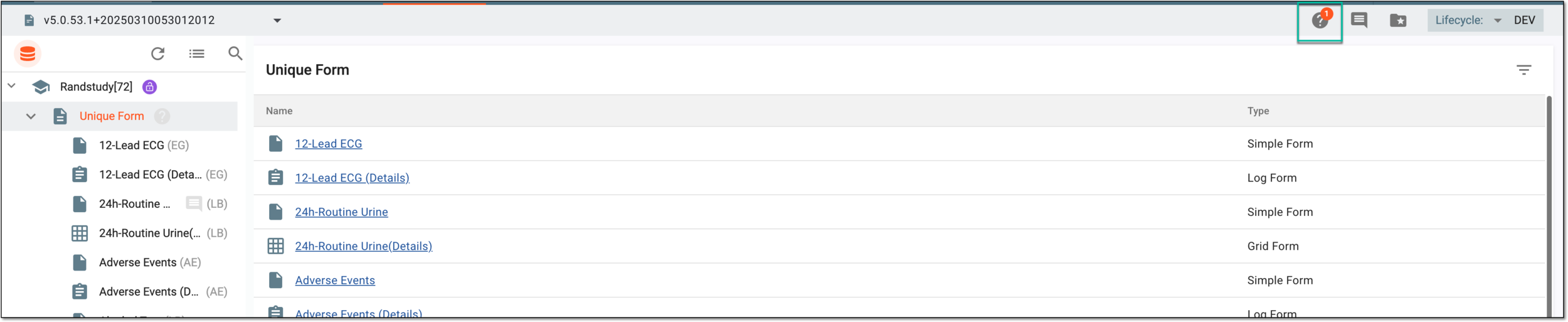 Figure 2. Accessing query list
-
In the Query List dialog, select View More to open the list of queries.
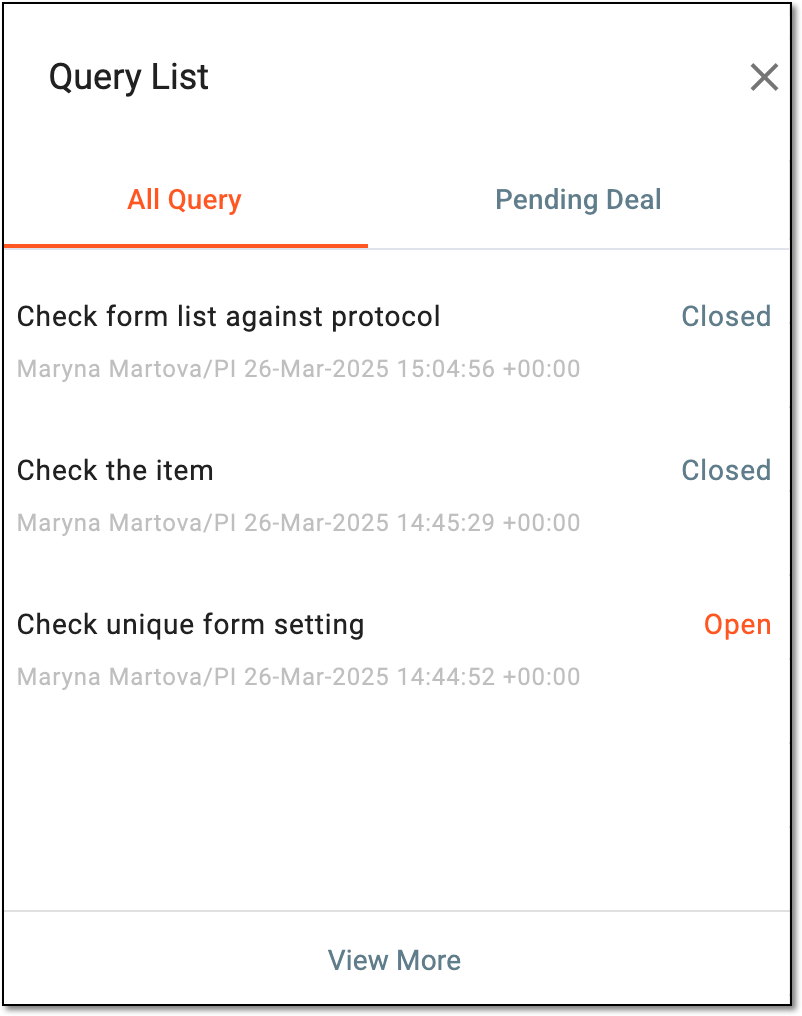 Figure 3. Accessing query list
-
In the Query List table that opens, view the list of all queries that are still open or have been closed for the selected CRF version.
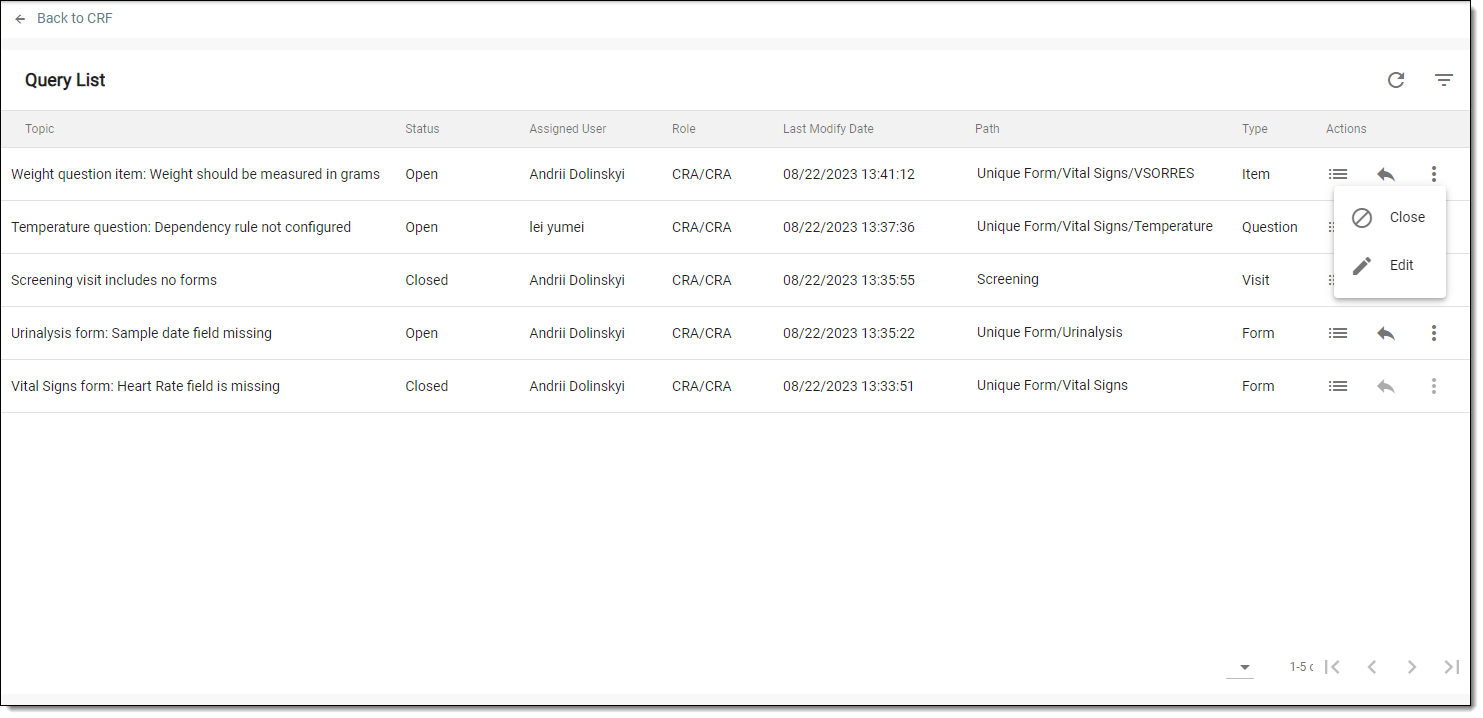 Figure 4. Viewing query list
-
If you have previously selected the latest unlocked CRF version, you can perform the following actions with any open query:
-
Info
 : to expand the panel where you can view the query details.
 -
Reply
 : to request further clarifications on the query topic.
 -
Edit
 : to assign another user to a query.
 -
Close
 : to shut a query if it has been already resolved or not actual anymore.
-
Once viewed, you can go back to the main page by selecting Back to CRF from the toolbar.