View data sheet change history
With the Change History feature, you can view the structured information about all changes performed with every data sheet configured for the product family.
To view the change history for a data sheet
-
In the PV application header, select the PRODUCT tab.
-
On the page that opens, from the left pane, select the product family for which you need to view the data sheet change history.
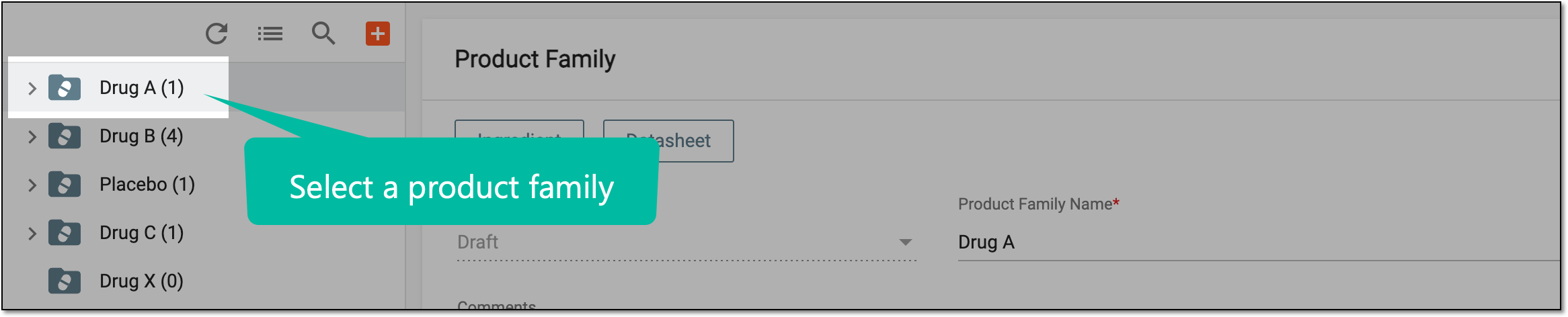 Figure 1. Selecting product family
-
On the Product Family form page that opens, go to the Datasheet block and select More
 > Change History
  .
.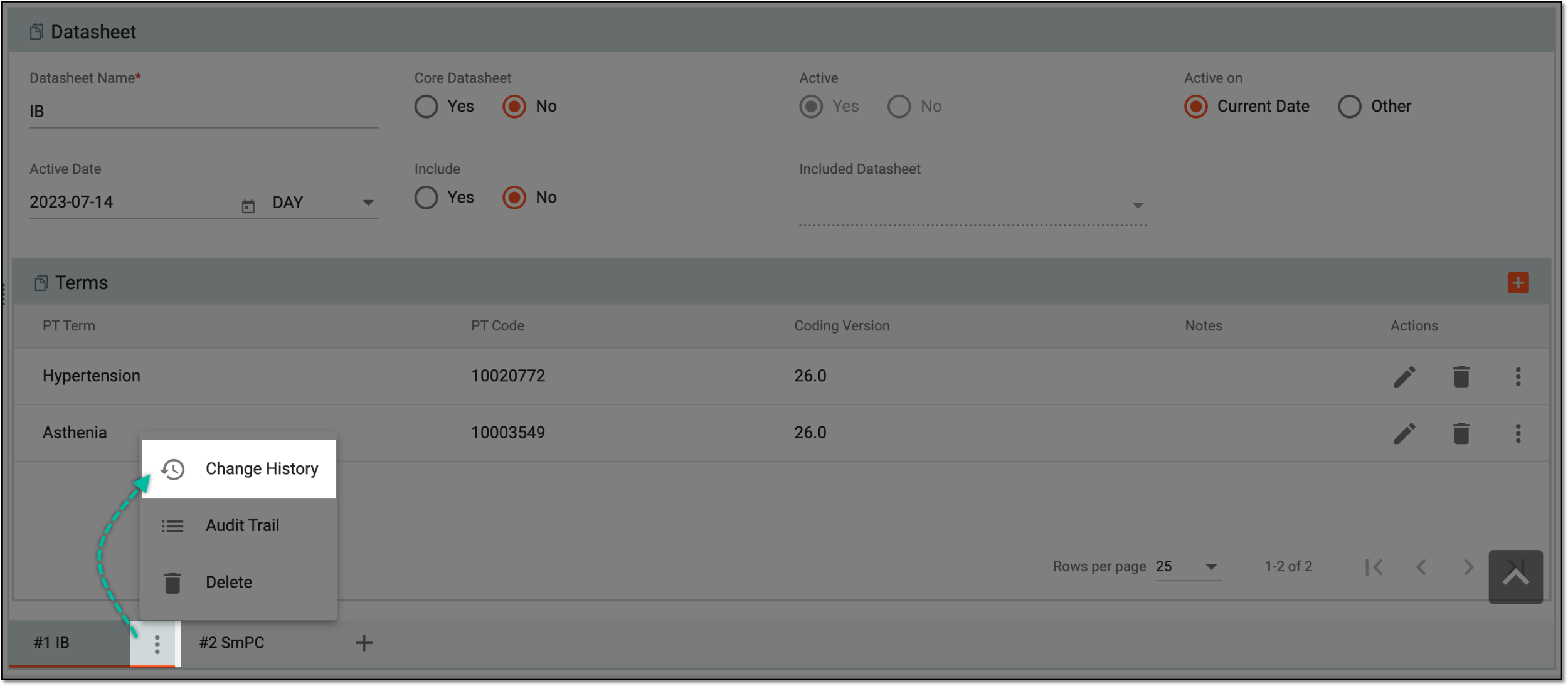 Figure 2. Accessing data sheet change history
-
In the Change History dialog that opens, view the details pertaining record, form, field, last value, current value, operation type, and reason.
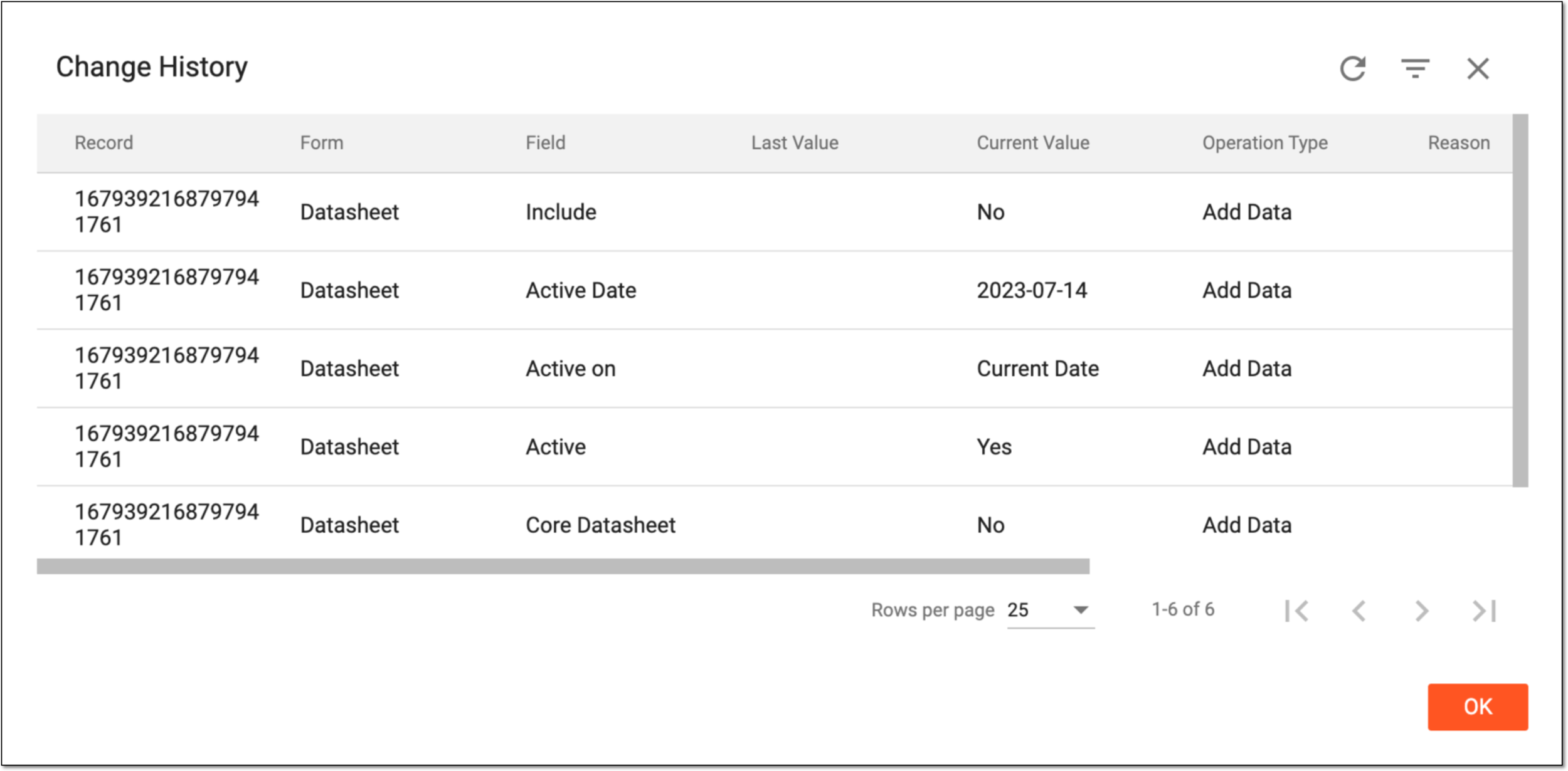 Figure 3. Viewing term change history
-
Select
 to close the dialog.
You have successfully viewed the change history for your data sheet term.