Action items
In PV, Action Items is a tool of traceable communication that provides you with an option to request clarifications, data fixes, or other actions from users within the PV system.
Action items are time-bound and give you the flexibility to set the action due dates per the company's standard procedure.
Important
Action items can only be assigned to a user with active access to the PV system.
Access to action items is based on the study access permission granted via ADMIN.
In PV, you can create action items to request clarifications, data fixes, or another actions from each other.
Tip
Action items added to the ICSR and not addressed properly remain open when the case is forwarded to the consecutive workflow statuses.
-
In the PV application header, select the ICSR tab.
-
From the left pane, select ICSR List.
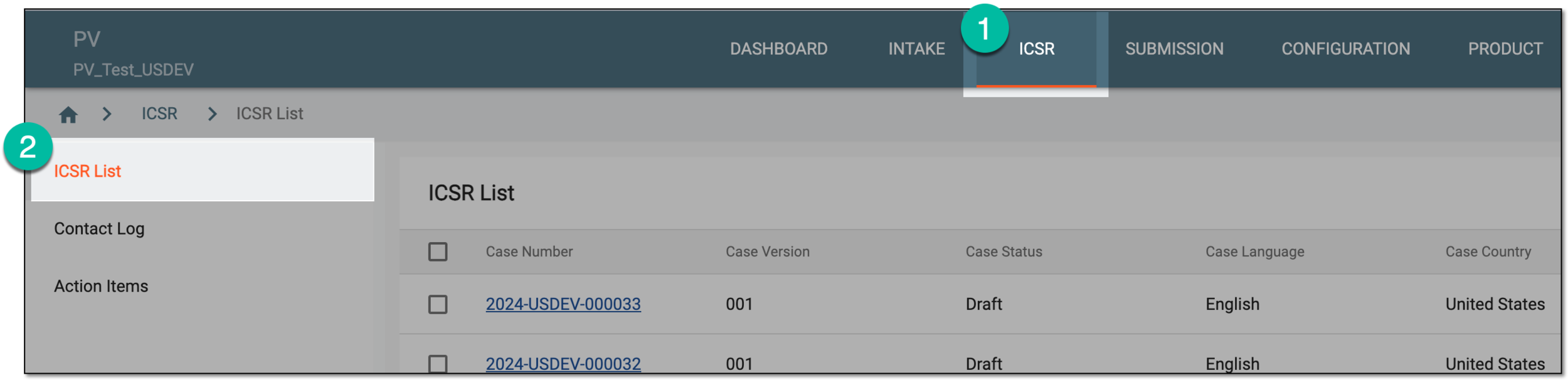 Figure 1. Accessing ICSR list
-
On the ICSR List page that opens, in the table, locate the ICSR for which you want to create an action item. Then select its case number to open the details page in the new browser tab.
Alternatively, from the Actions column next to your ICSR, select Edit
 to open
the ICSR details in the same browser tab.
to open
the ICSR details in the same browser tab. Figure 2. Selecting to edit ICSR
-
On the ICSR form page that opens, from the toolbar, select Action Items
 . Then in the panel that opens, select
New
. Then in the panel that opens, select
New  .
. -
In the New form that opens, configure the action item as explained in the following table.
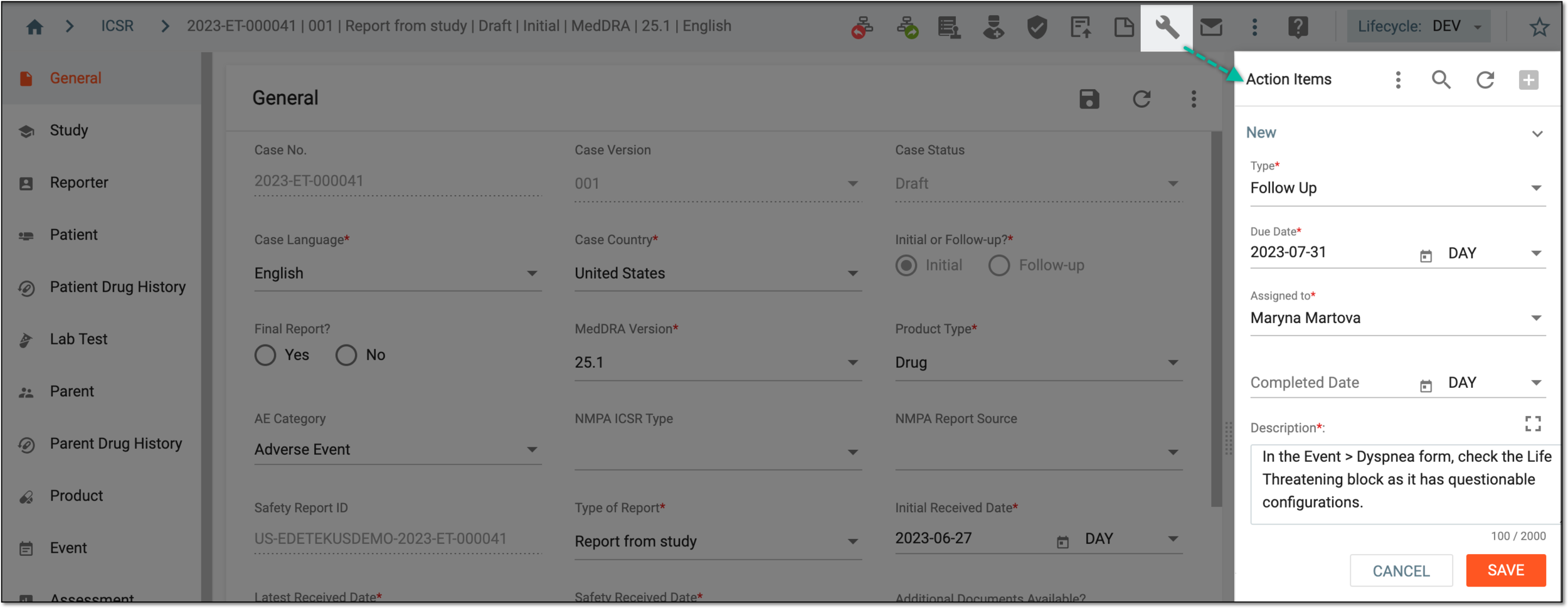 Figure 3. Adding action item
Tip
In the following table, mandatory elements are marked with an asterisk (*).
Element
Details
Type*
Select the action item type.
The action types can be customarily configured by the EDETEK administrator to suit your business needs.Due Date*
Select the date until which you want the assignee to act on your request.
Assigned to*
Select the user to whom the action item must be assigned and who is to complete the action item request or clarification.
The list of assignees is based on their study access permission granted via ADMIN.Completed Date
Select the date of the action item completion.
Description*
Enter the details of the action item.
SAVE
Select
 to implement the changes.
CANCEL
Select
 to discard the changes without saving.
Once saved, the action item is added to ICSR. The assignee can now act on this item.
In PV, if you are the assignee of the action item, it means you need to take action to resolve the requested issue.
Tip
Action items added to the ICSR and not addressed properly remain open when the case is forwarded to the consecutive workflow statuses.
-
In the PV application header, select the ICSR tab.
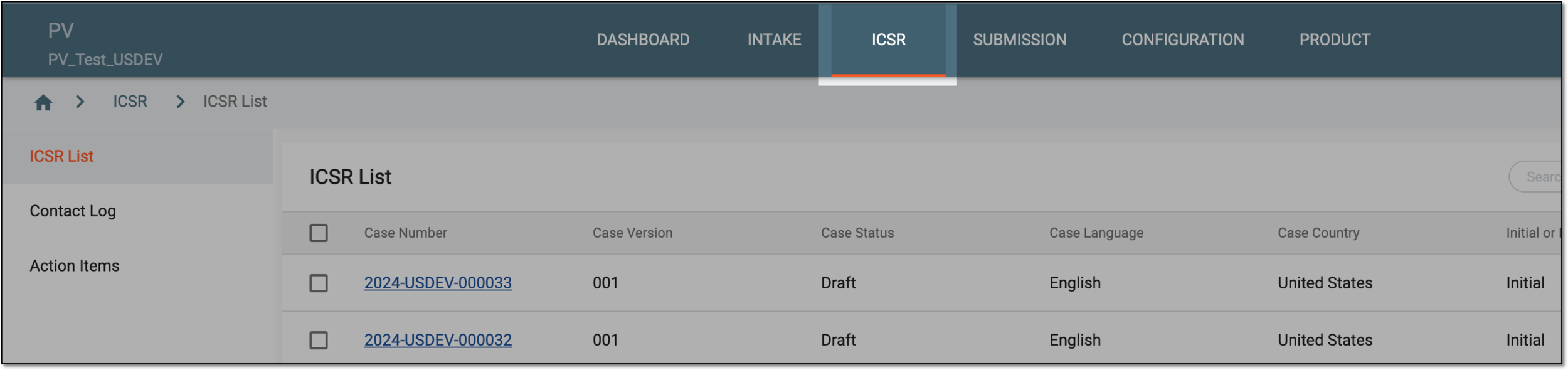 Figure 1. Accessing ICSR management
-
On the ICSR List page that opens, perform one of the following actions to access Action Items:
-
To access action items of the specific case, in the ICSR List table, locate the needed case and open it by selecting the case number or Edit
. Then on the ICSR report page, from the toolbar, select Action Items .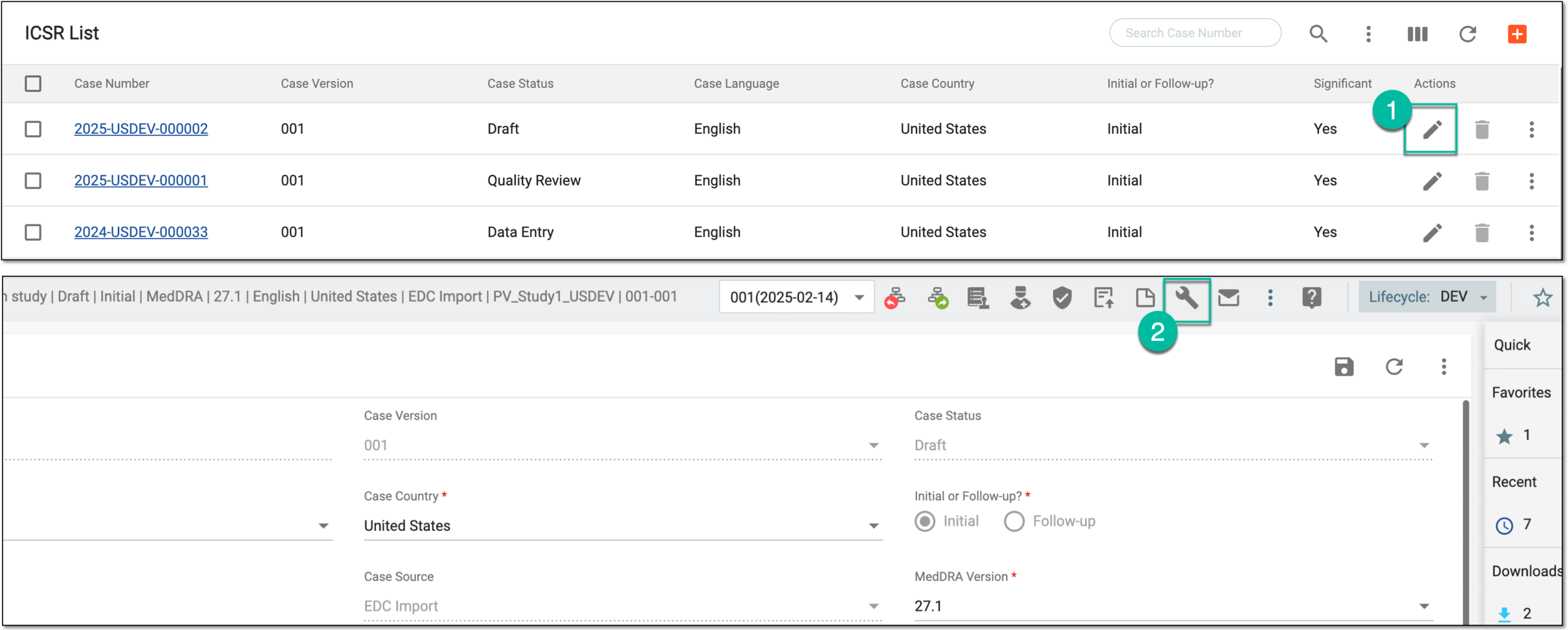 Figure 2. Accessing action items from case report page
-
To access all the action items that require attention, from the left pane, select the Action Items subtab. In the list that appears, locate the action item you want to view. Then next to it, from the Actions column, select Go To Record
 .
. Figure 3. Accessing action items from ICSR list page
Tip
From this page, you can only access the action items that have not yet been completed (have no completion date). The action items that are not yet expired are marked as On Time
 , and those past due are marked as Late
  .
.
-
-
In the Action Items panel that opens on the case report page, you can find the list of all action items created for the case.
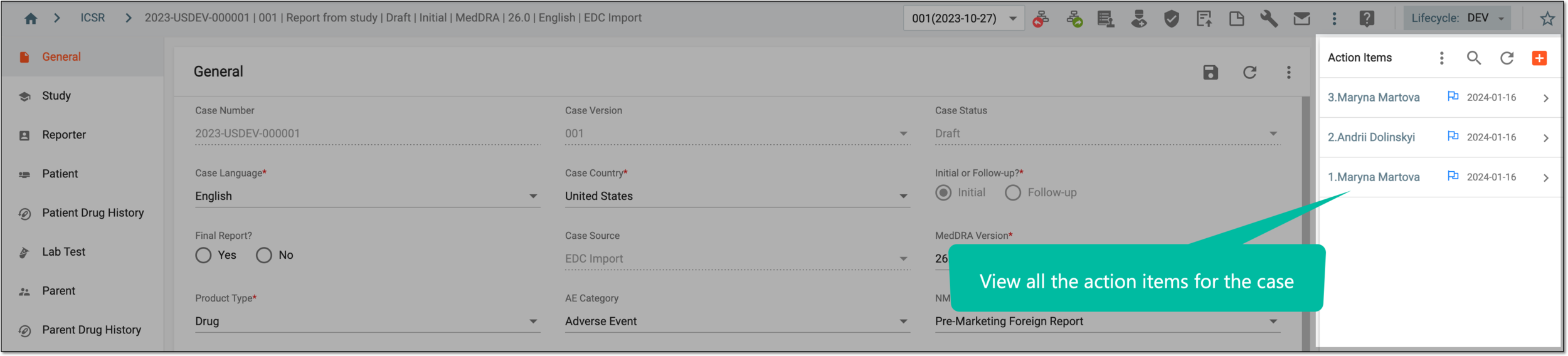 Figure 4. Viewing action item list
-
To locate the action items that require your attention, from the Action Items panel toolbar, select Search
 . Then in the Action Items Search dialog that opens, turn on the Assigned to Me toggle and select
  .
.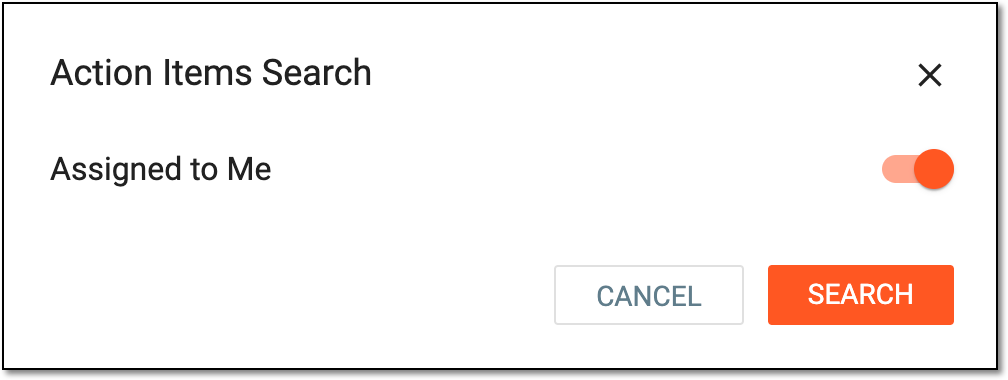 Figure 5. Selecting to view action items assigned to you
-
From the resulting list of action items assigned to you, expand the one on which you have taken action by selecting
 next to it.
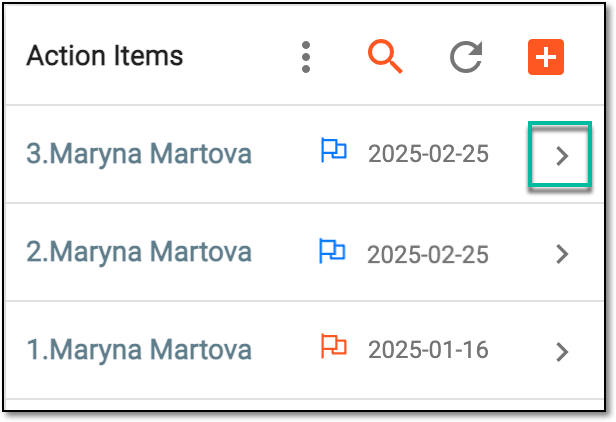 Figure 6. Expanding action item assigned to you
-
In the form that opens, in the Completed Date field enter the completion date to acknowledge when the action has been taken.
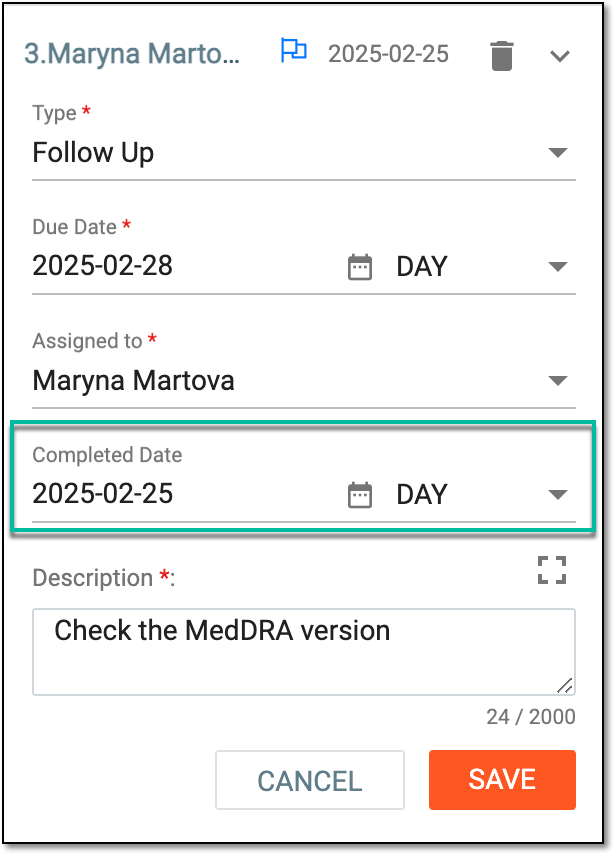 Figure 7. Selecting completion date
-
Select
to implement the changes.
Once saved, you have acknowledged that you have taken the action requested from you on a specified date. The action item can be considered as completed.
When the action item is added, updated, or completed, all the actions are recorded in the system and can be easily tracked via the Change History feature.
-
In the PV application header, select the ICSR tab.
Figure 1. Accessing ICSR management
-
On the ICSR List page that opens, perform one of the following actions to access Action Items:
-
To access action items of the specific case, in the ICSR List table, locate the needed case and open it by selecting the case number or Edit
. Then on the ICSR report page, from the toolbar, select Action Items .Figure 2. Accessing action items from case report page
-
To access all the action items that require attention, from the left pane, select the Action Items subtab. In the list that appears, locate the action item you want to view and next to it, select Go To Record
.Figure 3. Accessing action items from ICSR list page
Tip
From this page, you can only access the action items that have not yet been completed (have no completion date). The action items that are not yet expired are marked as On Time
, and those past due are marked as Late .
-
-
In the Action Items panel that opens on the case report page, from the toolbar, select More
 > Change History
  .
.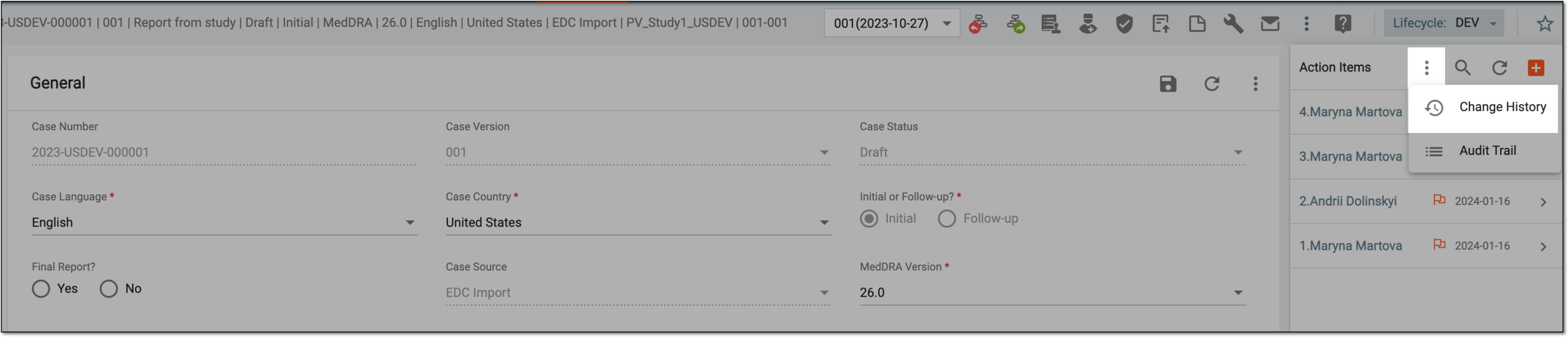 Figure 4. Selecting to view action items change history
-
In the Change History dialog that opens, view the complete history of changes made to every action item ever created for your ICSR.
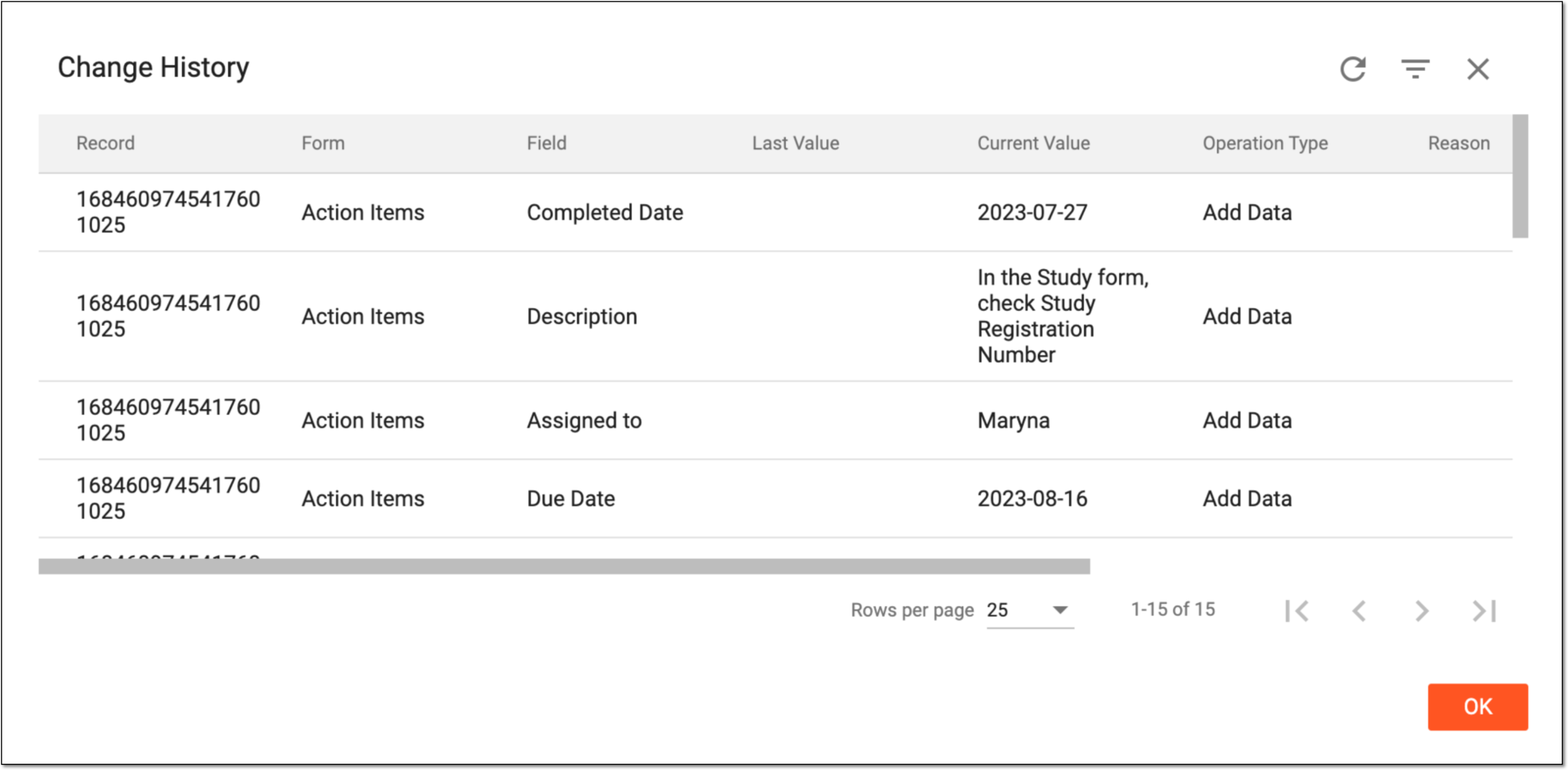 Figure 5. Viewing change history
-
Select
 to close the dialog.
You have viewed the history of changes for action items.
When the action item is added, updated, or completed, all the actions are recorded in the system and can be easily tracked in a descriptive format via the Audit Trail feature.
-
In the PV application header, select the ICSR tab.
Figure 1. Accessing ICSR management
-
On the ICSR List page that opens, perform one of the following actions to access Action Items:
-
To access action items of the specific case, in the ICSR List table, locate the needed case and open it by selecting the case number or Edit
. Then on the ICSR report page, from the toolbar, select Action Items .Figure 2. Accessing action items from case report page
-
To access all the action items that require attention, from the left pane, select the Action Items subtab. In the list that appears, locate the action item you want to view and next to it, select Go To Record
.Figure 3. Accessing action items from ICSR list page
Tip
From this page, you can only access action items that have not yet been completed (have no completion date). The action items that are not yet expired are marked as On Time
, and those past due are marked as Late .
-
-
In the Action Items panel that opens on the report page, from the toolbar, select More
> Audit Trail  .
.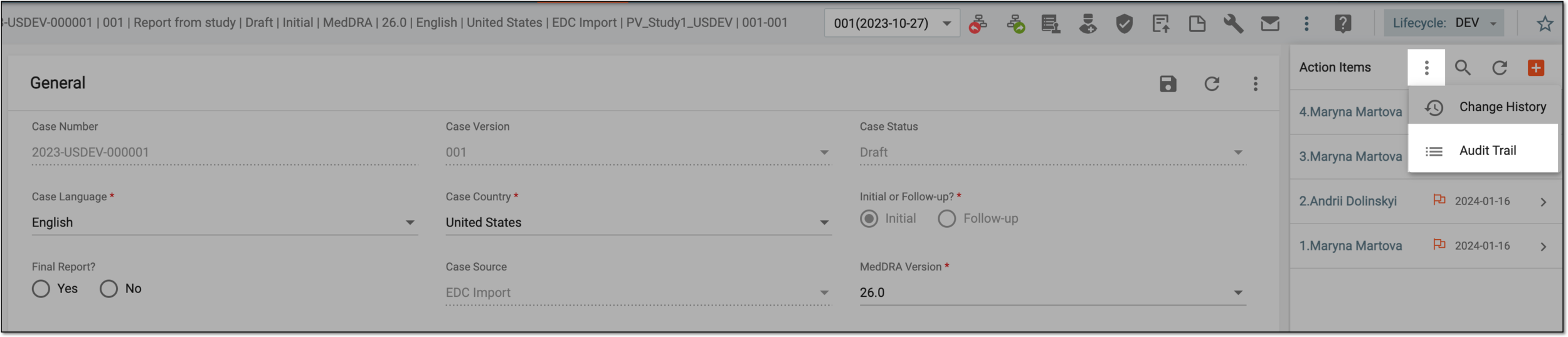 Figure 4. Selecting to view action item audit trail
-
In the Audit Trail dialog that opens, view the complete descriptive history of operations performed on every action item ever created for your ICSR.
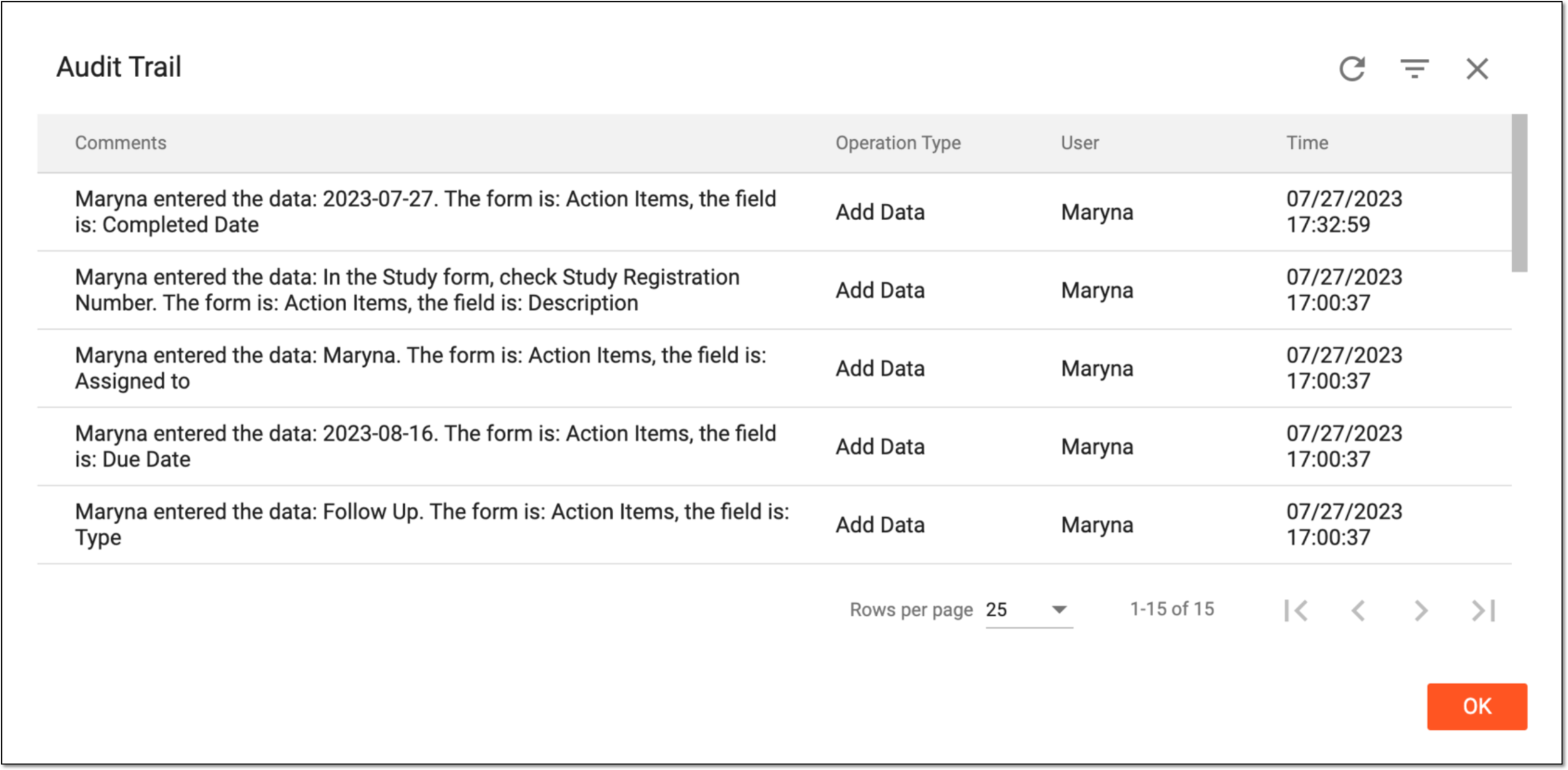 Figure 5. Viewing audit trail
-
Select
to close the dialog.
You have viewed the audit trail for action items.
In PV, you can delete the action items that become irrelevant.
-
In the PV application header, select the ICSR tab.
Figure 1. Accessing ICSR management
-
On the ICSR List page that opens, perform one of the following actions to access Action Items:
-
To access action items of the specific case, in the ICSR List table, locate the needed case and open it by selecting the case number or Edit
. Then on the ICSR report page, from the toolbar, select Action Items .Figure 2. Accessing action items from case report page
-
To access all the action items that require attention, from the left pane, select the Action Items subtab. In the list that appears, locate the action item you want to view and next to it, select Go To Record
.Figure 3. Accessing action items from ICSR list page
Tip
From this page, you can only access action items that have not yet been completed (have no completion date). The action items that are not yet expired are marked as On Time
, and those past due are marked as Late .
-
-
In the Action Items panel that opens on the report page, hover over the action item you want to remove and select Delete
 .
. Figure 4. Deleting action item
-
In the Delete Item dialog that opens, select
 to confirm the deletion.
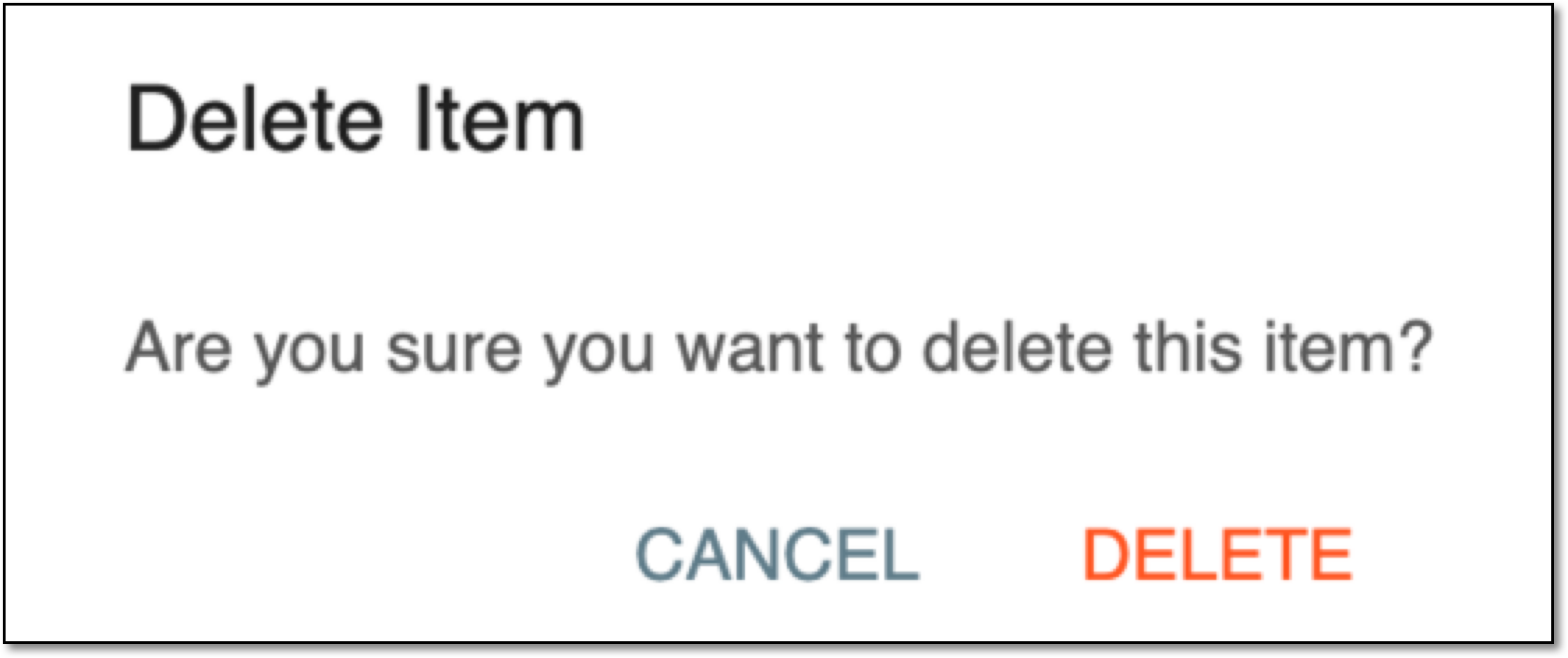 Figure 5. Confirming action item deletion
Once confirmed, the action item is deleted. Upon deletion, you can still trace the action item history—including the deletion operation—via the Change History and Audit Trail functionality.