Export eCOA schedules and reminders
eCOA is a software application designed to run on mobile devices such as smartphones or tablets, enabling subjects or nurses to complete electronic Clinical Outcome Assessments (eCOA) through mobile devices. The eClinical EDC system has customizable configurations that facilitate integration with the eCOA mobile application, enabling real-time data collection.
In eClinical EDC, you can access a dynamic view of visit forms along with their statuses and other details, allowing you to efficiently track which forms have been updated with entered data and which ones are yet to receive data input in the eCOA mobile application. This list can be exported to your computer in the XLSX format so you can share it with eCOA users who need to complete the corresponding forms or learn about their current status.
-
In the EDC application header, select the STUDY INFO tab.
-
In the left pane of the page that opens, expand eCOA and select Schedules and Reminders.
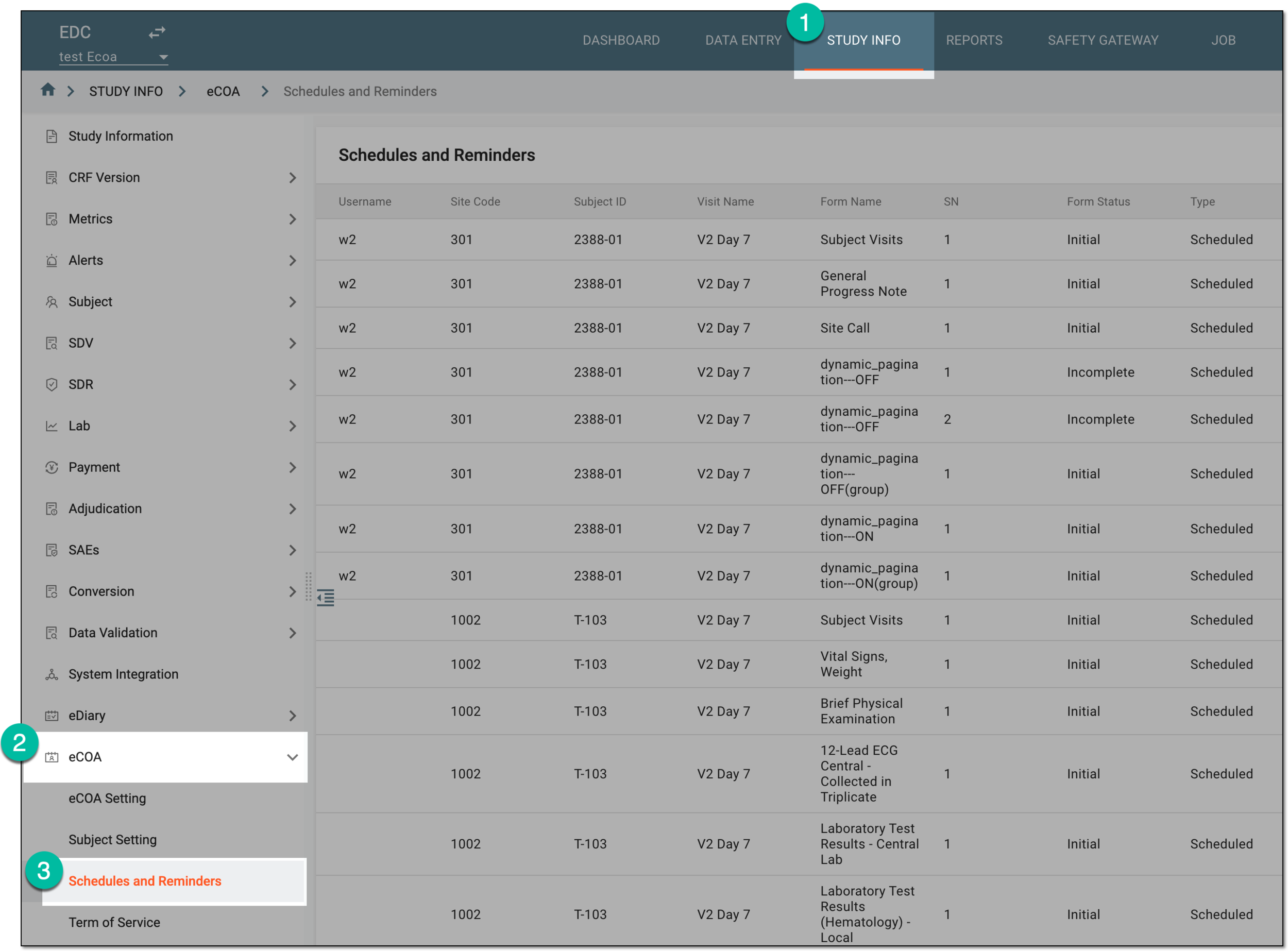 Figure 1. Accessing eCOA schedules and reminders
-
From the workspace toolbar of the Schedules and Reminders table that appears, select Export
 .
. Figure 2. Selecting Export option
-
Once selected, the widget appears displaying your download progress. Select the widget to open the My Downloads dialog.
 Figure 3. Downloads widget
-
In the My Downloads dialog that opens, you can find the following tabs:
-
Preparing: under this tab, you can find all the files whose export is in progress, and they are not yet ready for download.
-
Download is Ready: under this tab, you can find all the files whose export is complete, and they can be downloaded to your computer.
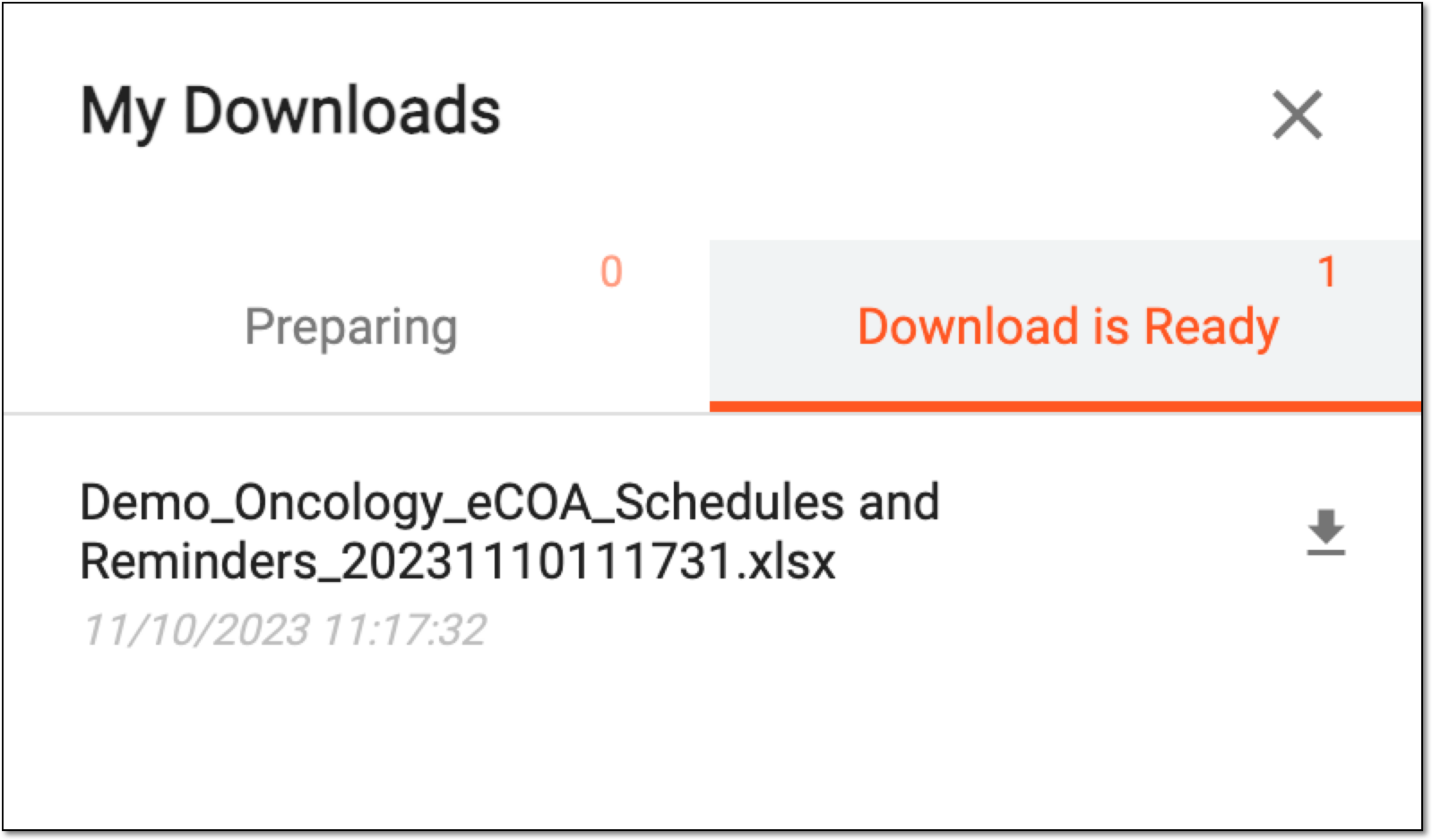 Figure 4. Viewing downloads
-
-
Under the Download is Ready tab, next to the file that you want to download, select
 .
.
Once downloaded and saved, the list of forms along with their details is available on your computer. You can now share this list with corresponding eCOA users or utilize it for data reporting purposes.