Case note for ICSR
A case note is a comment added by the PV user to a specific data element of an ICSR for another user's attention. The case notes functionality eliminates back-and-forth communication between different specialists working on the same report version and provides a controlled and traceable interaction tool.
For instance, by adding a case note, you can rationalize and explain some data provided by you in the report and save time for the subsequent users and reviewers on investigating the reasoning behind that data piece.
In PV, you can add a case note at any point during the case processing—data entry, quality and medical reviews, submission, or else.
Important
You can create and manage case notes for the cases based on the study access permissions granted to you via ADMIN.
A case note is a comment added by the PV user to a specific data element of an ICSR for another user's attention. The case notes functionality eliminates back-and-forth communication between different specialists working on the same report version and provides a controlled and traceable interaction tool.
In PV, you can add a case note at any point during the case processing—data entry, quality and medical reviews, submission, or else. There are two ways to view the previously added case notes of the same ICSR version:
-
In the PV application header, select the ICSR tab.
-
On the ICSR List page that opens, in the table, locate the ICSR record of your interest. Then select its case number to open the details page in the new browser tab.
Alternatively, from the Actions column next to your ICSR, select Edit
 to open
the ICSR details in the same browser tab.
to open
the ICSR details in the same browser tab. Figure 1. Selecting to edit ICSR
-
On the ICSR processing page, from the toolbar, select Case Notes
 and in the panel that expands, view the list of
all the case notes created for this report version. You can expand any case note for more details.
and in the panel that expands, view the list of
all the case notes created for this report version. You can expand any case note for more details.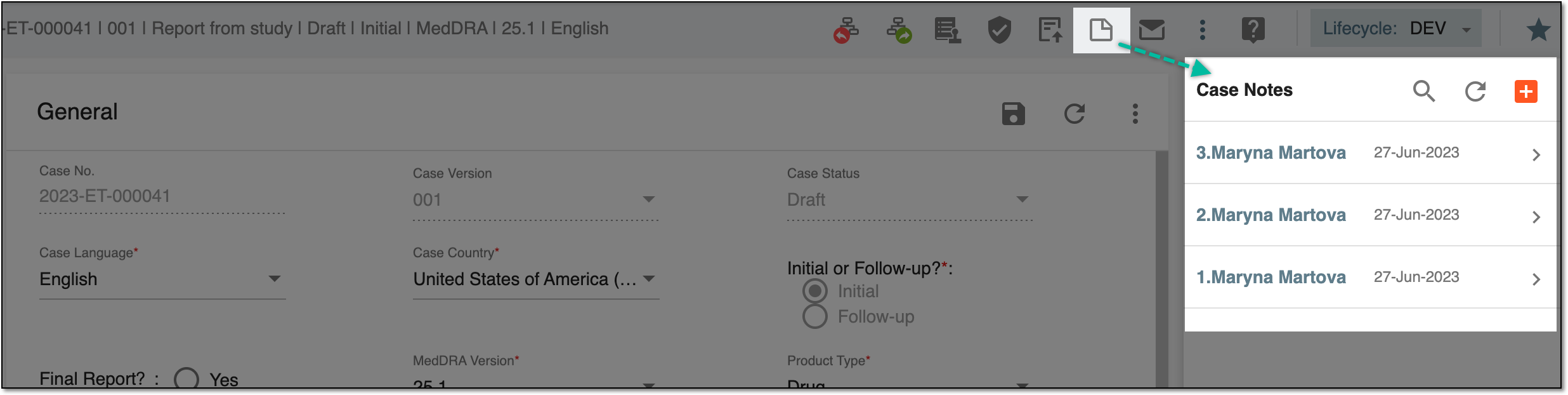 Figure 2. Viewing case notes list for ICSR
You have viewed the previously added case notes for an ICSR.
-
In the PV application header, select the ICSR tab.
-
On the ICSR List page that opens, in the table, locate the ICSR record of your interest. Then select its case number to open the details page in the new browser tab.
Alternatively, from the Actions column next to your ICSR, select Edit
to open
the ICSR details in the same browser tab.Figure 3. Selecting to edit ICSR
-
On the ICSR report page, from the toolbar, select Contact Log
 .
.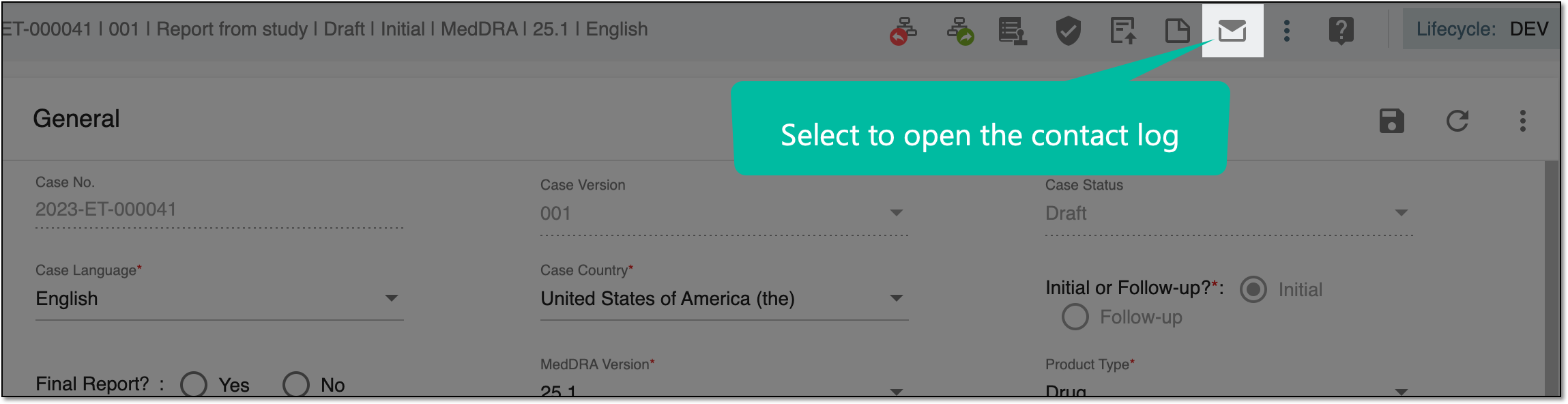 Figure 4. Opening contact log
-
On the Contact Log page, view the case notes created for your ICSR case version.
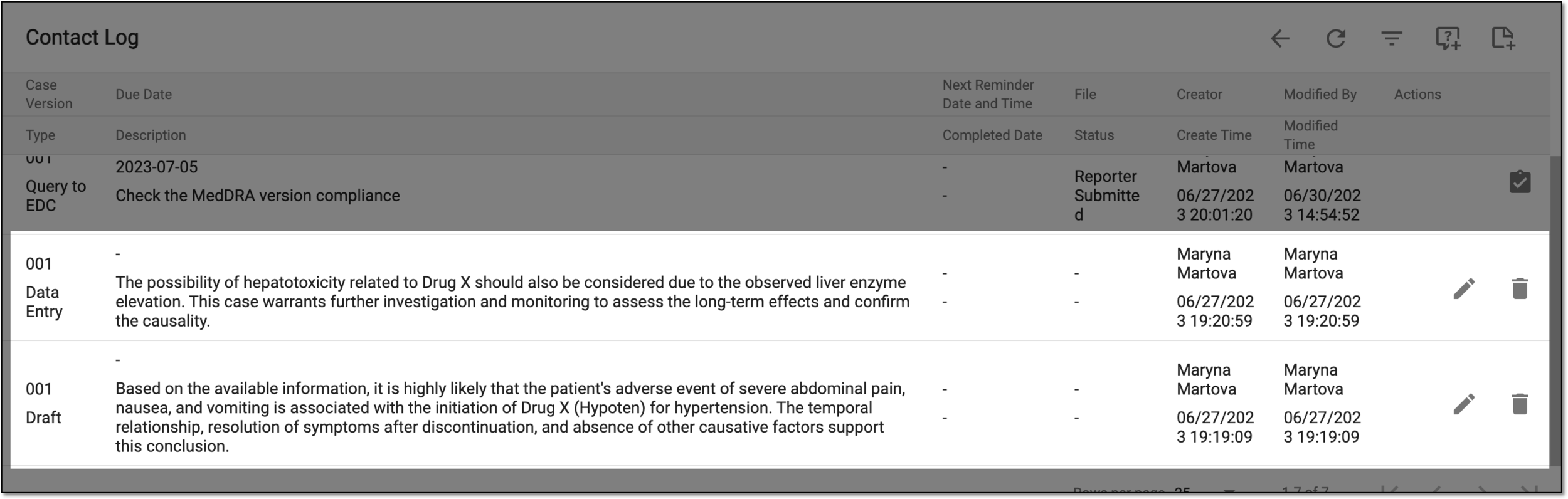 Figure 5. Viewing case notes in contact log
You have viewed the previously added case notes for an ICSR via the contact log.
A case note is a comment added by the PV user to a specific data element of an ICSR for another user's attention. The case notes functionality eliminates back-and-forth communication between different specialists working on the same report version and provides a controlled and traceable interaction tool.
In PV, you can add a case note at any point during the case processing—data entry, quality and medical reviews, submission, or else.
Important
The case notes added for a specific ICSR version are available only for this version. If there is a follow-up version, the case notes added for the previous one are not available when processing the follow-up.
There are two ways to add a case note to an ICSR:
-
In the PV application header, select the ICSR tab.
-
On the ICSR List page that opens, in the table, locate the ICSR for which you need to add a case note. Then select its case number to open the details page in the new browser tab.
Alternatively, from the Actions column next to your ICSR, select Edit
to open
the ICSR details in the same browser tab.Figure 1. Selecting to edit ICSR
-
On the ICSR processing page, from the toolbar, select Case Notes
and in the panel that expands, select
New  .
.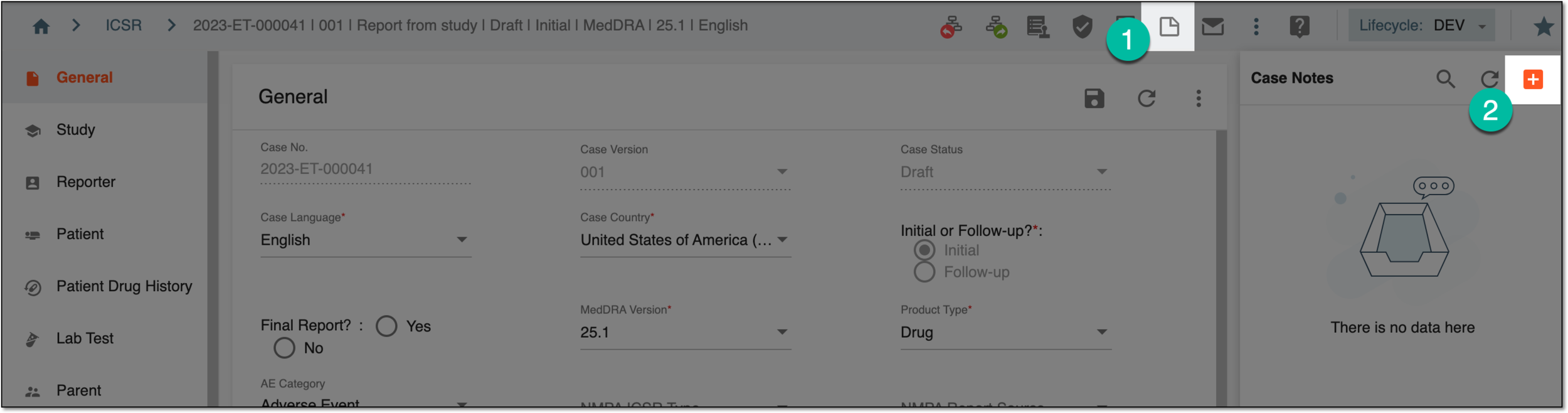 Figure 2. Adding new case note in ICSR
-
In the New form that appears, complete the details as explained in the following table.
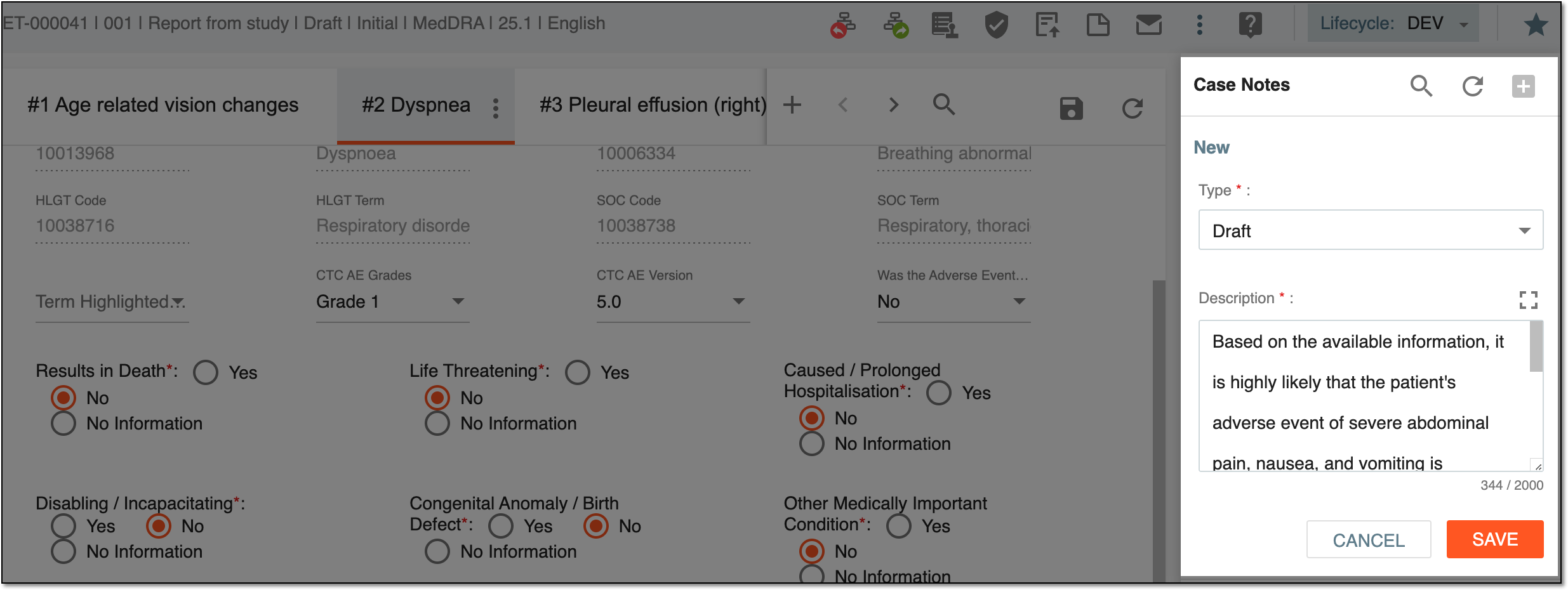 Figure 3. Completing case note details
Tip
In the following table, mandatory elements are marked with an asterisk (*).
Element
Details
Type*
Select the current status of the case for which you are adding a case note, for instance, Draft, Data Entry, Medical Review, or else.
Description*
Enter the description of your case note providing all the relevant details to make it clear for the subsequent user.
SAVE
Select
 to save the implemented changes.
CANCEL
Select
 to discard the changes without saving.
Tip
To facilitate the entering of longer text, expand the Description dialog by selecting Maximize
 .
.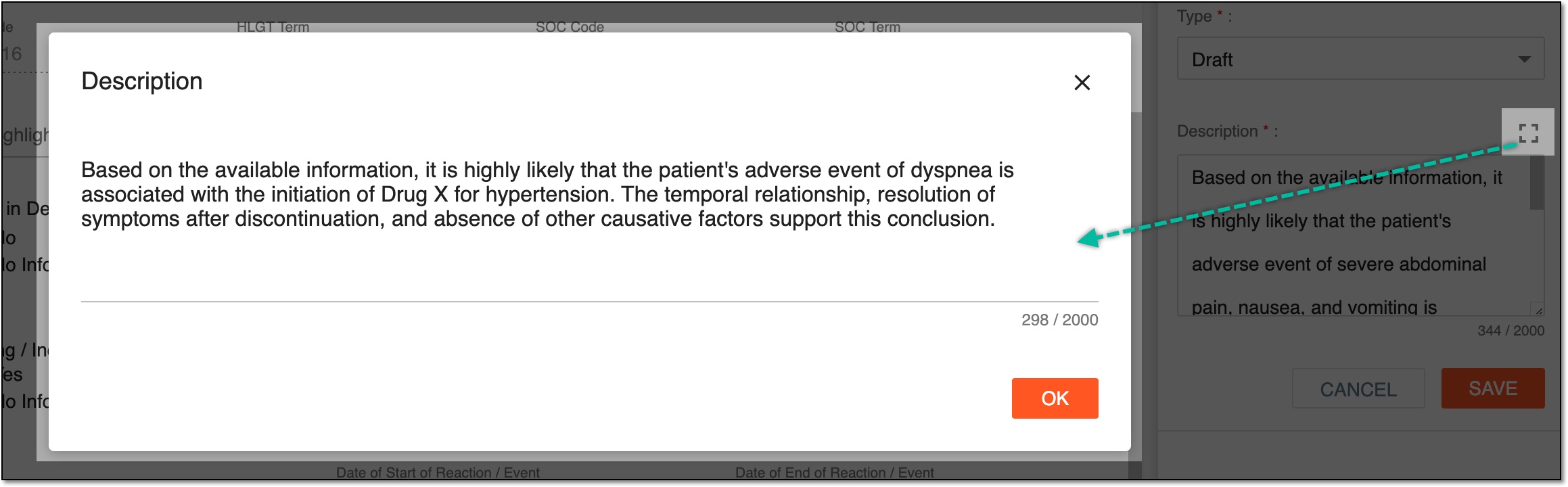 Figure 4. Maximizing description text field
Upon saving, the case note is added to the ICSR version and can be viewed by other users.
-
In the PV application header, select the ICSR tab.
-
On the ICSR List page that opens, in the table, locate the ICSR for which you need to add a case note. Then select its case number to open the details page in the new browser tab.
Alternatively, from the Actions column next to your ICSR, select Edit
to open
the ICSR details in the same browser tab.Figure 5. Selecting to edit ICSR
-
On the ICSR report page, from the toolbar, select Contact Log
.Figure 6. Opening contact log
-
On the Contact Log page, from the workspace toolbar, select New Case Note
 , and in the dialog that opens, complete the details as explained in the respective table.
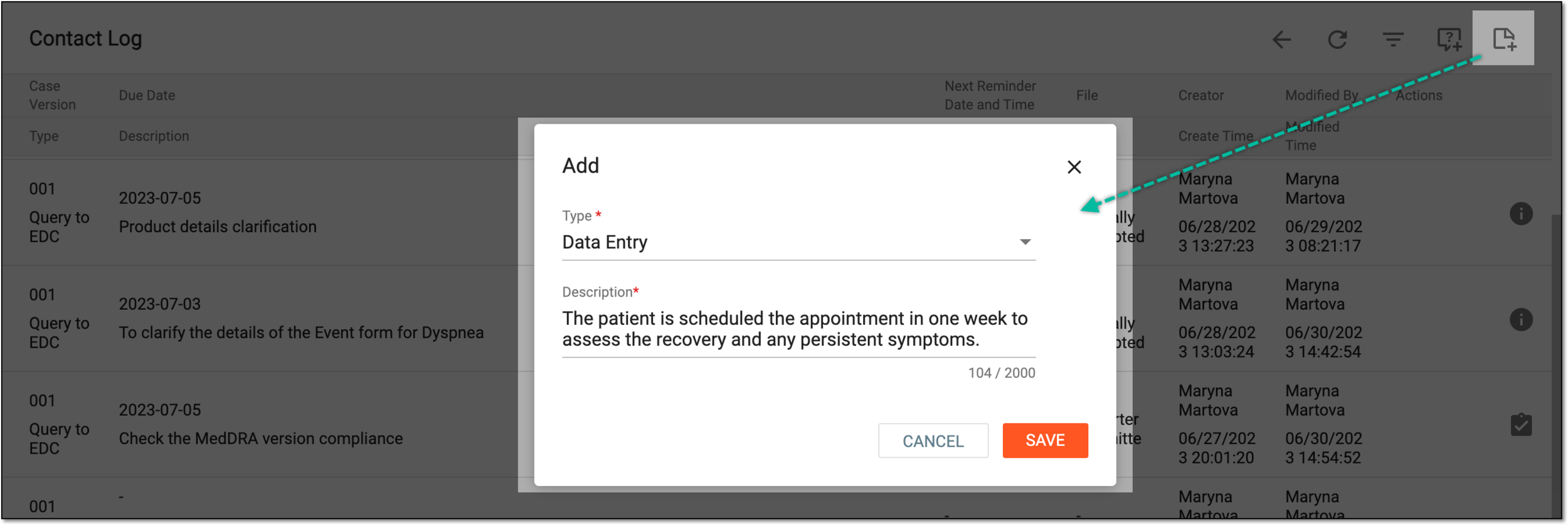 Figure 7. Adding case note
-
Select
to save the implemented changes.
Upon saving, the case note is added to the ICSR version and can be viewed by other users.
A case note is a comment added by the PV user to a specific data element of an ICSR for another user's attention. The case notes functionality eliminates back-and-forth communication between different specialists working on the same report version and provides a controlled and traceable interaction tool.
In PV, you can add a case note at any point during the case processing—data entry, quality and medical reviews, submission, or else. Sometimes, you might need to edit your case note description or change its type.
There are two ways to edit a case note:
-
In the PV application header, select the ICSR tab.
-
On the ICSR List page that opens, in the table, locate the ICSR for which you need to edit a case note. Then select its case number to open the details page in the new browser tab.
Alternatively, from the Actions column next to your ICSR, select Edit
to open
the ICSR details in the same browser tab.Figure 1. Selecting to edit ICSR
-
On the ICSR processing page, from the workspace toolbar, select Case Notes
and in the panel that expands, select
the case note that you need to edit. -
In the form that expands, edit the case note details as explained in the respective table and select
.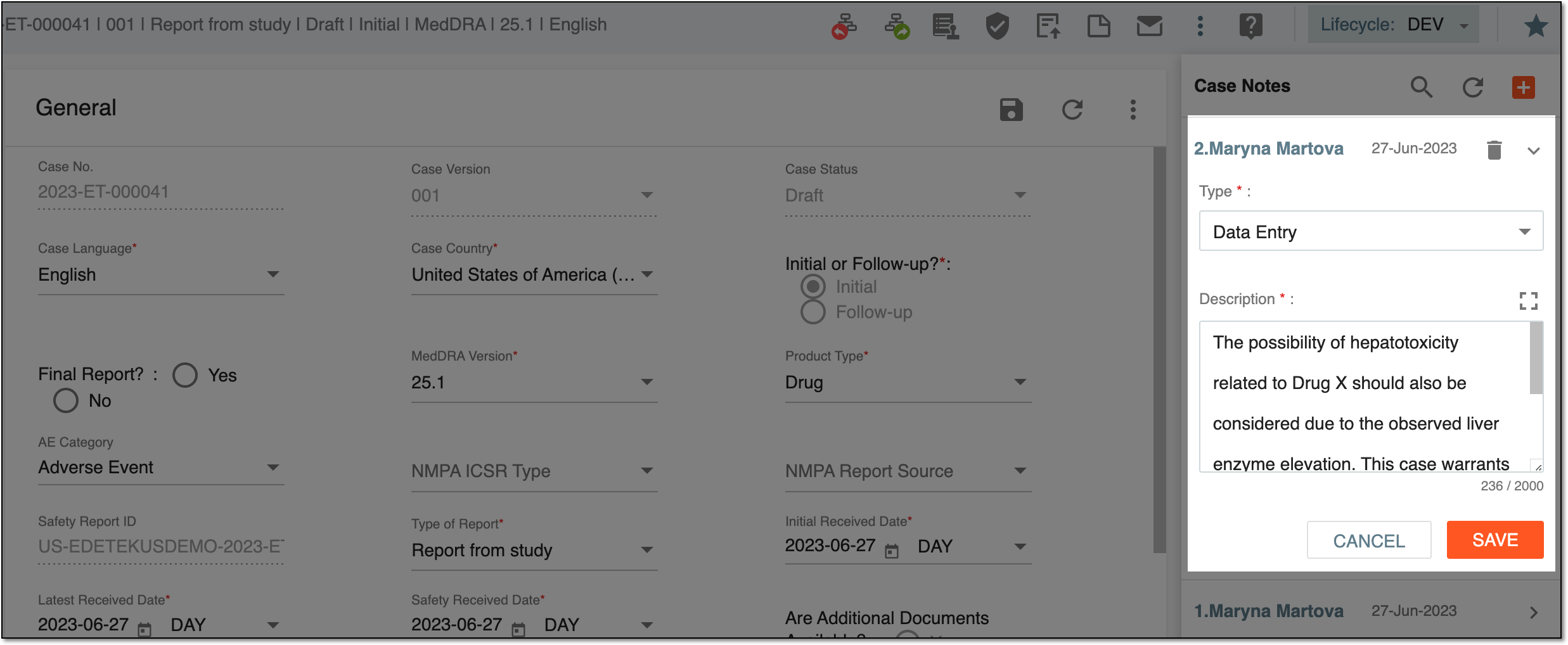 Figure 2. Editing case note
Upon saving, the case note is updated.
-
In the PV application header, select the ICSR tab.
-
On the ICSR List page that opens, in the table, locate the ICSR for which you need to edit a case note. Then select its case number to open the details page in the new browser tab.
Alternatively, from the Actions column next to your ICSR, select Edit
to open
the ICSR details in the same browser tab.Figure 3. Selecting to edit ICSR
-
On the ICSR report page, from the toolbar, select Contact Log
.Figure 4. Opening contact log
-
On the Contact Log page, go to the case note you need to edit and from the Actions column, select Edit
. Figure 5. Selecting case note to edit
-
In the Edit Case Note dialog that opens, edit the details as explained in the respective table.
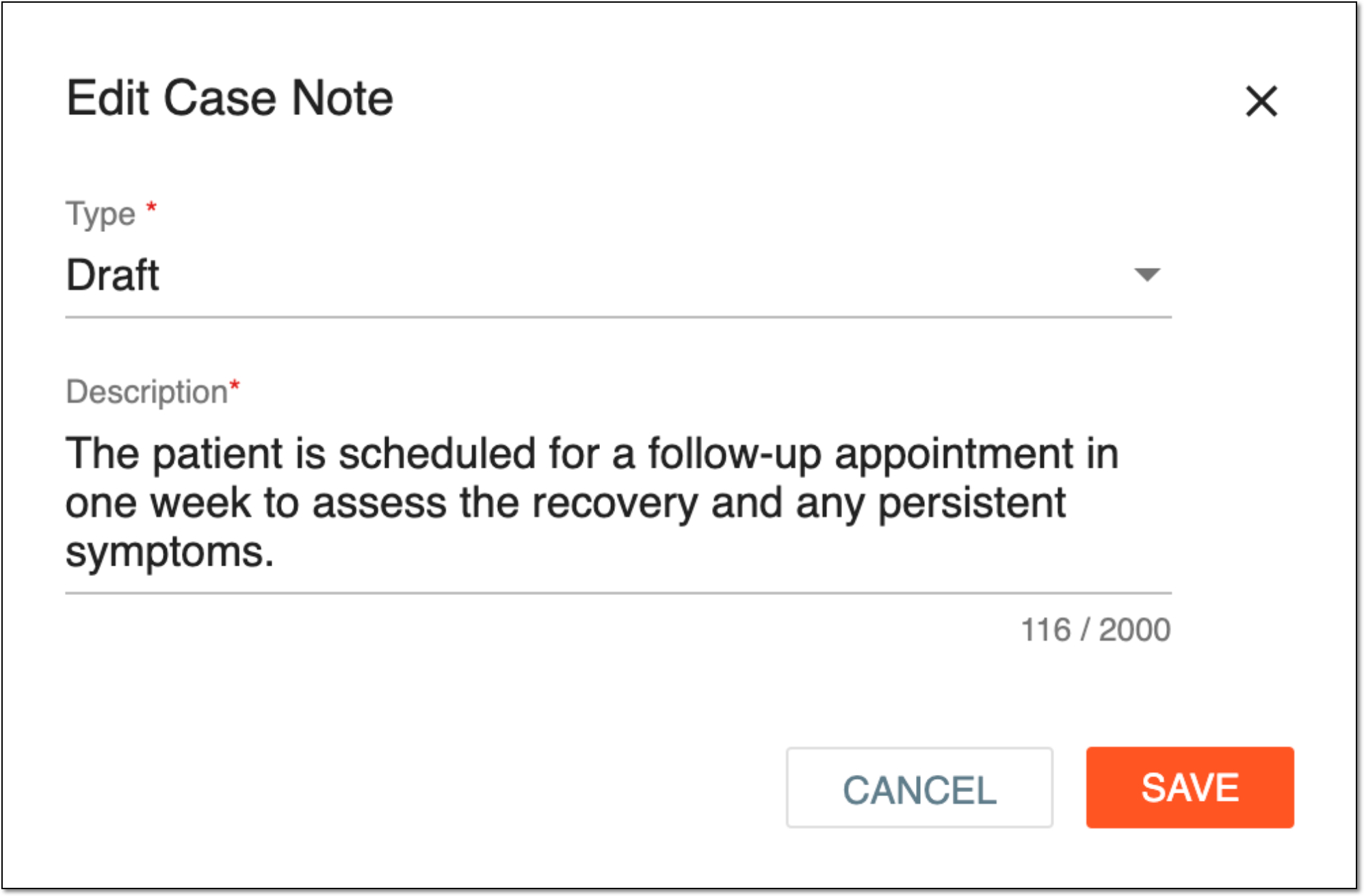 Figure 6. Editing case note details
-
Select
to save the implemented changes.
Upon saving, the case note is updated.
A case note is a comment added by the PV user to a specific data element of an ICSR for another user's attention. The case notes functionality eliminates back-and-forth communication between different specialists working on the same report version and provides a controlled and traceable interaction tool.
In PV, you can add a case note at any point during the case processing—data entry, quality and medical reviews, submission, or else. You can also delete a case note if it is, for instance, irrelevant.
There are two ways to delete a case note from an ICSR:
-
In the PV application header, select the ICSR tab.
-
On the ICSR List page that opens, in the table, locate the ICSR for which you need to delete a case note. Then select its case number to open the details page in the new browser tab.
Alternatively, from the Actions column next to your ICSR, select Edit
to open
the ICSR details in the same browser tab.Figure 1. Selecting to edit ICSR
-
On the ICSR processing page, from the workspace toolbar, select Case Notes
and in the panel that expands, view all
the case notes created for this report version. -
Hover over the case note that you want to remove and select Delete
 that appears.
 Figure 2. Selecting to delete case note
-
In the confirmation dialog that opens, select
 to proceed with deletion.
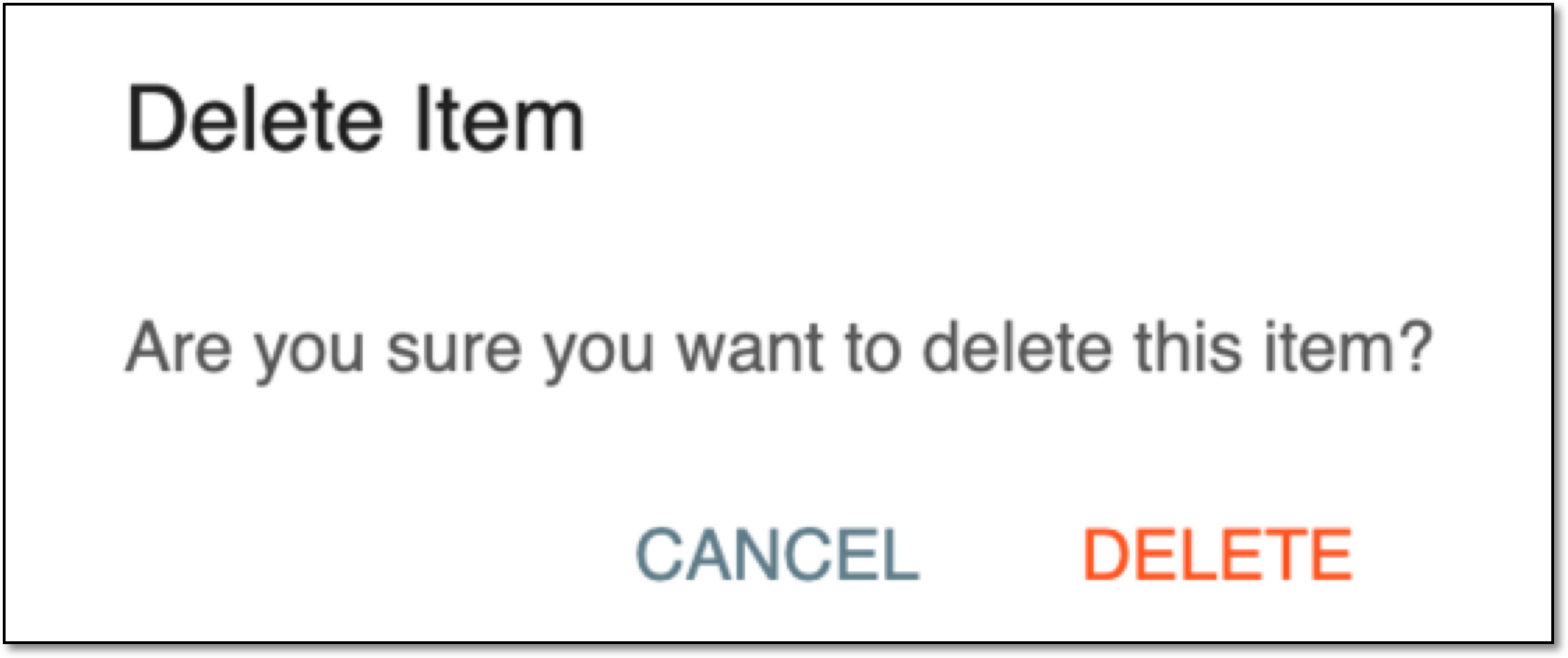 Figure 3. Confirming case note deletion
Upon confirmation, the case note is removed from your ICSR.
-
In the PV application header, select the ICSR tab.
-
On the ICSR List page that opens, in the table, locate the ICSR for which you need to delete a case note. Then select its case number to open the details page in the new browser tab.
Alternatively, from the Actions column next to your ICSR, select Edit
to open
the ICSR details in the same browser tab.Figure 4. Selecting to edit ICSR
-
On the ICSR report page, from the toolbar, select Contact Log
.Figure 5. Opening contact log
-
On the Contact Log page, go to the case note you want to remove and from the Actions column next to it, select Delete
. Figure 6. Selecting to delete case note
-
In the confirmation dialog that opens, select
to proceed with deletion.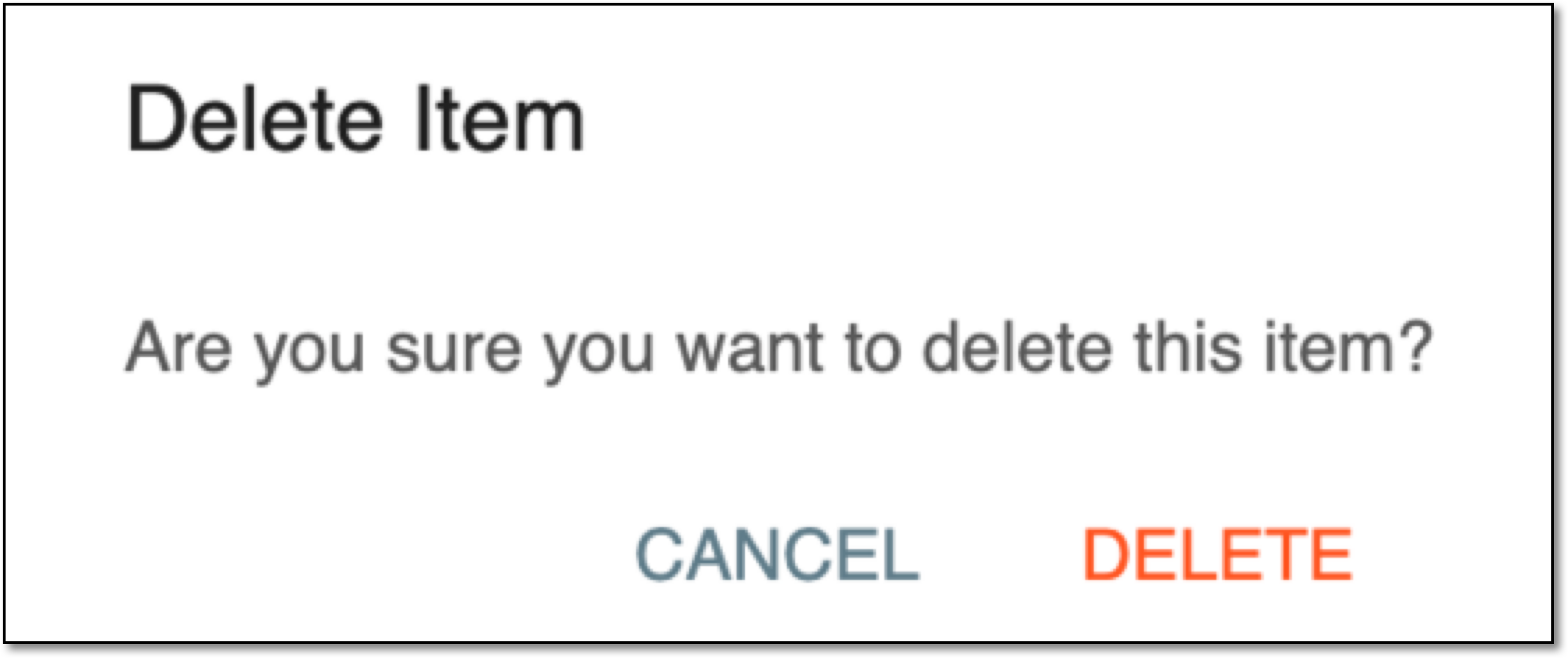 Figure 7. Confirming case note deletion
Upon confirmation, the case note is removed from your ICSR.
A case note is a comment added by the PV user to a specific data element of an ICSR for another user's attention. The case notes functionality eliminates back-and-forth communication between different specialists working on the same report version and provides a controlled and traceable interaction tool.
Every time you introduce any changes to case notes, these changes are recorded by the system. Then you can view the list of all actions done with any case note in a separate dialog.
-
In the PV application header, select the ICSR tab.
-
On the ICSR List page that opens, in the table, locate the ICSR of your interest. Then select its case number to open the details page in the new browser tab.
Alternatively, from the Actions column next to your ICSR, select Edit
to open
the ICSR details in the same browser tab.Figure 1. Selecting to edit ICSR
-
On the ICSR report page, from the workspace toolbar, select Contact Log
.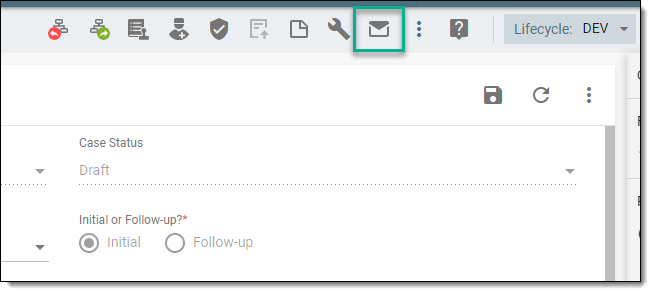 Figure 2. Opening contact log
-
In the Contact Log table that appears, next to the needed case note, select More
 > Change History
  .
.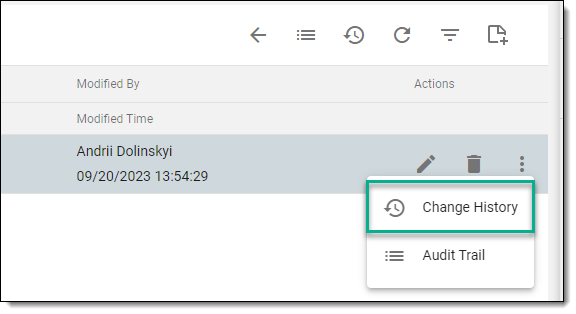 Figure 3. Selecting option to view case note change history
-
In the Change History dialog that opens, view the complete history of changes made to the selected case note.
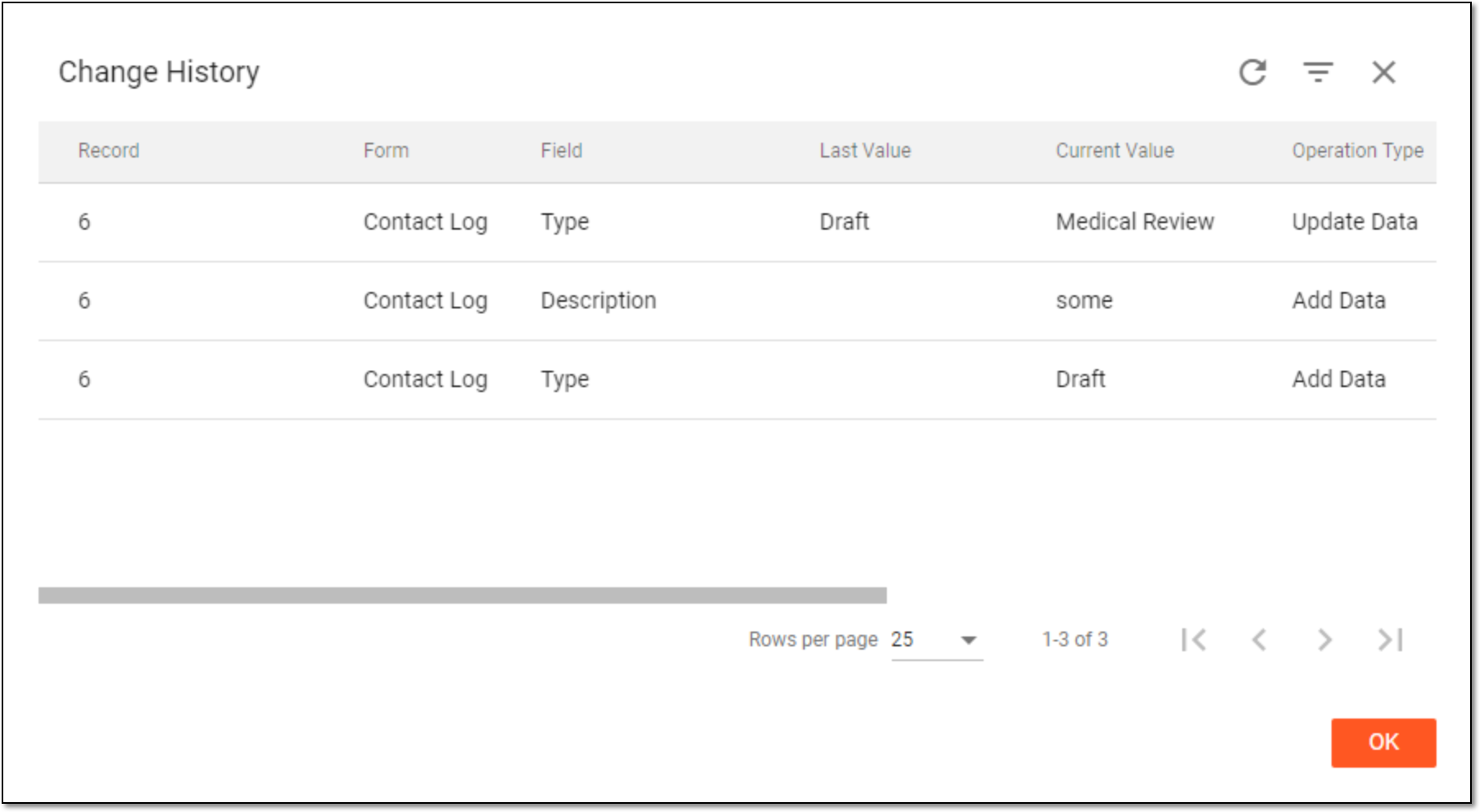 Figure 4. Viewing change history
After viewing the history of changes for a case note, select  to close the Change History dialog.
A case note is a comment added by the PV user to a specific data element of an ICSR for another user's attention. The case notes functionality eliminates back-and-forth communication between different specialists working on the same report version and provides a controlled and traceable interaction tool.
Every time you introduce any changes to case notes, these changes are recorded by the system. Then you can track the list of all actions done with any case note in a descriptive format in a separate dialog.
-
In the PV application header, select the ICSR tab.
-
On the ICSR List page that opens, in the table, locate the ICSR of your interest. Then select its case number to open the details page in the new browser tab.
Alternatively, from the Actions column next to your ICSR, select Edit
to open
the ICSR details in the same browser tab.Figure 1. Selecting to edit ICSR
-
On the ICSR report page, from the workspace toolbar, select Contact Log
.Figure 2. Opening contact log
-
In the Contact Log table that appears, next to the needed case note, select More
> Audit Trail  .
.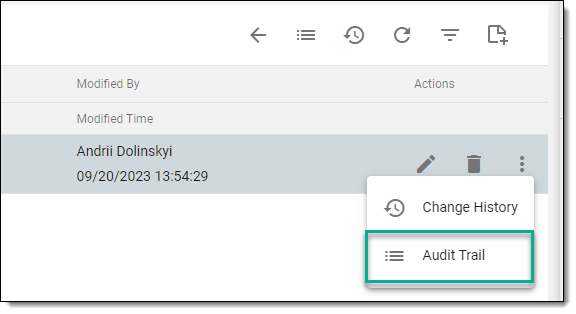 Figure 3. Selecting option to view case note audit trail
-
In the Audit Trail dialog that opens, view the complete descriptive history of operations performed on a case note.
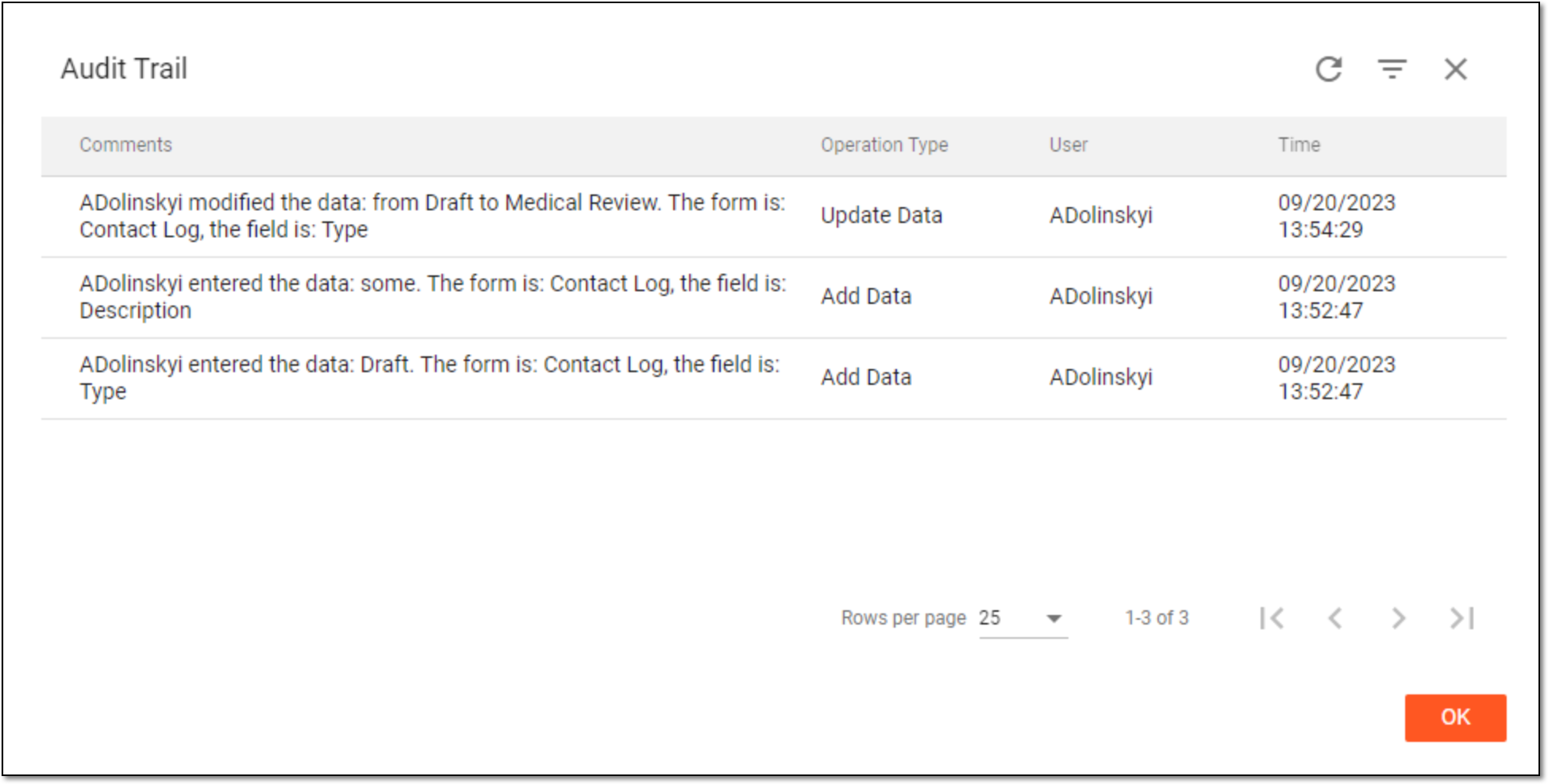 Figure 4. Viewing audit trail
After viewing the audit trail for a case note, select to close the Audit Trail dialog.