Toolbar
The toolbar in the eClinical application is located right below the application header. It comprises components and functions that are more specific to the application you are working with. For example, it shows you the current application tab or page under which you are working.

The toolbar components and functions may vary across eClinical applications. However, the most common toolbar components are the following:
-
Breadcrumbs: (also, a breadcrumb trail) is your navigational aid that provides links back to a previous page or pages through which you have navigated and indicates your current location within the application. In some applications, selecting
 before the breadcrumb trail takes you directly to the home page of the application.
In most apps, the breadcrumb trail elements are interactive and serve for easy navigation. Such as in CTMS, you can select the study, country, and site to access their data management, in EDC, you can access the needed subject for data entry, in IWRS, switch between depots and sites when handling inventories and shipments, and so on.
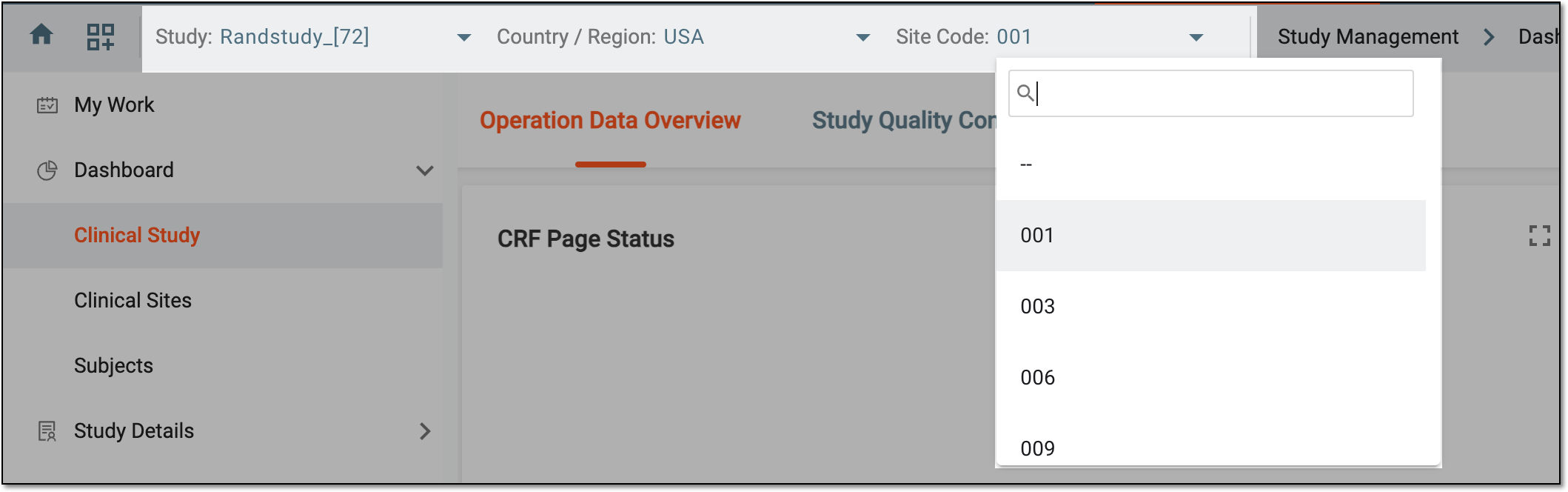 Figure 2. Interactive toolbar features of CTMS
-
Lifecycle menu: expand this dropdown menu to switch between clinical trial lifecycles—DEV, UAT, or PROD—within which you can work and select the corresponding user role available to you in each lifecycle.
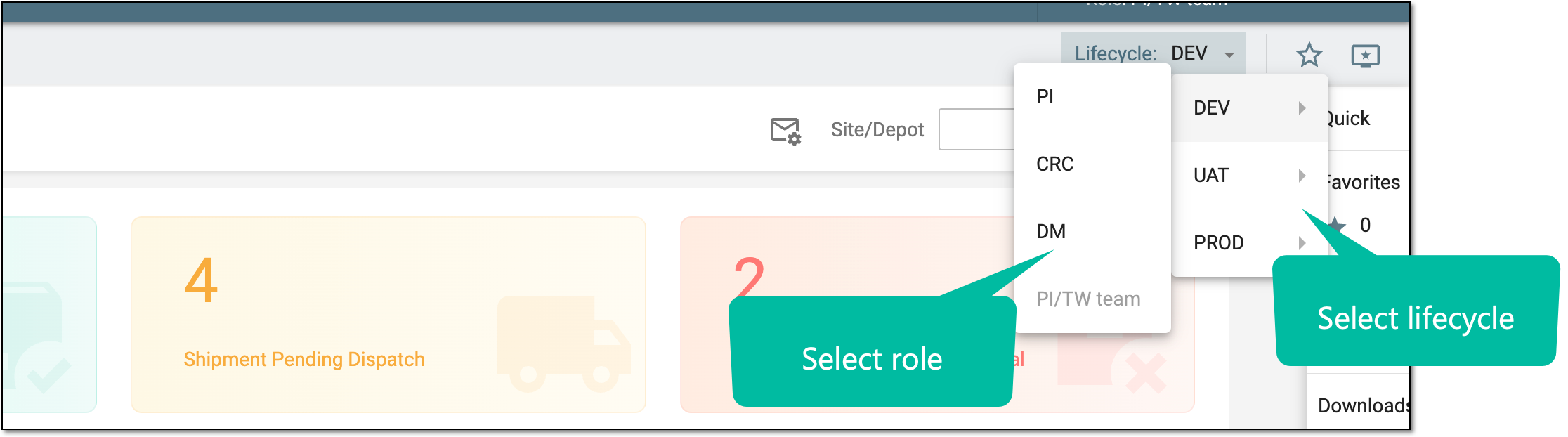 Figure 3. Selecting lifecycle and user role
-
Favorite
 : in some applications, this icon is provided to mark the current page as a favorite. Then, to find your favorite
pages, you can use the Favorites section of the Quick panel.
: in some applications, this icon is provided to mark the current page as a favorite. Then, to find your favorite
pages, you can use the Favorites section of the Quick panel. -
Set Landing Page
 : in some applications, this icon is provided to configure your custom landing page that
opens by default upon logging in to the application. Upon selection, in the Set Landing Page dialog, choose one of the system-suggested options to set as your landing page.
: in some applications, this icon is provided to configure your custom landing page that
opens by default upon logging in to the application. Upon selection, in the Set Landing Page dialog, choose one of the system-suggested options to set as your landing page.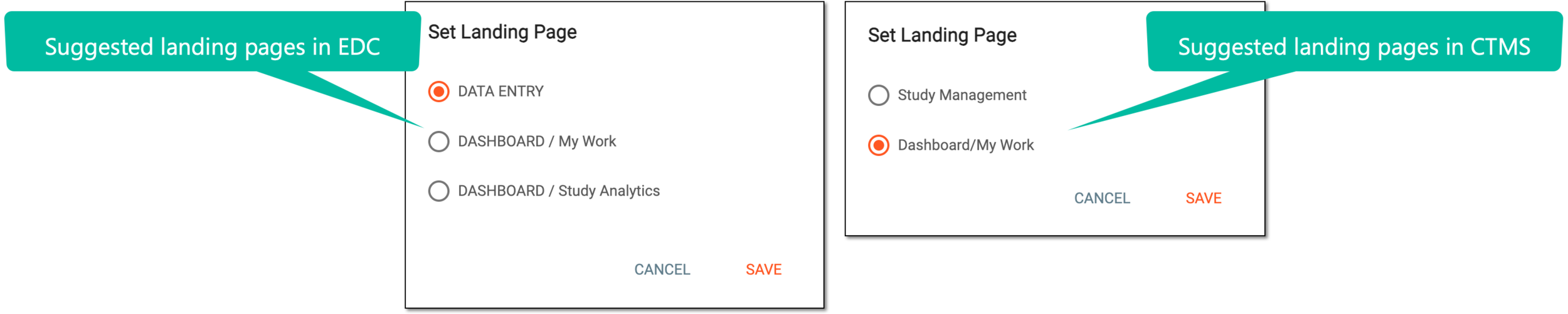 Figure 4. Examples of setting custom landing pages