Add adjudication settings group
In a clinical trial, all medical claims must be evaluated by an adjudicator to decide whether they are valid.
In the EDC application, under the STUDY INFO > Adjudication Settings subtab, you can view a list of existing and add new adjudication groups.
-
In the EDC application header, select the STUDY INFO tab.
-
On the page that opens, in the left pane, select the Adjudication > Adjudication Settings subtab.
-
On the Adjudication Settings page that opens, on the workspace toolbar, select New Item
 .
. -
On the Detail page that opens, in the form, complete the fields as explained in the following table.
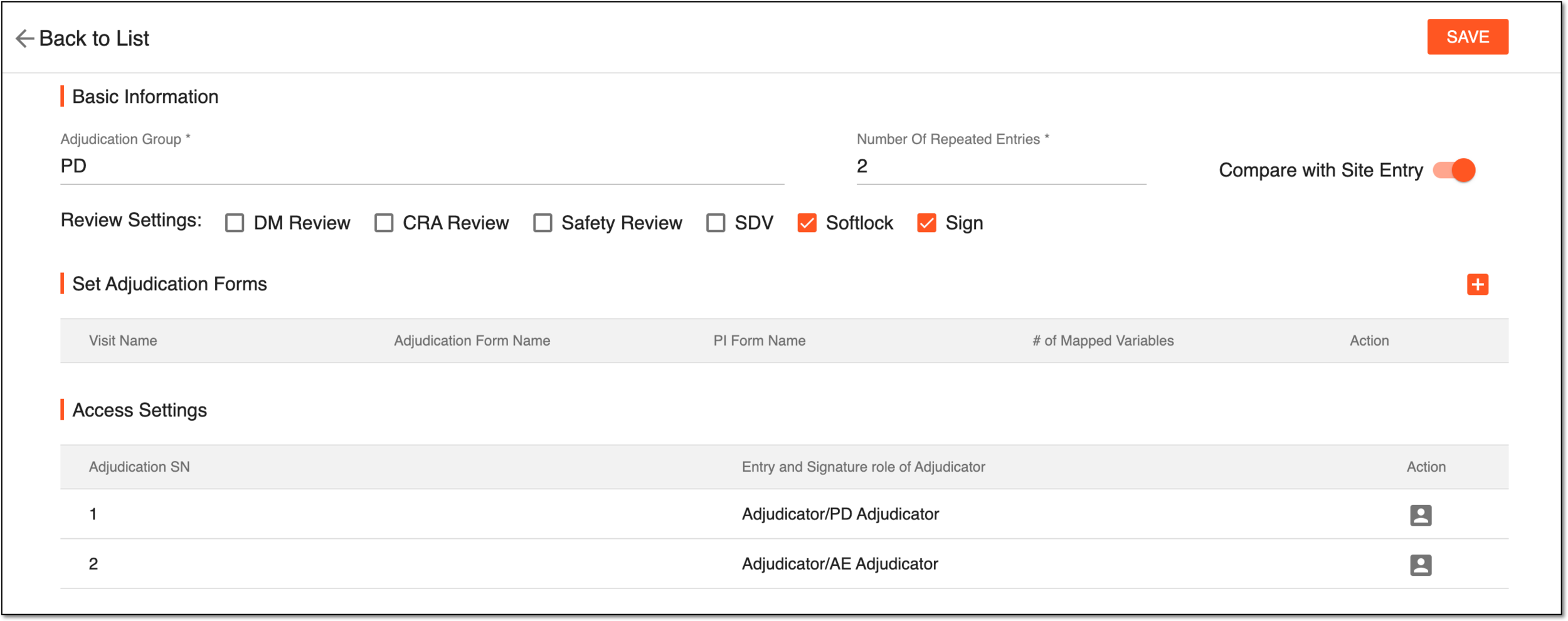 Figure 1. Adding new adjudication group
Tip
In the following table, mandatory elements are marked with an asterisk (*).
Element
Details
Adjudication Group*
Enter the adjudication group name.
Number of Repeated Entries*
Enter the permissible number of repeated entries.
Compare with Site Entry
Turn the toggle on to compare the data with the site entries.
Review Settings
Select the checkbox(es) next to the review and approval option(s) you would like to enable for this adjudication group (DM Review, CRA Review, Safety Review, SDV, Softlock, Sign).
Set Adjudication Form
Add forms that have to be evaluated by this adjudication group. To add a form to the list, select New Item
and in
the row that appears, select the values for the following dropdown lists:-
Visit Name: select the visit the form(s) of which you want to be evaluated.
-
Adjudication Form Name: select the name of the form(s) that you want to be evaluated.
-
PI Form Name: select the form name for the primary investigator (PI).
Select
 to save the implemented changes.
Access Settings
Select a user role for which you want to grant access rights for this adjudication group. Select Set Role
 and from the
dropdown list that appears, select the user role.
and from the
dropdown list that appears, select the user role.SAVE
Select
 to save the implemented changes.
 -
Upon saving, the new adjudication setting is added to the Adjudication Group table.