Delete artifact
Artifacts are records, documents, or files containing any information that is captured during a clinical trial and that meet the purpose or definition described in the DIA RM. In some cases, the artifact is a single document, dataset, or piece of information, but in other cases, it can be represented by multiple document types or data types. These artifacts are stored in the respective folders of your study in Essential Documents.
If an artifact was created in error, it may be necessary to delete the redundant entry to keep the list of artifacts up-to-date and avoid confusion. Furthermore, some artifacts related to canceled trials or phases that will no longer take place may need to be removed to maintain focus on current and relevant activities.
Important
You cannot delete the artifacts that already have uploaded files.
-
In the eTMF application header, select the TMF tab.
-
On the page that opens, in the left pane, select the Study List subtab.
-
In the Study List table, select the needed study name.
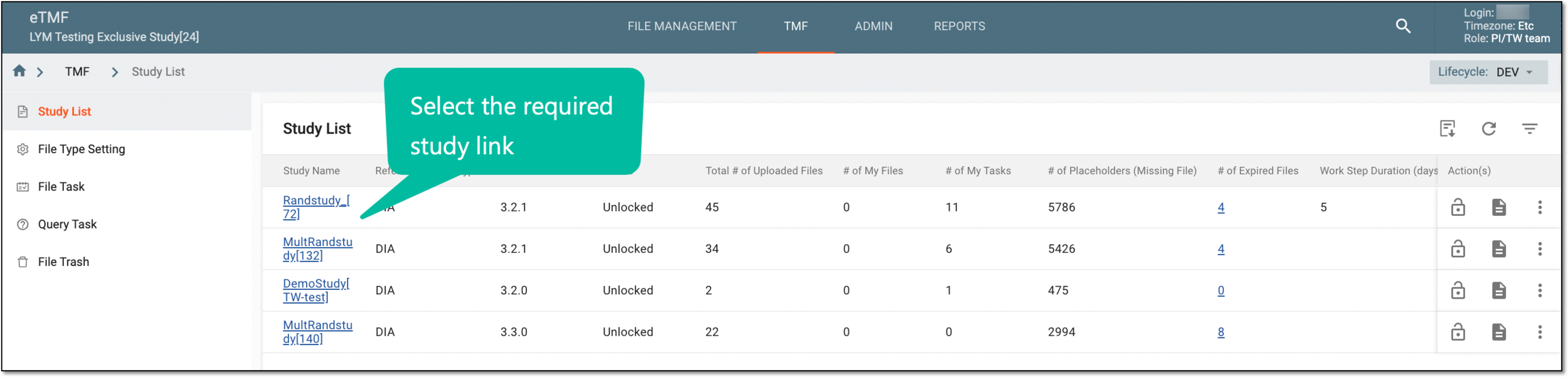 Figure 1. Selecting study
-
On the page that opens, select the Study Tracking pane option.
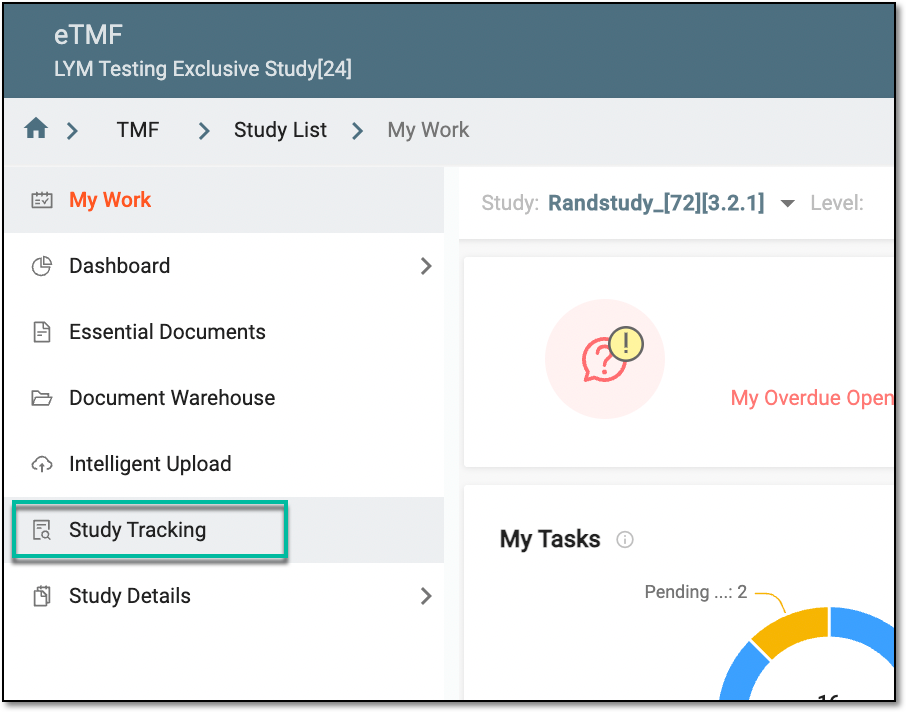 Figure 2. Accessing study tracking page
-
On the page that opens, select the Artifact tab.
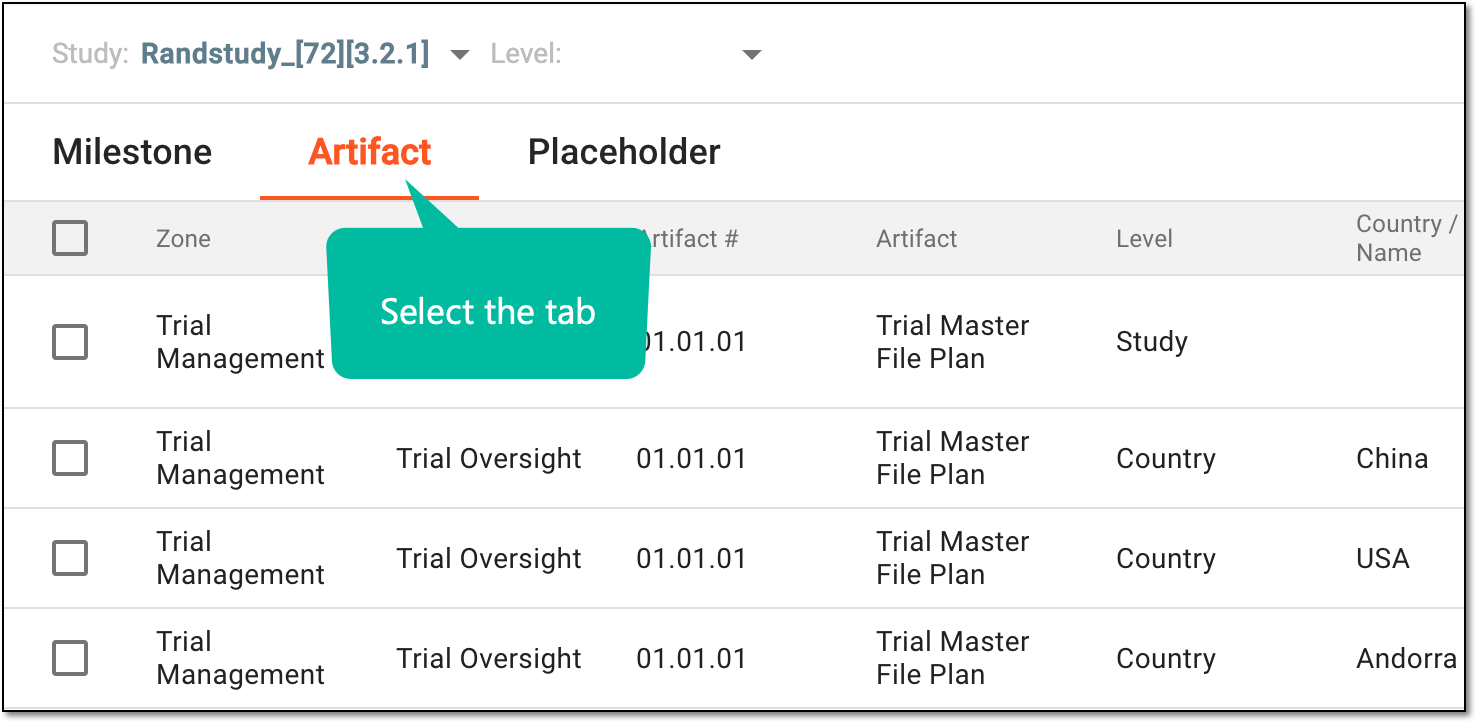 Figure 3. Accessing artifact list
-
In the artifact list that opens, select the checkboxes next to the artifacts you want to delete, and then from the workspace toolbar, select Delete
 .
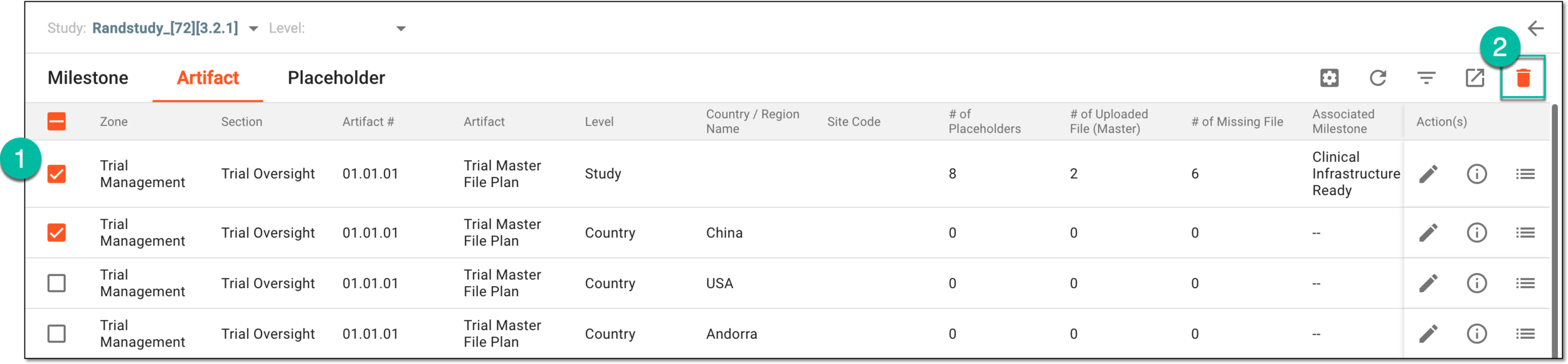 Figure 4. Deleting artifacts
-
In the Confirm Deletion dialog that opens, select the reason for deleting the artifacts. If Other is selected, then in the Comment field that appears, enter the mandatory reason. Then select
 to proceed.
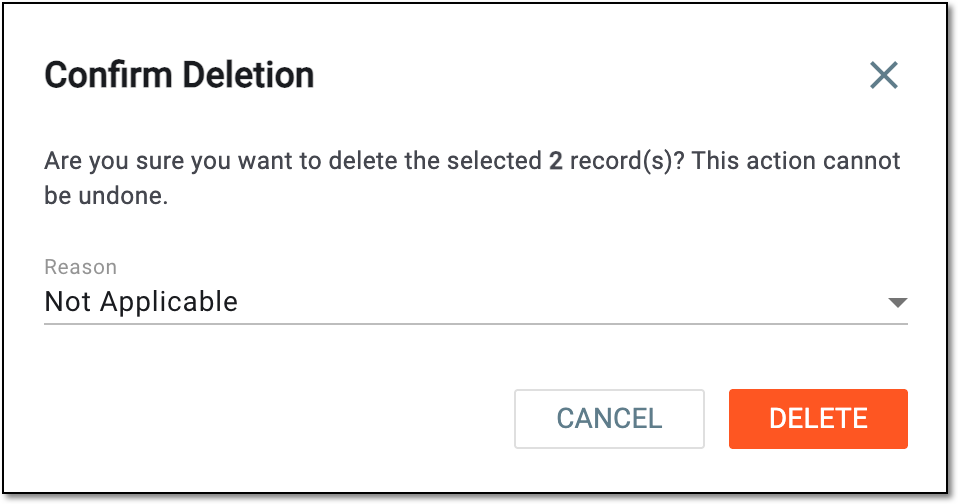 Figure 5. Confirming artifact deletion
The artifacts are now deleted.