Export change history report
The comprehensive change history report available in the CTMS system can be extracted to your computer for sharing with stakeholders or other business purposes.
-
In the CTMS application header, select the REPORT tab.
-
From the left pane of the page that opens, select Change History.
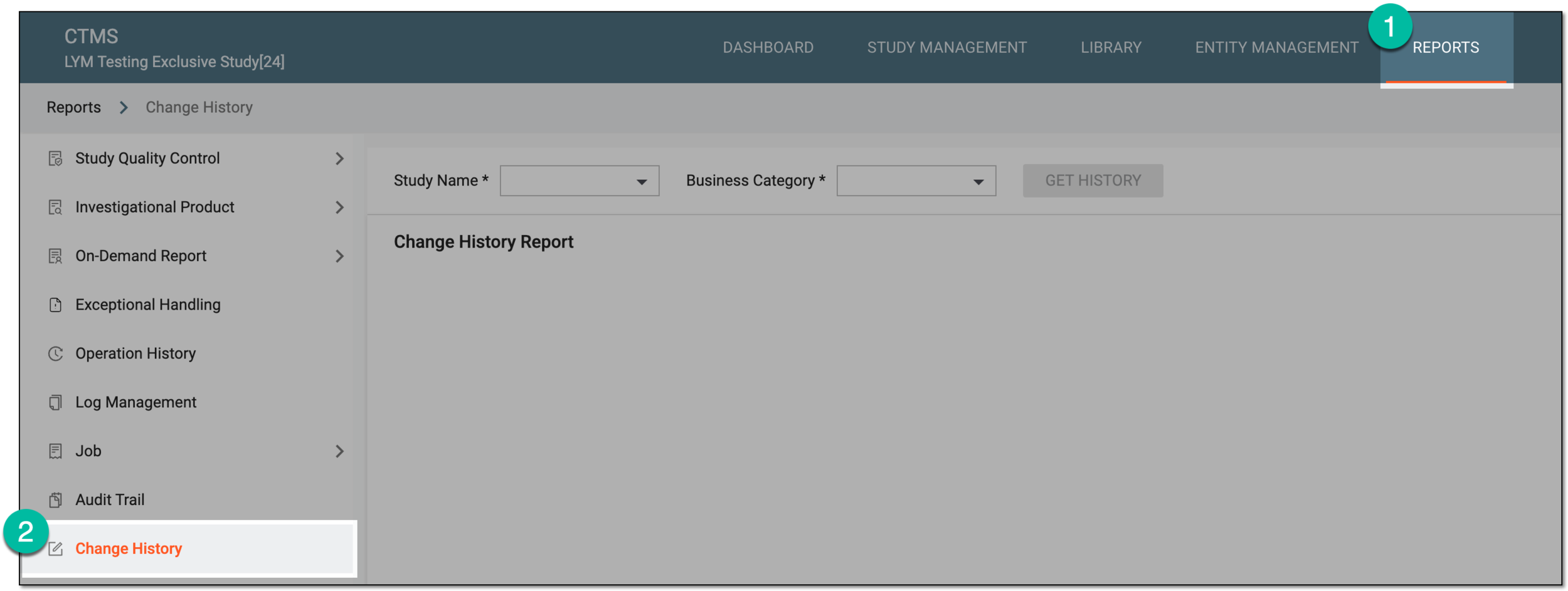 Figure 1. Accessing change history report
-
On the page that opens, select the study and business category for which you want to see the history of changes. Then select GET HISTORY.
 Figure 2. Selecting study and business category for change history
-
Once the report is generated, from the workspace toolbar, select Export
 and then one of the following options:
-
Export Current Business Category: to extract the XLSX file with data only for the business category selected previously.
-
Export All Business Categories: to extract the ZIP archive with compressed XLSX files, each containing data for every one of the business categories available in the Change History report for the study selected previously.
 Figure 3. Selecting option to export change history report
-
-
In the downloads widget that appears, view your download progress. Select the widget to open the My Downloads dialog.
 Figure 4. Downloads widget for change history report
-
In the My Downloads dialog that opens, you can find the following tabs:
-
Preparing: lists all the files whose export is in progress, and they are not yet ready for download. Wait until the needed file moves to the Download is Ready tab.
-
Download is Ready: lists the files whose export is complete, and they can be downloaded to your computer by selecting
 .
.
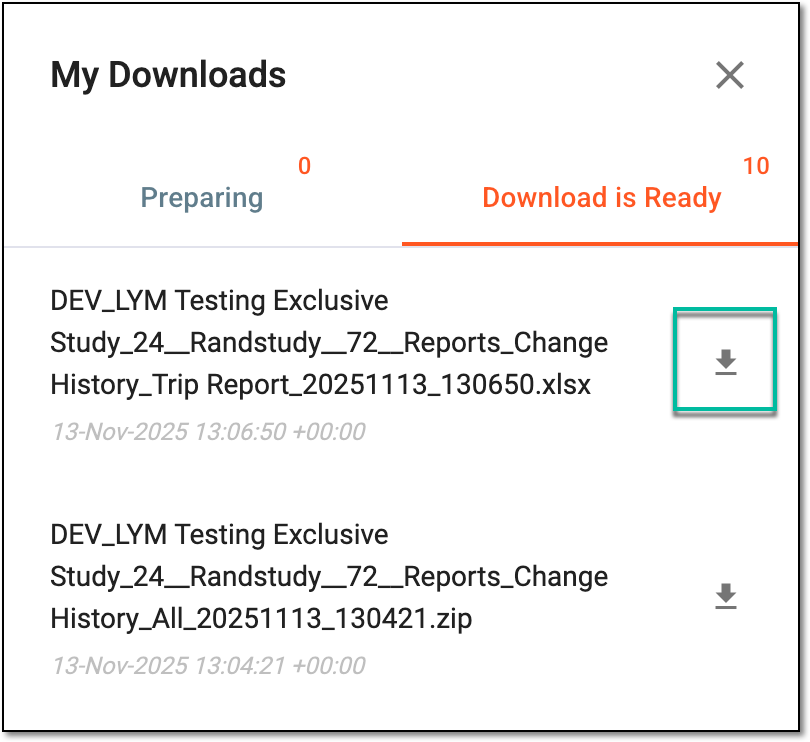 Figure 5. Downloading extracted change history report
-
Once downloaded and saved, the change history report data in the selected format becomes available on your computer.
Tip
The extracted file version is saved in the system and can be accessed from Export History  .
.
