Set preferences
In eTMF, setting preferences makes it possible for you to configure the specific settings of time, date, and language suitable for your needs.
-
In the eTMF application header, select
 .
. -
In the Preferences dialog that appears, configure general settings of time, date, and language as explained in the following table.
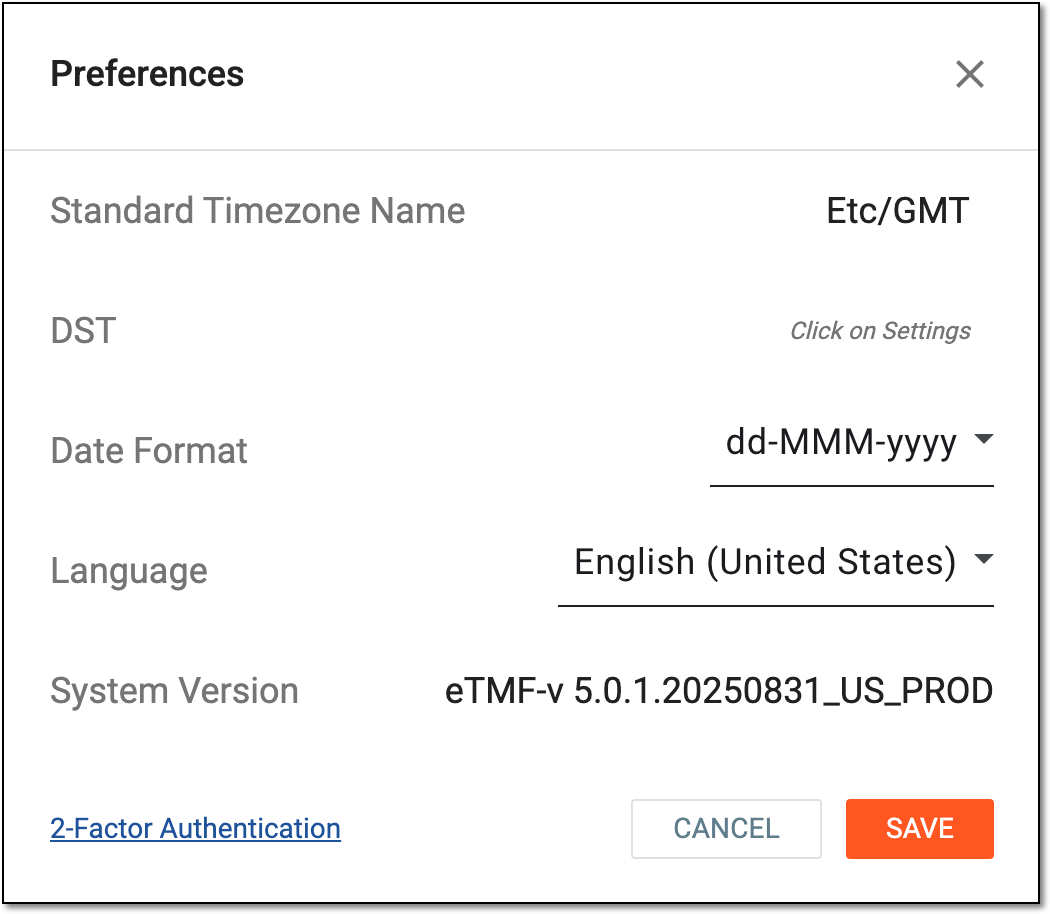 Figure 1. Updating eTMF preferences
Element
Details
Standard Timezone Name
Select the value to open the Standard Timezone dialog and select your preferred time zone to specify how the time must be presented in the app to facilitate data reading. The set time zone is displayed next to all timestamp values in the system, for instance, +08:00, -06:00, +00:00, and so on. Once done, select
 to implement your changes.
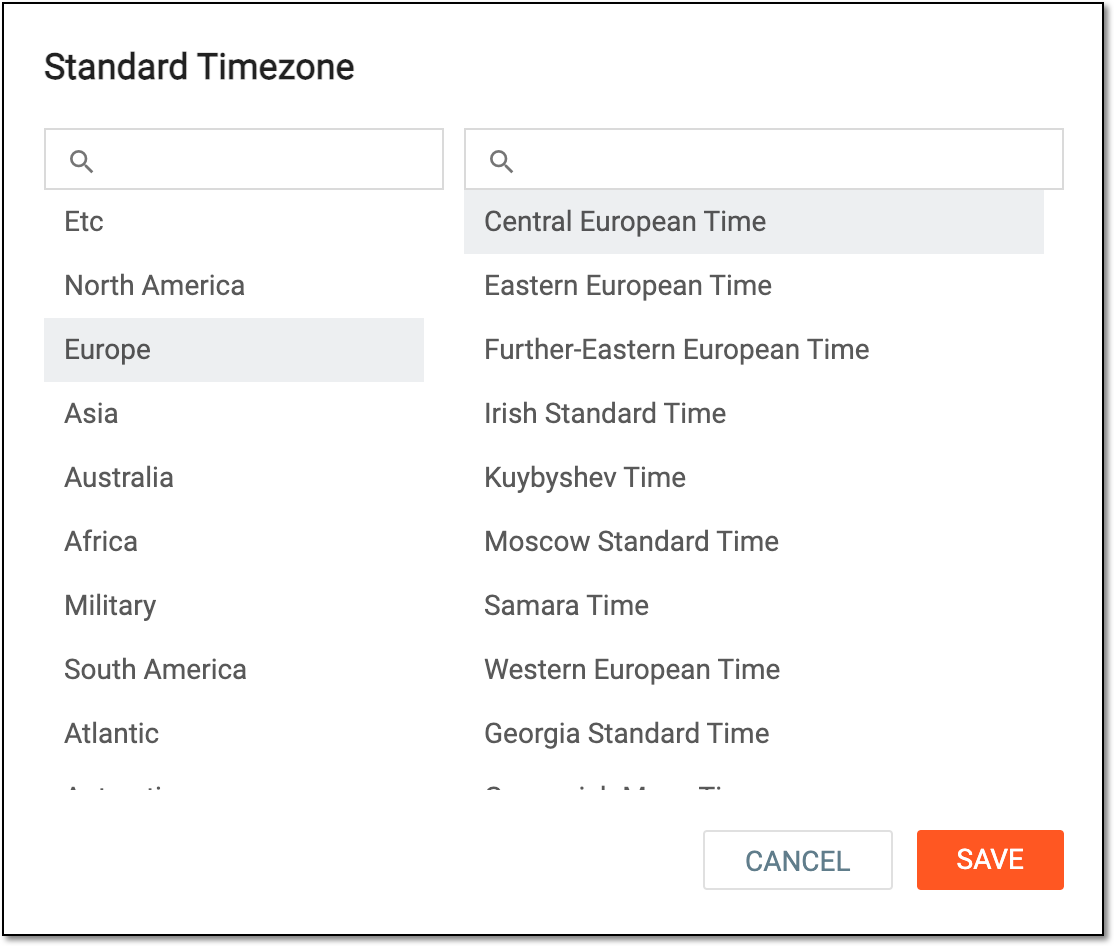 Figure 2. Selecting time zone
DST
Select the daylight saving time value. If the Standard Timezone Name selection is made, the DST value populates automatically based on the selected time zone.
Date Format
Select the preferred date format presentation:
-
MM/dd/yyyy
-
yyyy-MM-dd
-
YYYY/MM/dd
-
dd-MMM-yyyy
-
dd-MM-yyyy
Language
Select the preferred language of the eTMF UI and the following data records:
-
Operation history records, specifically, system-generated comments
-
Audit trail records, specifically, system-generated comments
-
Document lifecycle records
-
Exported data file elements, such as column names in Excel files, extracted system-generated records, and so on
-
Preset data in the app
System Version
View the current version of the system.
2-Factor Authentication
Select the link to configure the preferred two-factor authentication method for your account.
SAVE
Select
to save the implemented changes.CANCEL
Select
 to dismiss the changes without saving.
 -
Once saved, your preference are implemented for the eTMF app.