Create attribute template
In the CTMS library, you can define custom attributes that can be used across studies in CTMS to capture and manage various entities. These attributes—such as status, owner, priority, or custom dates—help support better tracking, organization, and reporting for various study components, including activities, milestones, and other operational elements.
-
In the CTMS application header, select the LIBRARY tab.
-
On the page that opens, from the left pane, select Attribute Template.
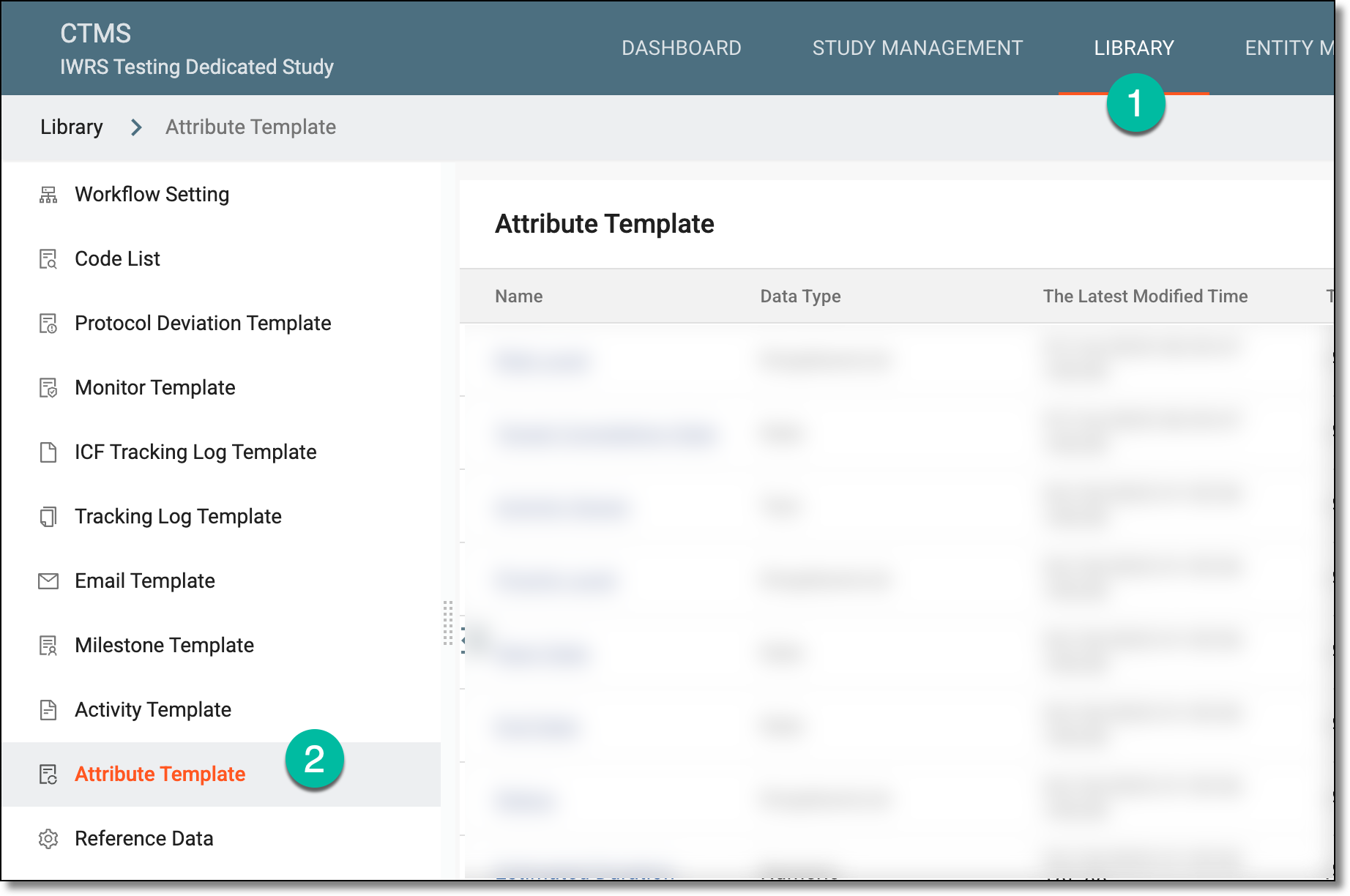 Figure 1. Accessing attribute template subtab
-
On the Attribute Template List page that opens, from the workspace toolbar, select New Item
 .
.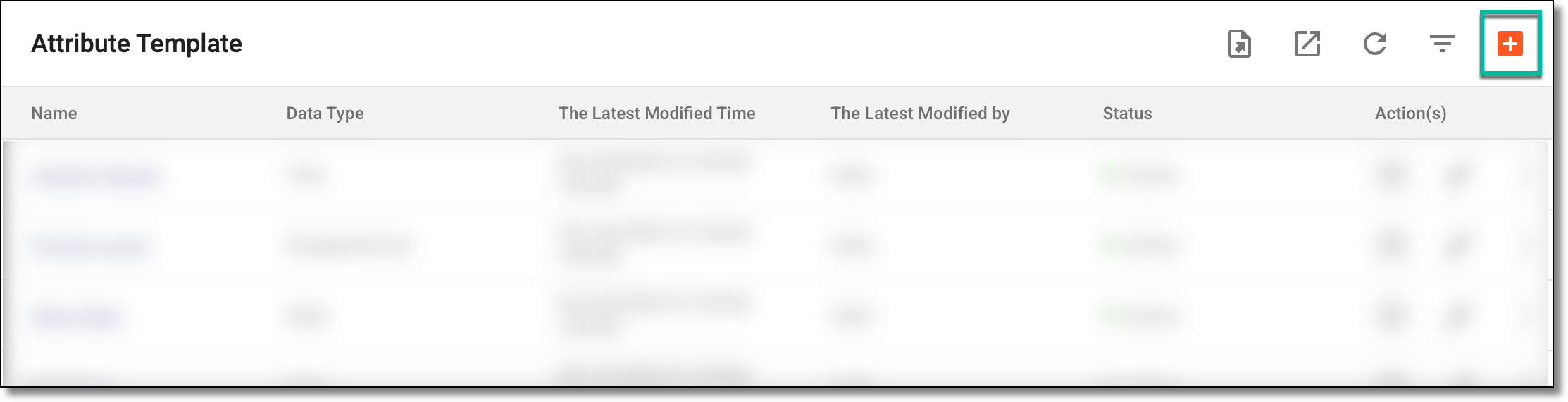 Figure 2. Selecting to create new attribute template
-
On the page that opens, select
 to start adding new template or templates as explained in the following table.
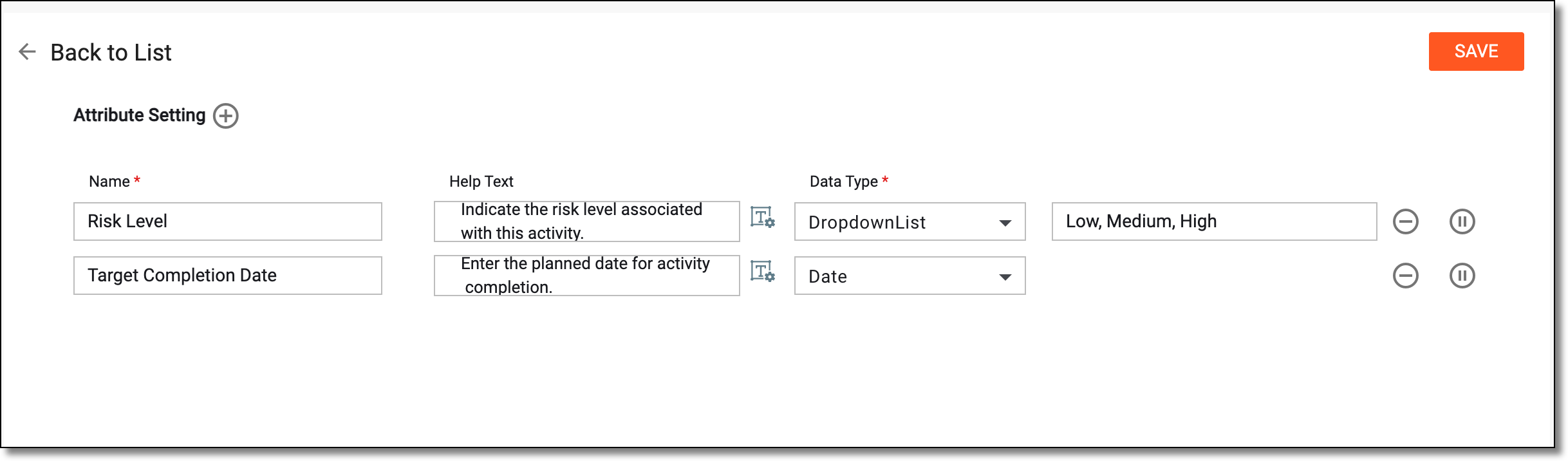 Figure 3. Creating attribute templates
Tip
In the following table, mandatory elements are marked with an asterisk (*).
Element
Details
Name*
Enter the name of the attribute.
Help Text
Select to open the editor where you can enter additional information, instructions, or clarification about the attribute template. Then select SAVE.
You can also select Rich Text
 to open the text editor where you can format the text with a variety of styling
options. The rich text editor provides a wide range of formatting capabilities such as adding bulleted or numbered lists, making a text bold or italicized, and more.
to open the text editor where you can format the text with a variety of styling
options. The rich text editor provides a wide range of formatting capabilities such as adding bulleted or numbered lists, making a text bold or italicized, and more.Data Type*
Define the format of the data input. This can be Text, Numeric, Date, and DropdownList. If you select DropdownList, then an additional field appears where you can enter the list of values, separated by commas, that will populate the dropdown.
Remove
Select
 to remove an added attribute template entry.
You can select to add as many entries as you want to efficiently create multiple
attribute templates at once.Activate/Inactivate
Select
 or
or  next to an added attribute template to activate or inactivate it.
Inactivation may be required when you currently do not need some attribute templates but want to be prepared for future requirements while keeping the active list focused and manageable.
SAVE
Select
 to add the attribute template or templates.
Back to List
Select
 to go back to the attribute templates after saving your changes. If you select it without saving, then no changes are saved.
Once saved, the attribute templates are created.